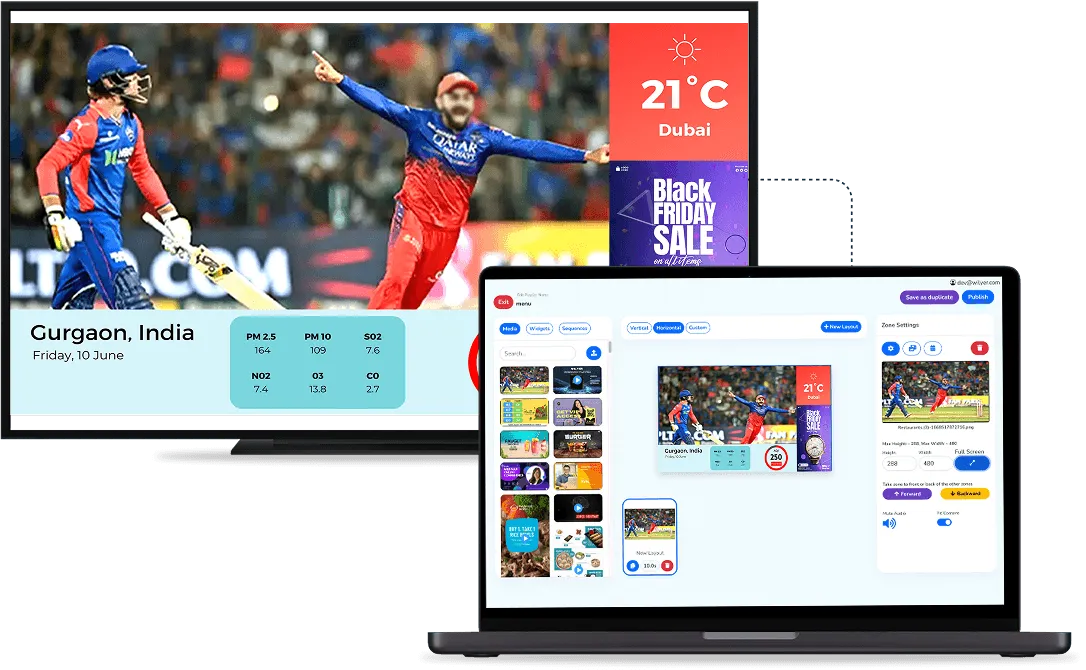

مقدمة
سواء كنت تدير مكتبًا للشركة يعمل عبر عدة مناطق زمنية، أو بهو فندق يستقبل زوارًا دوليين، أو لوحة عرض في مطار، أو متجر تجزئة، فإن إضافة أداة الساعة الرقمية إلى شاشة اللافتات الرقمية لديك تجعل العرض أذكى وأكثر احترافية ومفيدًا لجمهورك على الفور.
تتضمن برمجيات اللافتات الرقمية من Wilyer ميزة تُسمى «Clock Widget» (أداة الساعة) تتيح للمستخدمين عرض ساعة واحدة أو أكثر، بما في ذلك الساعة العالمية التي تُظهر المناطق الزمنية الدولية، على شاشة اللافتات الرقمية نفسها. وفي هذا الدليل ستتعلم بالضبط كيفية استخدام هذه الميزة في دقائق معدودة.
لماذا تستخدم أداة الساعة على شاشة اللافتات لديك
لإضافة أداة الساعة إلى شاشة اللافتات الرقمية عدة مزايا:
- معرفة الوقت الفعلي: يستطيع زوارك وموظفوك وعملاؤك معرفة الوقت الحالي فورًا دون الحاجة إلى استخدام هواتفهم.
- عرض ساعة المكاتب العالمية: اعرض عدة ساعات لمناطق زمنية متعددة في آن واحد. وهذه الميزة مفيدة بوجه خاص للشركات ذات الفرق الدولية.
- عرض احترافي: وجود أداة ساعة على شاشة اللافتات الرقمية يُظهر لجمهورك أن العرض فعّال ومصان جيدًا.
- أداة ساعة متعددة المناطق الزمنية: نسّق جداول العمل بين عدة فرق دولية في الوقت نفسه.
- أداة الساعة الدولية: مثالية للاستخدام في المطارات والفنادق وقاعات التداول وبهوات الشركات وأي نشاط يخدم عملاء دوليين.
قبل أن تبدأ
تأكّد من توفر ما يلي:
- حساب Wilyer فعّال (سجّل عبر wilyer.com )
- شاشة لافتات رقمية مسجّلة في لوحة تحكم Wilyer لديك
- إلمام أساسي بواجهة Wilyer - لا حاجة إلى خبرة تقنية.
خطوة بخطوة: إضافة أداة ساعة رقمية
اتبع هذه الخطوات لإعداد أداة الساعة الرقمية ونشرها على شاشات اللافتات الرقمية لديك:
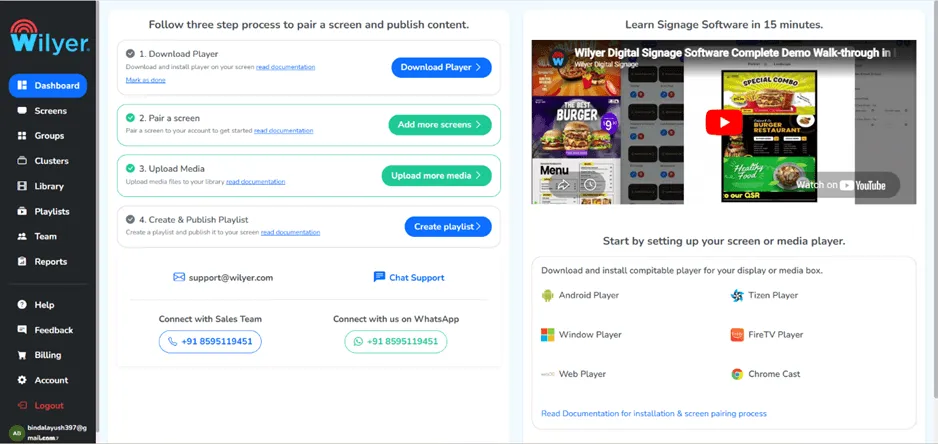
الخطوة 1: ادخل إلى لوحة تحكم Wilyer
أولًا، سجّل الدخول إلى حسابك في Wilyer وادخل إلى لوحة التحكم الرئيسية. وهي المنطقة المركزية في واجهة Wilyer حيث تتحكم في كل ما يتعلق بشاشات اللافتات الرقمية لديك وتصل إليه. وقد ترغب في تخصيص لحظة للتعرّف على قائمة التنقل في الجهة اليسرى، لأنك ستحتاج إليها طوال عملية الإعداد.
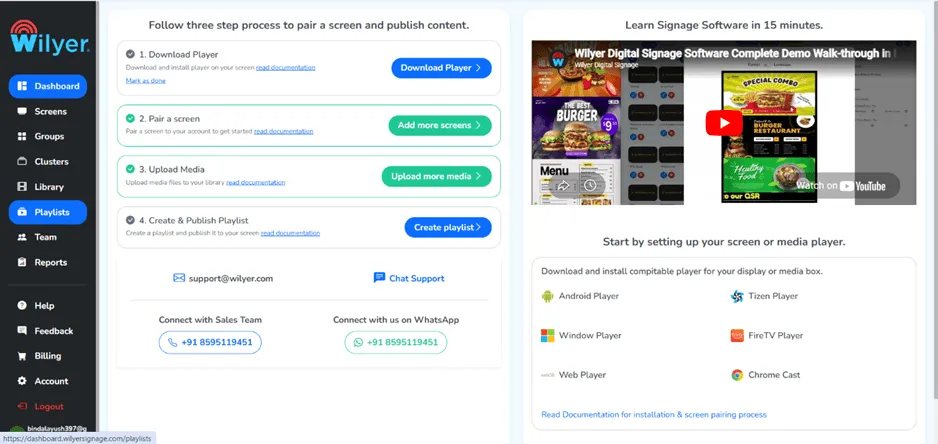
الخطوة 2: انتقل إلى قسم قوائم التشغيل
من قائمة التنقل في الجهة اليسرى، انقر على قسم «Playlist» (قائمة التشغيل). يمثّل هذا القسم جوهر Wilyer، إذ يتيح لك تجميع الأدوات ضمن قوائم تشغيل لعرضها بسلاسة على شاشاتك الرقمية. وستظهر جميع القوائم التي تنشئها في هذا القسم.
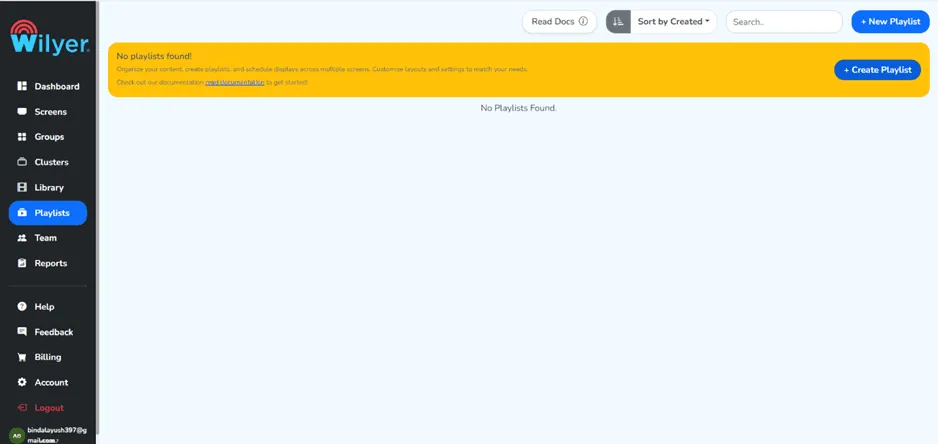
الخطوة 3: انقر على زر «+ Create Playlist»
داخل قسم قوائم التشغيل، انقر على زر «+ Create Playlist» (إنشاء قائمة تشغيل) لبدء بناء قائمتك. ستحتوي هذه القائمة على أداة الساعة وأي محتوى آخر ترغب في عرضه على شاشات اللافتات الرقمية لديك.
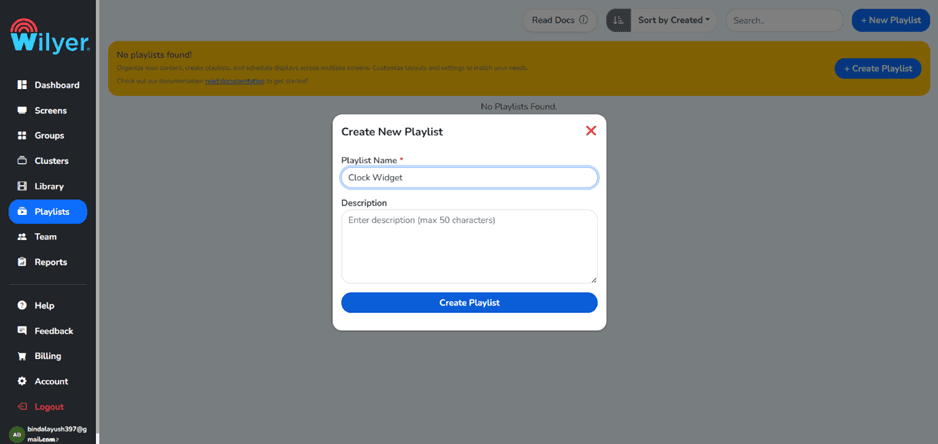
الخطوة 4: أدخل البيانات المطلوبة وأنشئ قوائم التشغيل
سيظهر نموذج يطلب منك معلومات قائمة التشغيل. أدخل اسمًا وصفيًا وسهل الفهم، مثل «ساعة المكتب» أو «شاشة الساعة العالمية»، ثم املأ بقية الحقول.
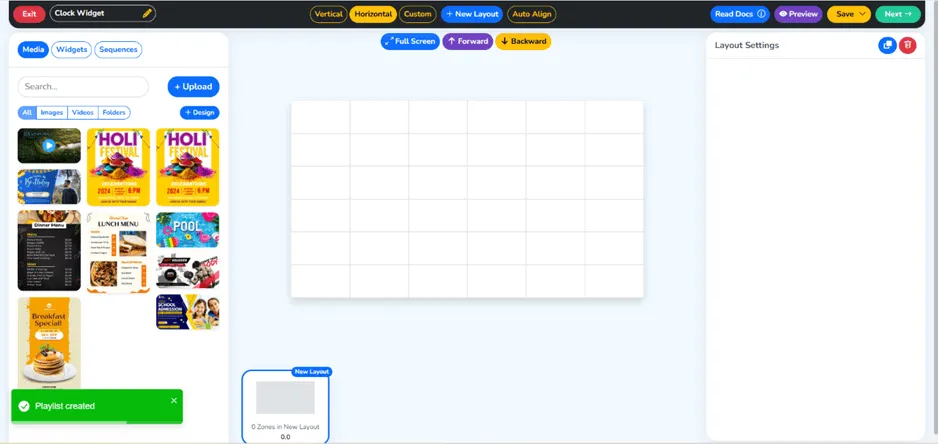
الخطوة 5: تم إنشاء قائمة التشغيل
بعد ملء النموذج، سترى قائمة التشغيل معروضة في قسم قوائم التشغيل، ما يؤكد أنك أنشأتها بنجاح.
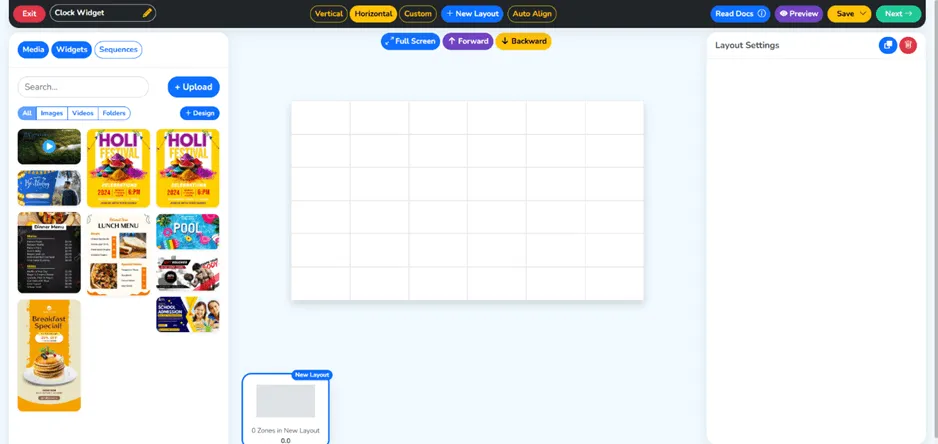
الخطوة 6: انتقل إلى قسم الأدوات
من قائمة التنقل اليسرى، انتقل إلى قسم الأدوات. يضم هذا القسم جميع أدوات المحتوى التي تقدّمها Wilyer، بما في ذلك أداة شريط الأخبار وأدوات وسائل التواصل الاجتماعي وأداة الطقس وأداة الساعة. استكشف الأدوات المختلفة التي يمكنك عرضها على شاشاتك الرقمية إلى جانب الساعة.
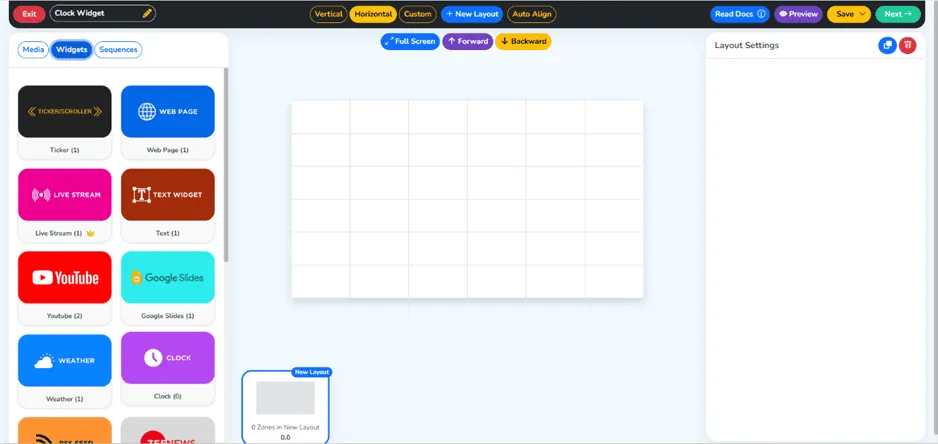
الخطوة 7: انقر على أداة الساعة
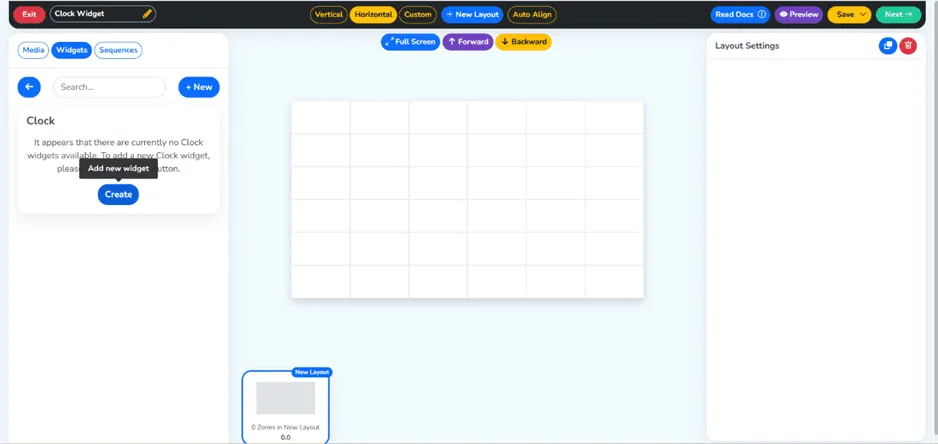
الخطوة التالية هي النقر على أداة الساعة داخل قسم الأدوات. وهي أداة متعددة الاستخدامات لأنها تستطيع عرض تنسيقات مختلفة للساعة، ما يجعلها صالحة لسيناريوهات متنوعة، من عرض ساعة محلية إلى أداة ساعة دولية تعرض عدة مناطق زمنية في آن واحد على شاشة واحدة للجمهور العالمي.
الخطوة 8: أنشئ أداة جديدة
بعد اختيار أداة الساعة، انقر على خيار إنشاء أداة جديدة. سيمنحك ذلك الوصول إلى إعدادات الأداة، حيث يمكنك تخصيص ساعتك بالكامل وفق متطلباتك.
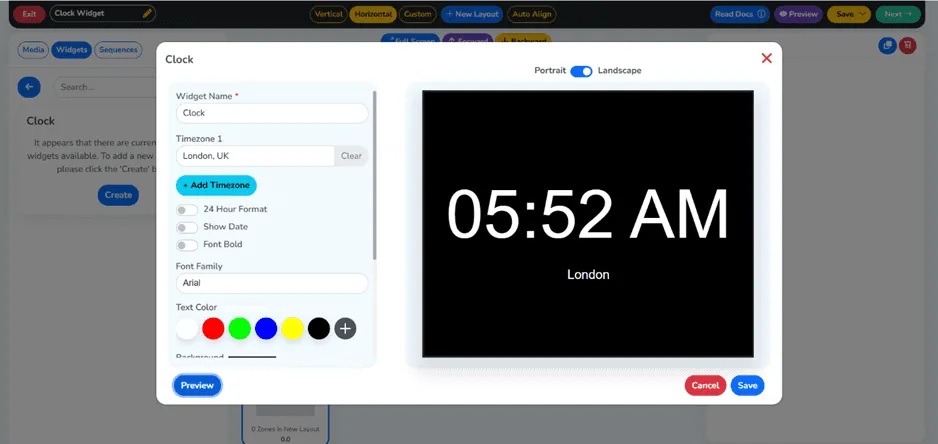
الخطوة 9: أدخل البيانات المطلوبة وانقر على زر Save
الخطوة التالية هي إدخال متطلباتك في الحقول المتاحة لإنشاء أداة الساعة. فيمكنك مثلًا اختيار المنطقة الزمنية المفضلة لأداة ساعة ذات منطقة زمنية واحدة، والاختيار بين تنسيق 12 ساعة و24 ساعة، وتخصيص شكل الساعة. وبعد إدخال متطلباتك، انقر على زر «Save» (حفظ).
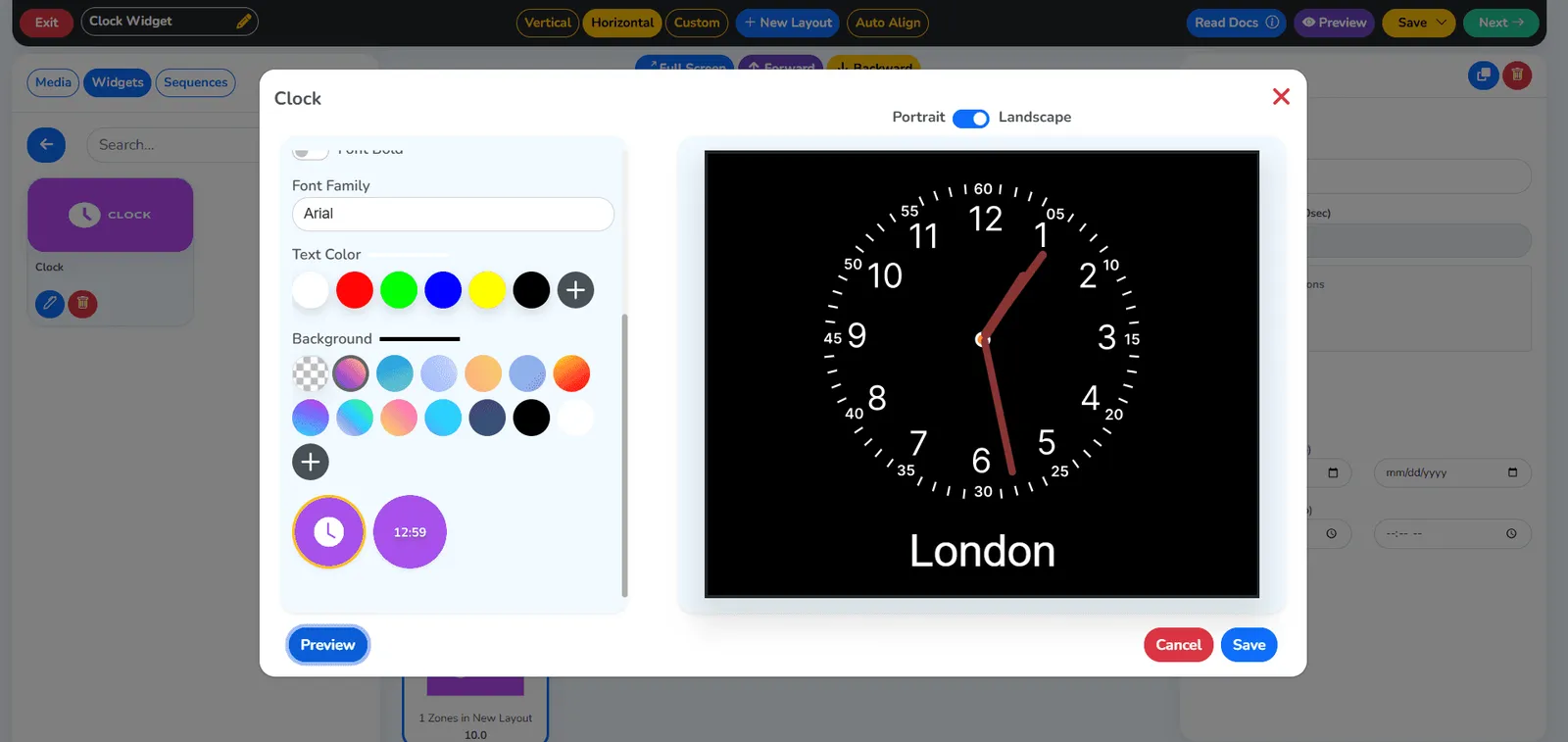
اختر شكل الساعة المفضل بحسب احتياجات العرض لديك. استخدم ساعة عقارب لمظهر بصري كلاسيكي، أو ساعة رقمية لقراءة دقيقة للوقت. وكلا الخيارين يثري لافتاتك بتقديم معلومات واضحة وفورية بتنسيق احترافي.
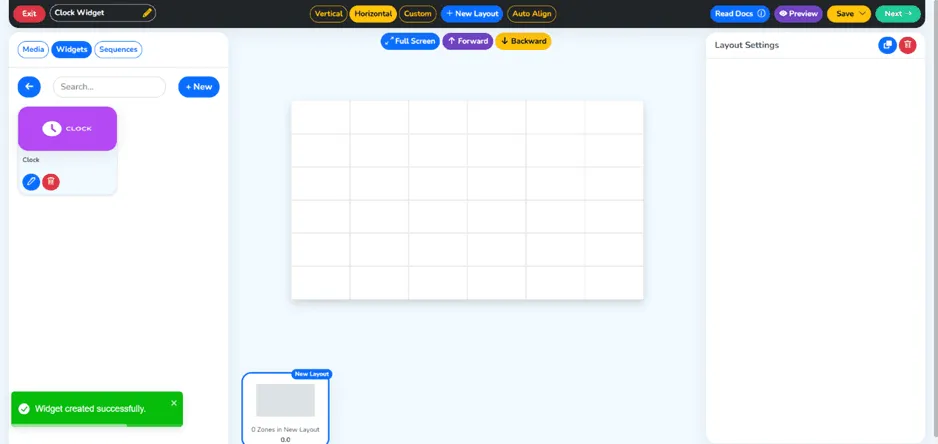
الخطوة 10: تم إنشاء أداتك بنجاح
بعد إدخال متطلباتك في الحقول المتاحة، ستظهر رسالة تفيد بأن أداة الساعة أُنشئت بنجاح. ويمكنك إنشاء أدوات ساعة إضافية لمناطق زمنية أو أنماط عرض مختلفة وإضافتها إلى قائمة التشغيل نفسها أو إلى قوائم أخرى.
الخطوة 11: اسحب أداة الساعة وأفلتها في قائمة التشغيل
بعد ذلك، عد إلى قائمة التشغيل وأضف أداة الساعة بسحبها من مكتبة الأدوات وإفلاتها داخل القائمة. ويمكنك تحريك الأداة ضمن القائمة ووضعها إلى جانب عناصر محتوى أخرى لتكوين شاشة اللافتات الرقمية المتكاملة.
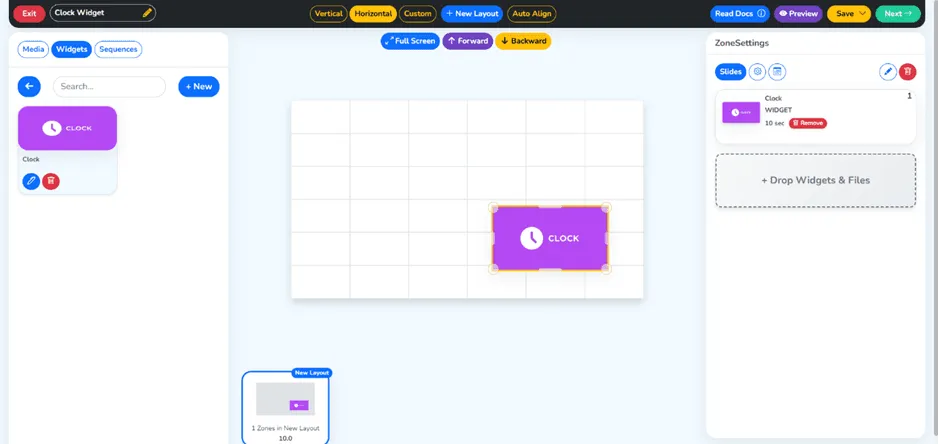
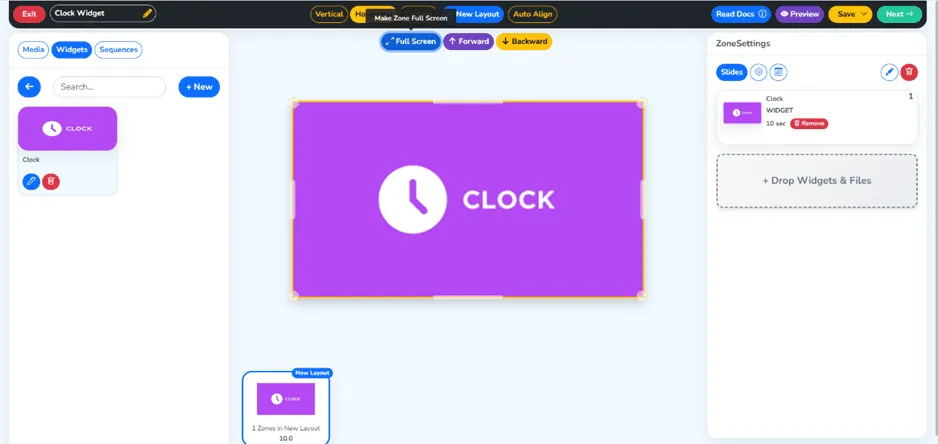
الخطوة 12: انقر على ملء الشاشة ثم على زر «Next» الأخضر في أعلى اليمين
بعد إنشاء قائمة التشغيل، انقر على زر معاينة ملء الشاشة لترى بالضبط كيف ستظهر أداة الساعة على شاشة اللافتات الرقمية. وخذ وقتك في مراجعة عرض الأداة من حيث حجم وجه الساعة وطريقة عرض الوقت وتسميات المناطق الزمنية والمظهر العام. وبعد ذلك، انقر على زر «Next» (التالي) في الزاوية العلوية من الشاشة.
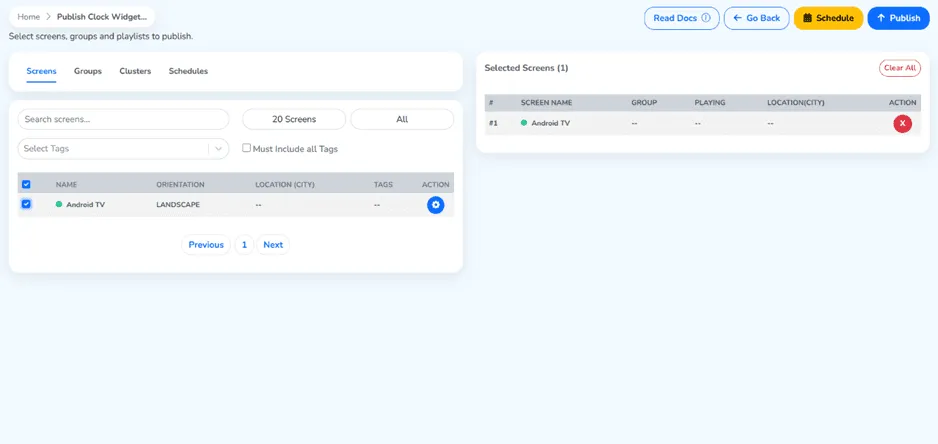
الخطوة 13: حدّد شاشتك وانقر على زر Publish
في هذه المرحلة سيُطلب منك اختيار شاشة اللافتات الرقمية التي تريد نشر قائمة تشغيل الساعة عليها. ويتم ذلك باختيار الشاشة المطلوبة من قائمة الشاشات المسجّلة في حسابك على Wilyer. وبعد التأكد من أن الشاشة المختارة هي الصحيحة، انقر على زر «Publish» (نشر) لنشر القائمة.
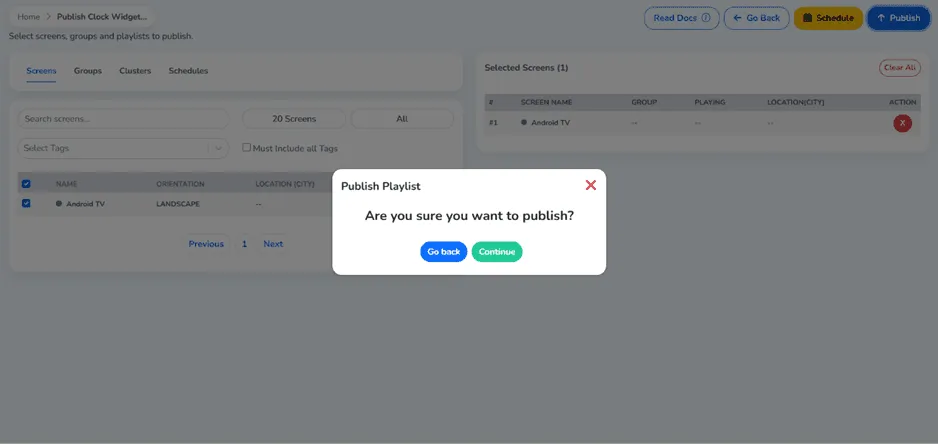
الخطوة 14: انقر على زر «Continue» ثم على زر «Publish» الأزرق
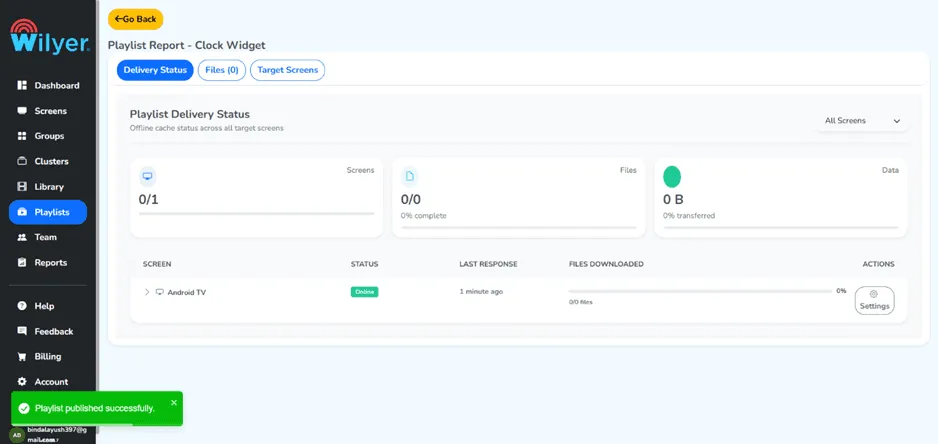
في هذه المرحلة سيظهر تنبيه يؤكد قرار نشر قائمة التشغيل على شاشة اللافتات الرقمية المختارة. وبعد التحقق من التفاصيل، انقر على زر «Continue» (متابعة) لنشر قائمة تشغيل الساعة بنجاح على تلك الشاشة.
الخطوة 15: تم نشر قائمة التشغيل بنجاح
تهانينا، لقد نُشرت قائمة تشغيل الساعة بنجاح على شاشة اللافتات الرقمية. وأداة الساعة تعمل الآن مباشرة على الشاشة وتُحدَّث باستمرار. ويمكنك عرض ساعة بسيطة على شاشتك، أو عرض التوقيت في أنحاء مختلفة من العالم، أو إنشاء ساعة مكتب تُعرض على شاشة لافتات رقمية أخرى.
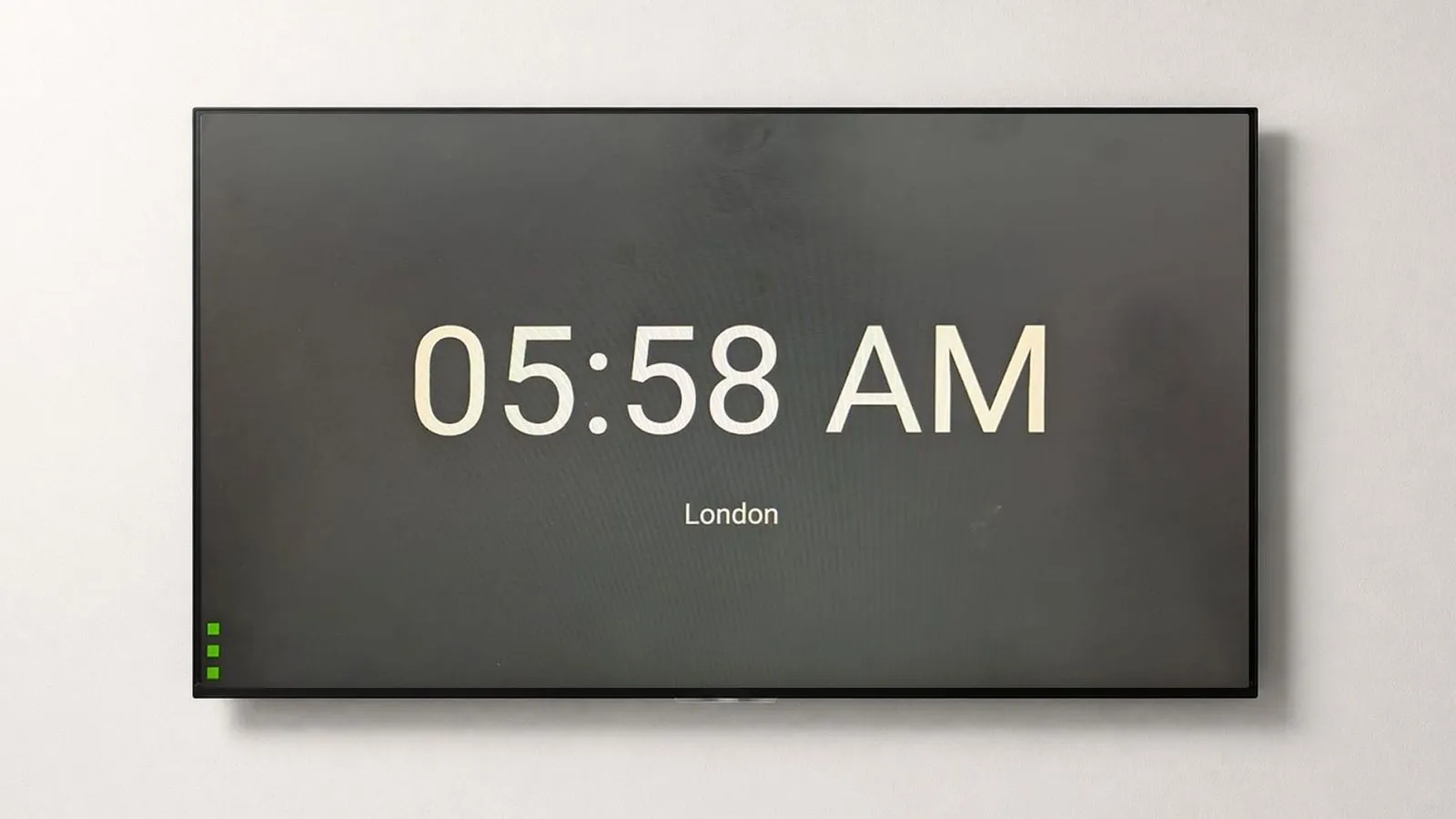
الخطوة الأخيرة: أداة الساعة تعمل مباشرة على شاشتك
هنا ترى كيف ستبدو شاشة اللافتات الرقمية لديك وأداة الساعة تعمل مباشرة. وسواء اخترت ساعة واحدة لجمهور محلي أو ساعة عالمية لجمهور دولي، ستعرض شاشتك الآن معلومات الوقت المباشرة بتنسيق نظيف واحترافي.
الخلاصة
أصبحت إضافة ساعة رقمية إلى شاشة اللافتات الرقمية أسهل من أي وقت مضى. فبأداة الساعة للافتات الرقمية يمكنك إضافة ساعة إلى شاشتك في دقائق معدودة، دون الحاجة إلى أي معرفة تقنية.
وسواء أردت عرض ساعة واحدة لجمهور محلي، أو ساعة عالمية لجمهور دولي، أو حتى أداة ساعة متعددة المناطق الزمنية لجمهور عالمي، فإن Wilyer توفّر لك ذلك.