مقدمة
في عالم اليوم السريع، صار إبقاء جمهورك مطّلعًا في الوقت الفعلي أهم من أي وقت مضى. وسواء كان ذلك في بهو شركة أو غرفة انتظار في مستشفى أو ممر مدرسة أو متجر تجزئة، فلا شيء أكثر فاعلية من عناوين الأخبار المباشرة على شاشاتك لجذب انتباه المشاهدين وتقديم قيمة لهم.
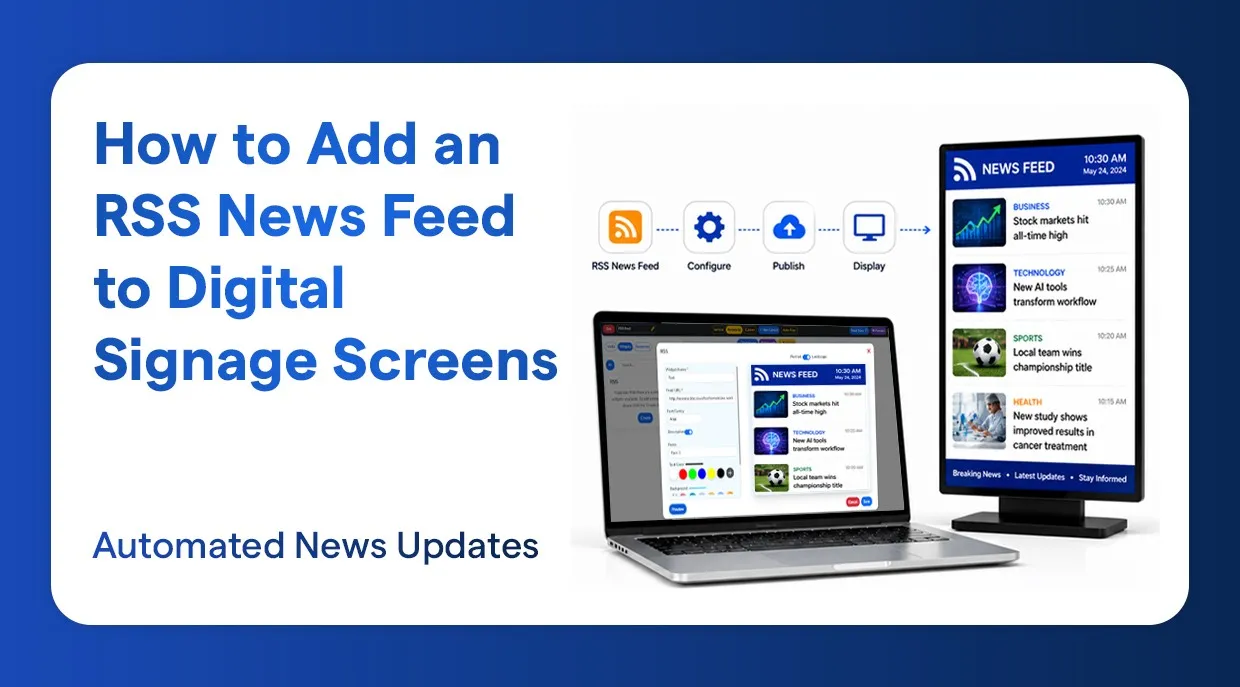
تتيح لك خلاصة RSS (النشر البسيط جدًا) جلب محتوى مباشر ذاتي التحديث من الناشرين الإخباريين إلى شاشات اللافتات الرقمية لديك مباشرة، دون الحاجة إلى تحديثات يدوية. وسيأخذك هذا الدليل عبر الإجراء الكامل لإنشاء أداة خلاصة أخبار RSS ونشرها على شاشات اللافتات الرقمية باستخدام نظام إدارة محتوى للافتات.
لماذا تستخدم خلاصات RSS على لافتاتك الرقمية
لاستخدام خلاصة أخبار RSS مباشرة على شاشات اللافتات الرقمية عدة مزايا:
- تحديثات تلقائية للمحتوى - لا حاجة إلى تحديثه أو تغييره يدويًا.
- عناوين الأخبار الفورية تبقي جمهورك مطّلعًا على الدوام.
- مظهر احترافي - تبدو الأشرطة المباشرة والأخبار المتحركة أنيقة وحيوية.
- زيادة مدة البقاء - المحتوى الإخباري الجذاب يجعل الناس يشاهدون لوقت أطول
- إعداد سهل عبر نظام إدارة محتوى يدعم أداة RSS - دون الحاجة إلى خبرة تقنية.
ما تحتاجه قبل البدء
قبل بدء إعداد اللافتات الرقمية بخلاصة RSS، جهّز ما يلي:
- الوصول إلى نظام إدارة محتوى للافتات الرقمية يدعم أدوات RSS.
- رابط صالح لخلاصة RSS من مصدر إخباري تختاره (مثل BBC أو CNN)
- شاشة أو أكثر من شاشات اللافتات الرقمية العاملة والمتصلة بنظامك.
- اسم المستخدم وكلمة المرور لحسابك في منصة اللافتات الرقمية.
خطوة بخطوة: كيف تضيف خلاصة أخبار RSS إلى اللافتات الرقمية
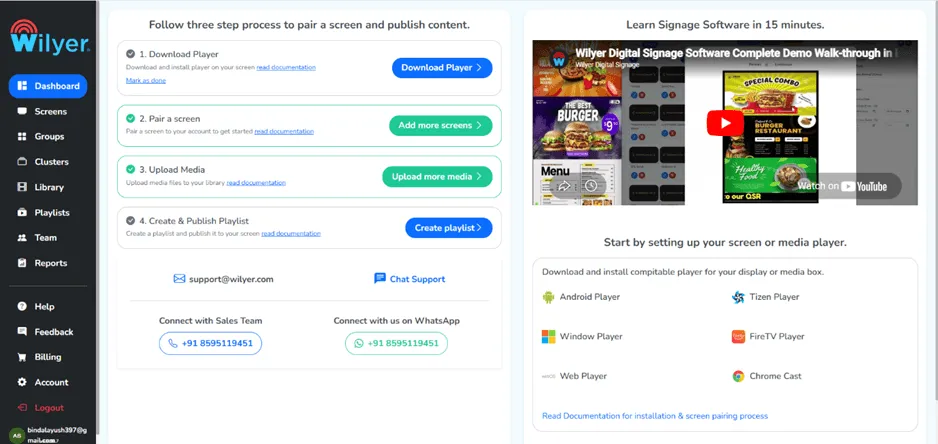
الخطوة 1: انتقل إلى قسم لوحة التحكم
سجّل الدخول إلى نظام إدارة المحتوى للافتات الرقمية لديك وانتقل إلى لوحة التحكم الرئيسية. لوحة التحكم هي منصتك الأساسية للتحكم في الشاشات وقوائم التشغيل والأدوات وغيرها. ومن هنا يبدأ كل شيء عند إعداد شاشات أخبار RSS المباشرة.
الخطوة 2: انتقل إلى قسم قوائم التشغيل
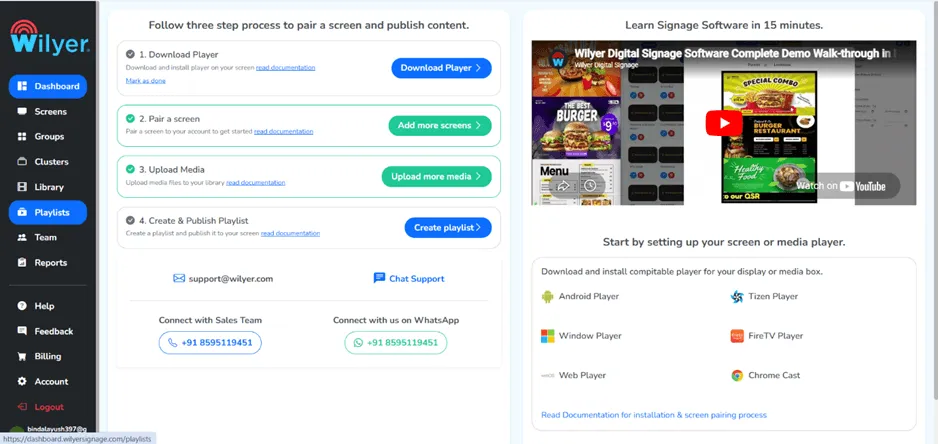
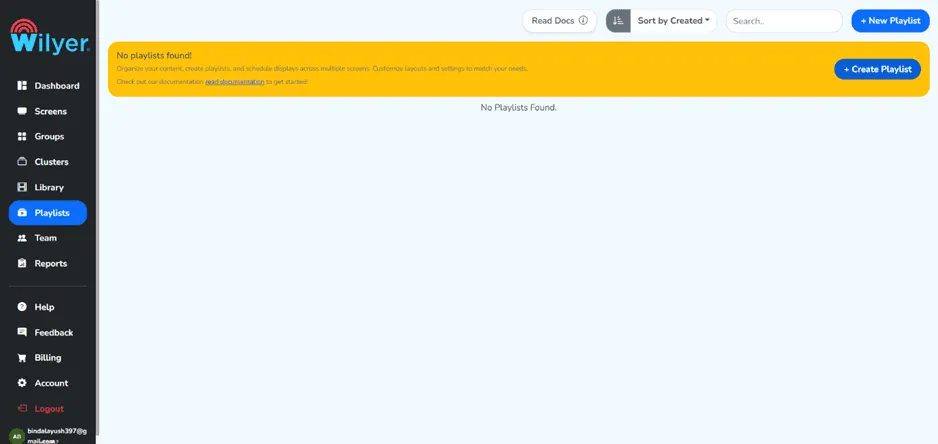
في لوحة التحكم، ابحث عن زر «Playlist» (قائمة التشغيل) في الشريط الجانبي الأيسر أو في قائمة التنقل واضغط عليه. قوائم التشغيل هي مجموعات من المواد على شكل شرائح وصور ومقاطع فيديو وأدوات، تُجدوَل وتُعرَض على شاشاتك.
الخطوة 3: اضغط زر «+ Create Playlist»
داخل قسم قوائم التشغيل يوجد زر مكتوب عليه «+ Create Playlist» (إنشاء قائمة تشغيل) يتيح لك إنشاء قائمة جديدة. وستحتاج إلى قائمة مخصصة تحفظ فيها أداة خلاصة أخبار RSS ثم تنشرها على شاشتك.
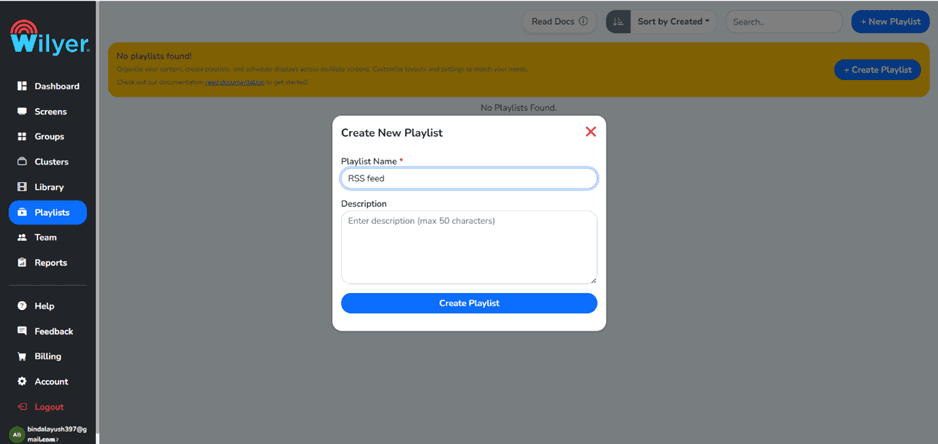
الخطوة 4: أدخل بياناتك وانقر على «Create Playlist».
سيظهر نموذج يُطلب منك فيه تسمية قائمة التشغيل وإدخال تفاصيل أخرى ذات صلة. اكتب اسمًا وصفيًا - مثل «خلاصة أخبار RSS» أو «العناوين المباشرة» - واملأ الحقول اللازمة. بعد ذلك، أكّد الإنشاء بالنقر على زر «Create Playlist».
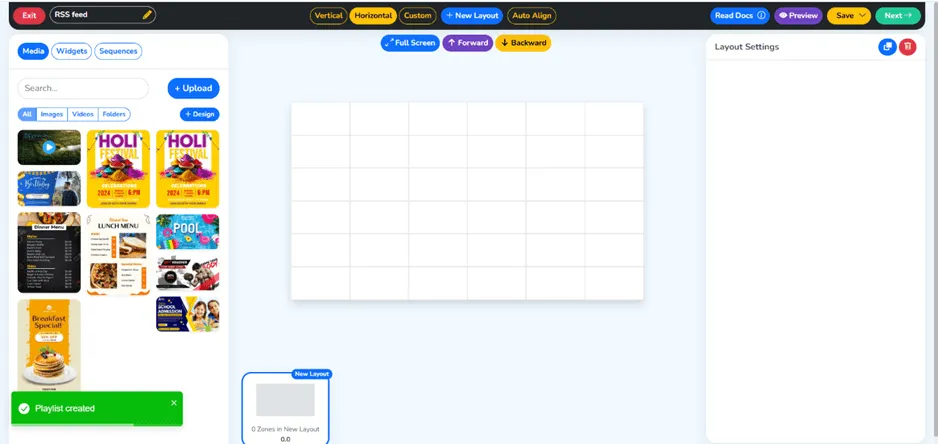
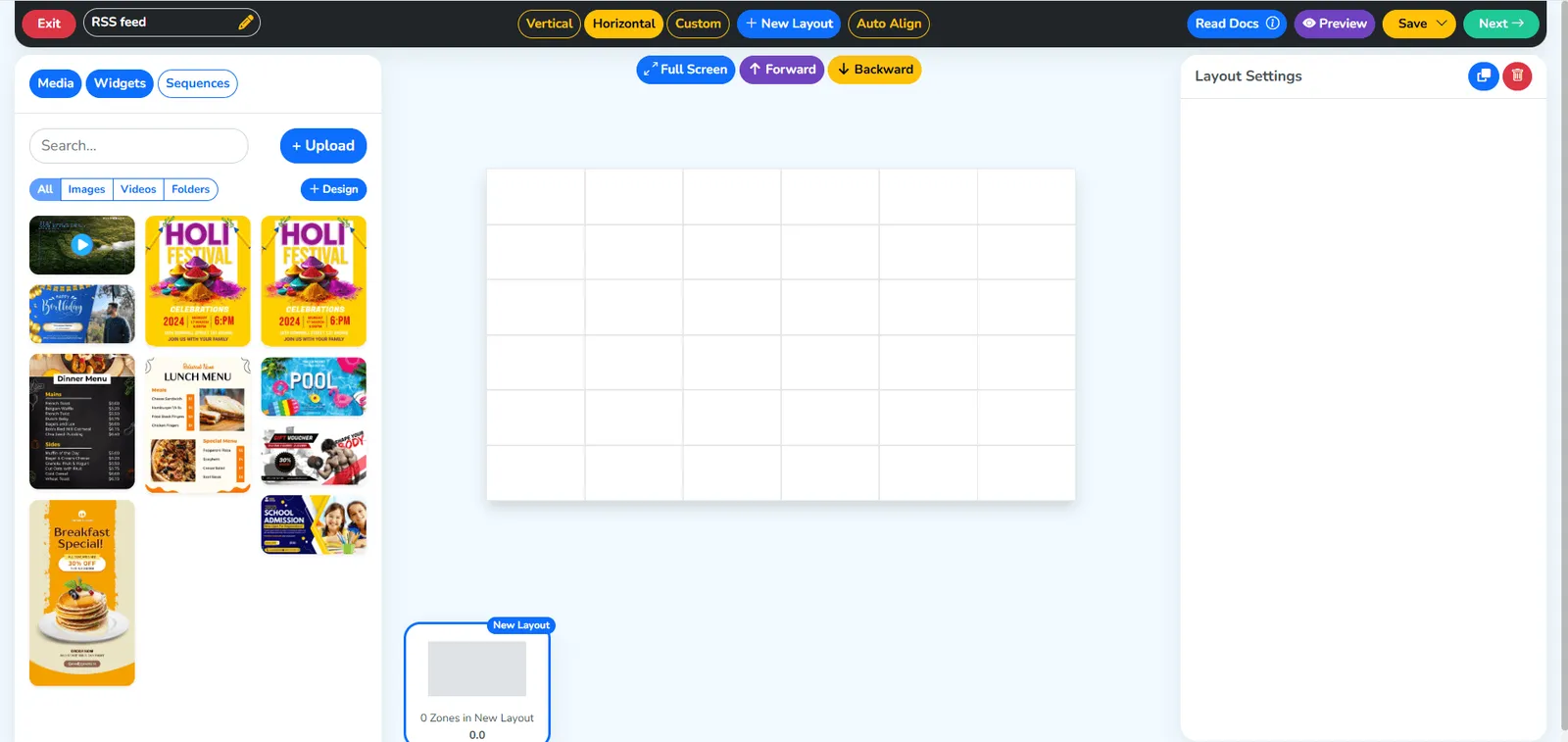
الخطوة 5: تم إنشاء قائمة التشغيل
ستصلك رسالة تؤكد إنشاء قائمة التشغيل، وقد أُضيفت إلى قائمة قوائمك. وستكون أداة خلاصة RSS للافتات الرقمية ضمن هذه القائمة.
الخطوة 6: انتقل إلى قسم الأدوات
أنت الآن في قسم الأدوات. يمكن إضافة الأدوات إلى قوائم التشغيل، وهي كتل محتوى تفاعلية وديناميكية. وهنا تجد أداة خلاصة RSS التي تُعدّ بها خلاصة الأخبار على لافتاتك الرقمية.
الخطوة 7: انقر على أداة خلاصة RSS
تصفّح قائمة الأدوات المتاحة وابحث عن أداة خلاصة RSS. وستجد عليها زر إعدادات الأداة. وهي أداة أُنشئت خصيصًا لجلب محتوى أخبار RSS المباشر إلى شاشاتك.
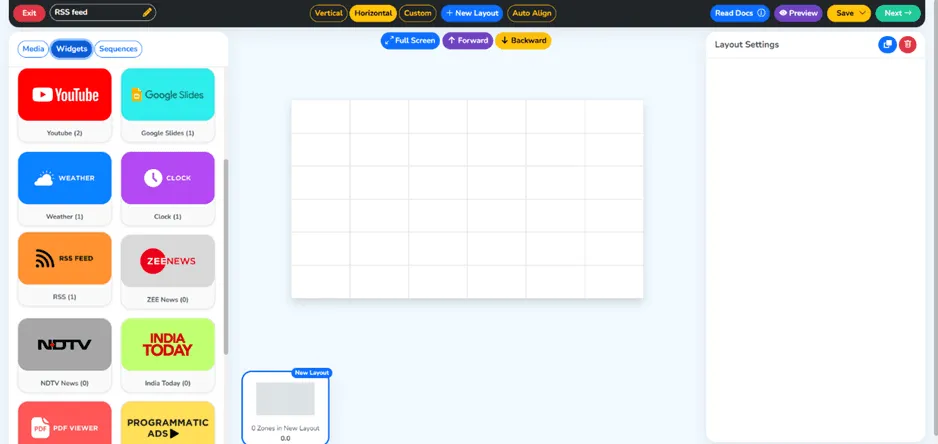
الخطوة 8: أنشئ أداة جديدة
اختر خيار إنشاء أداة جديدة. سيفتح ذلك نموذج إعداد يمكنك من خلاله تخصيص أداة RSS ضمن نظام إدارة المحتوى للافتات الرقمية لديك، وسيُطلب منك إدخال رابط خلاصة RSS وخيارات العرض الأخرى.
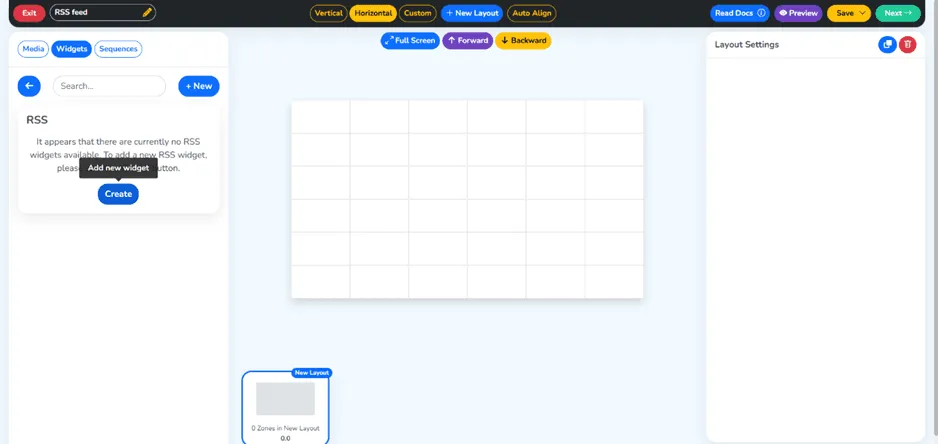
الخطوة 9: أدخل البيانات المطلوبة وانقر على «Save»
أدخل التفاصيل اللازمة مثل رابط خلاصة RSS (مثل خلاصة أخبار BBC)، وخيارات العرض كسرعة التمرير وعرض العناوين وحجم النص وأي خيارات أخرى تتيحها الأداة. وبعد ملء جميع الحقول، اضغط زر «Save» (حفظ) لحفظ إعدادات أداة RSS.
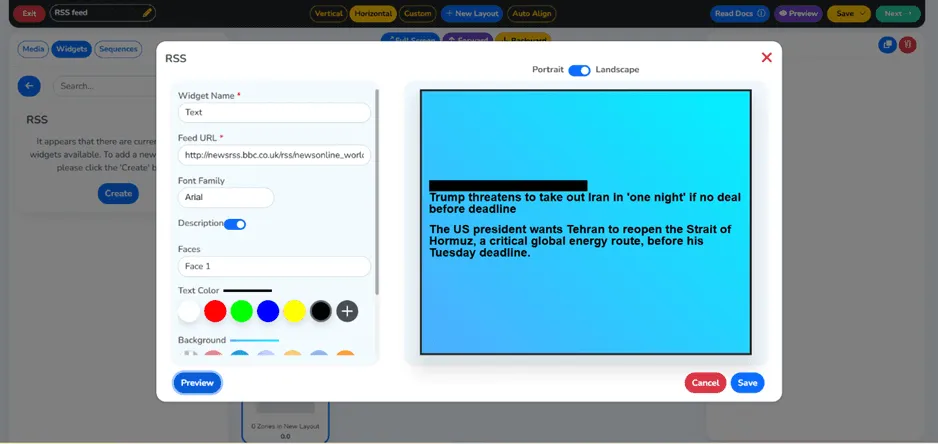
تأكّد من أن رابط خلاصة RSS متاح للعموم. ويمكنك اختباره بلصقه في المتصفح: فإذا فتح صفحة XML تتضمن مدخلات إخبارية، فهذا يعني أنه يعمل بشكل صحيح.
الخطوة 10: تم إنشاء أداتك بنجاح
سترى رسالة نجاح تؤكد إنشاء أداة خلاصة RSS. وقد حُفظت في مكتبة الأدوات لديك لاستخدامها في أي قائمة تشغيل. وهذه إحدى المحطات الرئيسية في إعداد لافتاتك الرقمية بخلاصة RSS.
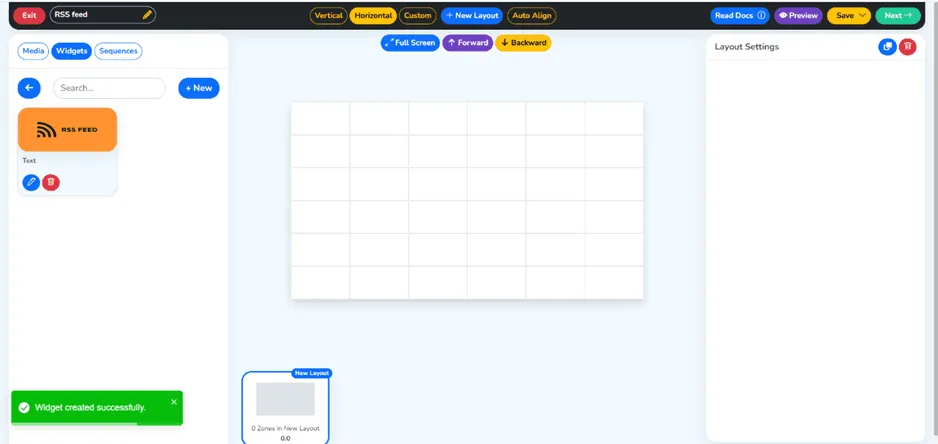
الخطوة 11: أداة خلاصة RSS: اسحب الأداة وأفلتها في قائمة التشغيل
عد إلى قائمة التشغيل وأفلت في المحرّر أداة خلاصة RSS التي أنشأتها للتو. ويمكنك وضعها في أي موضع ضمن تسلسل القائمة. وهذا ما يربط الأداة بدورة المحتوى على شاشة اللافتات لديك.
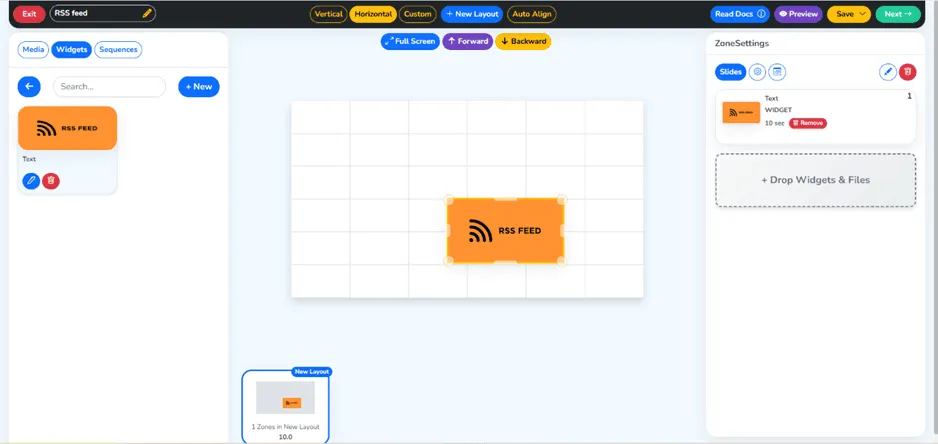
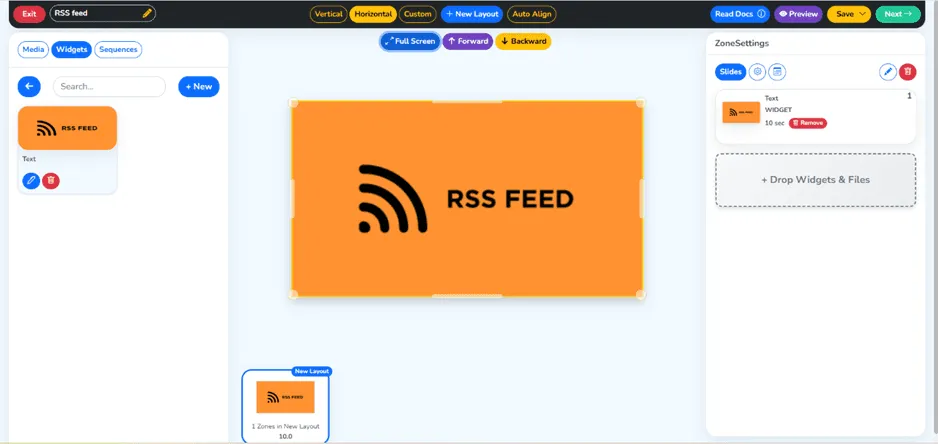
الخطوة 12: انقر على زر ملء الشاشة ثم على زر «Next» الأخضر
بعد إضافة الأداة إلى قائمة التشغيل، عاينها بالنقر على زر «Full screen» (ملء الشاشة) لتراها كما ستظهر على الشاشة. وعندما ترضى عن التخطيط والمظهر، سينقلك زر «Next» (التالي) الأخضر إلى صفحة النشر.
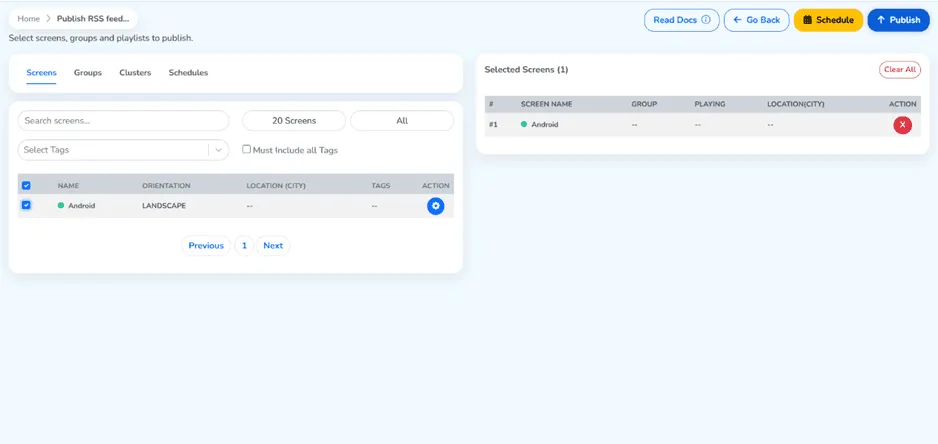
الخطوة 13: حدّد شاشتك وانقر على «Publish».
عند هذه النقطة ستُعرض عليك الشاشات التي يمكنك نشر قائمة التشغيل عليها. اختر الشاشة أو مجموعة الشاشات المستهدفة من القائمة. وبعد الاختيار، اضغط زر «Publish» (نشر) لبدء عملية نشر شاشة أخبار RSS المباشرة.
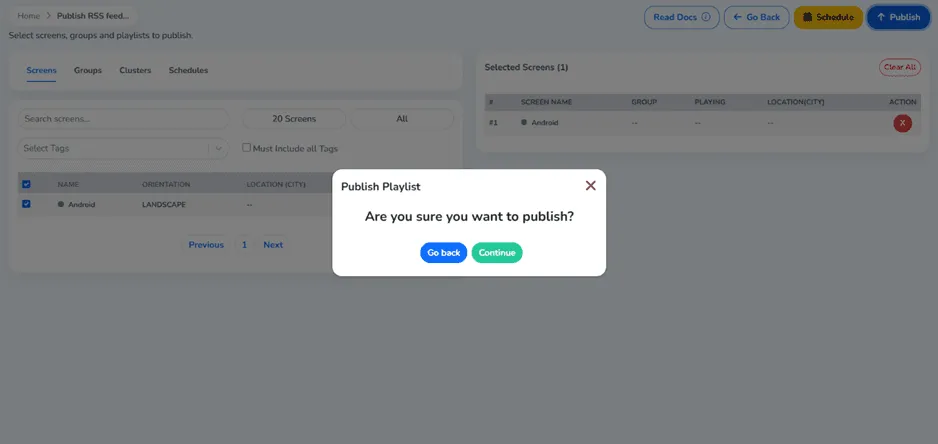
الخطوة 14: انقر على زر «Continue» الأخضر لنشر قائمة التشغيل
سيظهر مربع تأكيد. راجع تفاصيل النشر واضغط زر «Continue» (متابعة) الأخضر لإتمام النشر. وستُبثّ قائمة التشغيل التي تستخدمها حاليًا، بما فيها أداة خلاصة أخبار RSS، إلى شاشة اللافتات الرقمية لديك.
الخطوة 15: تم نشر قائمة التشغيل بنجاح
بعد نشر قائمة التشغيل ستصلك رسالة النجاح. لقد أضفت الآن أخبار RSS المباشرة إلى شاشة اللافتات الرقمية، وسيُحدَّث المحتوى تلقائيًا بإضافة العناوين من مصدر RSS.
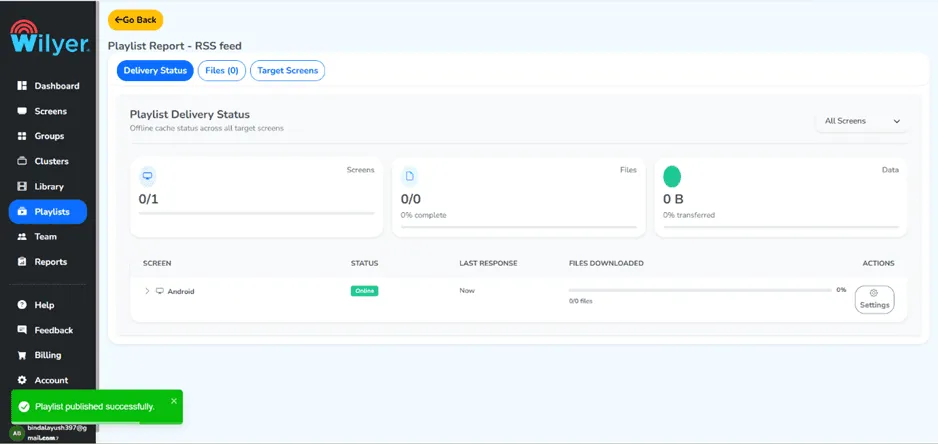
تهانينا! خلاصة الأخبار الخاصة بك تعمل الآن على شاشة اللافتات الرقمية. ولا تحتاج إلى أي تحديث يدوي، فهي تُحدَّث تلقائيًا.
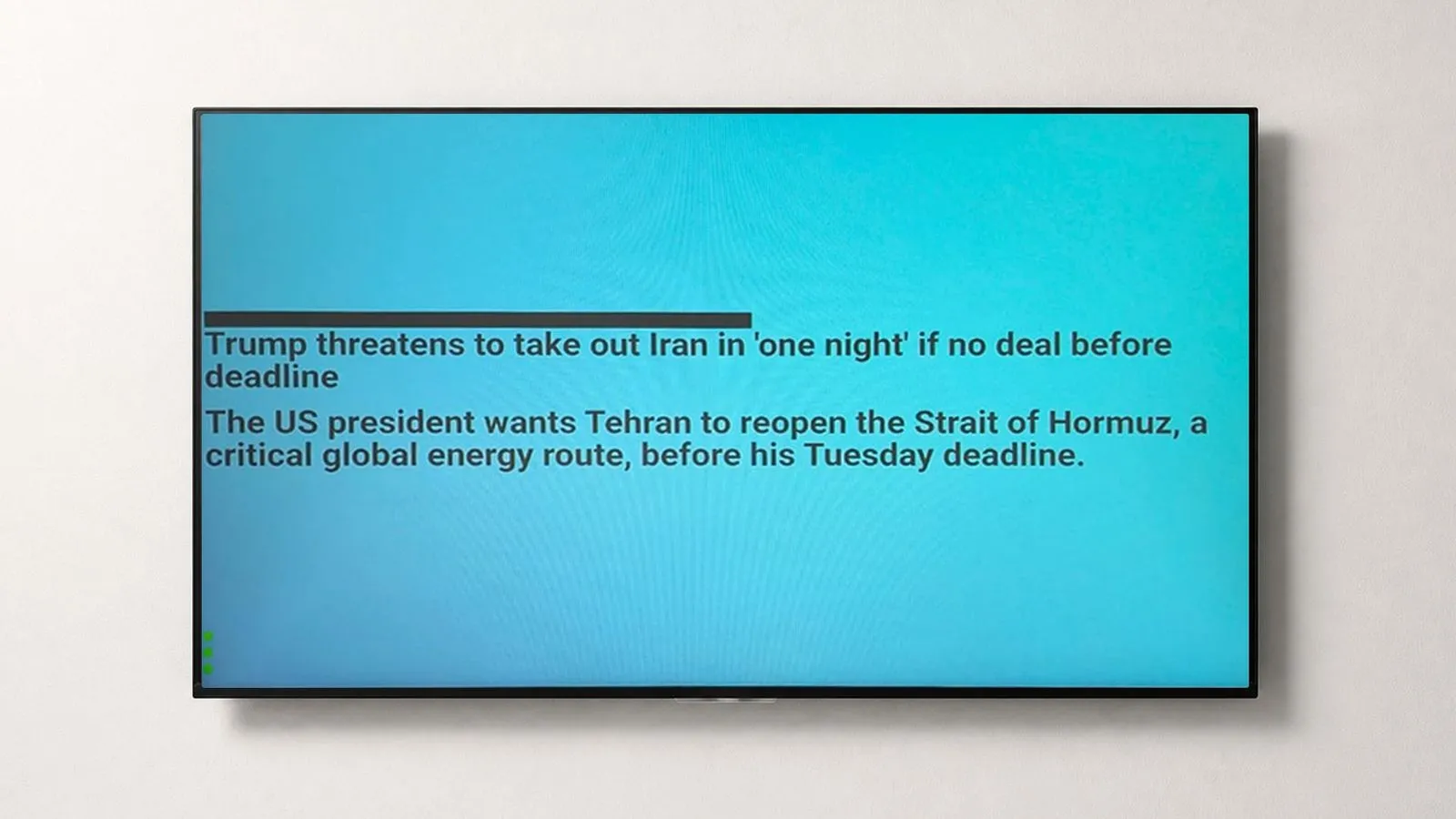
الخطوة الأخيرة: خلاصة أخبار RSS مباشرة على شاشتك
هكذا ستبدو شاشة اللافتات الرقمية لديك عندما تعمل خلاصة أخبار RSS بنجاح. فشريط العناوين المباشر ينساب بسلاسة، ما يعني أن بإمكانك تزويد جمهورك بأخبار محدّثة بطريقة مشوّقة واحترافية.
نصائح للحصول على أفضل النتائج مع اللافتات الرقمية وخلاصات RSS
- يمكنك الحصول على عناوين موثوقة ومحدّثة باستمرار بالاعتماد على مصادر RSS مرموقة مثل BBC News أو Associated Press أو Google News.
- عدّل سرعة تمرير أداة RSS بما يناسب موقع الشاشة - بطيئة في غرف الانتظار، وسريعة في الأماكن المزدحمة.
- اجمع خلاصة أخبار RSS مع محتوى آخر، مثل أدوات الطقس أو إعلانات الشركة أو الشرائح الترويجية، للحصول على قائمة تشغيل متوازنة.
- يمكنك استخدام خيارات الجدولة في نظامك لتشغيل قائمة RSS في ساعات محددة.
- تحقّق دوريًا من أن رابط خلاصة RSS لا يزال يعمل، فبعض المزوّدين يغيّرون روابط خلاصاتهم.
الخلاصة
أكفأ طريقة لتقديم محتوى فوري يهمّ مشاهديك هي إعداد خلاصة أخبار RSS على شاشات اللافتات الرقمية دون أي جهد إضافي بعد ذلك. ومن خلال الخطوات المقترحة في هذا الدليل - إنشاء قائمة تشغيل، وإعداد أداة RSS في نظام إدارة المحتوى، والنشر على شاشاتك - يمكنك تشغيل عرض أخبار مباشر واحترافي في غضون دقائق.
وسواء استخدمتها في التواصل الداخلي أو على الشاشات الخارجية أو شاشات المعلومات العامة، فإن إعداد اللافتات بخلاصة RSS أمر بسيط يؤتي ثماره في نهاية المطاف على صعيد انتباه الجمهور وإيصال المعلومة.