Introducción
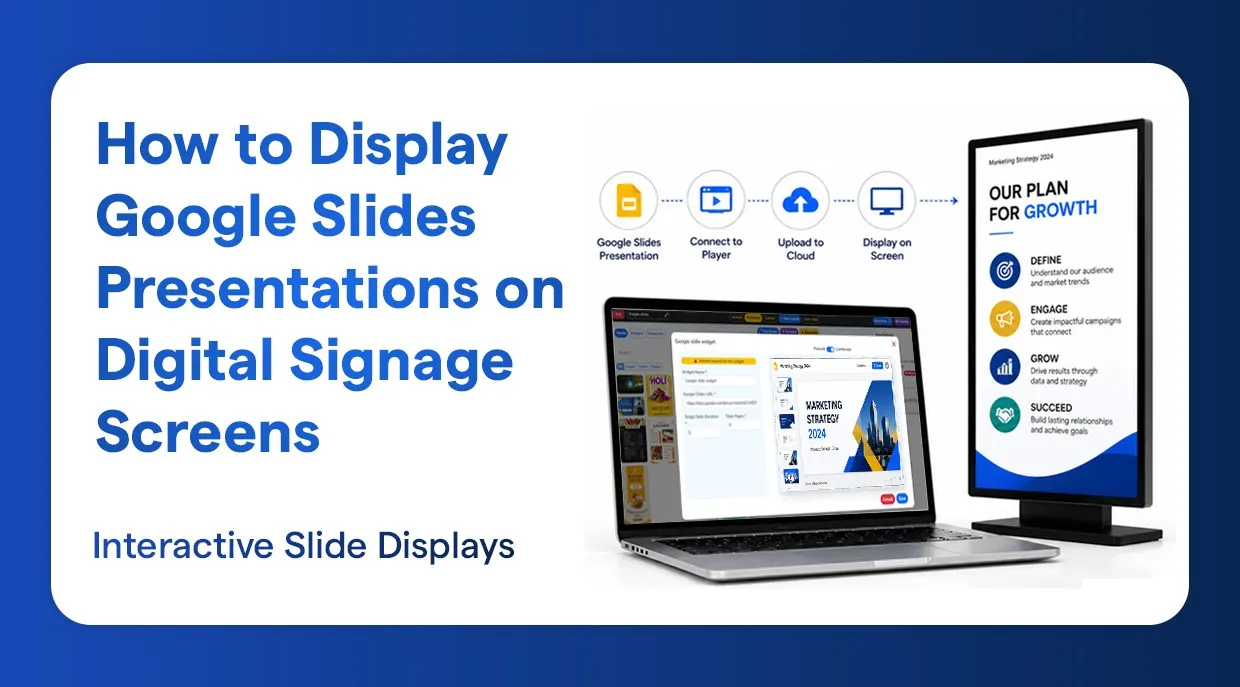
Una de las mejores formas de mostrar contenido dinámico en pantallas es a través de la señalización digital con Google Slides. Si necesitas poner una presentación de Google Slides en un televisor de un vestíbulo, una sala de espera, una tienda minorista o un salón de conferencias, conectarla a un CMS de señalización digital hace que el proceso sea fluido. Esta guía te ofrece capturas de pantalla y un proceso de configuración completo, paso a paso, para tener tu pantalla en línea en muy poco tiempo.
Por qué usar Google Slides para señalización digital
- No hace falta software de diseño: creas y editas las presentaciones directamente en Google Slides
- Se integra fácilmente en el CMS de señalización mediante una URL publicada
- Actualizaciones en tiempo real: los cambios en Google Slides se reflejan al instante en la pantalla
- Es gratis con cualquier cuenta de Google: ideal para empresas de todos los tamaños
Qué necesitarás
- Una cuenta de Google con la URL de una presentación de Google Slides publicada
- Acceso a una plataforma CMS de señalización digital con soporte de widgets
- Una pantalla conectada y registrada en tu sistema de señalización
Guía paso a paso
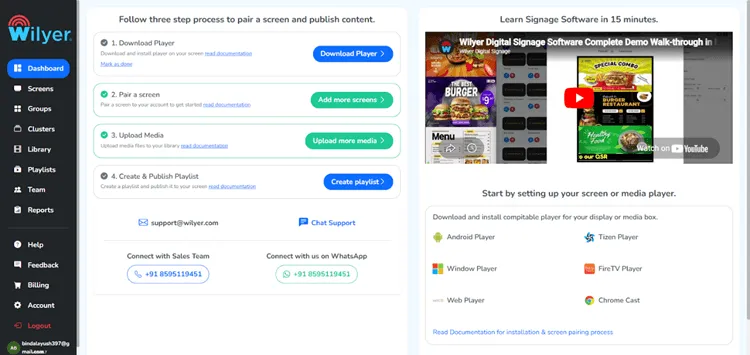
Paso 1: ve a la sección del panel de control
El primer paso es iniciar sesión en el sistema de gestión de contenido (CMS) de señalización digital de Wilyer y abrir el panel de control principal. Desde el panel administras todos los aspectos de tus pantallas y tu contenido (pantallas, listas de reproducción, widgets, ajustes) en un solo lugar. Dedica un momento a recorrerlo para familiarizarte con su disposición antes de continuar. Al empezar por el panel también tienes a mano toda la información sobre tu entorno de señalización.
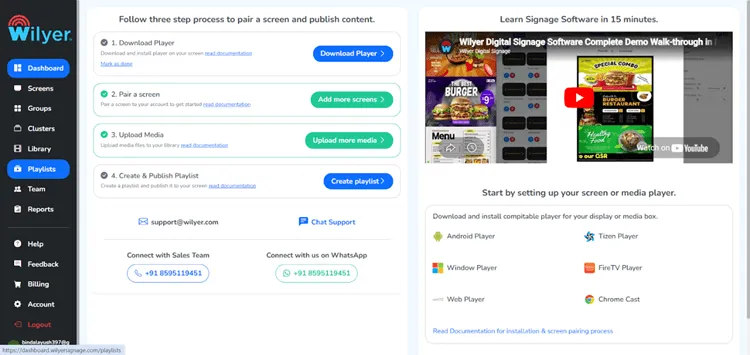
Paso 2: ve al botón de listas de reproducción
El segundo paso es ubicar el botón «Playlist» (Lista de reproducción) en la barra de navegación izquierda o en el menú superior del panel. El área de listas de reproducción sirve para organizar, programar y administrar el contenido que se mostrará en tus pantallas. Una lista de reproducción es como un contenedor que guarda todos tus widgets, imágenes y videos en el orden que representa la secuencia de tu campaña de señalización digital con Google Slides.
Paso 3: haz clic en el botón «+ Create Playlist»
Para empezar una lista de reproducción nueva, entra a la sección de listas y haz clic en el botón «+ Create Playlist» (Crear lista de reproducción). Aquí empieza toda pantalla que reproduzca Google Slides en bucle. Tu nueva lista es la base de tu programación de señalización: allí guardarás el widget de Google Slides y cualquier otro contenido que quieras mostrar, en el orden que prefieras.
Paso 4: completa los datos y crea la lista de reproducción
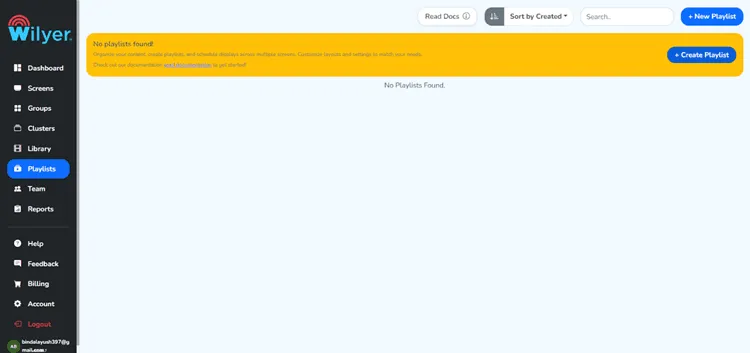
Una vez que armes la lista de reproducción de señalización digital, accede al formulario de creación haciendo clic en Siguiente después de completar tus datos; cuando aparezca el formulario, ingresarás lo siguiente: nombre de la lista, descripción, orientación de pantalla y duración por defecto. Completa todos los campos de modo que describan con precisión para qué sirve esta lista en particular, por ejemplo «Google Slides del vestíbulo». Cuando hayas ingresado todo correctamente, crearás tu nueva lista de reproducción en el sistema.
Paso 5: tu lista de reproducción se creó correctamente
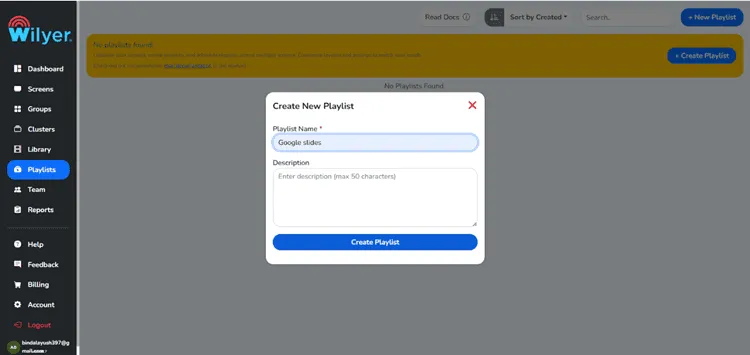
Creaste y agregaste correctamente una lista de reproducción a tu gestor de listas después de seleccionar «Create Playlist». La nueva lista aparecerá en el gestor con su nombre y su estado actual. Esta es la confirmación de que tu lista se creó correctamente y está lista para contener contenido. Ya puedes sumarle tu widget de Google Slides. Esta será la programación principal que controle la configuración de tu señalización con Google Slides en las pantallas de destino.
Paso 6: haz clic en el botón de widgets
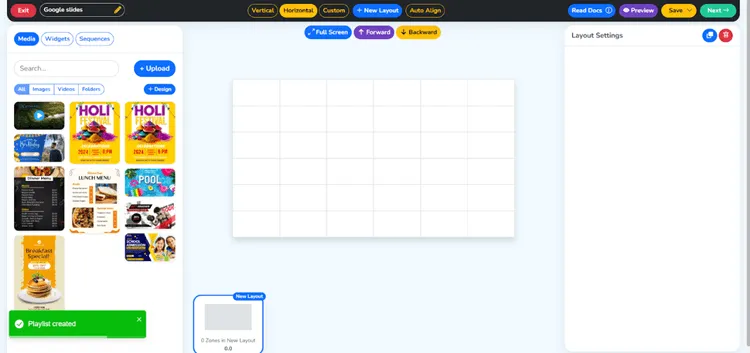
Puedes acceder a la sección de widgets de tu CMS desde la barra lateral o desde el menú principal. Los widgets son módulos de contenido prearmados y listos para usar que puedes agregar a tu nueva lista de reproducción. Dentro de la biblioteca de widgets normalmente encontrarás opciones de imágenes, videos, feeds RSS, clima, etc., y - lo más importante para esta guía - un widget dedicado de Google Slides que te permite conectar tu presentación a la pantalla de señalización mediante una simple integración por URL.
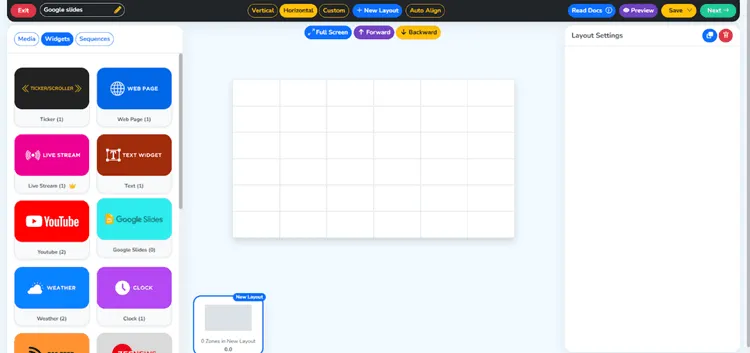
Paso 7: haz clic en el widget de Google Slides
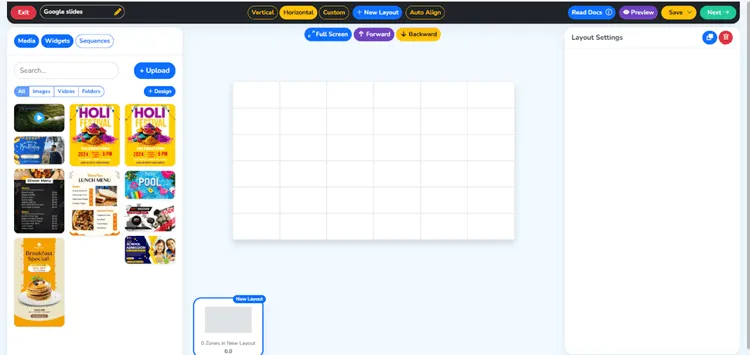
En tu biblioteca de widgets, ubica y selecciona el widget de Google Slides. Es un módulo específico que te permite mostrar tu presentación. Funciona conectándose a la URL publicada de tus Google Slides y mostrándola directamente en la pantalla, lo que te permite reproducir un bucle continuo de diapositivas con avance automático, sin manos y sin necesidad de supervisar la reproducción en todas las pantallas conectadas.
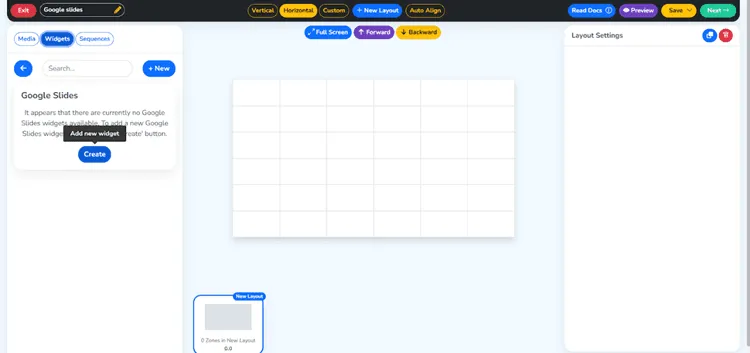
Paso 8: crea tu widget nuevo
Selecciona la opción de crear una instancia nueva del widget de Google Slides. Se abrirá una ventana de configuración donde podrás darle a este widget un identificador (nombre) y la URL de tu presentación de Google Slides. Al crear una instancia específica de tu widget, después podrás usarla en varias listas de reproducción o en distintas pantallas sin tener que configurarla de nuevo, lo que agiliza el proceso de incrustar Google Slides en tu CMS de señalización.
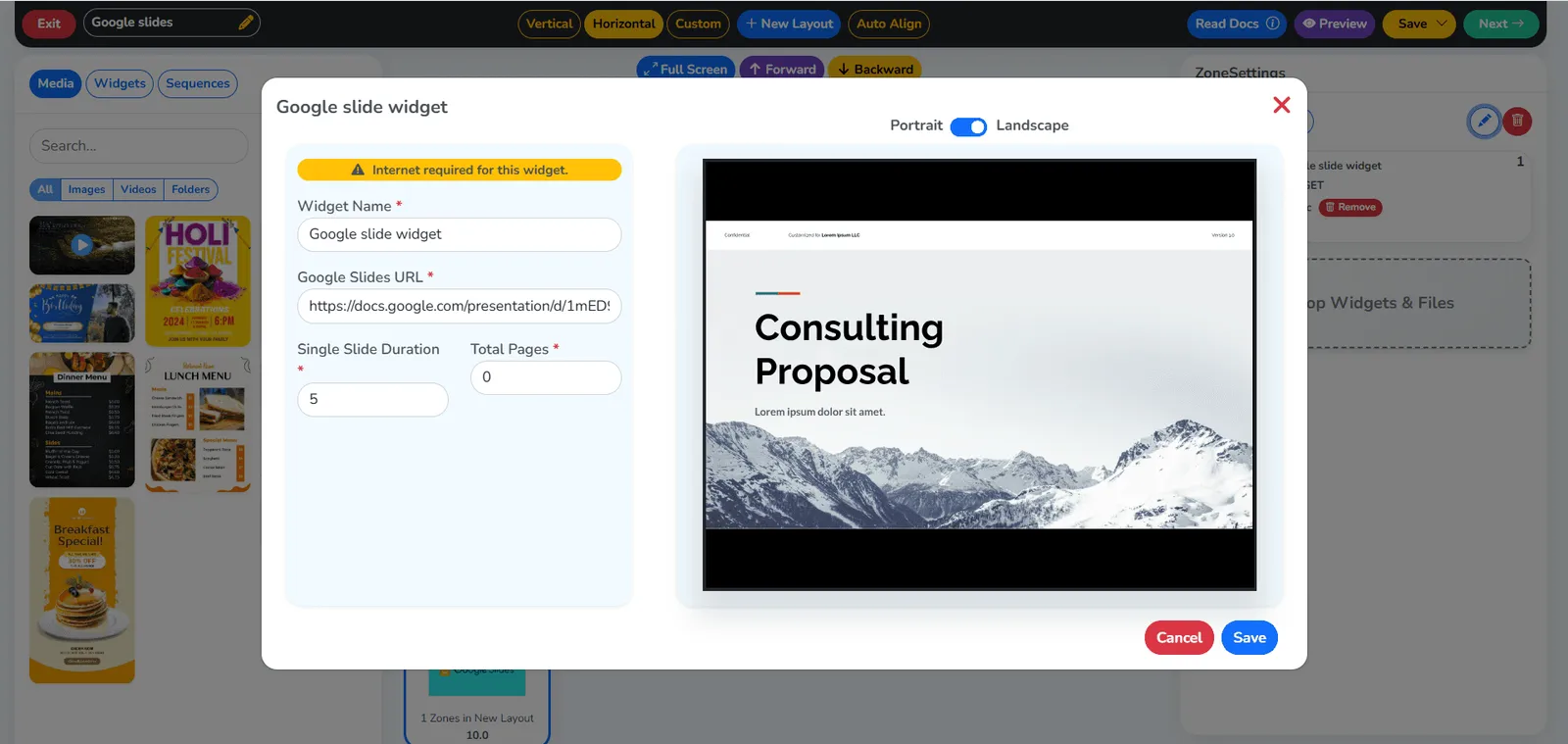
Paso 9: completa el nombre del widget y la URL de Google Slides
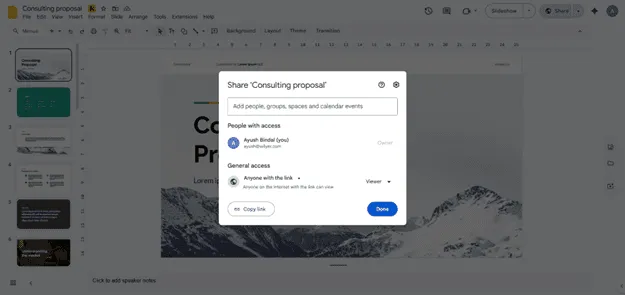
Escribe un nombre descriptivo para tu widget - por ejemplo, «Widget de diapositivas del vestíbulo» - para identificarlo fácilmente más adelante. Después pega la URL publicada de tus Google Slides en el campo correspondiente. Para obtener la URL correcta, abre tu presentación en Google Slides, haz clic en el botón «Share» (Compartir) arriba a la derecha, configura el acceso general en «Anyone with the link» (Cualquier persona con el enlace), copia el enlace y pégalo en el campo de URL del widget. Cuando termines, haz clic en el botón «Save» (Guardar) para almacenar la configuración del widget.
Paso 10: tu widget se creó correctamente
Se te mostrará un mensaje que confirma la creación exitosa de tu widget en la biblioteca. Tu widget ya puede agregarse a cualquier lista de reproducción de tu sistema de gestión de contenido. Completaste el proceso de configuración del widget y conectaste correctamente tu presentación de Google Slides al sistema de señalización. Ahora continúa agregando tu presentación a tus listas para mostrarla en la pantalla que elegiste.
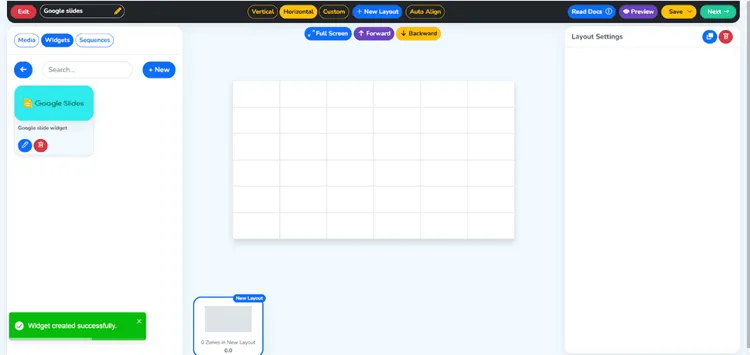
Paso 11: arrastra y suelta el widget de Google Slides en la lista de reproducción
Vuelve al editor de tu lista de reproducción y arrastra el widget de Google Slides que acabas de crear desde la biblioteca de widgets hasta el área de contenido de tu lista. Puedes definir cuánto tiempo se mostrarán las diapositivas antes de que la lista pase al siguiente elemento, y también ubicarlas entre los otros elementos que ya estén en la lista. Esto agrega oficialmente tu contenido de reproducción automática de Google Slides a tu programación de señalización en vivo para poder publicarlo.
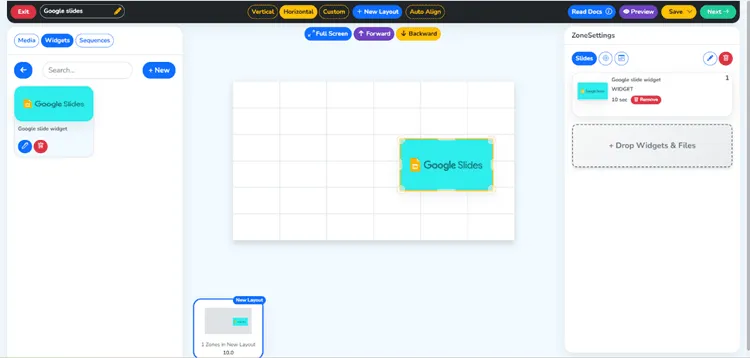
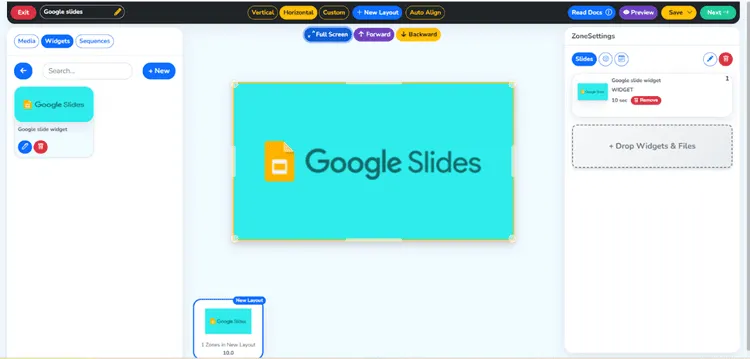
Paso 12: haz clic en pantalla completa y en el botón verde «Next»
En estos ajustes del elemento de la lista de reproducción verás un interruptor de pantalla completa. Asegúrate de que esté activado: eso hará que toda el área de la pantalla se use para tu presentación de Google Slides, sin bordes. El modo de pantalla completa ofrece una experiencia de visualización profesional y sin distracciones, muy adecuada para uso en espacios públicos. Después de configurar la visualización como quieras, haz clic en el botón verde «Next» (Siguiente) para continuar con la asignación de pantalla y la publicación.
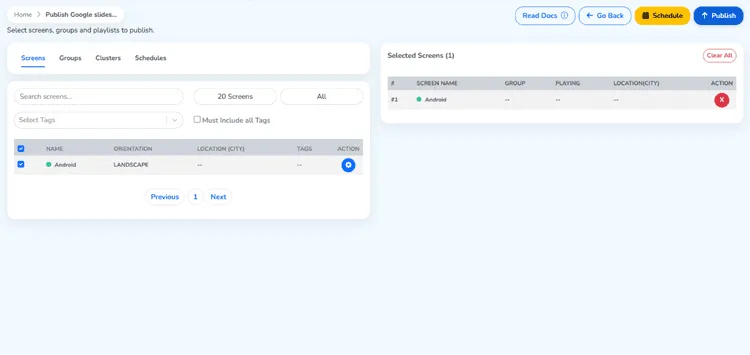
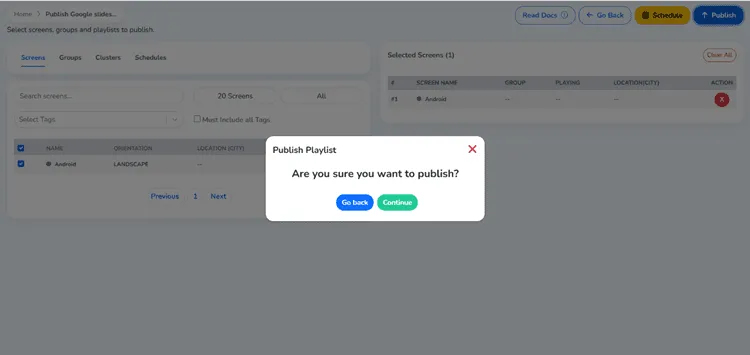
Paso 13: elige tu pantalla y haz clic en el botón Publish
Después de seleccionar tus pantallas en el área de selección del panel de asignación, debes hacer clic en «Publish» (Publicar) para que tu presentación de Google Slides llegue a la pantalla de destino. Muchos sistemas CMS permiten filtrar por grupo de ubicación o por nombre de pantalla para encontrar rápidamente la correcta. Cuando confirmes que estás en la pantalla adecuada, haz clic en publicar para iniciar la entrega del contenido a los dispositivos de destino.
Paso 14: haz clic en el botón verde «Continue» para completar
Después de hacer clic en publicar aparecerá un cuadro de diálogo de confirmación. Ese cuadro te mostrará las pantallas, la lista de reproducción y el horario de publicación de este intento. Revisa toda esa información para asegurarte de que sea correcta. Luego haz clic en el botón verde «Continue» (Continuar) para terminar de publicar. Al hacerlo iniciarás la entrega del contenido a tus pantallas y tus Google Slides se verán en el horario solicitado.
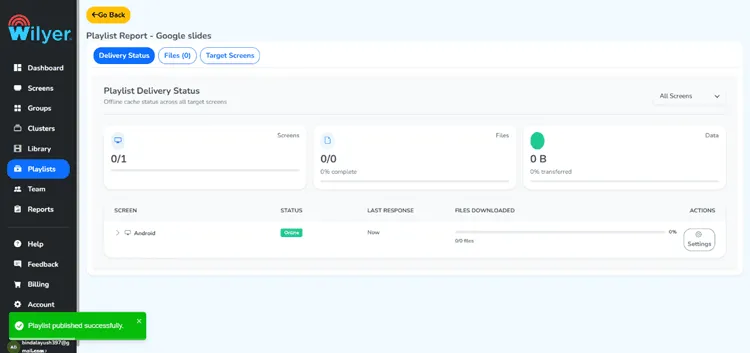
Paso 15: tu lista de reproducción se publicó correctamente
La notificación de éxito confirma que tu lista de reproducción está publicada y en vivo en las pantallas de señalización digital que elegiste. El bucle de tus Google Slides empezará a reproducirse automáticamente y recorrerá tus diapositivas de forma continua. Esta pantalla de confirmación te indica que tu sistema funciona correctamente y que tu presentación de Google en el televisor está encendida y mostrando material a tu público objetivo.
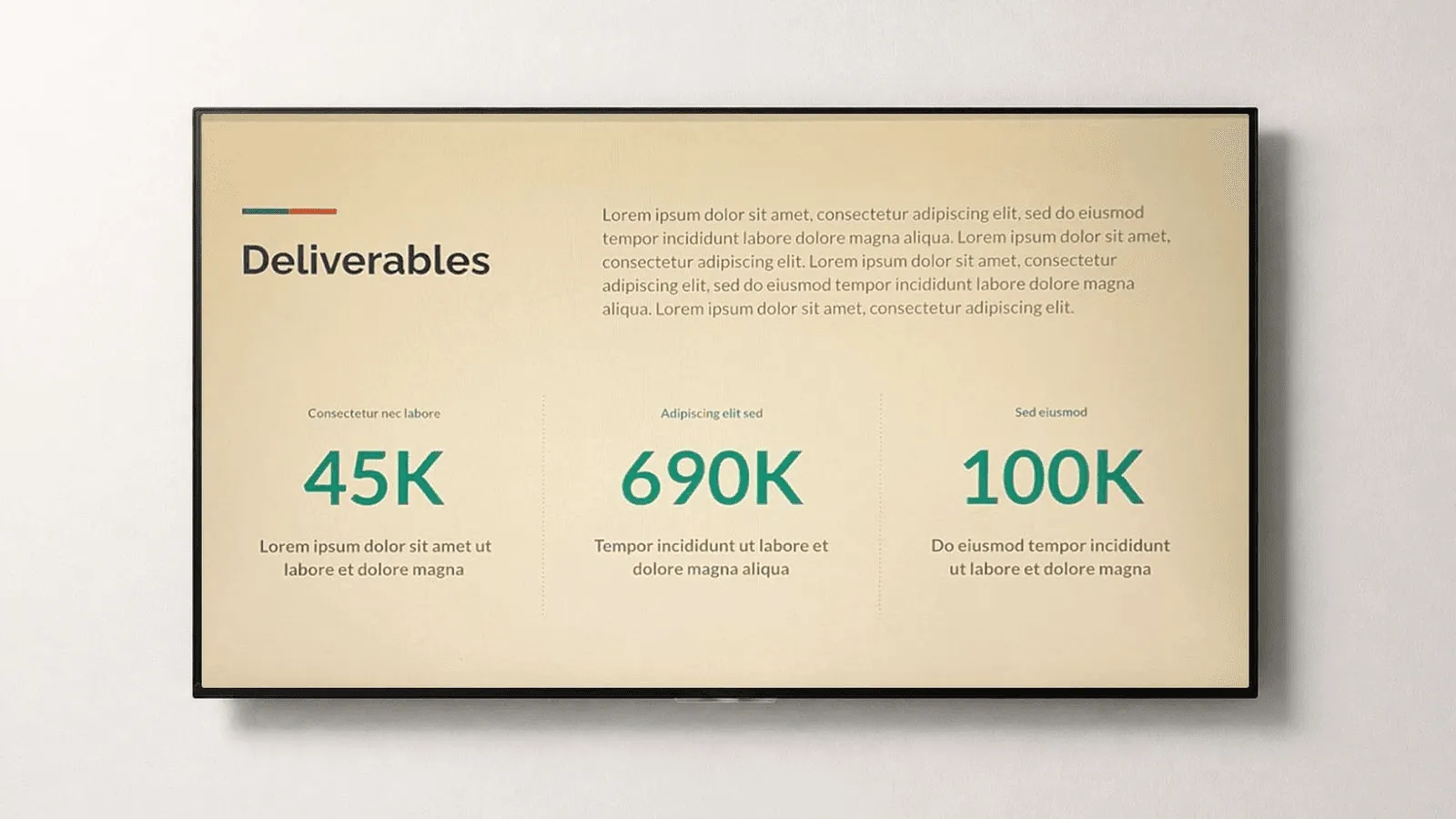
Paso final: Google Slides en vivo en tu pantalla
En este punto, tus Google Slides quedaron configurados correctamente y ya se reproducen solos en tu pantalla de señalización digital. Las diapositivas seguirán avanzando y volverán a la primera una y otra vez, de forma continua y sin intervención humana. Eso hace que Google Slides sea excelente para pantallas de vestíbulo, pantallas de eventos, señalización de retail y pantallas de avisos. Tu señalización digital con Google Slides funcionará correctamente y tu configuración está completa y operativa.
Conclusión
Usar un CMS hará que crear tu propia señalización digital con Google Slides sea fácil y rápido. Sigue nuestra guía paso a paso, crea una lista de reproducción de diapositivas, crea un widget para incrustar Google Slides en el CMS de señalización digital y sal al aire en tu pantalla en cuestión de minutos. Mantén tus diapositivas actualizadas y deja que tus pantallas comuniquen por ti.