
عصا النار للتلفاز
كيفية تحويل جهاز Fire TV Stick إلى لوحة قائمة رقمية
دليل خطوة بخطوة لاستخدام جهاز Fire TV Stick كعرض قائمة رقمية ذكية ومدارة مركزيًا.
٣ رجب ١٤٤٧ هـ
اجعل جهاز Fire TV Stick الخاص بك عرض قائمة رقمية احترافية للمطاعم مع Wilyer.
لقد جاءت ثورة اللوحات الرقمية لقائمة الطعام Firestick. يمكن للمطاعم تطوير عرض القوائم السحابية الخاصة بها باستخدام برنامج قائمة مطعم Firestick مع برنامج لوحة القوائم السحابية من Wilyer عن طريق تحويل أي جهاز Amazon Fire TV Stick إلى عرض قائمة مطعم Firestick الفعال في غضون دقائق. ستساعدك هذه الدليل خطوة بخطوة على تثبيت لوحة القائمة الرقمية الخاصة بك على Fire TV Stick.
لماذا تختار Fire TV Stick للوحة القوائم الرقمية؟
جهاز الإشارات HDMI النهائي.
حل منخفض التكلفة للوحة القوائم الرقمية
جهاز Fire TV Stick هو واحد من أكثر مشغلات الإشارات الرقمية فعالية من حيث التكلفة، بسعر يتراوح بين 29 دولارًا - 59 دولارًا. يلغي الحاجة إلى أجهزة باهظة الثمن - فقط قم بتوصيله بأي عرض يدعم HDMI وابدأ التشغيل على الفور.
إدارة لوحة القوائم الرقمية المستندة إلى السحاب على FireStick
تتيح إشارات Firestick الرقمية المستندة إلى السحاب من Wilyer إدارة كاملة عن بُعد من لوحة تحكم واحدة. قم بإدارة شاشات غير محدودة، ودفع تحديثات المحتوى في الوقت الحقيقي، ومراقبة كل عرض عن بُعد بكل سهولة.
إشارات رقمية جاهزة لنظام التشغيل Fire OS. لوحات القوائم الرقمية المعتمدة على Fire OS للمطاعم الذكية
يدعم نظام Fire OS، المبني على نظام Android، تطبيقات الإشارات الرقمية القوية على جهاز Firestick. النظام موثوق ومستقر ومصمم للعمل بشكل مستمر على مدار الساعة طوال أيام الأسبوع.
الأجهزة:
جهاز Amazon Fire TV Stick (أي طراز: 29-59)
منفذ HDMI (عرض تلفاز أو شاشة).
اتصال إنترنت موثوق (اتصال WiFi أو Ethernet)
موصل طاقة
البرمجيات:
تشغيل إشارات Wilyer الرقمية (تطبيق إشارات Firestick).
حساب سحابى Wilyer (تجربة مجانية لمدة 14 يومًا في wilyer.com)
كيفية تحويل أي تلفاز إلى لوحة قائمة رقمية باستخدام Amazon Fire Stick
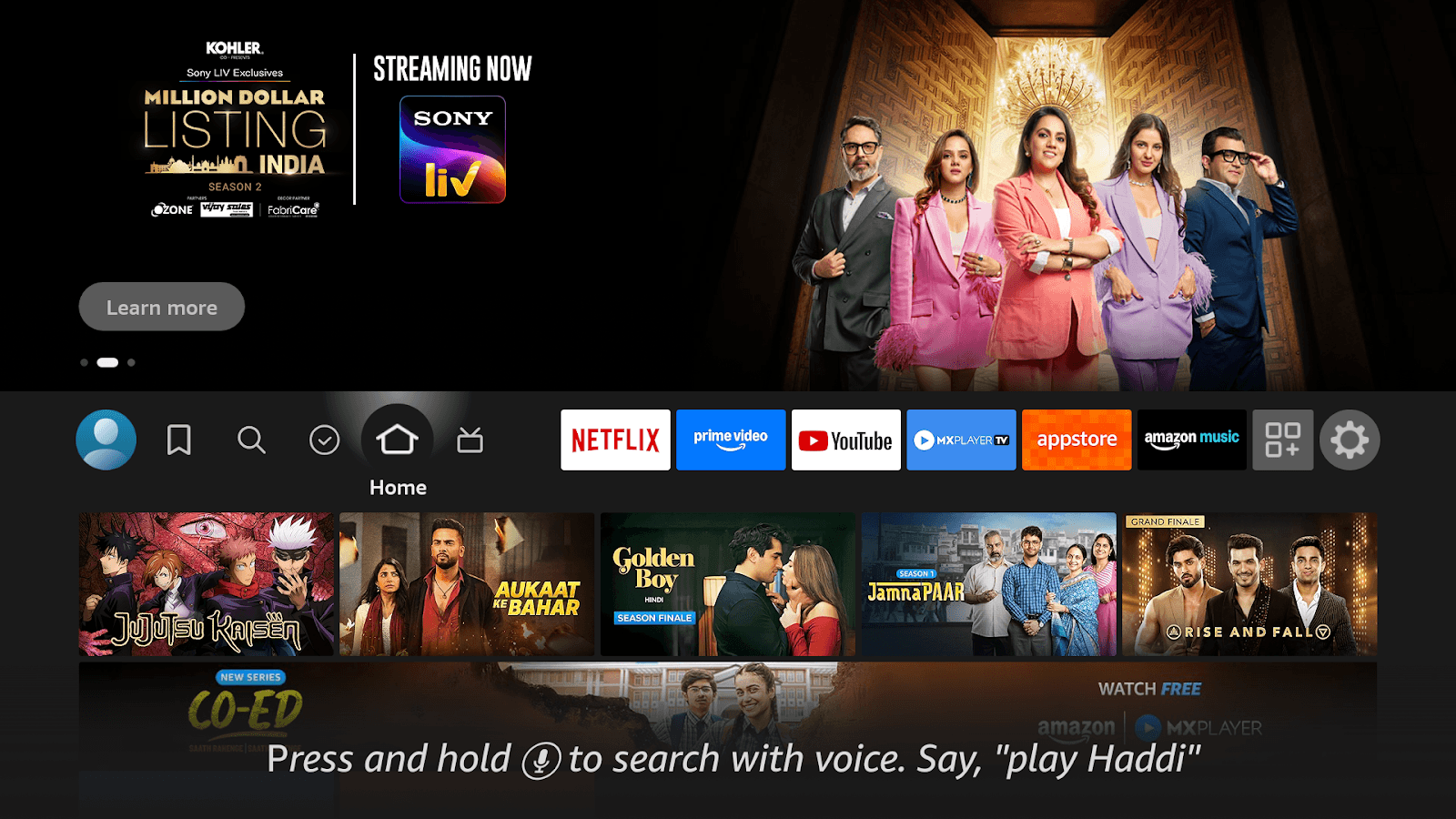
الخطوة 1: إعداد أول جهاز Fire TV Stick.
الاتصال الفيزيائي:
أدخل Fire TV Stick في منفذ HDMI الخاص بعرضك.
قم بتوصيل طاقة USB بالموصل الكهربائي.
قم بتشغيل العرض الخاص بك
قم بالتبديل إلى مدخل HDMI الصحيح
يقوم Fire TV بالتمهيد تلقائيًا
التكوين للمرة الأولى:
اختر اللغة
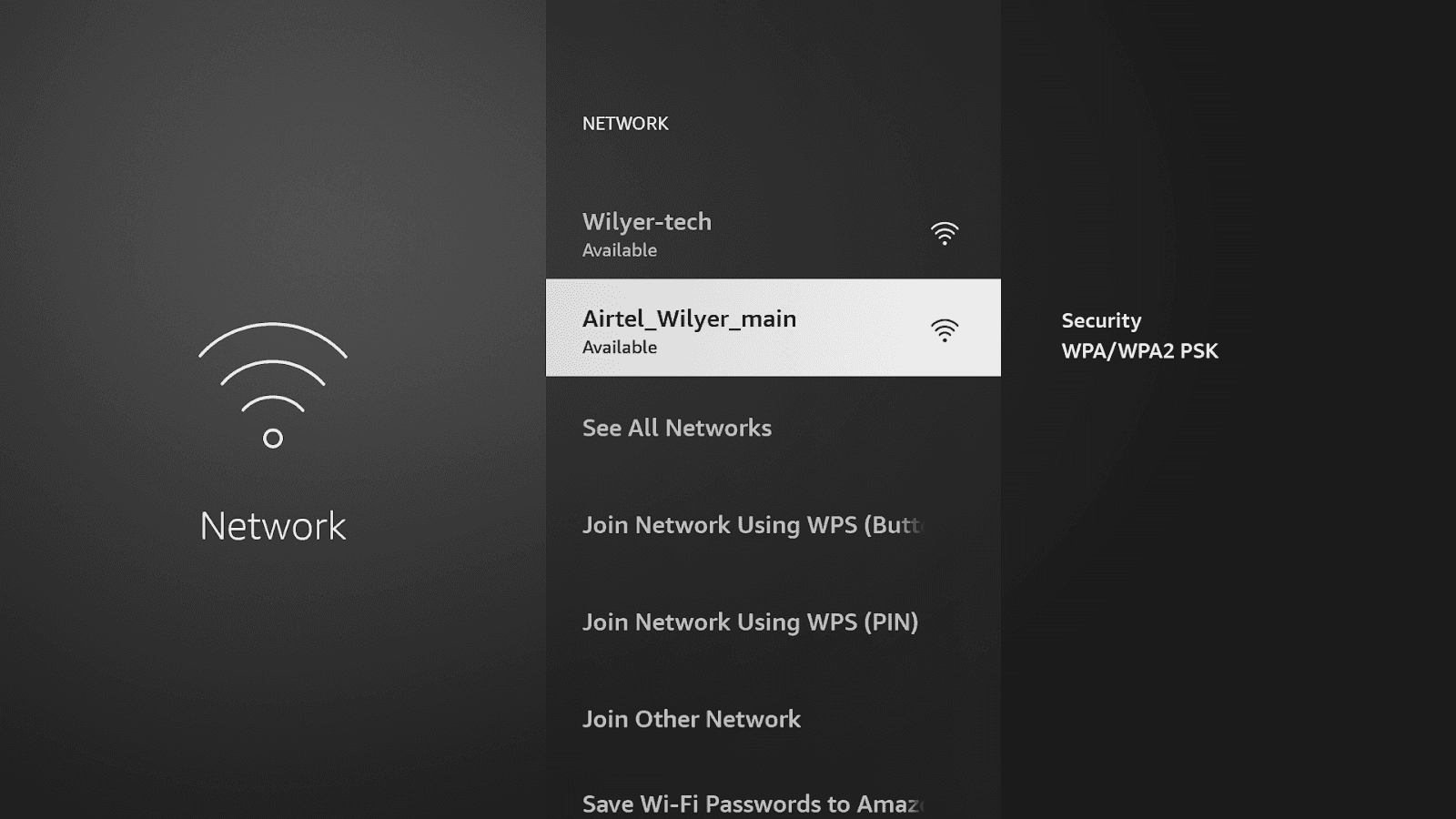
اتصل بشبكة WiFi
تسجيل الدخول إلى Amazon (أو إنشاء حساب)
أكد دقة العرض
تخطي توصيات تطبيقات الترفيه.
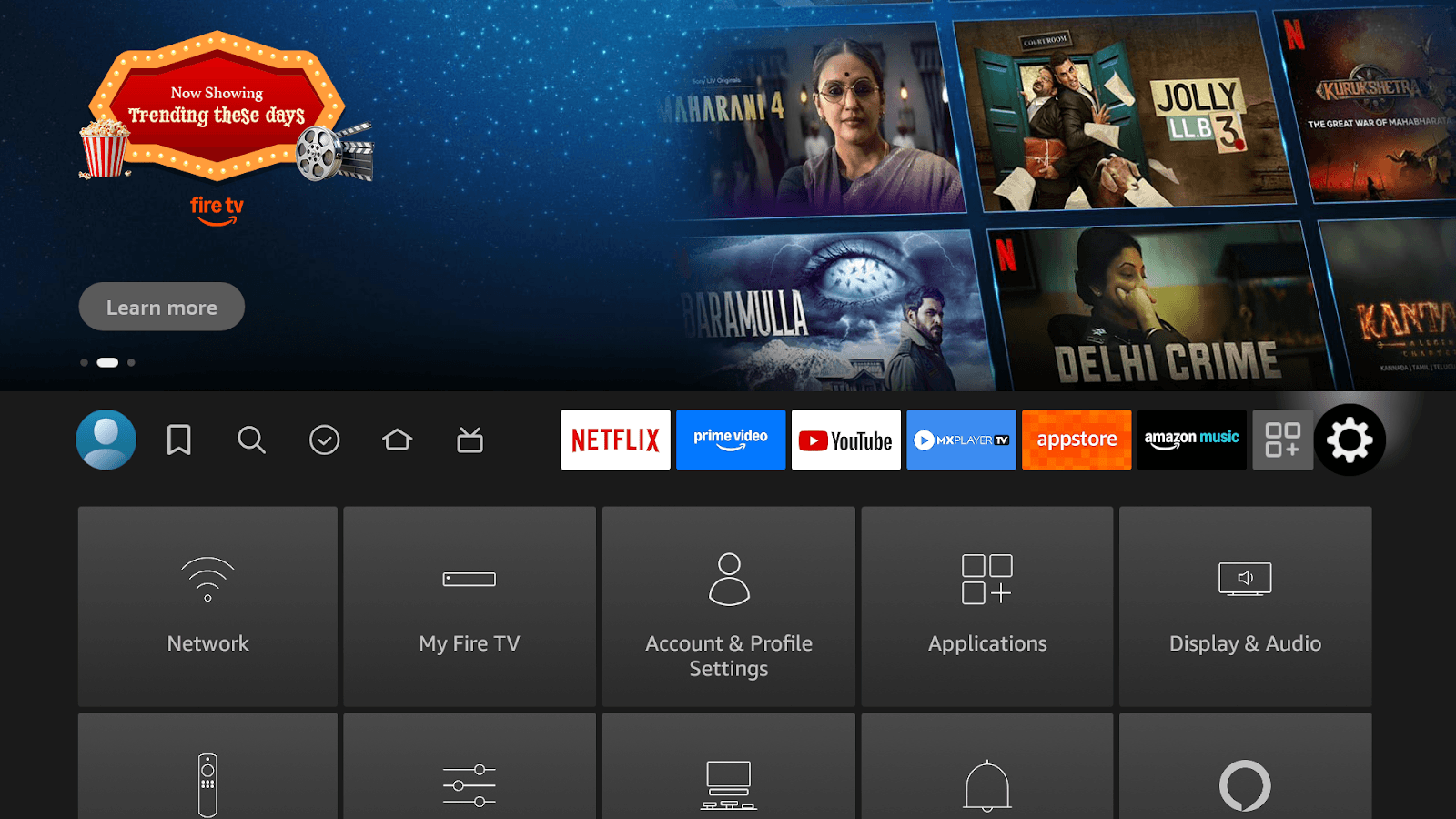
الخطوة 2: إعداد اتصال Wi-Fi لإشارات Firestick الرقمية
الوصول إلى الإعدادات:
يتم الضغط على زر الإعدادات (رمز الترس) في جهاز التحكم عن بعد الخاص بـ Fire TV.
الشبكة: حافظ على اتصال WiFi كفؤ .
الوصول إلى إعدادات نظام Fire TV لديك لإدارة التطبيقات، وتحسين إعدادات العرض والصوت، وتكوين شبكة مستقرة أو اتصال بالإنترنت لضمان تشغيل الإشارات الرقمية بلا انقطاع.
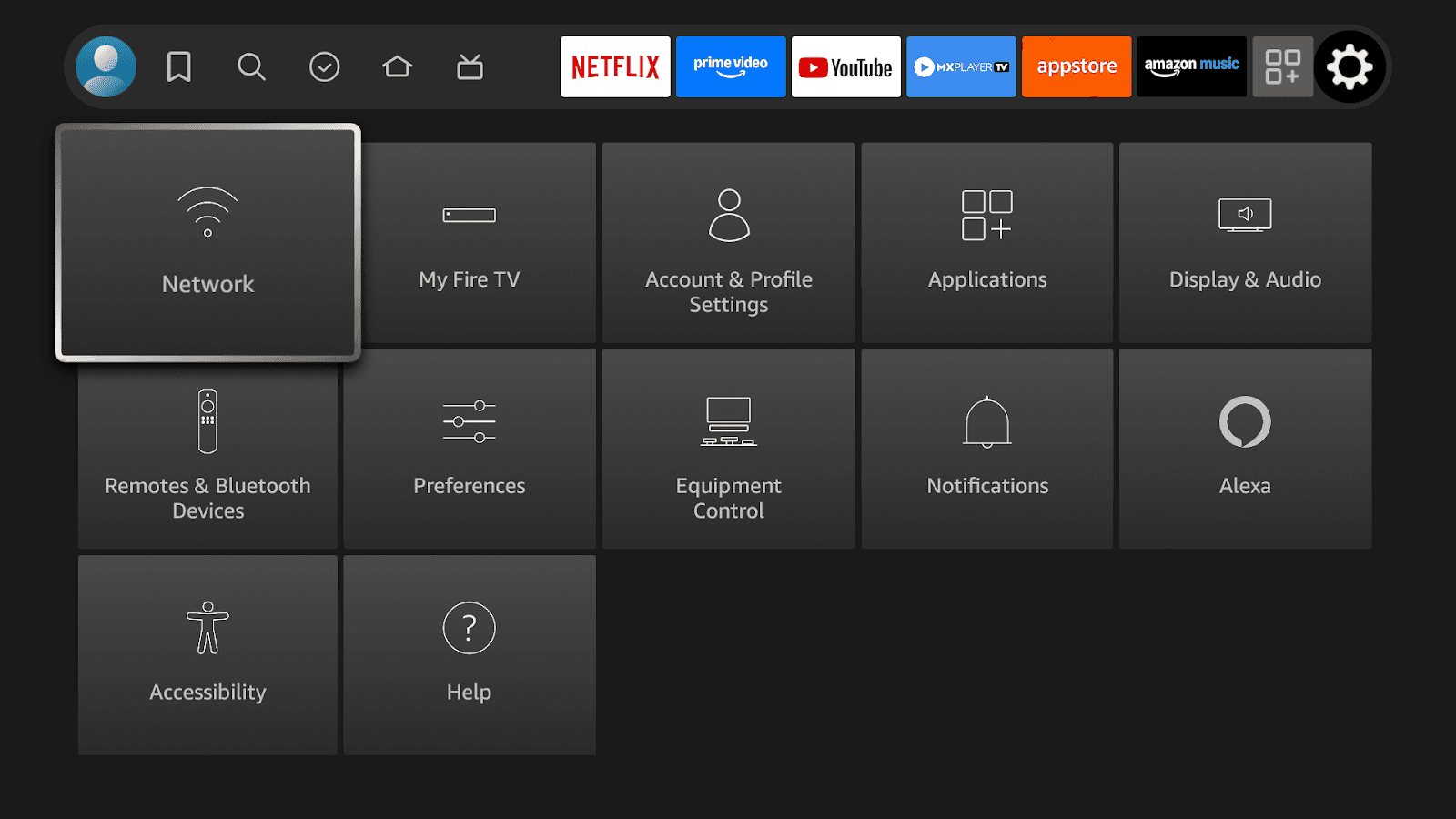
تكوين الشبكة:
اتصل بشبكة WiFi خاصة بالمطعم لتكون الأكثر موثوقية. تعتبر استقرار الاتصال ضرورية حتى تعكس قائمة المطعم Firestick على الفور.
الخطوة 3: تثبيت تطبيق Wilyer لإشارات الرقمية
ابحث عن Wilyer عبر متجر تطبيقات Amazon
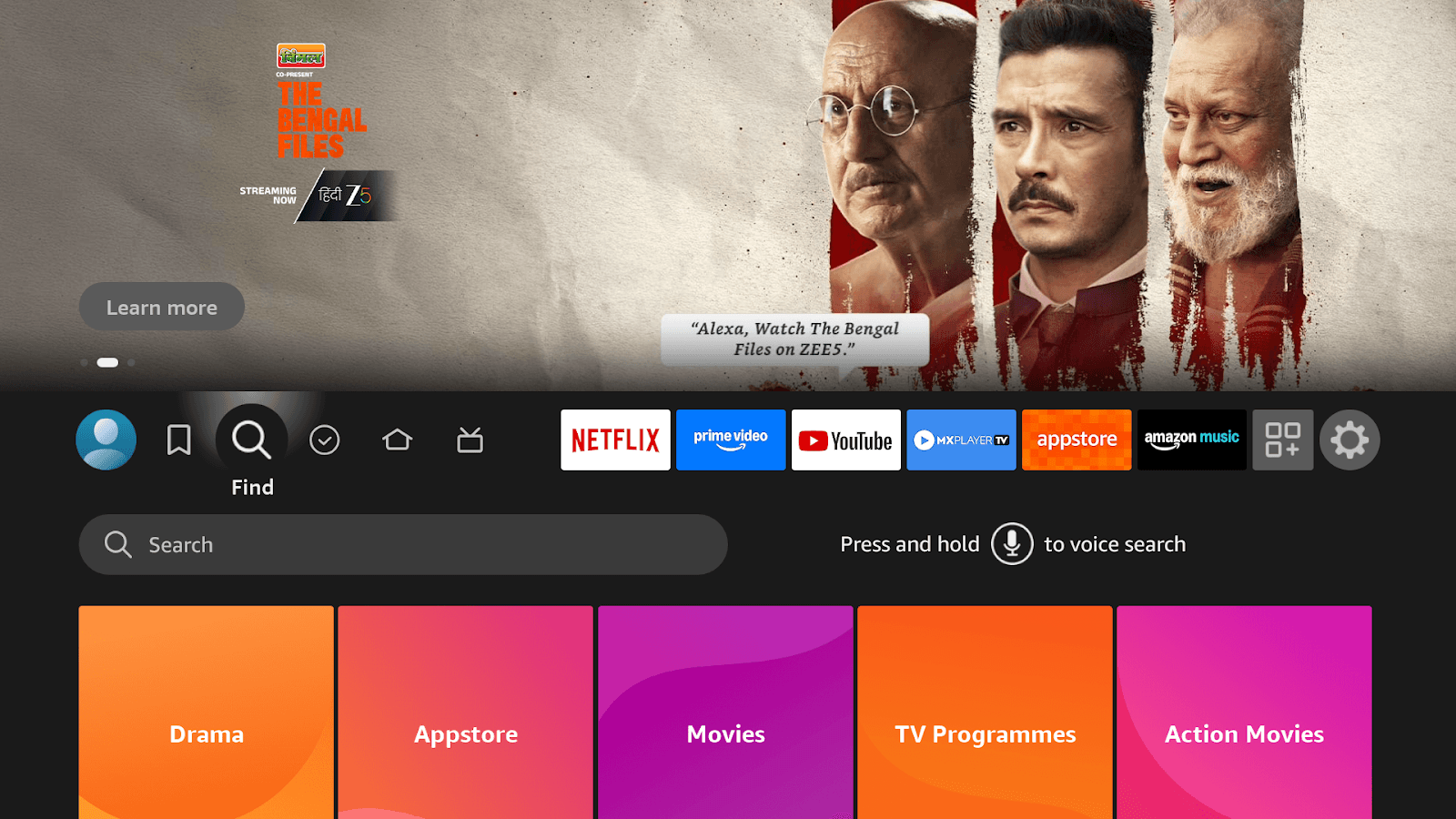
اضغط على زر الصفحة الرئيسية على جهاز التحكم عن بعد الخاص بك، افتح متجر تطبيقات Amazon، ثم انقر على "بحث" للبحث عن مشغل إشارات Wilyer الرقمية
اختر "بحث"
(اضغط على زر الصفحة الرئيسية على جهاز التحكم عن بعد الخاص بـ Fire TV، انقر على "بحث" وحدد "بحث" لبدء البحث عن تطبيق إشارات Wilyer الرقمية)
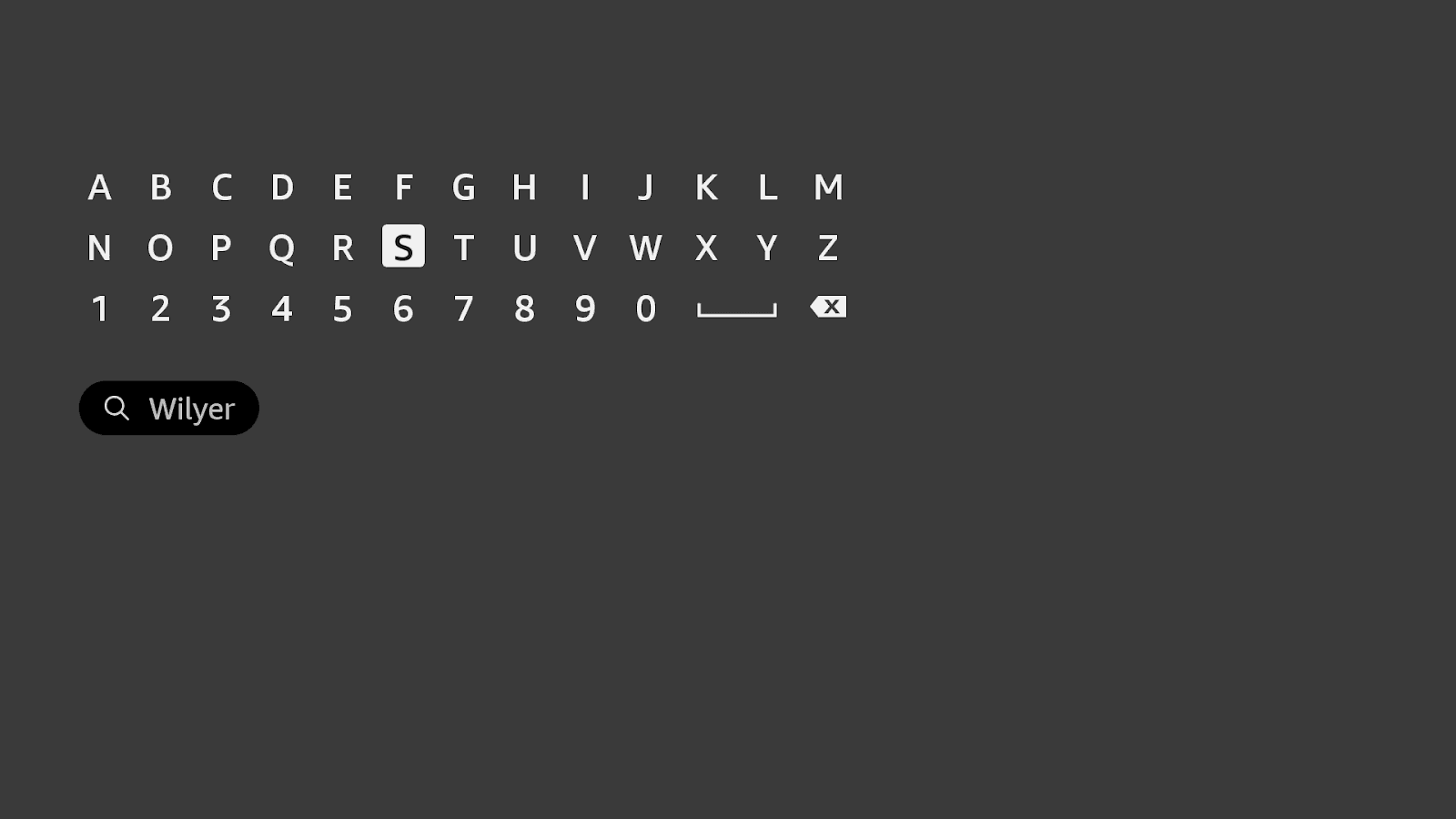
اكتب باستخدام لوحة المفاتيح الظاهرة على الشاشة
اكتب "Wilyer"
أو تحدث: "Alexa، ابحث عن مشغل إشارات Wilyer"
(استخدم لوحة المفاتيح الظاهرة على الشاشة لكتابة “Wilyer” أو ببساطة قل “Alexa، ابحث عن مشغل إشارات Wilyer” للبحث سريعًا والعثور على التطبيق على جهاز Firestick)
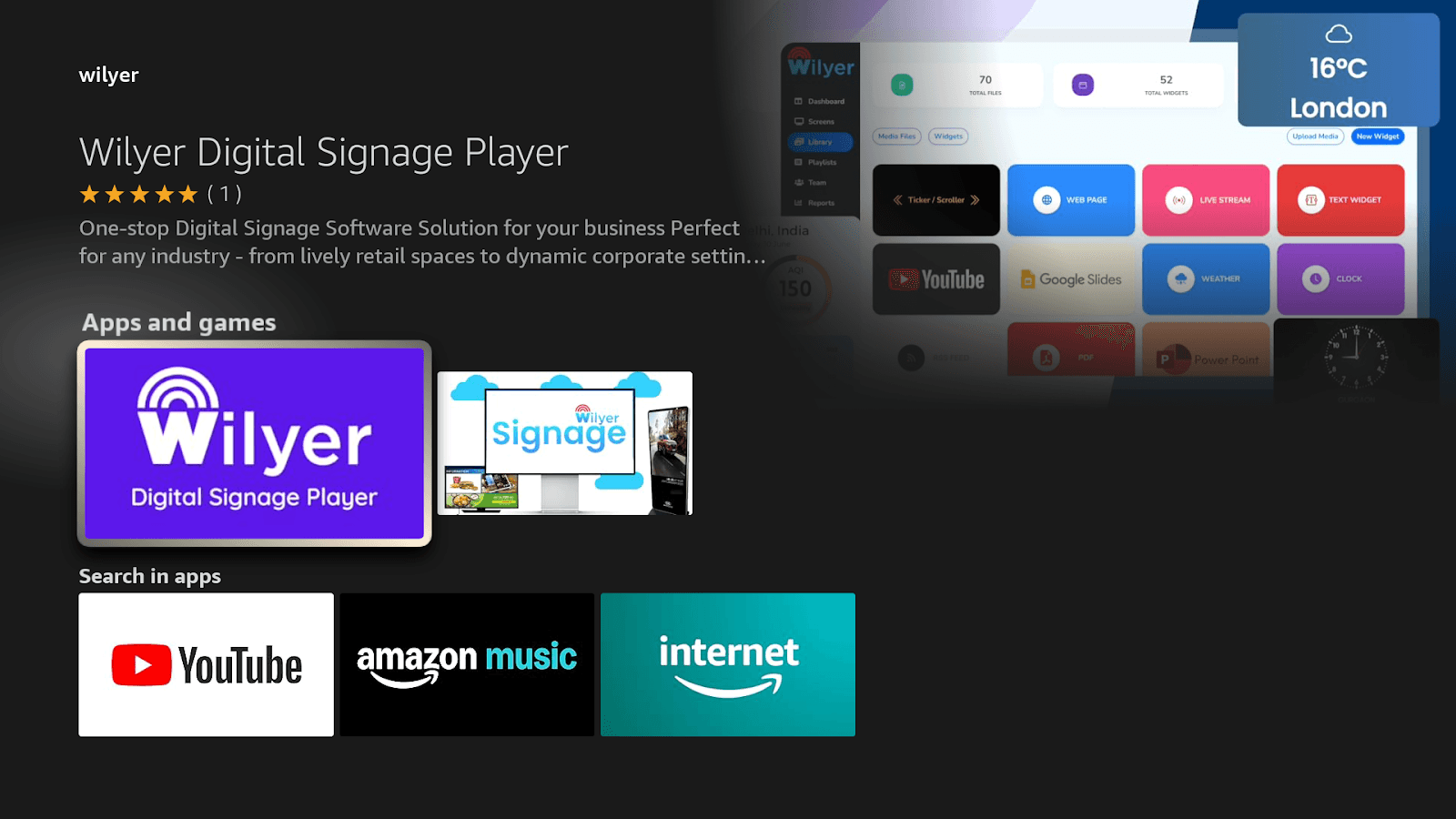
ابحث عن التطبيق:
يتم عرض مشغل إشارات Wilyer الرقمية مع:
تقييم 5 نجوم
حل إشارات رقمية شامل لنشاطك التجاري.
الإشارات الرقمية المناسبة التي يحتاجها Firestick في مطعم.
المطور: Wilyer
يعمل مع جهاز التحكم عن بعد في Fire TV
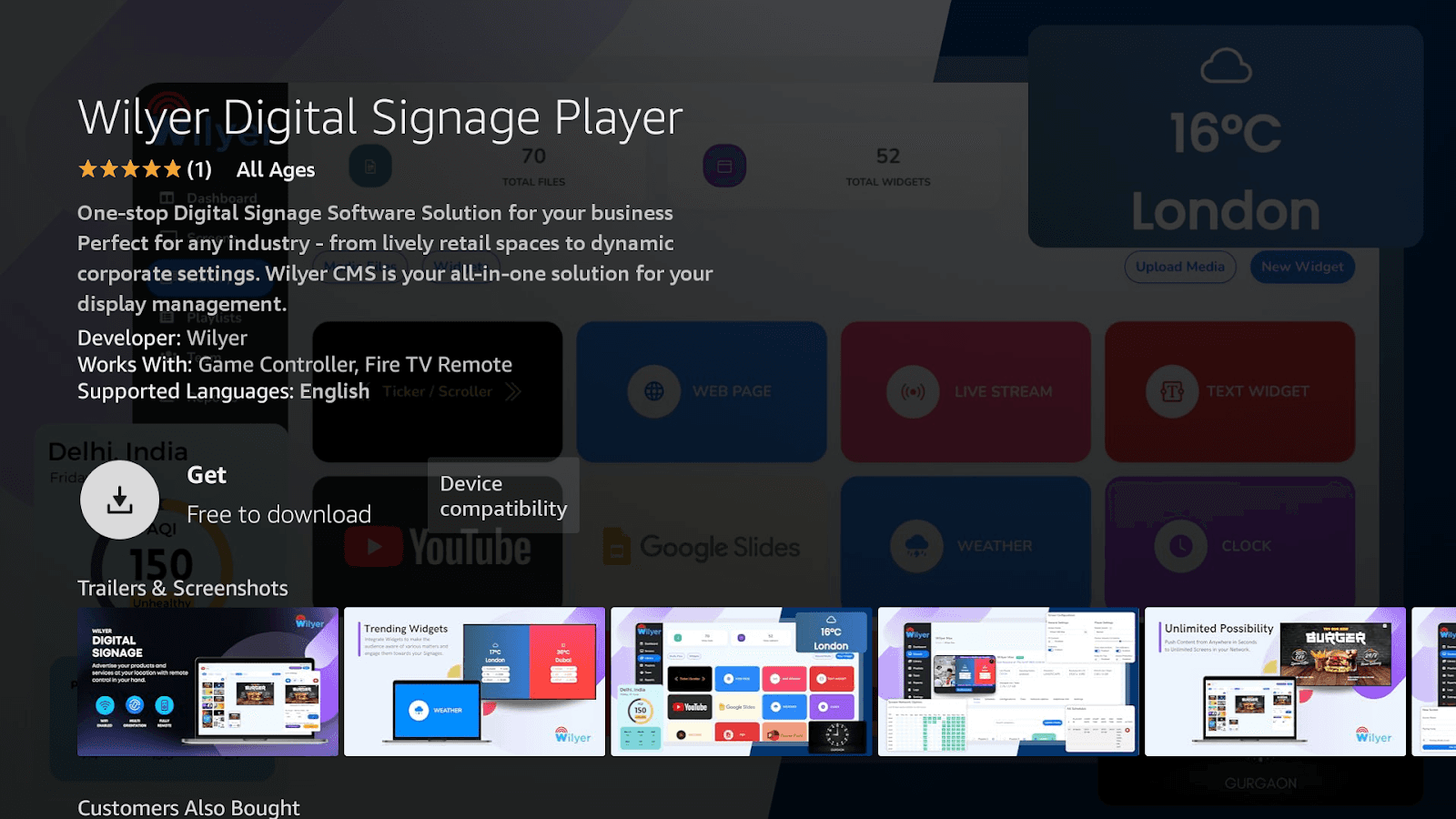
تنزيل وتثبيت:
اختر مشغل إشارات Wilyer الرقمية.
انقر على زر الحصول (مجاني للتنزيل)
مراجعة التفاصيل:
المطور: Wilyer
يعمل مع جهاز التحكم عن بعد في Fire TV
اللغات المدعومة الإنجليزية.
التوافق مع الأجهزة المعتمد.
سوف تستغرق عملية التثبيت من 1-2 دقيقة.
بمجرد الانتهاء من التثبيت وظهور خيار “فتح التطبيق” على شاشتك، انقر عليه لتشغيل مشغل إشارات Wilyer الرقمية. هذا يؤكد أن الإعداد ناجح ويسمح لك ببدء استخدام التطبيق على الفور.
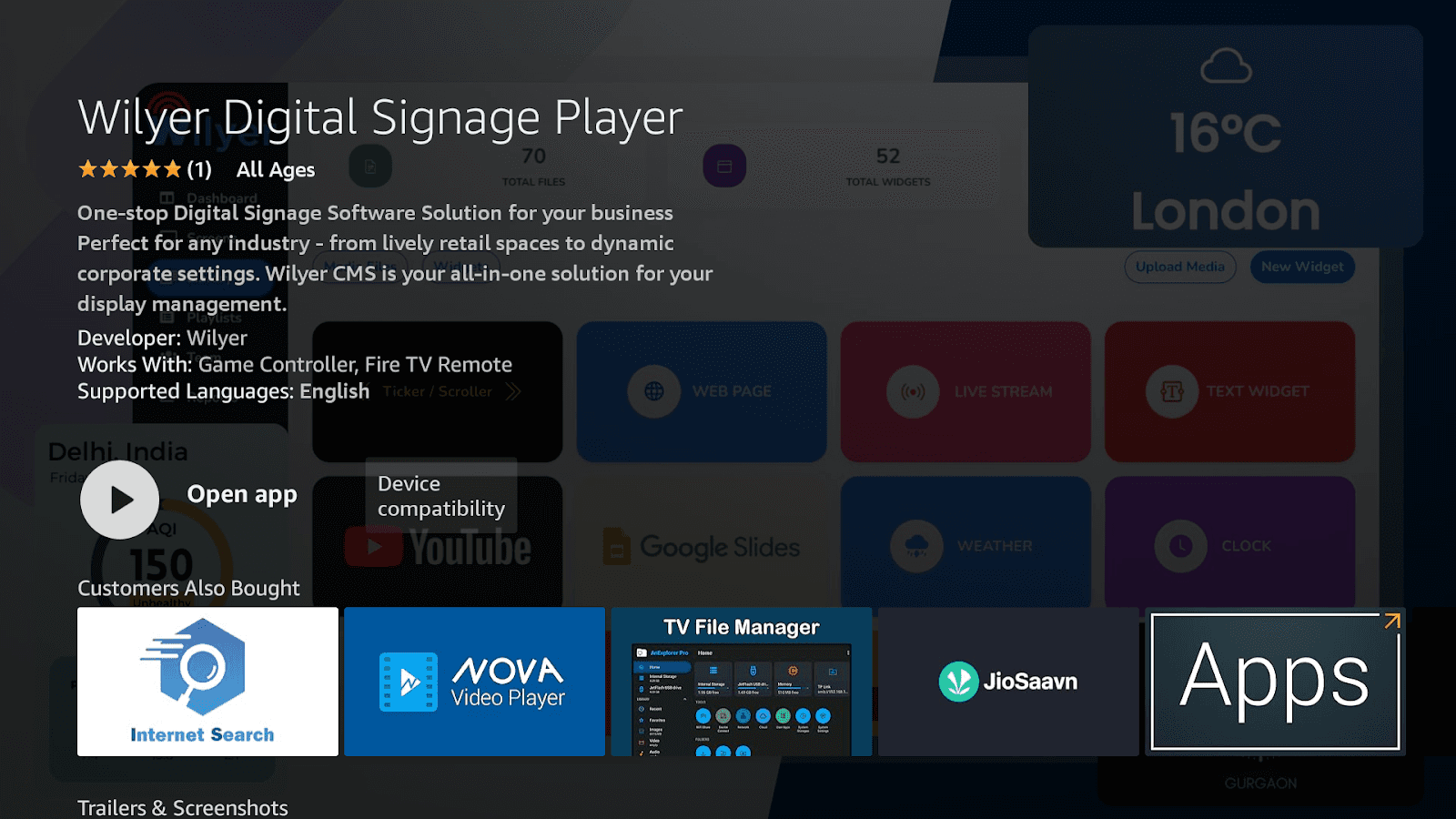
يتم تثبيت برنامج مشغل لوحة القوائم الرقمية Wilyer مباشرة على Firestick الخاص بك.
بعد تثبيت التطبيق، عد إلى الشاشة الرئيسية لـ Fire TV، افتح تطبيقاتي أو قسم التطبيقات، وابحث عن مشغل إشارات Wilyer الرقمية، واختره لتشغيل التطبيق في أي وقت.
الخطوة 4: اقتران عرض لوحة القائمة الخاصة بك
قم بتشغيل تطبيق Wilyer:
عند فتح Wilyer، تظهر شاشة الاقتران:
شعار Wilyer
رمز اقتران مكون من 6 أرقام (مثل: 395344)
"أدخل الرمز أدناه"
في الاستماع...
تشكيل اتصال جديد... الإنترنت نشط"
"للاقتران مع هذه الشاشة"
لا تخرج من هذه الشاشة في قائمة Fire TV الخاصة بك.
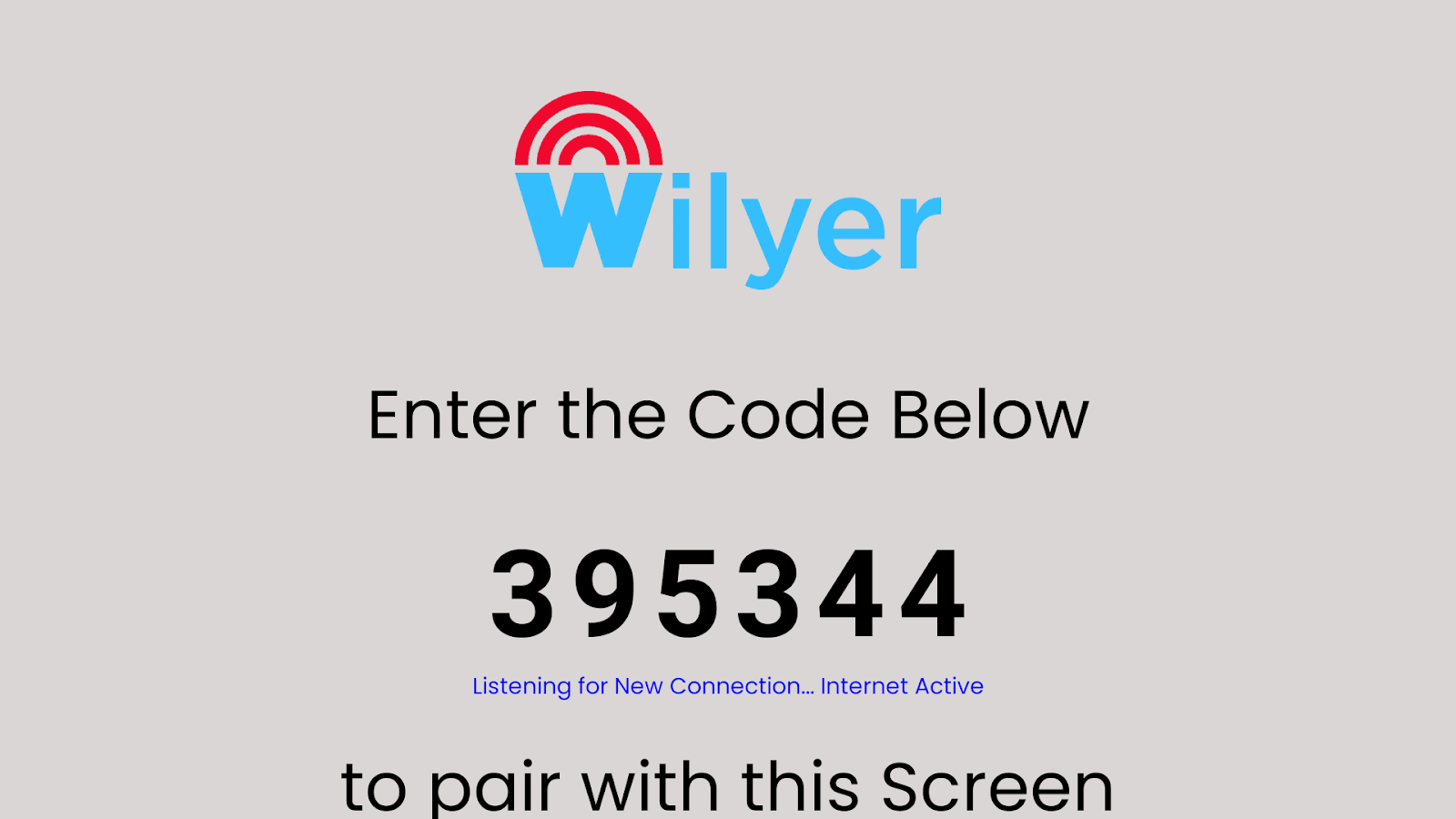
الآن انتقل إلى الكمبيوتر المحمول أو الأجهزة المحمولة الخاصة بك للاقتران بهذه الشاشة باستخدام برنامج إدارة اللوحات الرقمية السحابية Wilyer
افتح علامة تبويب متصفح جديدة على جهازك.
قم بزيارة https://www.wilyer.com/signup لإنشاء حساب Wilyer الخاص بك.
أكمل عملية التسجيل أو قم بتسجيل الدخول إذا كان لديك حساب بالفعل.
الوصول إلى لوحة تحكم Wilyer لإضافة الاقتران بشاشة Fire TV الخاصة بك باستخدام الرمز الظاهر على الشاشة.
افتح صفحة التسجيل Wilyer
اذهب إلى الصفحة الرسمية لتسجيل cms السحابية الخاصة بـ Wilyer على الويب لإنشاء حساب الإشارات الرقمية الخاصة بك.
أدخل اسمك الكامل
تضمين اسمك القانوني الكامل كمستخدم رئيسي للوحة تحكم الإشارات.
قدم عنوان بريدك الإلكتروني
ضع بريدًا إلكترونيًا صالحًا قيد الاستخدام سيكون هو الوحيد المستخدم لتسجيل الدخول، وتأكيد، واستلام الإشعارات من حساب Wilyer الخاص بك.
أدخل رقم هاتفك
تضمن الرقم المحمول الذي سيُدير هذا الحساب، مع رمز البلد الدولي المناسب.
اكتب اسم شركتك
املأ اسم شركتك أو منظمتك حتى يكون لتسجيلك هوية احترافية على شبكة الإشارات الخاصة بك.
أنشئ كلمة مرور آمنة
لحماية حساب Wilyer الخاص بك في جميع الأوقات، قم بتحديد كلمة مرور مُقدمة لحساب الإشارات الخاص بك.
اقبل شروط سياسة الخصوصية
قبل تقديم معلوماتك لحسابك، تحقق من مربع قبول شروط خدمة Wilyer و سياسة الخصوصية لـ Wilyer.
انقر على زر “تسجيل الدخول”
بمجرد الانتهاء من ملء نموذج التسجيل، انقر على زر "تسجيل الدخول" الأزرق لإكمال إنشاء حساب Wilyer والوصول إلى حساب Wilyer / لوحة التحكم الخاصة بك.
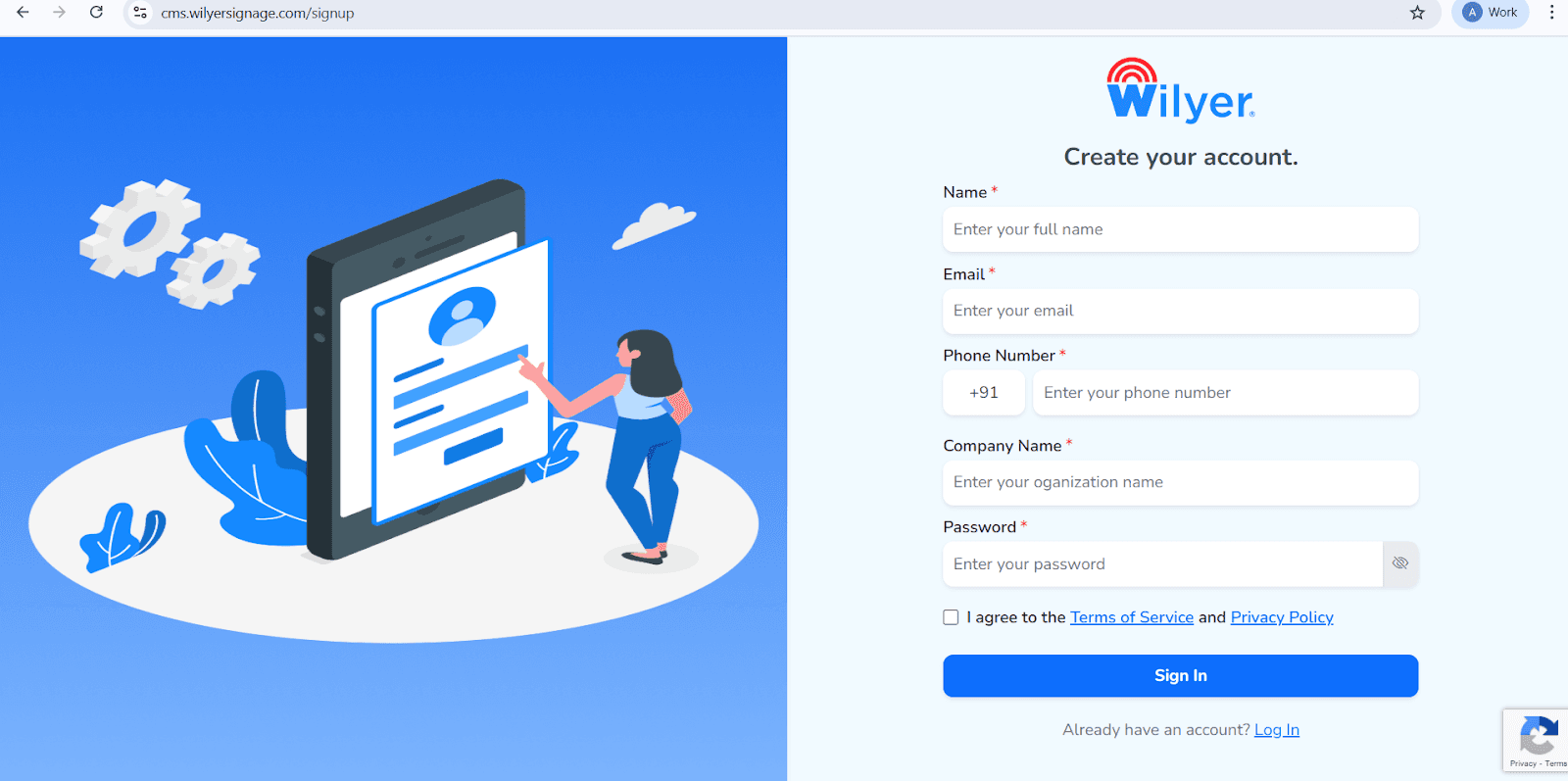
اقتران شاشة Fire TV الخاصة بك مع إشارات Wilyer السحابية
بعد تثبيت وفتح مشغل إشارات Wilyer الرقمية على جهاز Fire TV Stick الخاص بك، اترك التطبيق مفتوحًا على التلفاز. سترى شاشة اقتران تعرض رمز فريد مكون من 6 أرقام. لا تغلق هذه الشاشة.
بمجرد تسجيل الدخول، انتقل إلى لوحة تحكم Wilyer.
انتقل إلى قسم الشاشات من القائمة اليسرى.
انقر على إضافة شاشة أو رمز “+”.
أدخل رمز الاقتران المكون من 6 أرقام المعروض على شاشة Fire TV الخاصة بك.
قم بتسمية شاشتك وأضف تفاصيل الموقع إذا لزم الأمر.
انقر على اقتران الشاشة لإكمال الاتصال.
كيفية إنشاء قائمة تشغيل في نظام إدارة المحتوى Wilyer للإشارات الرقمية
يوفر Wilyer مطور قائمة التشغيل للإشارات الرقمية بسيط وسلس وسهل الاستخدام، يناسب كل من الهواة والخبراء.
كيفية إنشاء قائمة تشغيل في Wilyer CMS:
افتح نظام إدارة المحتوى الخاص بك
ادخل إلى لوحة تحكم Wilyer.
تسجيل الدخول إلى حسابك السحابي باستخدام أي متصفح.
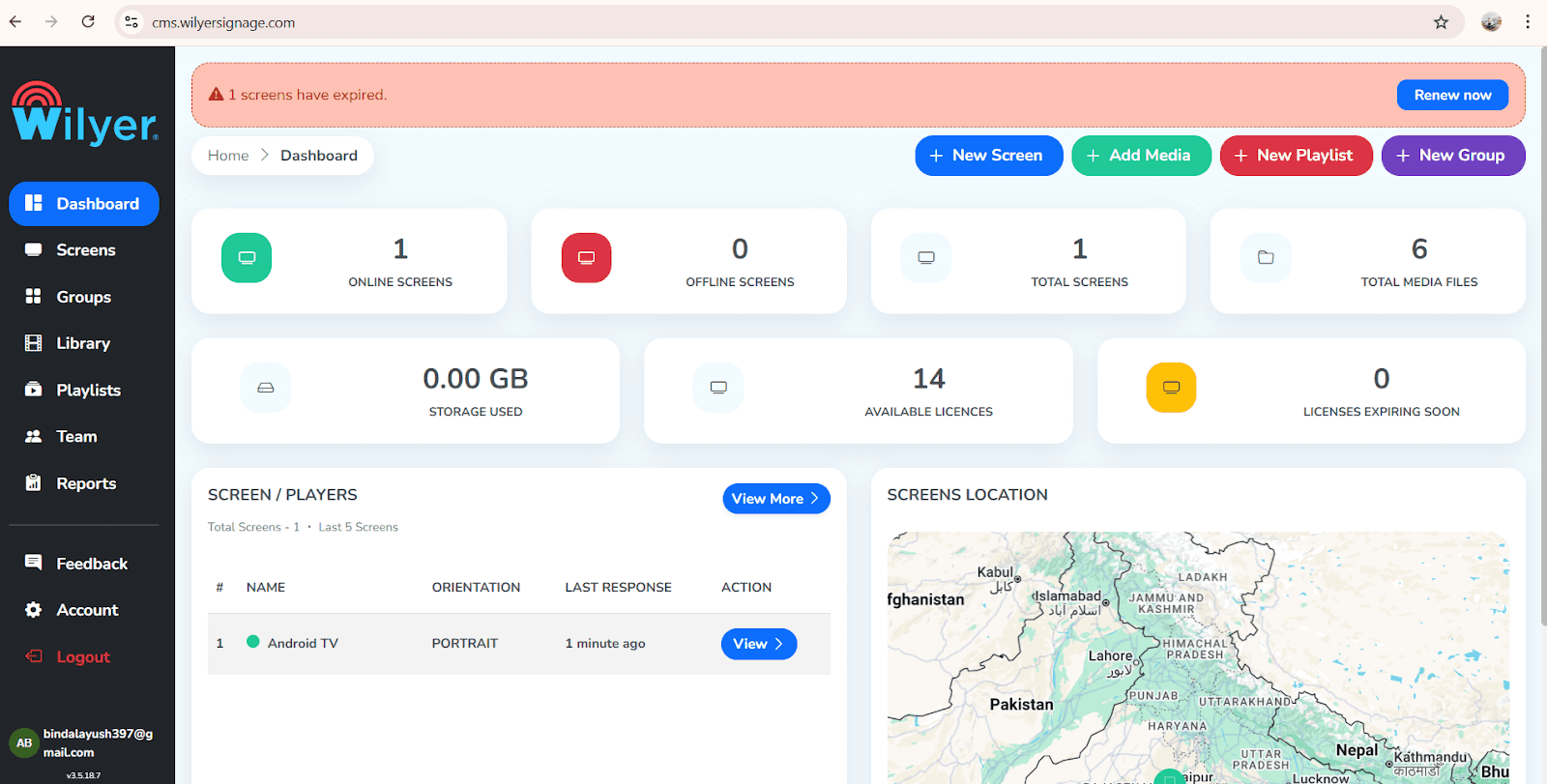
اذهب إلى قسم "قوائم التشغيل"
الحلقات التي تنشئها يتم إنشاؤها وتخزينها بأمان هنا، مما يتيح الوصول الفعال وإدارة سلسة، وتحكم منظم في المحتوى الخاص بك لعمليات سير العمل المبسطة.
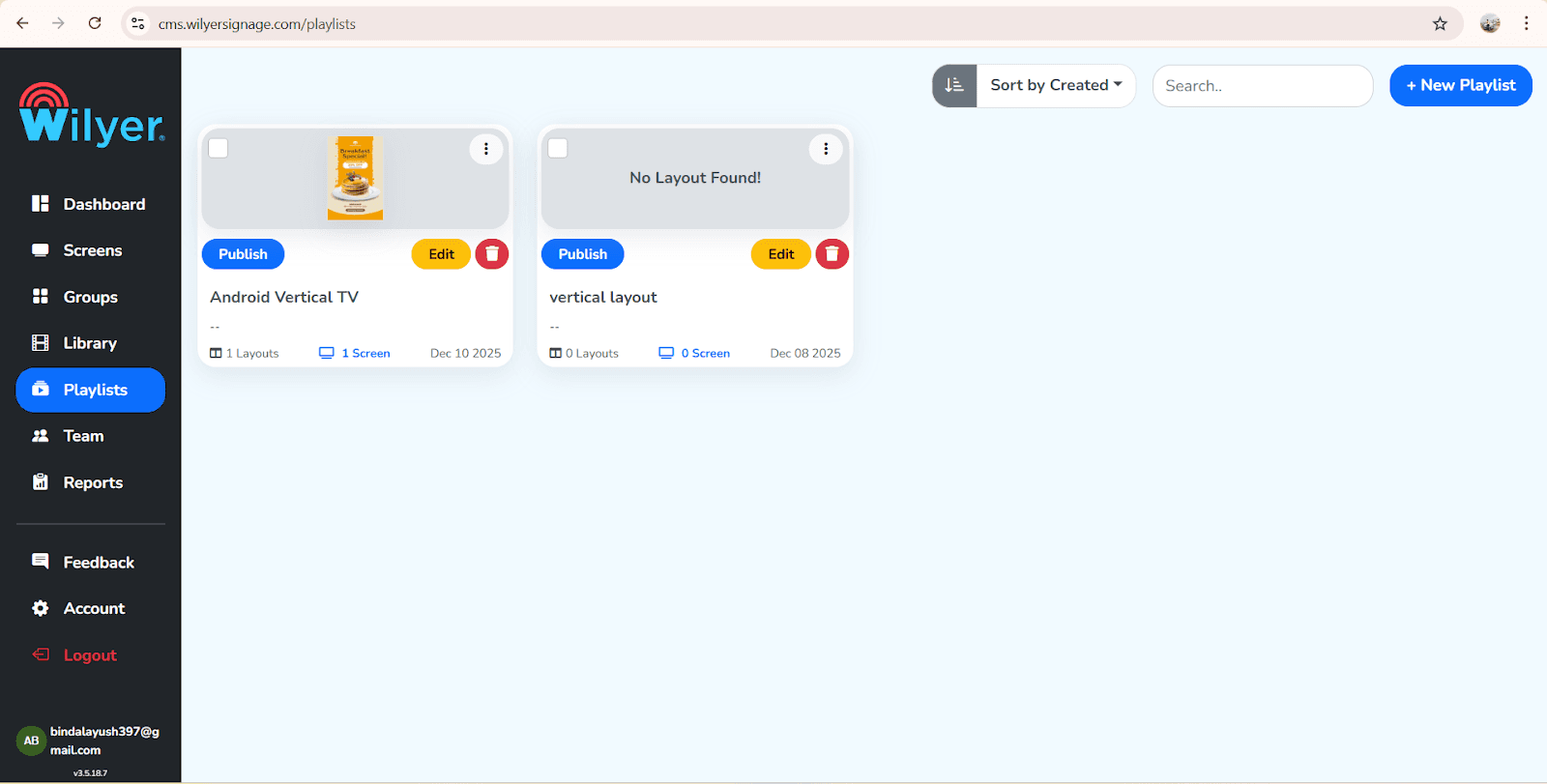
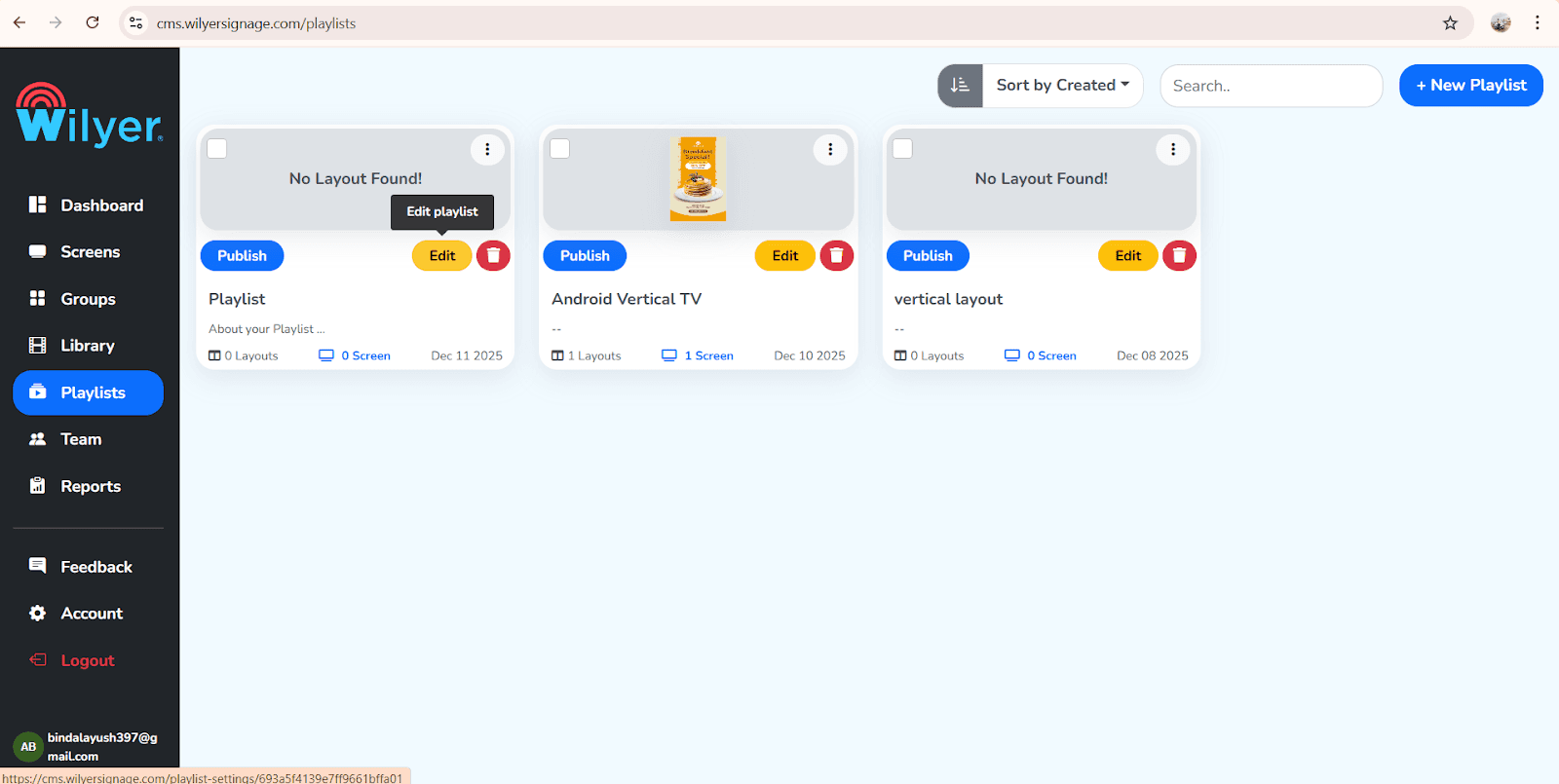
انقر على "إنشاء قائمة تشغيل"
انقر على قائمة التشغيل الجديدة في أعلى الجانب الأيمن
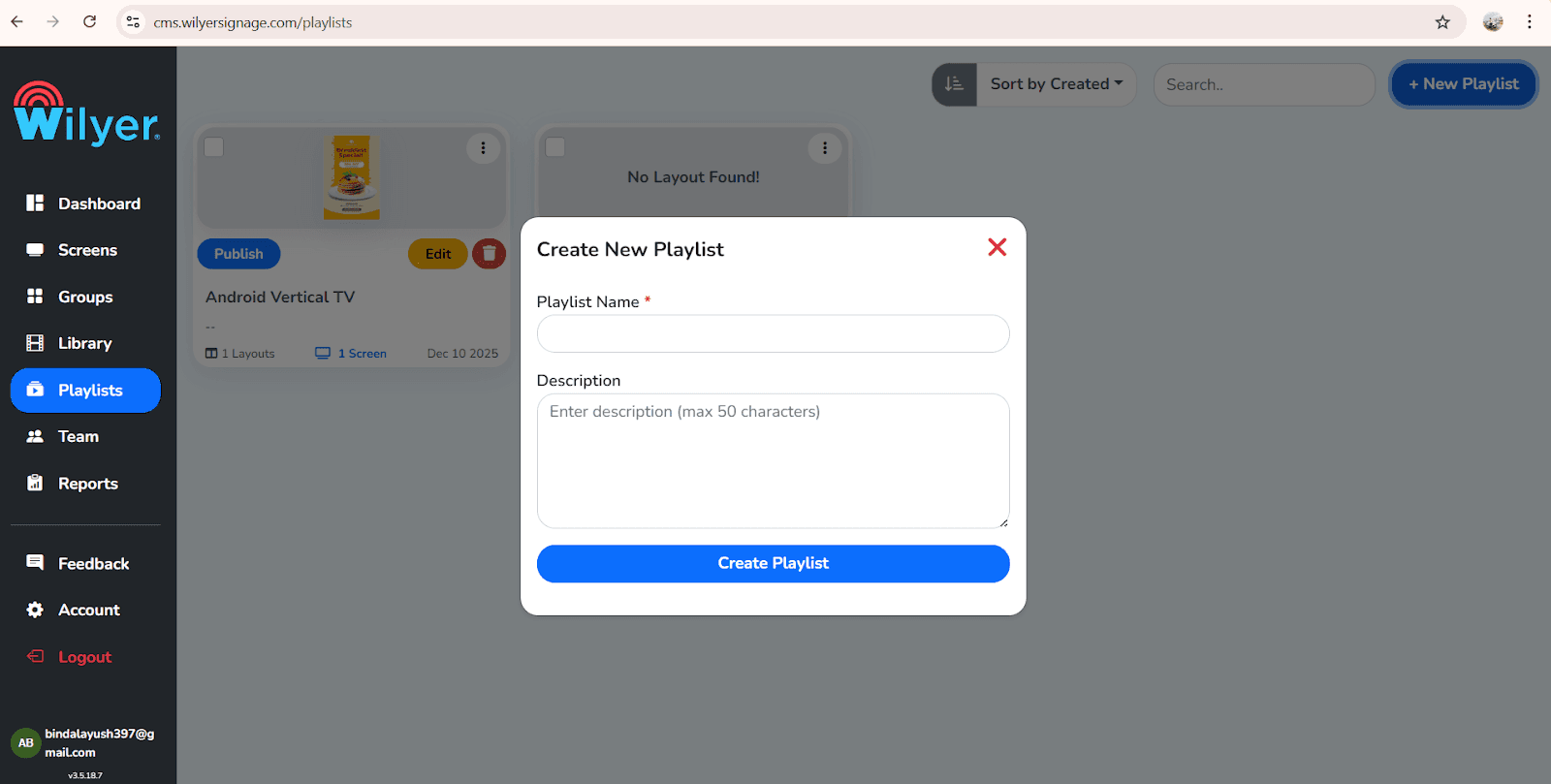
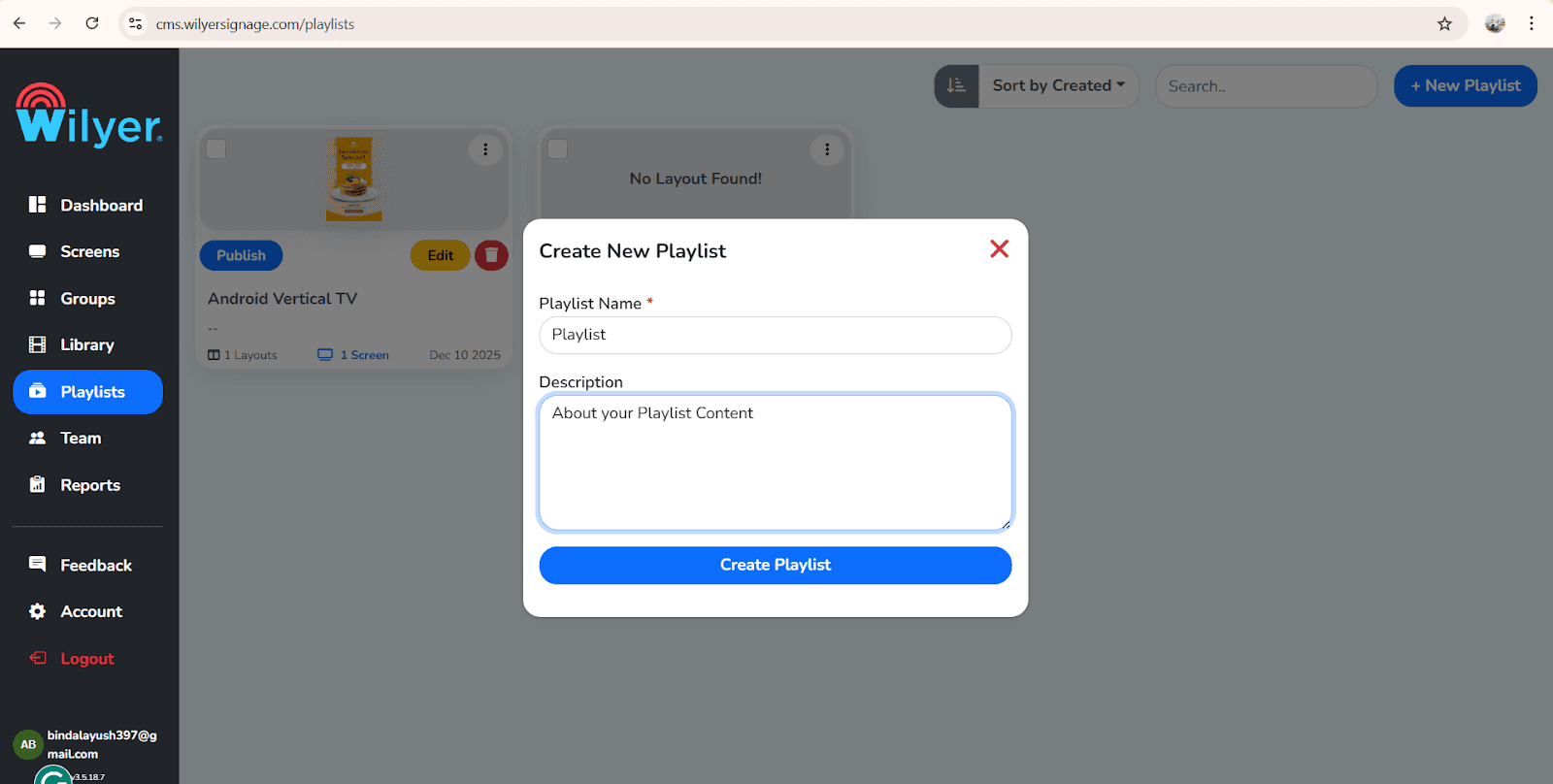
قم بتسمية قائمتك شيئًا ذو دلالة مثل لوحة قائمة المطعم، العروض الترويجية أو الإشعارات الشركات وانقر على "إنشاء قائمة تشغيل".
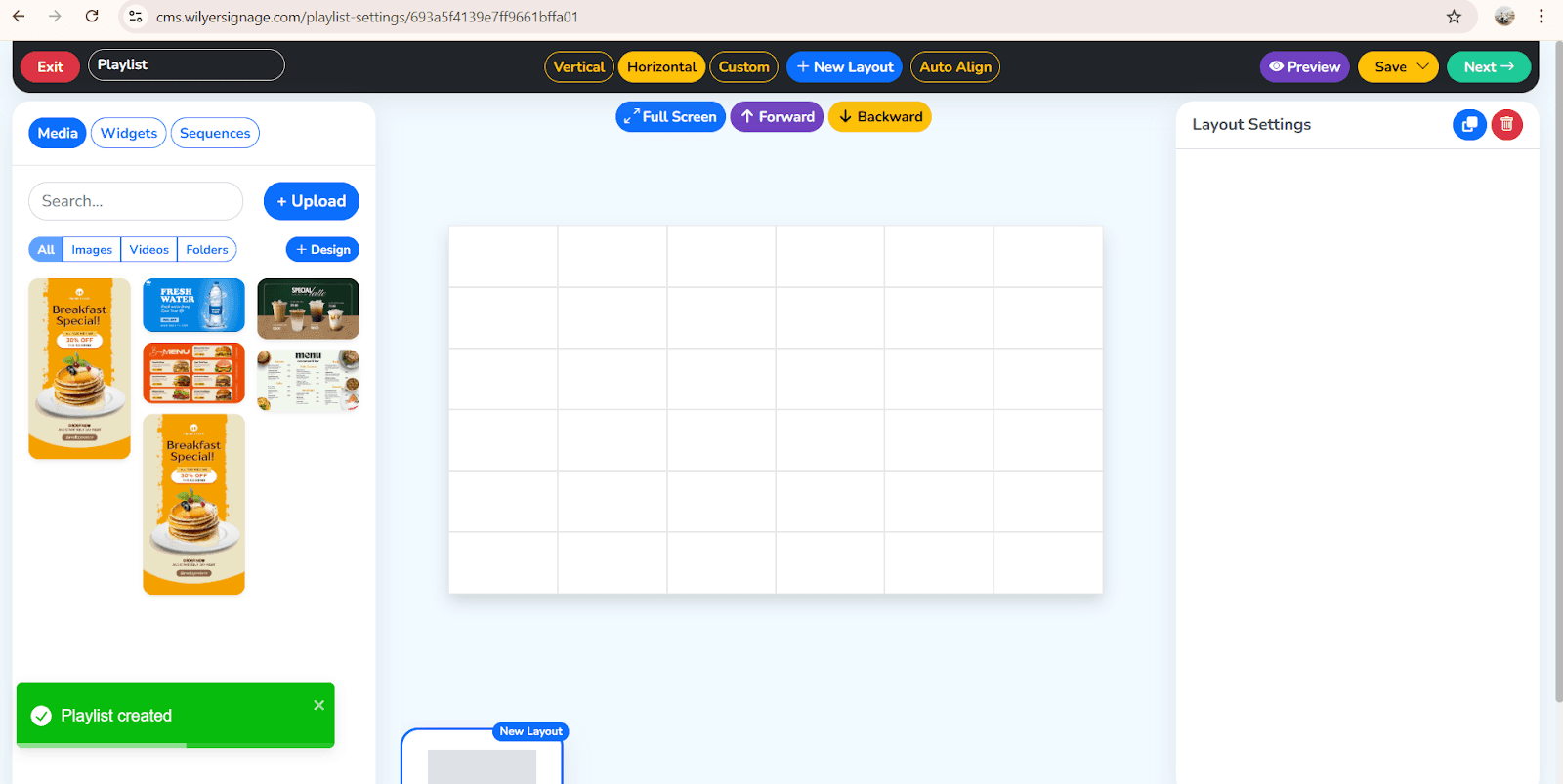
اختر الاتجاه / التصميم
يكتشف Wilyer ويعمل على تحسين قوائم التشغيل الخاصة بك تلقائيًا لكل من الشاشات الأفقي والعمودي، مما يضمن الدقة في الاتجاه، وتشغيل سلس وتجربة مشاهدة متسقة عبر جميع الشاشات.
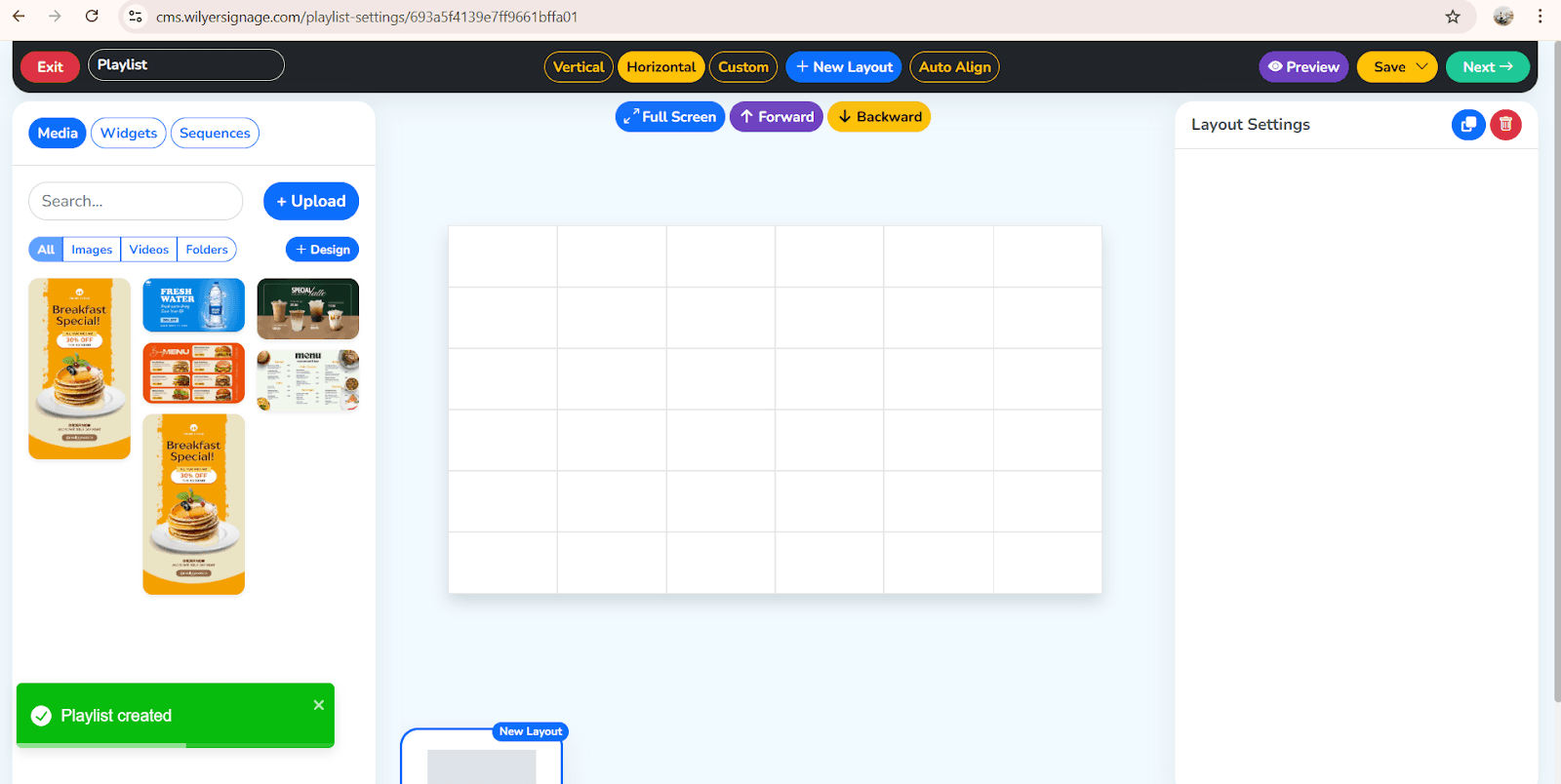
صمم محتوى قائمة المطعم الخاصة بك.
الخطوة 5: تحميل صور القائمة
في لوحة تحكم Wilyer:
انقر على "المكتبة"
انقر على "رفع" أو "+ إضافة وسائط"
تحميل صور القائمة:
لوحات القوائم (1920x1080 موصى بها)
صور الطعام
رسومات ترويجية
عروض يومية
أفضل الممارسات لتصميم القائمة:
تصوير للغذاء بجودة عالية.
خط كبير (أكبر من 72pt) للأسعار.
استخدام ألوان ذات تباين عالٍ للقراءة.
عرض شهي
علامة تجارية احترافية
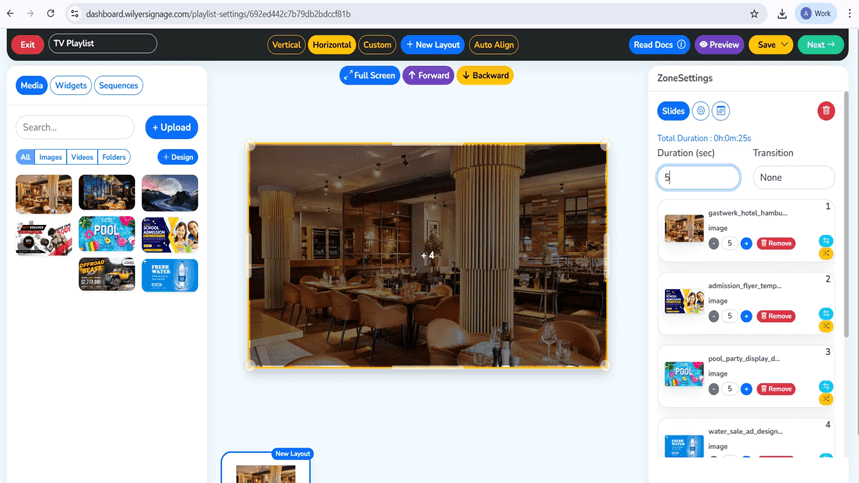
الخطوة 6: بناء قوائم تشغيل القائمة
إنشاء قوائم لجزء من اليوم:
نظام لوحة القوائم Firestick هو نظام لوحة قوائم يسهل تنظيمه:
قائمة الإفطار:
انقر على "قوائم التشغيل" - "إنشاء جديد"
التسمية: "قائمة الإفطار"
الإفطار، القهوة، العروض الصباحية.
الوقت المستغرق على الشاشة: 20-30 ثانية.

قائمة الغداء:
إنشاء قائمة تشغيل "قائمة الغداء"
إضافة وجبات الغداء، والكمبو، والمشروبات.
إضافة المواد الدعائية.
قائمة العشاء:
إنشاء قائمة تشغيل "قائمة العشاء"
الحلويات الخاصة، ميزات العشاء، العروض الخاصة.
إضافة العروض الترويجية المسائية
توقيت المحتوى:
شاشات القائمة الثابتة: 20-30 ثانية
فيديوهات ترويجية: 10-15 ثانية
عروض يومية: 15 ثانية
اللفة الكلية: 2-3 دقائق مثالية
جدولة متقدمة:
العروض الخاصة خلال ساعة السعادة (4-7 مساءً 5 أيام في الأسبوع)
قوائم فطور نهاية الأسبوع
قوائم العطلات
العروض الموسمية
عروض محدودة الوقت
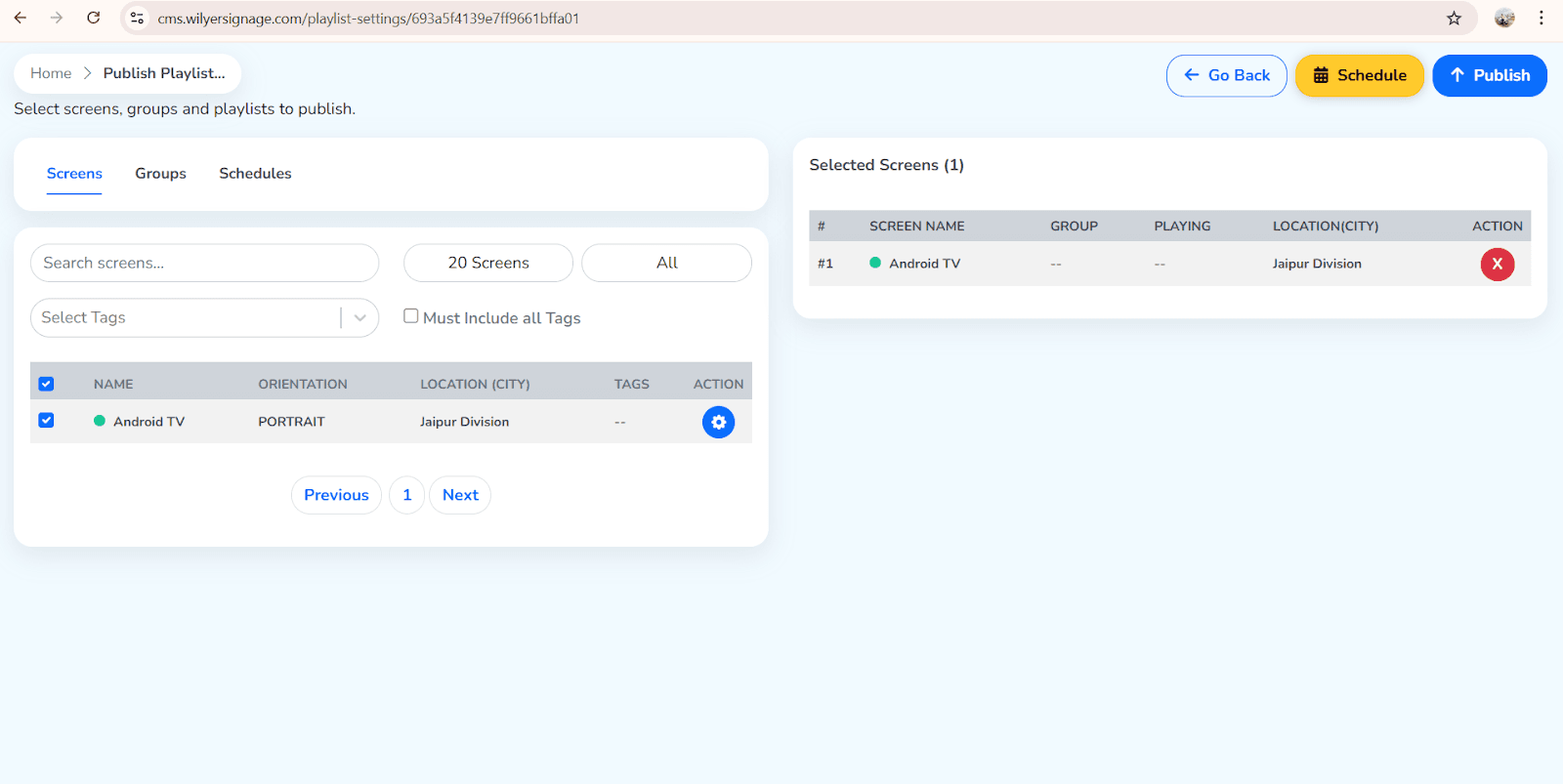
الخطوة 7: تأكيد ونشر محتوى قائمتك
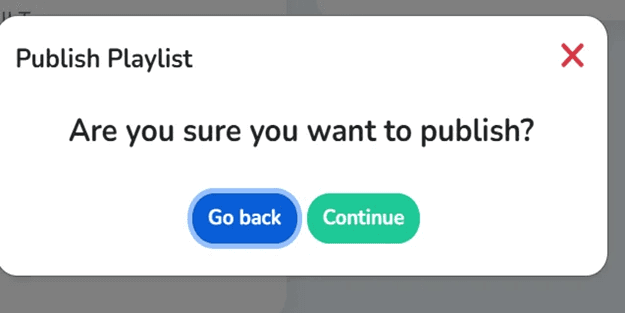
بعد النقر على Continue لإكمال عملية النشر، ستذهب لوحة قائمة Fire TV Stick إلى الشكل العمودي على الشاشة الرئيسية لـ Fire TV Stick. سيتم إرسال قائمة التشغيل التي حددتها تلقائيًا إلى جهاز Fire TV Stick الخاص بك من نظام الإشارات القائم على السحابة تقريبًا على الفور بعد اكتمال عملية النشر. خلال ثوانٍ بعد إرسالها، ستظهر قائمة المحتوى المصممة بشكل احترافي على العرض الرقمي للمطعم. لا تحتاج إلى اتصال كابل فعلي لإدارة هذه التكنولوجيا الجديدة أو تحديث قوائم الطعام الرقمية عن بُعد لأن حلول لوحة القوائم الرقمية المقدمة من مطعمك ستتصل بسهولة بنظام الإشارات القائم على السحابة لإدارة كل من عن بُعد وبسرعة إذا لزم الأمر.
الخطوة الأخيرة: قائمة التشغيل مباشرة على الشاشة
الآن بعد أن تم نشر قائمة التشغيل الخاصة بك، ستلعب تلقائيًا عبر العرض المتصل. ستعرض المعلومات الموجودة في تحميلاتك وفقًا لمواصفات تخطيطاتك، ترتيب الوسائط الذي اخترته وإعدادات تأخير الوقت على تحميلات الوسائط الخاصة بك. يرجى التحقق مما إذا كانت المرئيات، اتجاه الشاشة وانتقالات التشغيل التلقائية تعمل بشكل صحيح لضمان رؤية مشاهديك ما تنوي أن يرونه.
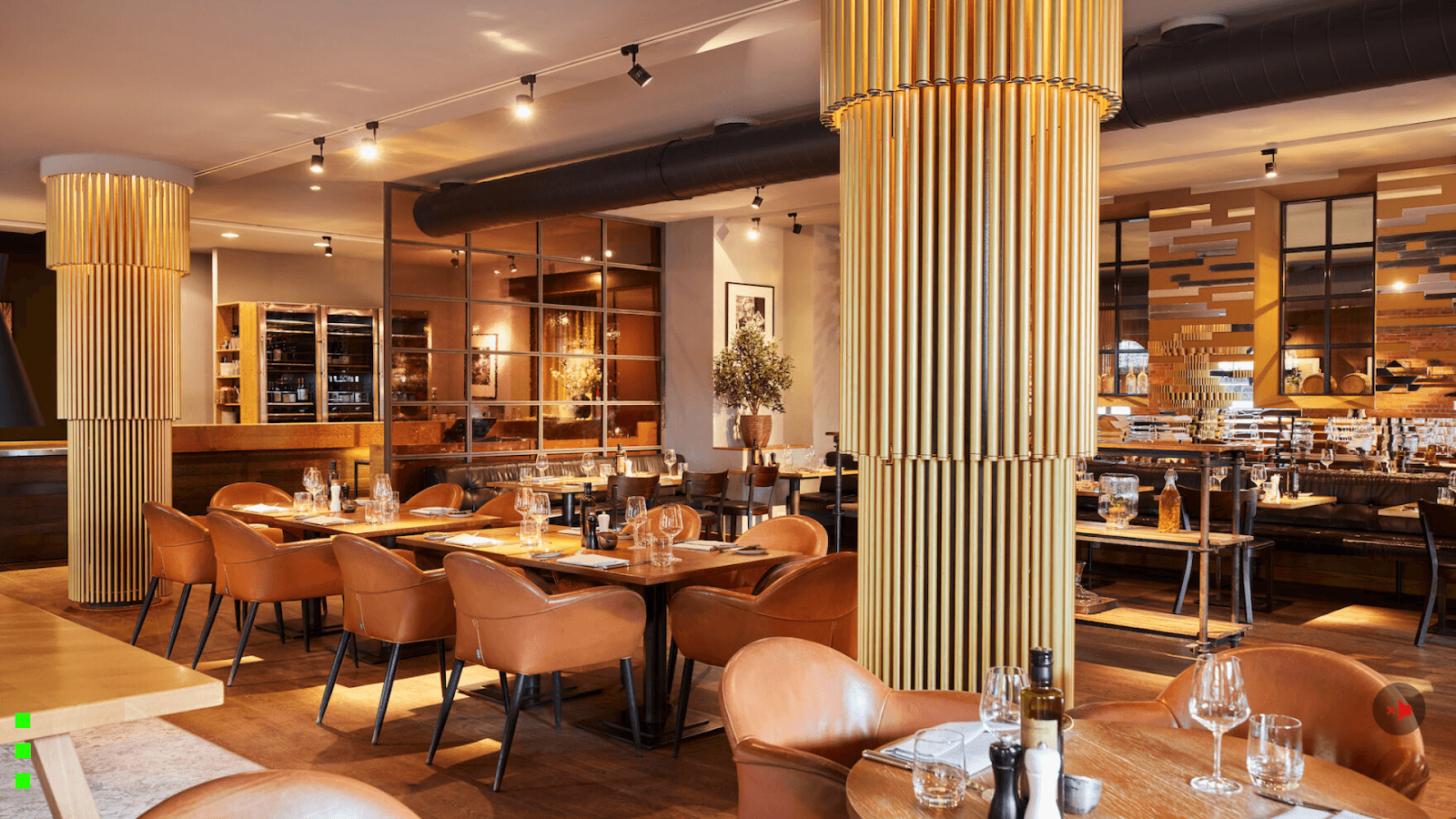
تحقق من العرض:
لوحة القائمة الفيزيائية- محتوى قيد التشغيل.
المشاهدة عن بُعد استخدم لوحة التحكم "معاينة"
الموافقة على الحالة على الإنترنت (علامة خضراء)
يمتلك المطعم الإشارات الرقمية Firestick الخاص به.
ميزات لوحة القائمة المتقدمة
تحديثات الأسعار الديناميكية
لوحة الأسعار الديناميكية Firestick:
تحديثات فورية للأسعار في جميع المواقع:
تحرير صورة القائمة في Wilyer
تغيير الأسعار
حفظ ونشر
تتغير كل لوحة قائمة في غضون ثوانٍ.
مثالي من أجل:
تغييرات أسعار ساعة السعادة
تعديلات الأسعار الديناميكية
تحديثات الأسعار الموسمية
أسعار قائمة بناءً على السوق
إدارة متعددة المواقع
لسلاسل المطاعم:
تحديث القوائم عن بُعد على Firestick:
تحكم في كل موقع من لوحة تحكم واحدة.
أرسل إشعارات دفع إلى جميع المطاعم في نفس الوقت.
أو تخصيص القائمة لكل موقع.
مرونة يتم التحكم فيها محليًا مركزيًا.
إدارة السلاسل:
تتلقى الشركات ضوابط معايير العلامة التجارية.
يمكن للفرانشايز تعديل الأسعار المحلية.
تنويعات القائمة الإقليمية.
جهود ترويجية متزامنة.
تصميم القائمة القائم على القالب
لوحة القائمة بتنسيق قالب Firestick:
تقدم Wilyer قوالب للمطاعم:
تصميمات مجموعات QSR
قوائم مشروبات مقاهي
لوحات عرض المطاعم البيتزا
قوائم المطاعم الكاملة.
عرض مواد المخابز
تنسيقات قوائم القيادة عبر
قوالب جاهزة أو تصميم قالب.
جهاز Fire TV Stick لا يمكنه الاتصال بالإنترنت
إذا كنت تواجه مشكلة في توصيل جهاز Fire TV Stick بالإنترنت، فلن تتزامن لوحة القائمة الرقمية الخاصة بك مع Wilyer Cloud CMS. إليك بعض الأشياء التي يمكنك تجربتها لحل مشكلتك:
1. تأكد من صحة معلومات Wi-Fi الخاصة بك
تأكد من أن المعلومات التي أدخلتها في جهاز Fire TV Stick الخاص بك لاسم شبكة Wi-Fi (SSID) وكلمة المرور صحيحة. عند إدخال كلمة المرور، تأكد من أنها حساسة لحالة الأحرف. تحقق مرة أخرى من الأحرف الكبيرة، والأرقام وأي أحرف خاصة أخرى. قد ترغب في محاولة إدخال كلمة المرور مرة أخرى.
2. تحقق من اتصال الإنترنت الخاص بجهاز التوجيه لديك
تأكد من أن جهاز التوجيه يعمل بشكل جيد عن طريق محاولة توصيل جهاز آخر (مثل هاتفك أو الكمبيوتر المحمول) بنفس الشبكة اللاسلكية. إذا لم تتمكن من الاتصال بأي أجهزة أخرى، فيجب إعادة تشغيل جهاز التوجيه ثم محاولة إعادة الاتصال بجهاز Fire TV بعد السماح بوقت كاف لاستقرار اتصالك بالإنترنت.
3. إعادة تشغيل جهاز Fire TV Stick وجهاز التوجيه الخاص بك
قم بفصل Fire TV Stick عن مصدر الطاقة
قم بإيقاف تشغيل جهاز التوجيه لمدة 30-60 ثانية
قم بتشغيل جهاز التوجيه وانتظر حتى يصبح الإنترنت نشطًا تمامًا
قم بإعادة الاتصال وإعادة تشغيل Fire TV Stick
4. استخدم محول Ethernet لتحقيق استقرار الاتصال بالشبكة
إذا كانت لوحات القائمة الرقمية الخاصة بك تحتاج إلى البقاء متصلة بالإنترنت باستمرار، فإن Wi-Fi ليس دائمًا هو الحل الأفضل. يوفر استخدام محول Ethernet اتصالًا أكثر استقرارًا (أقل تأثراً) بين جهاز Fire TV Stick وجهاز التوجيه الخاص بك لن يتعرض للتداخل. يُوصى به للمطاعم، ومتاجر البيع بالتجزئة، والإشارات، وتطبيقات مشابهة تحتاج إلى العمل على مدار الساعة طوال أيام الأسبوع دون انقطاع.
محتوى القائمة لا يتم تحديثه:
تحقق من جهاز Fire TV على الإنترنت (حالة خضراء)
تحقق من سرعة الإنترنت
فرض المزامنة من لوحة التحكم
إعادة تشغيل تطبيق Wilyer
مشكلات جودة العرض:
استخدم دقة 1920x1080 كحد أدنى
تحسين ضغط الصورة
تحقق من إعدادات شاشة التلفاز
ضبط اتصال HDMI
التطبيق لا يبدأ تلقائيًا:
تفعيل أذونات التطبيق
منح الإذن للعمل مع تطبيقات أخرى.
تحقق من بيئة بدء تشغيل Fire TV.
اختبر مع إعادة تشغيل يدوية
التكاليف والعائد على الاستثمار للمطاعم
الاستثمار:
جهاز Fire TV Stick: 29-59 دولارًا
اشتراكات Wilyer: لكل شاشة / شهر.
إجمالي التأسيس: أقل من 100 دولار لكل لوحة قائمة.
التوفير:
تخلص من قائمة الطباعة: 500-2000 في التحديث.
لا تكاليف إعادة الطباعة على الإطلاق
تغييرات الأسعار الفورية
وقت الموظف الموفر: 5-10 ساعات/أسبوع
أثر الإيرادات:
استدعاء عنصر به هامش مرتفع للأمام.
زيادة مبيعات الوجبات المركبة: 20-30%
بيع الحلويات والمشروبات.
ترويج العروض اليومية
المظهر الاحترافي يجذب العملاء.
متوسط فترة الاسترداد: 1-2 شهر بالنسبة لمعظم المطاعم.
لماذا Wilyer إلى لوحات قوائم Fire TV؟
حل يركز على المطاعم:
حل لوحة القوائم Fire OS.
جدولة جزء من اليوم تم إعدادها.
تصميمات قائمة بناءً على القالب
تم تحسينها للأطعمة السريعة والمقاهي
سهل الاستخدام:
لا حاجة لمهارات تقنية
نظام إدارة محتوى سحابي للوحة القائمة الرقمية.
لوحة تحكم بواجهة سهلة الاستخدام
إعداد سريع خلال 30 دقيقة
موثوق:
قدرة تشغيل على مدار 24 ساعة طوال أيام الأسبوع
الاستعادة التلقائية عند انقطاع التيار الكهربائي.
تشغيل بدون اتصال بالإنترنت
يعرض القوائم دائمًا
قابل للتوسع:
ابدأ بعرض قائمة المطبخ Firestick.
توسع إلى مئات من منصات شاشة قائمة الطعام السريعة Firestick.
متاحة لتشغيل كل شيء من خلال لوحة تحكم واحدة.
متسقة عبر جميع المواقع.
الخلاصة
يقدم برنامج الإشارات الرقمية Firestick من Wilyer لجهاز Fire TV Stick التوازن المثالي بين التكلفة المنخفضة، والبساطة والوظائف الخاصة بلوحات القائمة في المطاعم. باستخدام خدمات المقاهي المستقلة وسلاسل QSR الوطنية، توفر لوحة القائمة الرقمية لجهاز Fire TV Stick عروض قوائم ديناميكية باستخدام برنامج إدارة لوحات القوائم السحابية Firestick.
تحتاج إلى عرض قائمة مطعم Firestick واحد أو ألف لوحة قائمة غذائية رقمية QSR تقدم Wilyer كل ذلك: جدولة مواد لوحة القوائم Firestick، تحديث قوائم الطعام عن بُعد، لوحة قائمة الأسعار الديناميكية Firestick، ونظام إدارة محتوى السحابة الكاملة لللوحات الرقمية- كله في لوحة تحكم سهلة الاستخدام واحدة.

