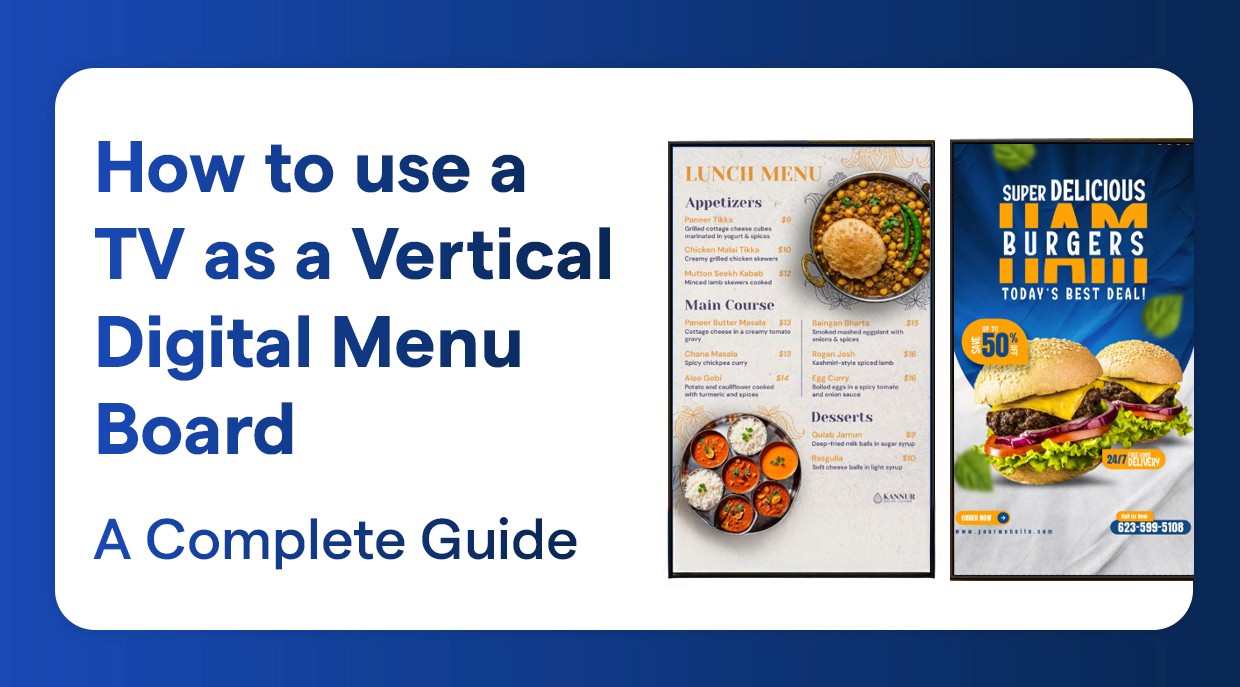
لوحة قائمة رقمية
كيفية استخدام التلفاز كلوحة قائمة رقمية عمودية
حوّل أي تلفاز إلى لوحة قائمة رقمية عمودية للمطاعم الحديثة
٢٤ جمادى الآخرة ١٤٤٧ هـ
تُظهر شاشات القائمة الرقمية في وضع عمودي، أو منظر رأسي، وهو المعيار الصناعي في لوحات القوائم الرقمية لأنه يُستخدم بشكل أفضل لمساحة العرض ويجعل المطعم يبدو محترفًا على الفور. يُبسّط برنامج توقيع قائمة WiIyler الرقمية هذا الأمر ويستخدم التلفاز المتوفر لديك بالفعل ويستخدم قدرة سحابية للتحكم في التدوير.
ماذا تعني لوحة القائمة الرقمية العمودية؟
لوحة القائمة الرقمية العمودية هي لوحة قوائم سلالة، لوحة قوائم إلكترونية، عمودية تستبدل الألواح المطبوعة بعروض ديناميكية وجذابة بصريًا. توفر هذه الأنظمة للمطاعم برنامج توقيع رقمي يعرض عناصر القائمة والأسعار والعروض والصور والرسوم المتحركة على أجهزة التلفاز أو الشاشات التي تم ضبطها في وضع عمودي أو صيغة 1080×1920 (رأسي) بحيث يمكن مسحها بسرعة من قبل العملاء.
فوائد استخدام لوحة قائمة رقمية عمودية
من خلال تنفيذ تخطيط طويل على طراز الجوال يُشبه التطبيقات وإنستغرام، يمكنك تحسين تفاعل العملاء.
يتيح استخدام أكبر مساحة ممكنة للشاشة تضمين أكبر عدد من عناصر القائمة، وصور فوتوغرافية لعناصر القائمة، والأسعار، والعروض الترويجية.
تقليل تكاليف الطباعة ويسمح بتحديثات قائمة أسرع عند حدوثها.
زيادة المبيعات من خلال التركيز على البيع الإضافي، وعروض الكومبو، والعروض اليومية الخاصة.
يخلق مطعمًا أكثر حداثة ومظهرًا احترافيًا.
يتيح لك تحديث مواقع متعددة عن بُعد تحت حساب واحد باستخدام نظام إدارة المحتوى السحابي الخاص بـ Wilyer.
لماذا تختار Wilyer للوحاته الرقمية العمودية
تحكم في لوحة قوائمك من السحابة: مع القدرة على تحديث لوحة القوائم الخاصة بك عن بُعد من أي موقع.
سهل الاستخدام: استخدم واجهة سحب وإفلات تم تطويرها خصيصًا للمستخدمين غير التقنيين.
متوافق مع جميع أجهزة التلفاز: يعمل Wilyer بسلاسة مع توقيع تلفاز Android الرقمي، صناديق أندرويد، وأجهزة Fire Stick دون الحاجة إلى مشغلات وسائط مكلفة.
وضع عمودي نشط: يقوم تلقائيًا بتنسيق محتوى العرض إلى وضع عمودي 1080×1920.
قدرة قفل الكشك: احتفظ بالجهاز مغلقًا على عرض لوحة القائمة لمنع أي خروج غير مصرح به.
تحديثات حية: يستغرق أي تغيير في الأسعار أو عناصر القائمة بضع ثوانٍ فقط للتحديث.
عرض محتوى غير متصل: لا يزال يتم عرض وسائطك عندما لا توجد هناك اتصال بالإنترنت.
قدرة متعددة الشاشات: هذا تطبيق رائع لمستخدمين متعددين بنفس النوع من الشاشات (مثال: سلاسل الوجبات السريعة، ساحات الطعام، محطات القيادة).
حل اقتصادي: لا حاجة لشراء مشغلات وسائط مكلفة بشكل منفصل أو دفع دعم تكنولوجيا المعلومات.
المتطلبات التقنية لعملية سلسة
متطلبات لمشروع يعمل بسلاسة
يحتاج كل جهاز إلى اتصال إنترنت لا يقل عن 5 ميغابت في الثانية.
لتوفير صور عالية الجودة، يجب أن تملك دقة شاشة لا تقل عن 1080 × 1920 بكسل.
يجب أن تكون شاشة التلفاز قادرة على الدوران في وضع رأسي (إذا لم يكن، يجب أن تمتلك صندوق الأندرويد هذه القدرة).
مقترح للسطوع: مطاعم داخلية 350 نيت إلى 500 نيت؛ السطوع للمؤسسات التجارية 700+ نيت للاستخدام العملي في الإضاءة المحيطة العالية.
مقدمة
كيفية تحويل تلفاز قياسي إلى لوحة قائمة رقمية عمودية
تستبدل لوحات القوائم الرقمية قوائم الورق التقليدية في المطاعم والمقاهي في كل مكان.
إنها ساطعة، وسهلة التحديث، وتجذب انتباه العملاء.
يتيح لك برنامج توقيع الرقمية الحديثة قلب أجهزة التلفاز الأفقية القياسية عموديًا (رأسيًا) للحفاظ على المظهر الكلاسيكي للوحة القوائم.
في هذا الدليل، سوف نرشدك خلال كيفية تكوين شاشة لوضع عمودي باستخدام نظام إدارة توقيع Wilyer.
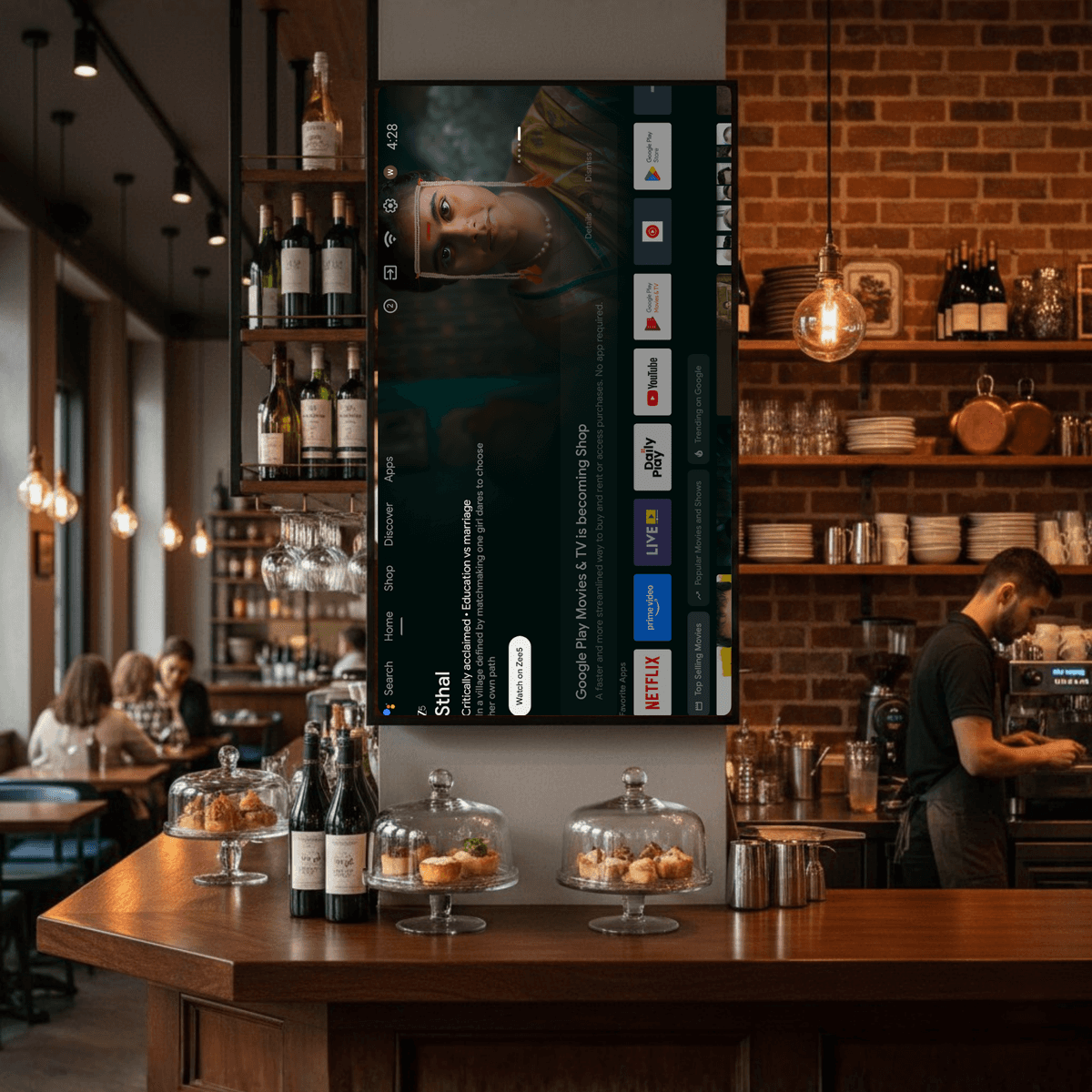
الخطوة 1: اختيار الأجهزة المناسبة
تثبيت تلفاز ذكي يعمل بنظام Android بأقل جهد
في حالة التلفزيونات العادية، يمكن توصيل صندوق Android أو Firestick.
الخطوة 2: متطلبات الشبكة
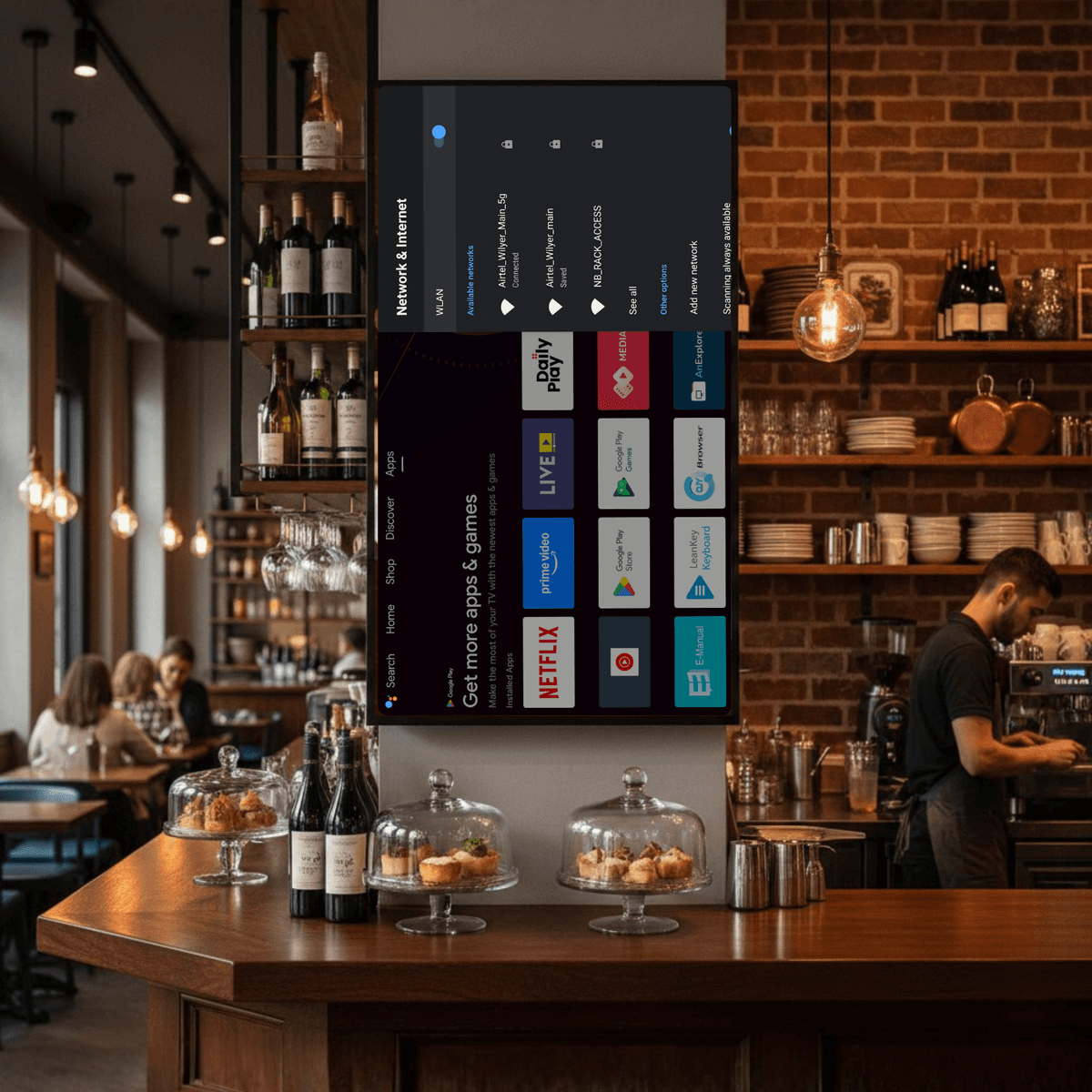
تأكد من أن الإنترنت عالي السرعة مستقر
إذا كان ممكنًا، استخدم الإنترنت السلكي لأنه أكثر موثوقية؛ WiFi أمر ضروري فقط في حالة الاضطرار.
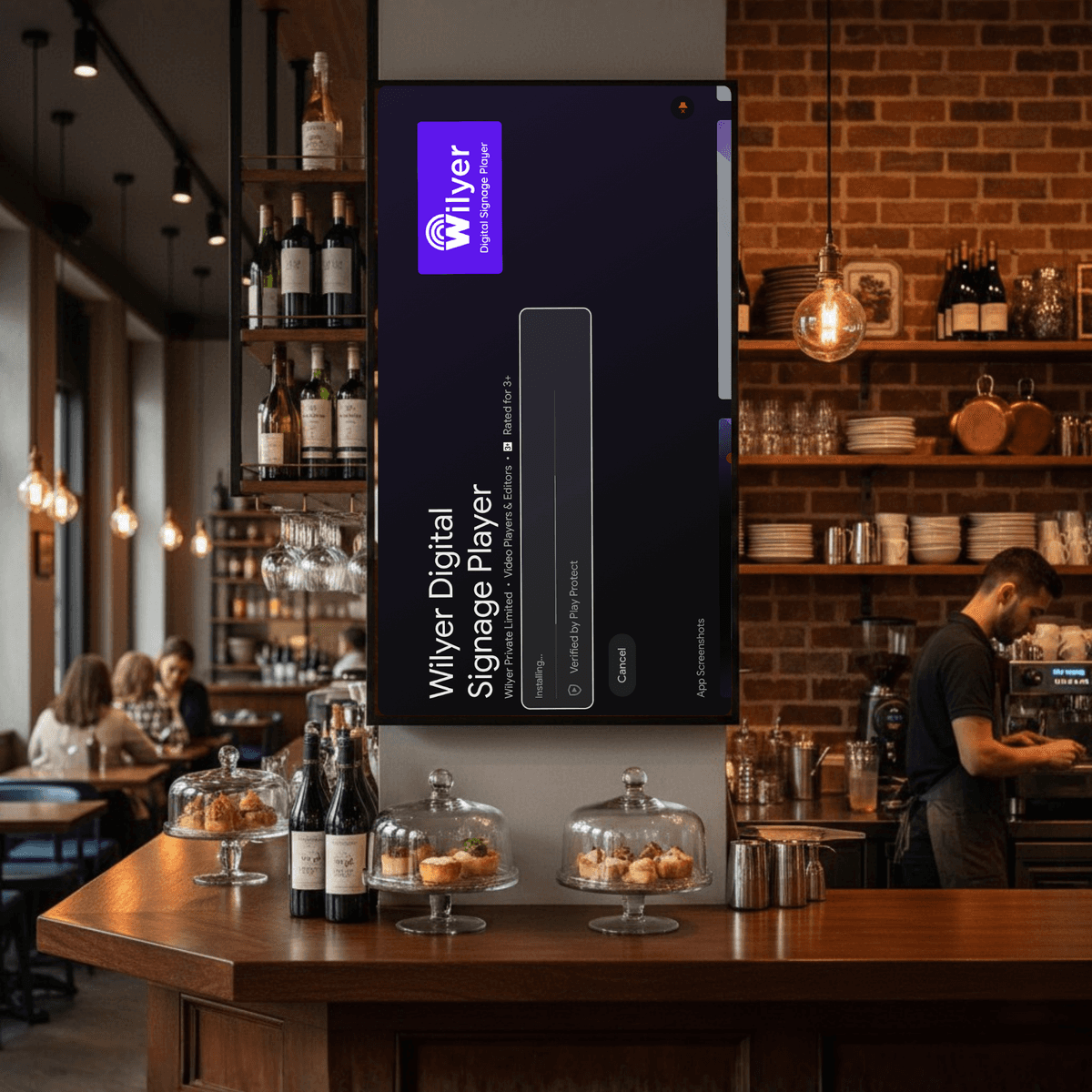
الخطوة 3: تثبيت تطبيق Wilyer
التثبيت عبر متجر Google Play
التثبيت عبر USB APK
التثبيت عبر متصفح Chrome على الموقع الرسمي
الخطوة 4: اقتران وإنشاء حساب
فتح حساب في Wilyer.com
إضافة جهاز في Wilyer - اكتب في رمز التلفاز المؤلف من 6 أرقام
قم بتسمية وتجميع الجهاز لتحسين الإدارة.
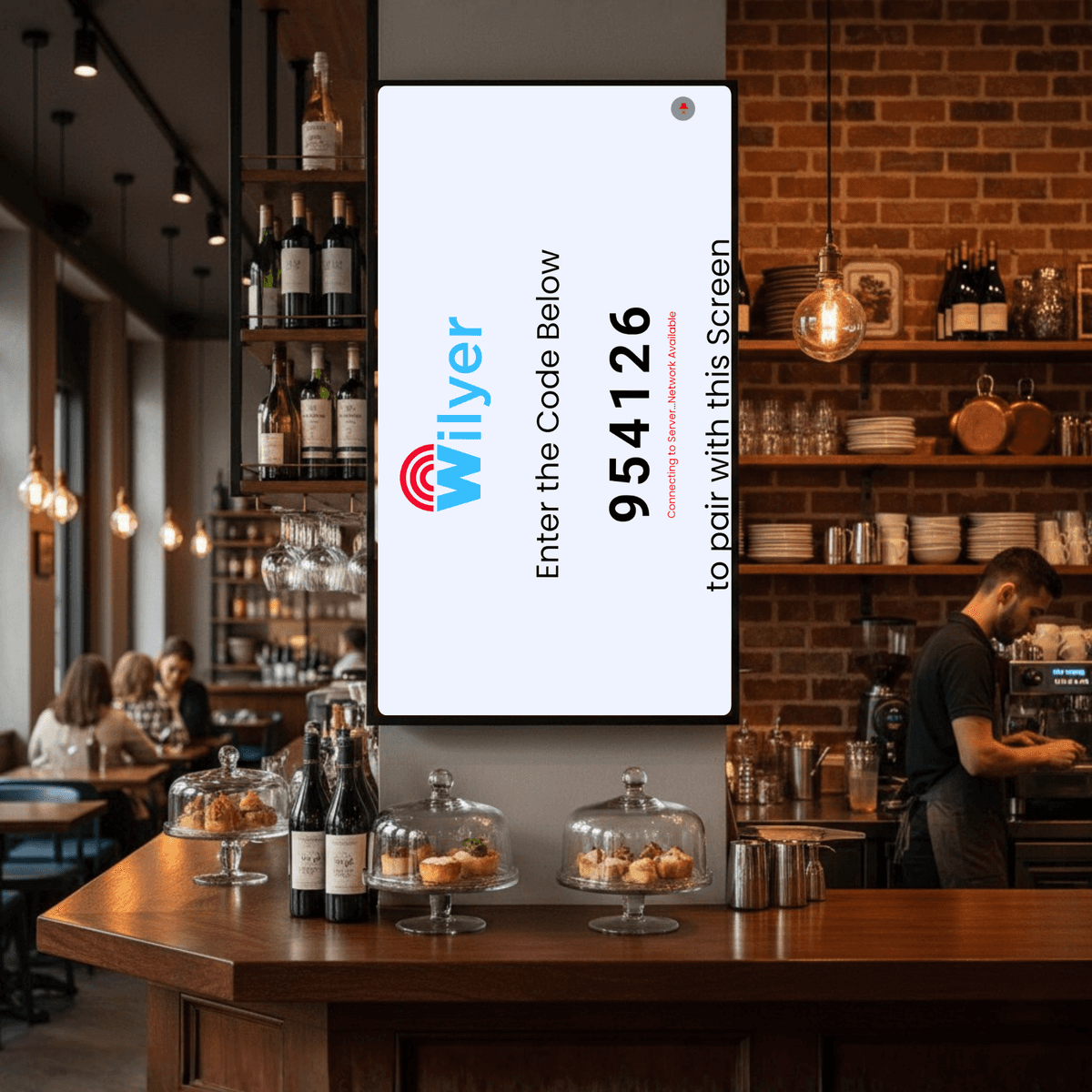
الخطوة 5: تحقق من حالة لوحة التحكم
تأكد من أن جهاز الشاشة لديك متصل بالإنترنت قبل بدء التكوين.
تسجيل الدخول إلى لوحة التحكم Wilyer CMS
حدد مؤشر حالة الشاشة
تحقق أن تلفاز Android أو Firestick يظهر على أنه 'متصل'
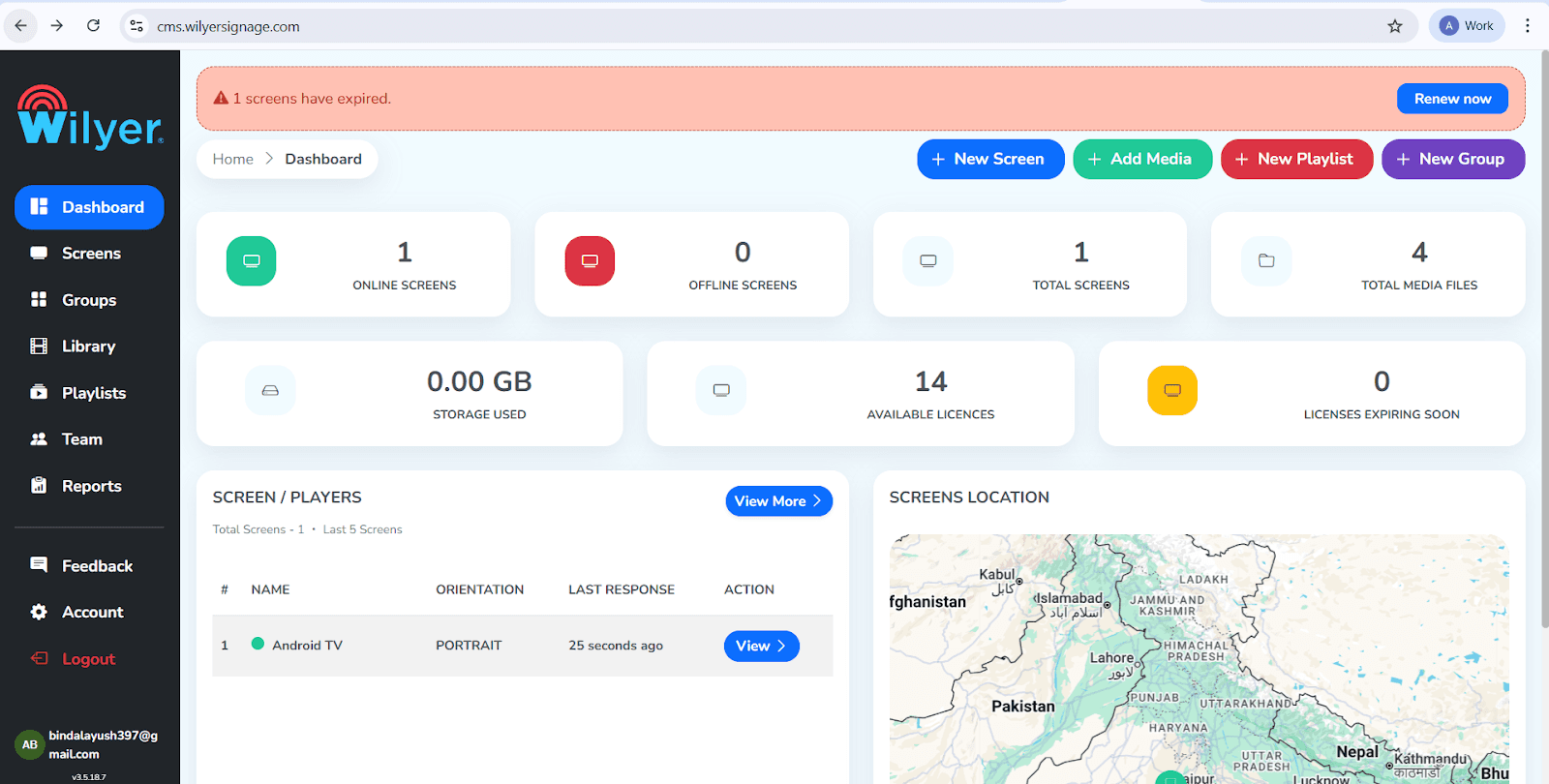
الخطوة 6: الوصول إلى تفاصيل الشاشة
انتقل إلى إعدادات الشاشة المحددة للتحقق من الاتجاه الحالي
انقر على علامة التبويب 'الشاشات' في الشريط الجانبي الأيسر
اختر الشاشة المحددة (مثل: 'تلفاز أندرويد')
راجع علامة التبويب 'الوسائط' لرؤية حالة الاتجاه الحالية
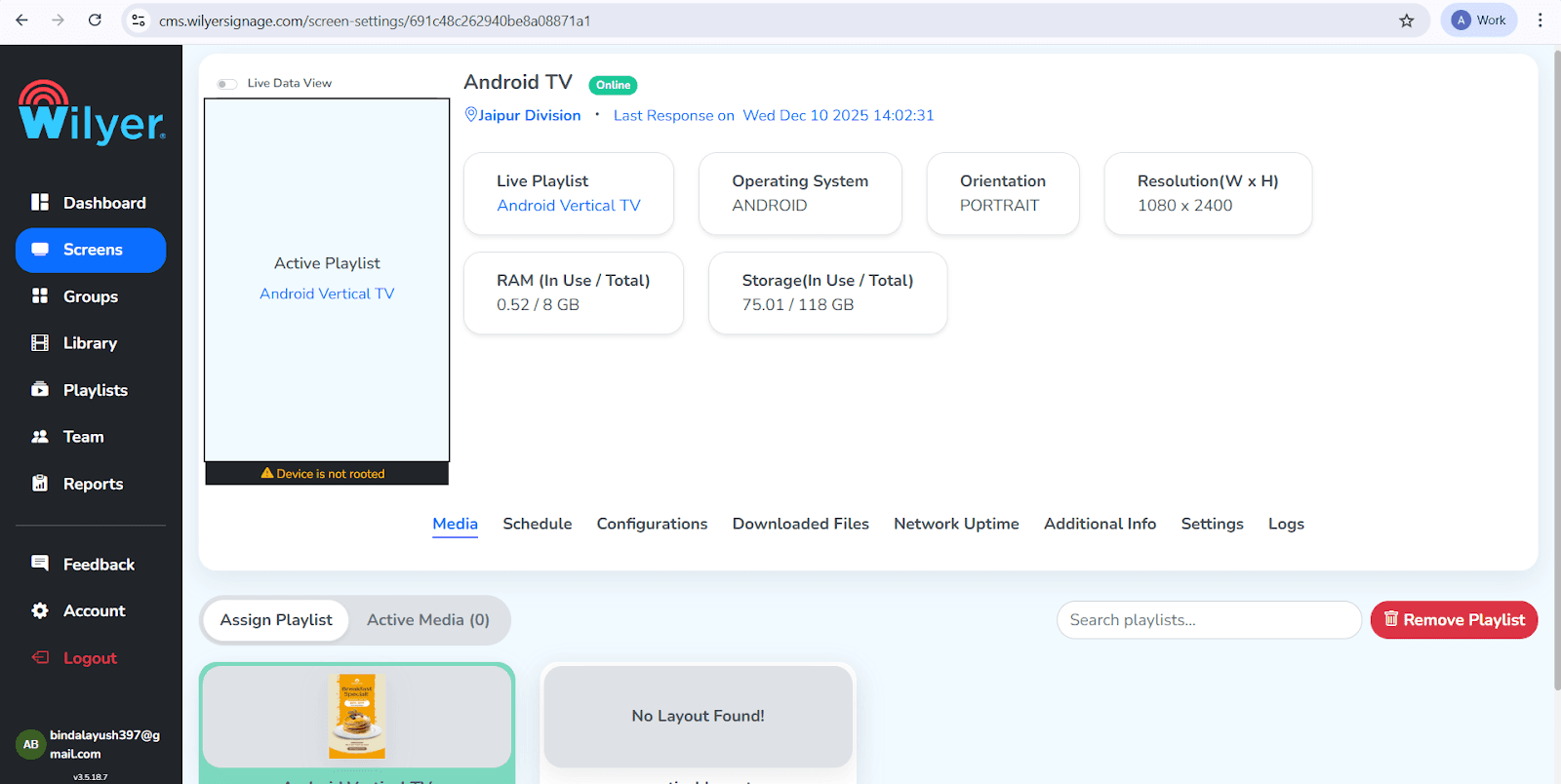
الخطوة 7: انتقل إلى التكوين
الوصول إلى قائمة تكوين الأجهزة:
حدد علامة التبويب 'التكوينات' في منتصف قائمة الشاشة
عادةً ما تكون بين 'جدولة' و 'ملفات التنزيل'
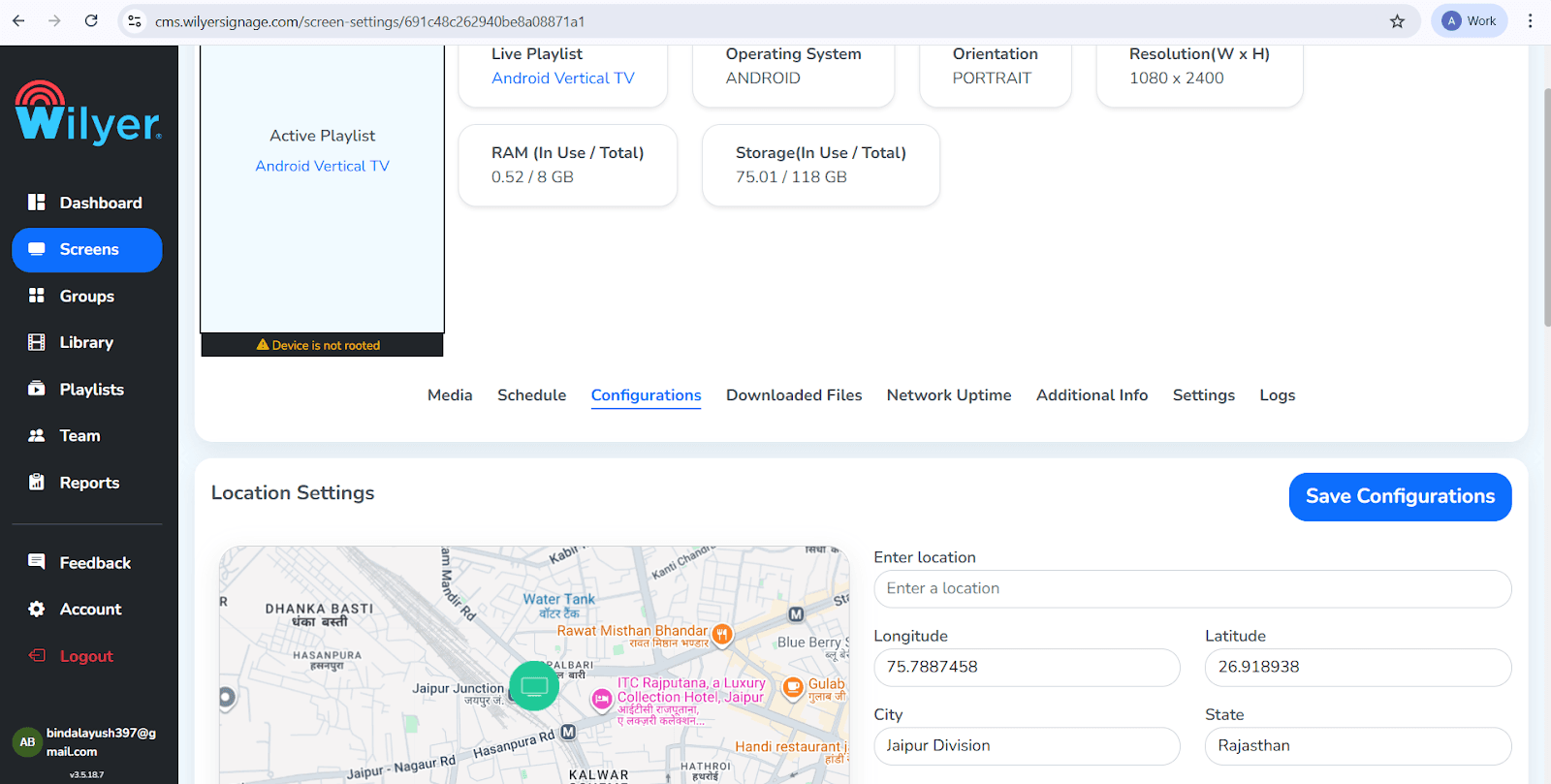
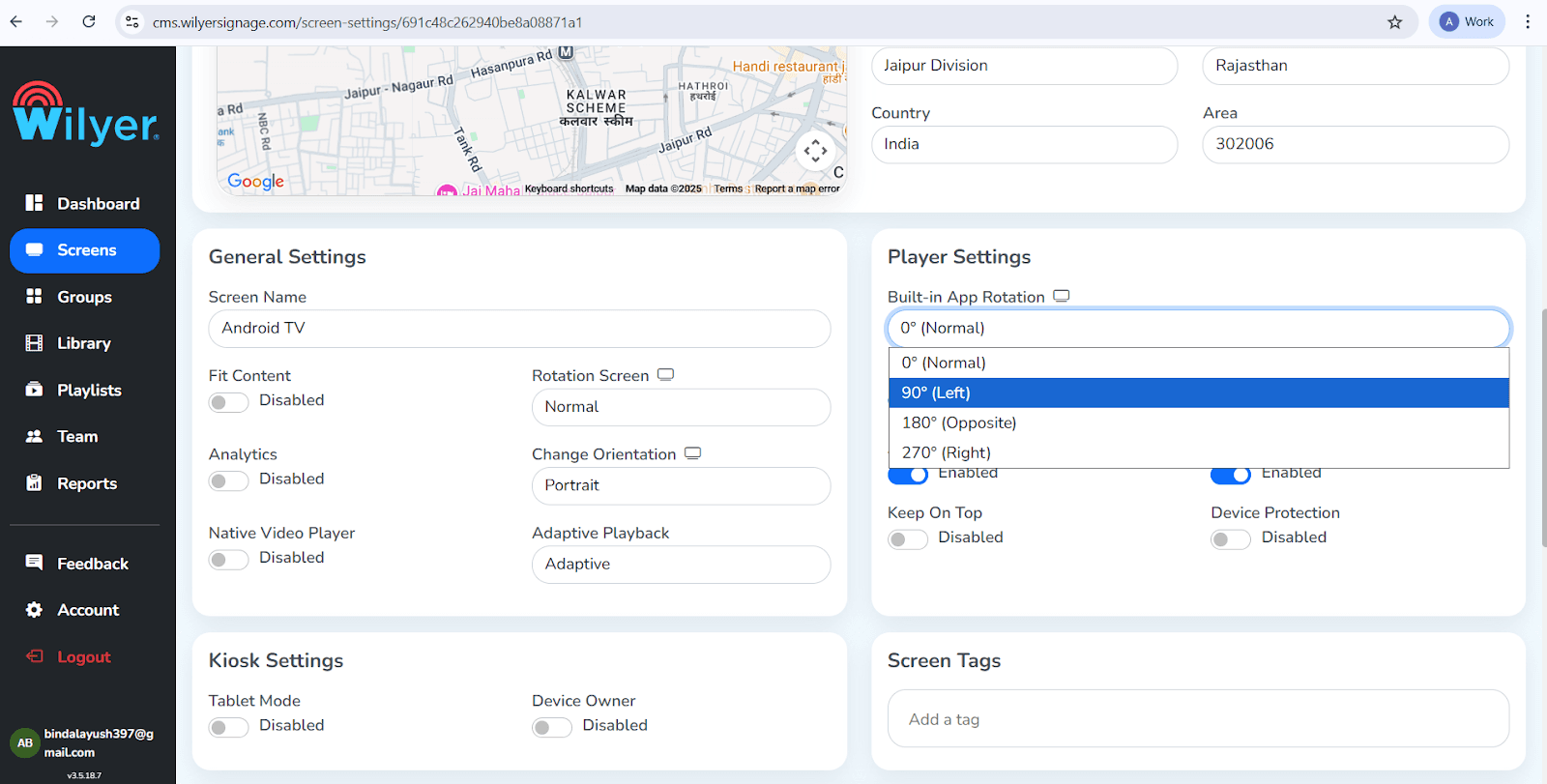
الخطوة 8: تغيير تدوير اللاعب
هذه هي الخطوة الأكثر أهمية لفرض الاتجاه العمودي.
التوجه إلى إعدادات اللاعب
ابحث عن 'تدوير التطبيق المدمج' (الإفتراضي هو 0)
اختر 90 (يسار) أو 270 (يمين) بناءً على طريقة التثبيت لديك.
قم بتحديث 'تدوير الشاشة' إذا كانت متاحة
الخطوة 9: حفظ التكوين
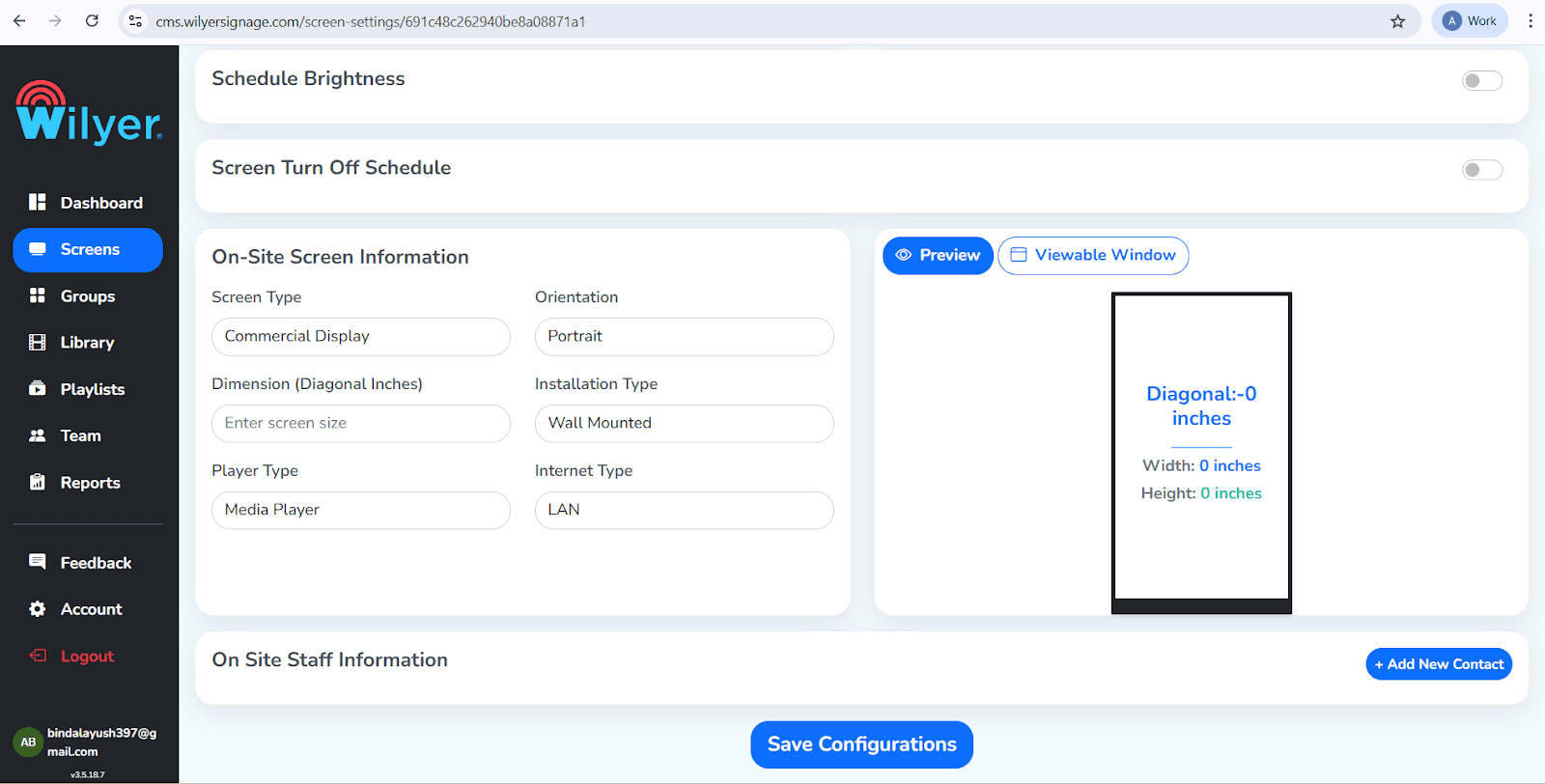
تطبيق التغييرات وإعادة تشغيل الشاشة
انتقل لأسفل الصفحة
قم بتعيين معلومات الشاشة على الموقع إلى الاتجاه 'رأسي'
انقر على زر 'حفظ التكوين' الأزرق
الخطوة 10: النتيجة النهائية
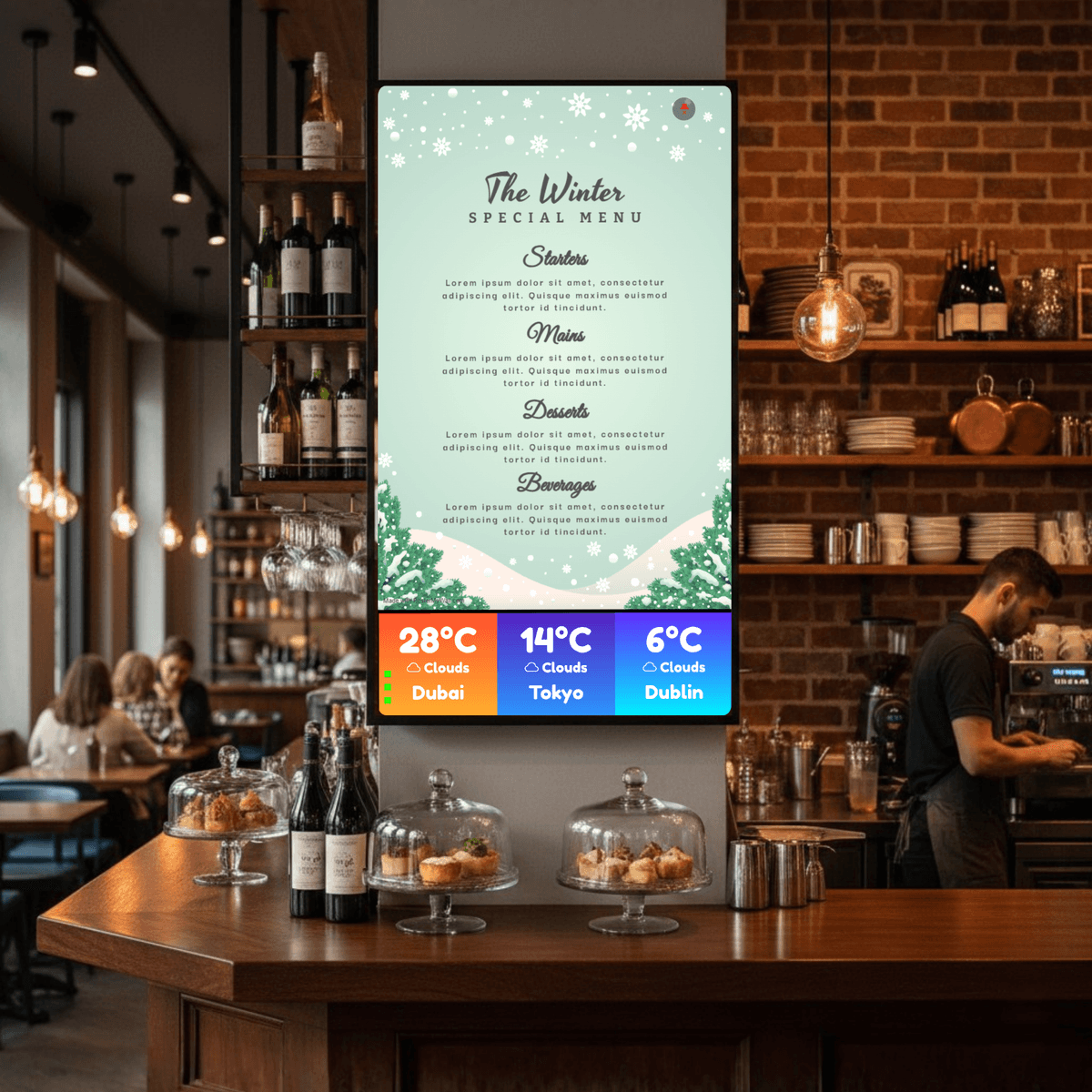
تحقق من أن الشاشة تعرض في الوضع الرأسي
انتظر التحديث / إعادة التشغيل
تأكد من ملء المحتوى للشاشة من أعلى إلى أسفل
قم بتحميل تصميم قائمتك العمودية
الملخص:
تحويل أي تلفاز ذكي بنظام Android إلى عرض توقيع رقمي احترافي.
إن استخدام لوحة قائمة عمودية هو طريقة رائعة لعرض المزيد من العناصر بتنسيق قائمة، مما يسهل على العملاء القراءة.
من خلال تغيير تدوير التطبيق ببساطة إلى 90 درجة في إعدادات CMS الخاصة بك، يمكنك تحويل أي تلفاز ذكي بنظام Android إلى عرض توقيع رقمي احترافي.

