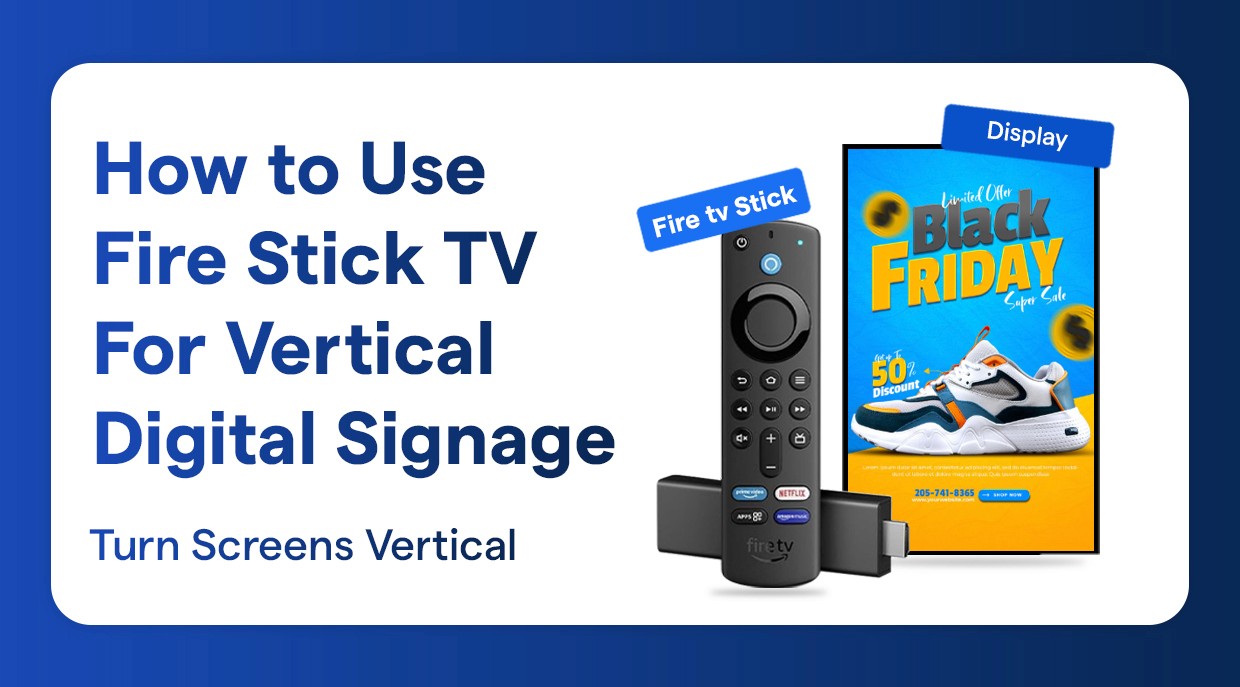
Fire TV Stick
How to Use Fire Stick for Vertical Digital Signage
Run vertical digital signage using Fire Stick
١٣ رجب ١٤٤٧ هـ
Turn your Amazon firestick TV into a high-end vertical digital signage platform with these easy steps. Know how to add signage apps to Firestick, set up portrait mode digital signage Firestick settings, and build a professional Firestick TV commercial display system with the cloud digital signage platform offered by Wilyer.
Why Choose Firestick Digital Signage?
Firestick digital signage is the cheapest signage tool in the market. It is a Firestick TV signage system that does not require any costly proprietary hardware and provides the professional-level digital display functionality. The vertical digital signage Firestick solution fits well in portrait digital signage software such as restaurant menus, retail displays, company lobbies and wayfinding systems.
The Firestick digital signage is achieved with the best Firestick signage app, which gives you a chance to manage the contents remotely wherever you are. This Firestick digital display system is compatible with rotating screen Firestick signage in portrait mode, which is very suitable in vertical display Firestick TV use cases that need to be configured in portrait mode.
What You Will Require in Your FireStick TV Signage.
These are the following necessities before beginning your Firestick digital display installation:
Amazon Firestick TV (any version - the cheap Firestick signage system is compatible with all models)
Vertical display or TV of portrait digital signage software.
Wilyer account - the most popular Firestick digital signage software.
Smooth online connectivity to cloud digital signage over Firestick.
Firestick TV remote control to initial Firestick TV signage.
Comprehensive Setup and Usage Guide for the Signage App on Firestick TV
This step-by-step Firestick TV portrait mode tutorial will remove the guesswork required to set up your digital signage player as a Firestick TV device, as well as to make it a high-tech vertical advertising display Firestick TV system.
Step 1: Power On Your Firestick TV
Plug the Fire T. V. Stick on your display and switch it on. You will have seen the home screen of Firestick TV that has different streaming applications and content. This is where you begin to change your device into a Firestick digital signage player. We have Netflix, Prime Video, YouTube, and other entertainment apps displayed on the home, which we will be converting to a commercial Netflix Firestick TV display.

Step 2: Access FireStick TV Settings
Go to your Firestick TV remote, and go to the settings icon (gear symbol) on the upper right of the screen. Select the settings icon, which will open the Firestick TV settings menu. This is where you will set up your Firestick screen rotation in signage among other necessary settings in your vertical digital signage Firestick installation. The settings menu offers access to Network, Display/Audio, Applications and all other configuration requirements that are required to set up your Firestick TV signage.
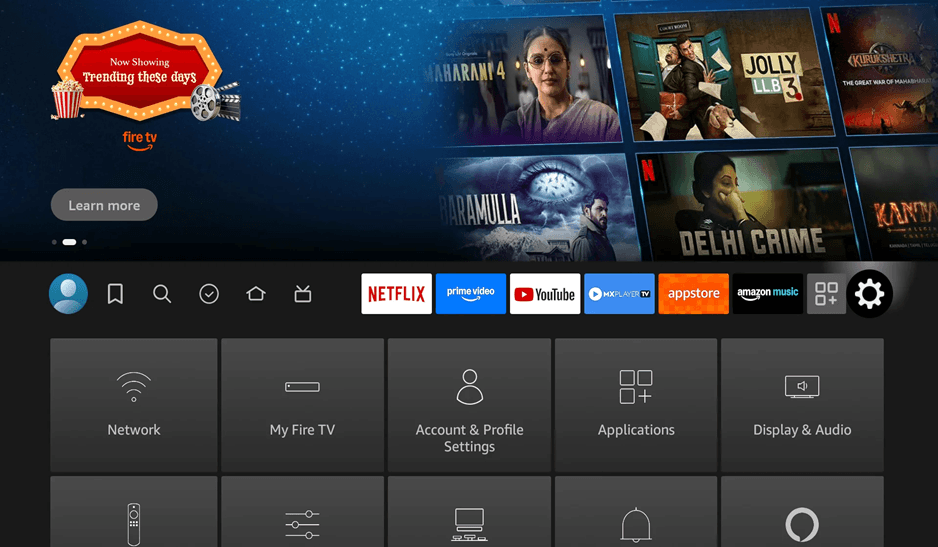
Step 3: Choose Network Settings.
The settings menu contains the option of Network where you can set up your internet connection. Cloud digital signage on Firestick functionality requires a stable network connection. The Firestick digital display system must have a good internet connection to update its content remotely. Your Firestick digital signage software network settings screen presents a list of the available WiFi networks and connection options.

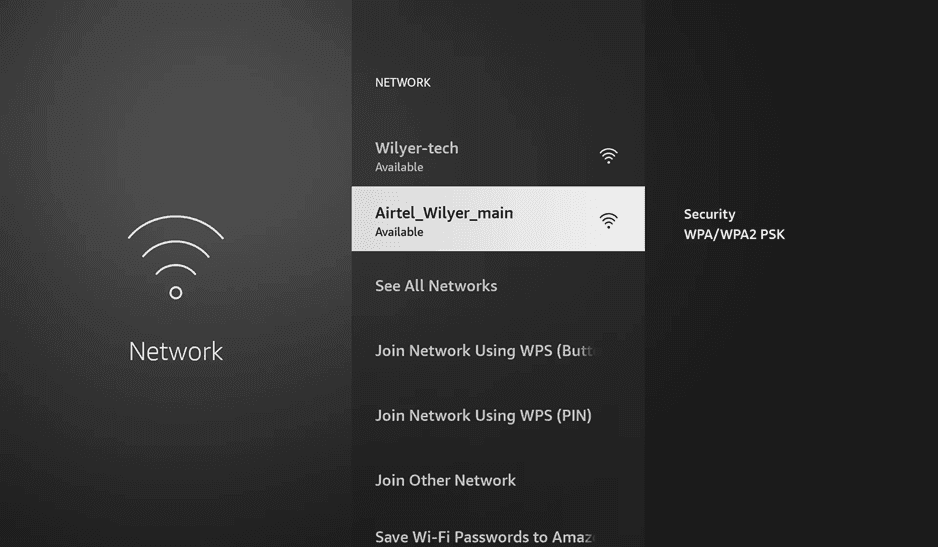
Step 4: Connect to WiFi Network
Choose your network on the list of available networks, and input your password. Make sure that you are using a steady, high connection network in order to maximize your Firestick TV commercial display. The Firestick content signage solution is affordable and needs at least 5 Mbps download speed to ensure a proper content playback. After being connected, the cloud digital signage will be able to update and provide your Firestick digital signage with new content.
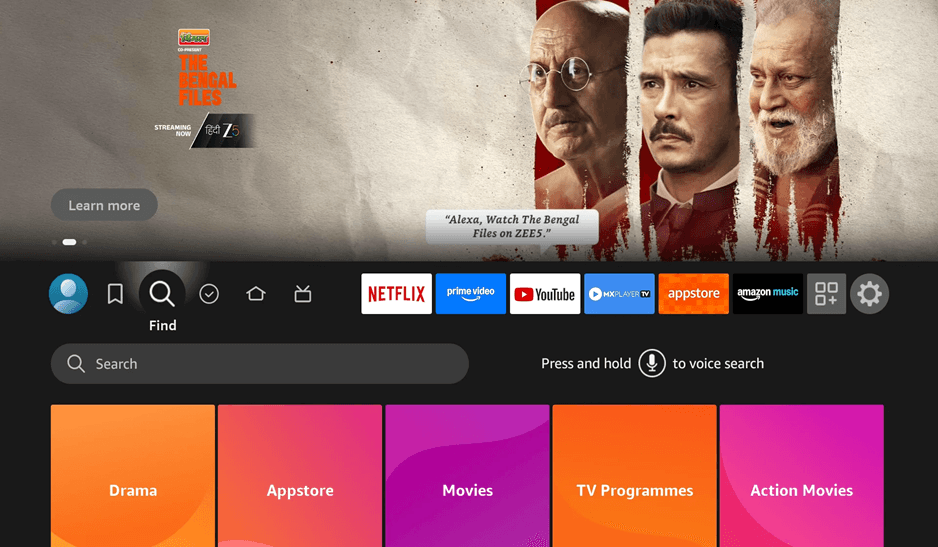
Step 5: Open Search Function
Go to the Firestick TV home screen and press the search icon (magnifying glass) and start searching about the Wilyer digital signage app. It is this search feature that will enable you to find and install signage apps on Firestick. The search feature will enable you to locate the best signage application to Firestick out of the thousands of applications. This happens to be an important part of your Firestick TV signage set up.
Step 6: Search Wilyer Digital Signage App.
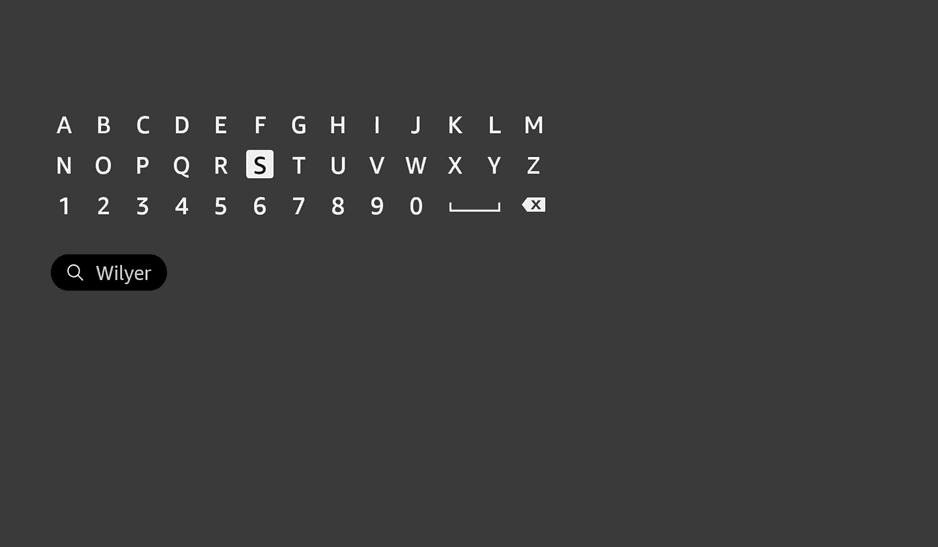
Type in Wilyer to search the Wilyer Digital Signage Player app using the on-screen keyboard. It is the best digital signage Firestick software, which converts your Firestick to an elegant Firestick digital signage. The search will show the Wilyer app specifically targeted at vertical digital signage Firestick applications and will also support portrait digital signage software configuration.
Step 7: Select Wilyer Digital Signage Player.
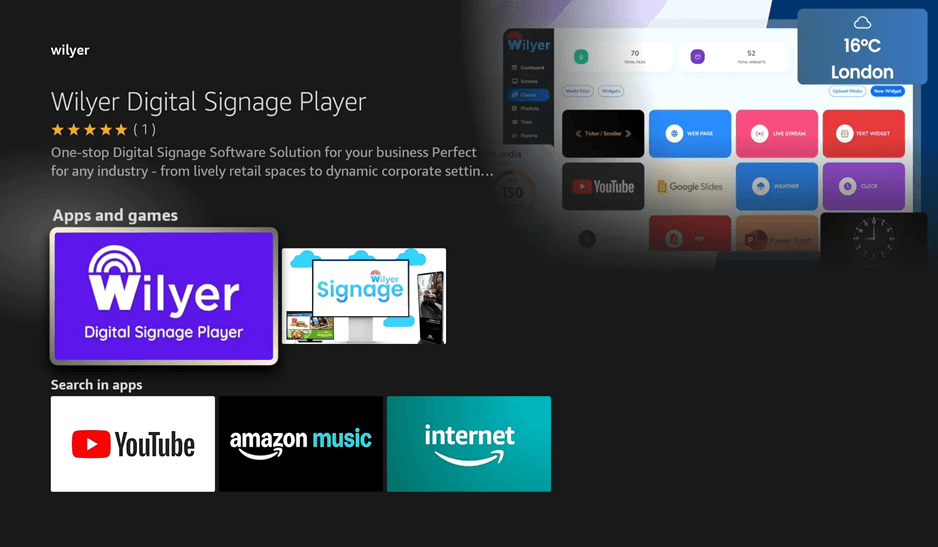
Based on the search results, you can choose Wilyer Digital Signage Player to see the details of the app. This cloud digital signage on Firestick solution is your digital signage software on Firestick TV one-stop solution that is suitable in any industry including retail and corporate environment. The app description emphasizes the fact that it is a digital signage player on Firestick TV that supports rotating screen Firestick signage and Firestick kiosk mode signage setups.
Step 8: Download and Install Signage App
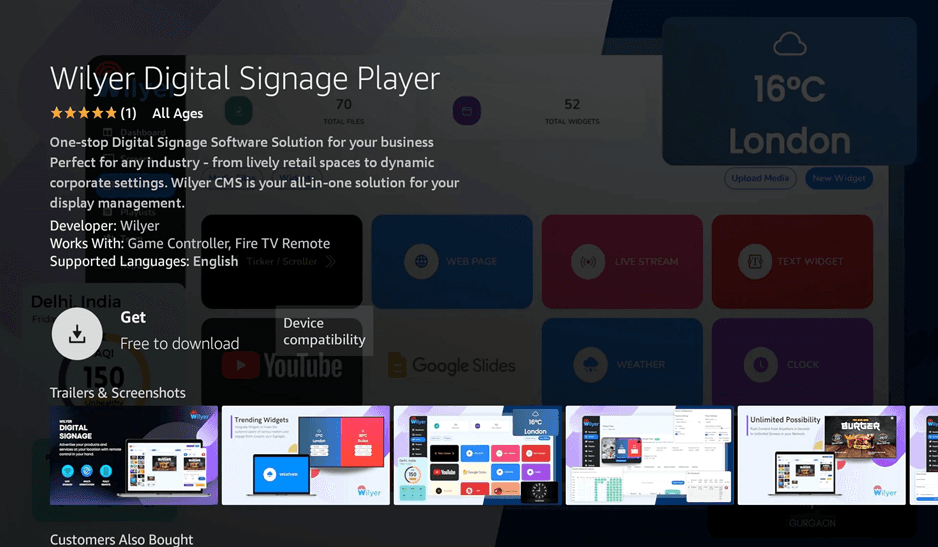
Press the “Get” button (which turns into a download icon to install a signage app on Firestick. The Wilyer Digital Signage Player is free downloadable and is compatible with your low priced Firestick signage solution. This Firestick-installable digital signage is installed in a few minutes. When you have this installed, you will have the best signage app to Firestick that will turn your fire television into a professional vertical advertising display Firestick TV system.
Step 9: Open Wilyer Signage App.
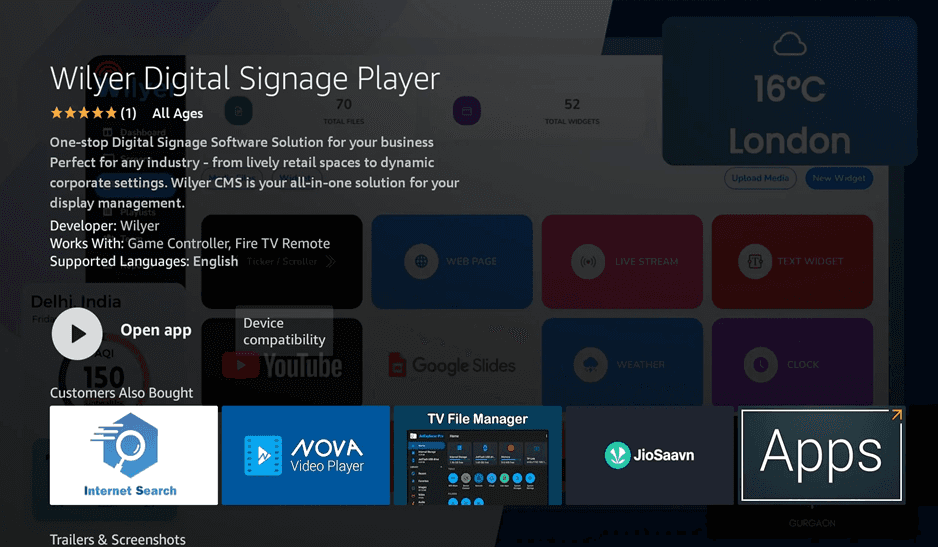
Once the installation has been done, press the button titled Open app to open the Wilyer Digital Signage Player. This begins your Firestick TV signage business. The application will boot and get ready your Firestick digital screen to connect with your Wilyer account. Upon opening the app, the first thing it will do is to start the installation process of your vertical digital signage Firestick. This allows such vital functions as screen rotation of Firestick in use as a signage and the ability of digital signage in portrait mode fundamental to a vertical display.
Step 10: Note Your Pairing Code
A pairing code will be shown on the Wilyer app. The code in this case is 395344 and the text is Listening for New Connection... Internet Active." Note this code - this will be required to match your Firestick TV commercial display with your Wilyer account dashboard. This is the pairing that binds your Firestick digital signage and cloud digital signage on Firestick management platform, making you be able to control your vertical display Firestick TV anywhere remotely.

Pairing Your Screen Using the Wilyer Cloud Dashboard
Your Firestick TV screen can be securely paired with the Wilyer Digital Menu Board CMS using a laptop or mobile device by following the steps below:
Open a new web browser tab on your laptop or mobile device.
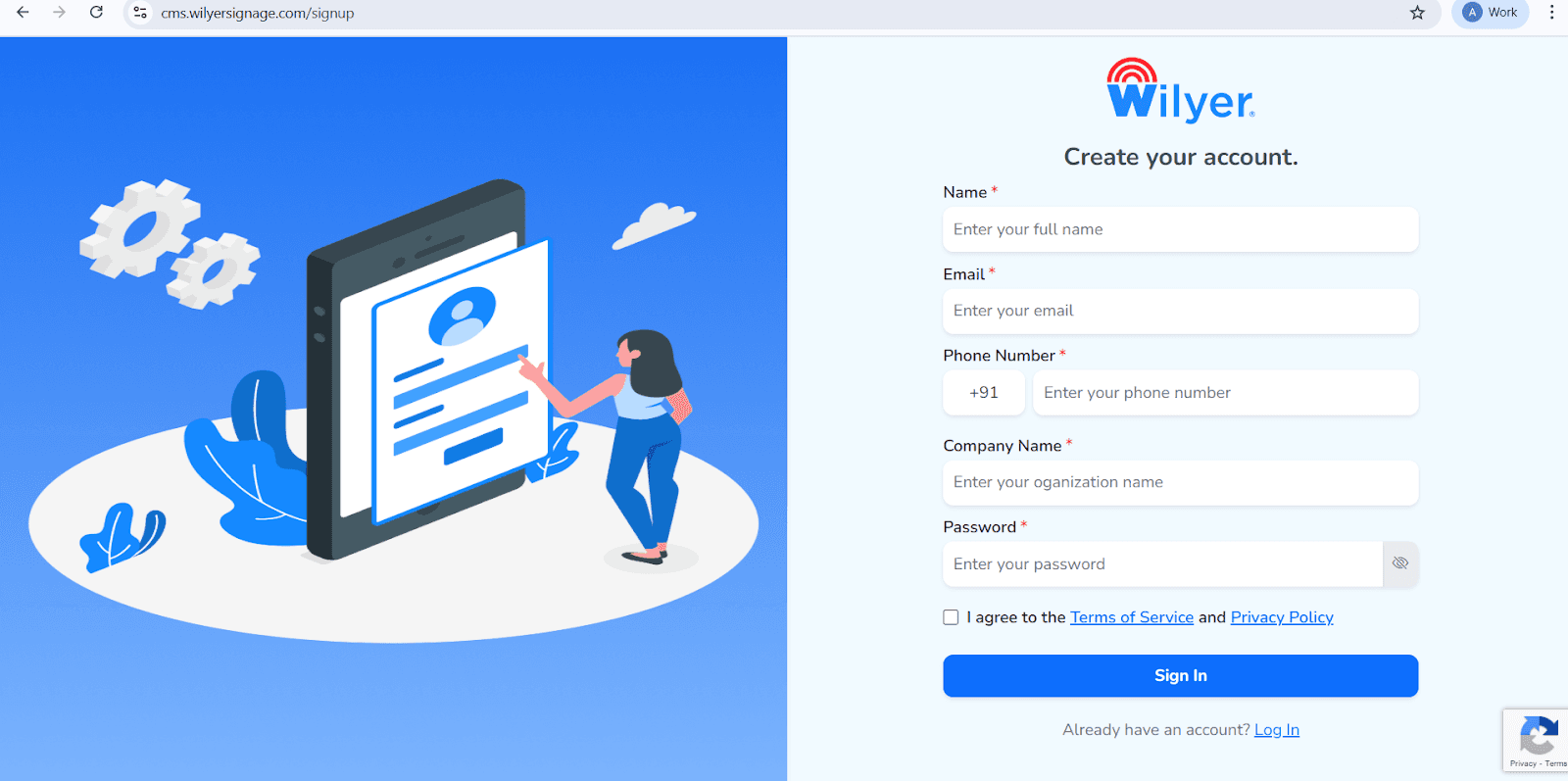
Visit the Wilyer sign-up page and create a new account, or log in if you already have an existing account.
Once signed in, navigate to the Wilyer Dashboard.
Enter the on-screen pairing code displayed on your Firestick TV screen to successfully connect and manage your display through the Wilyer Dashboard.
Create Your Wilyer Account
To get started, please complete the account registration with the following information:
Full Name
Enter your full name as the primary user and administrator of the signage dashboard.Email Address
Provide a valid and active email address. This will be used for login, account verification, and system notifications.Phone Number
Enter a phone number including the international country code. This will be used for support communications and account management.Company Name
Provide your company or organization name to establish a professional identity for your signage network.Password
Create a strong and secure password to ensure the safety of your Wilyer account.Terms & Privacy Policy
Review and accept the Wilyer Terms and Conditions and Privacy Policies to proceed with account creation.Complete Registration
After completing the registration process, click the Sign In button to access your Wilyer Dashboard.
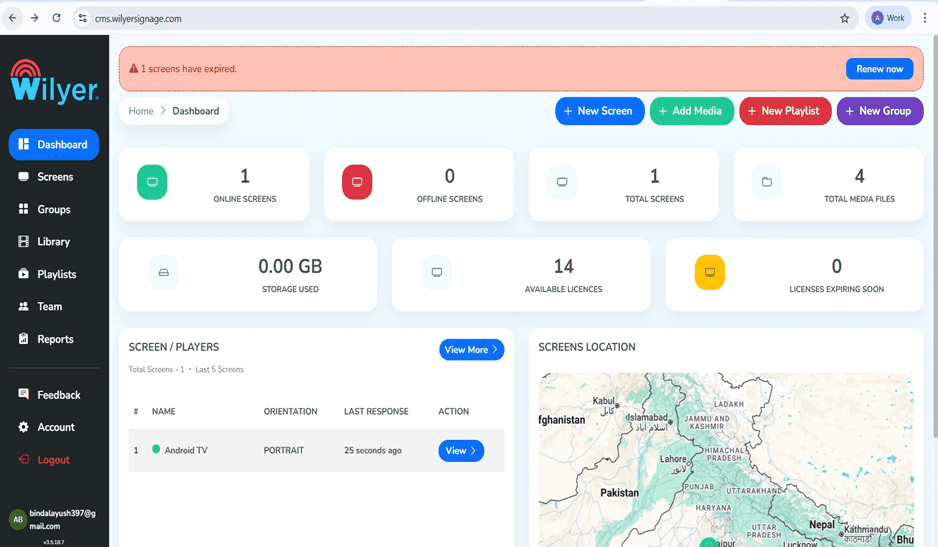
Step 11: Log-in to your Wilyer Dashboard.
Log-in to your Wilyer account at cms.wilyersignage.com. The dashboard displays your screen status, media files and storage consumption and licenses available.
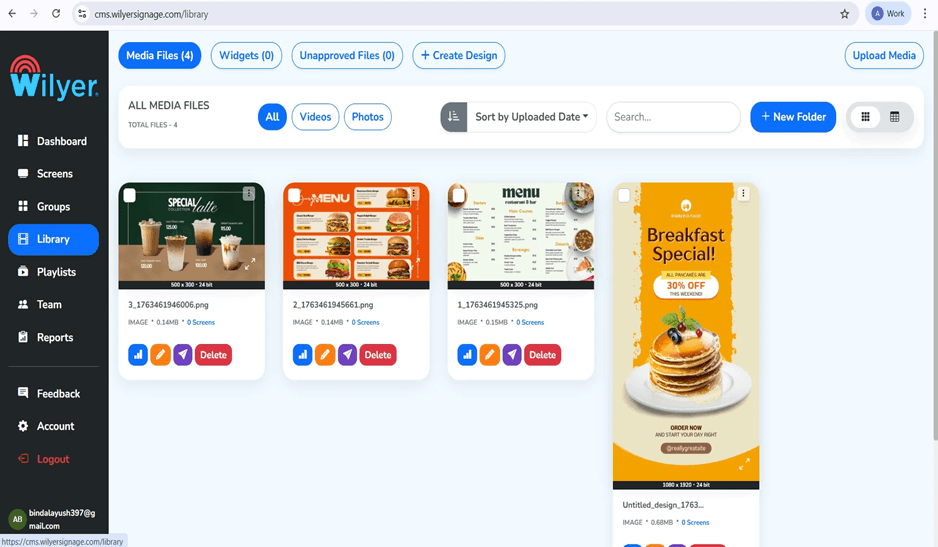
Step 12: Get to the Media Library.
Select the library on the left side bar so that you can log in to your media management area whereby you would upload content to your vertical menu board.
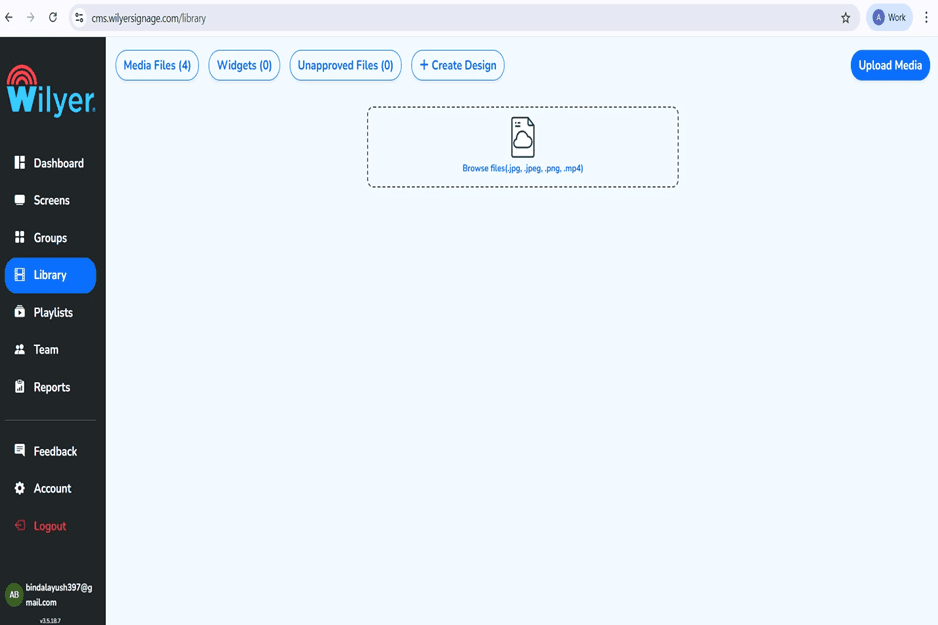
Step 13: Click Browse Files
Open the Library section, and then under it, there is a Browse files button to start uploading the images or videos of your menu board. The site supports MP4, JPEG, PNG, and JPG.
Step 14: Select Your Files
A- file browser window will be opened. Go to your menu board images, pick them and then click on the "open" button to upload. It is possible to choose several files simultaneously.
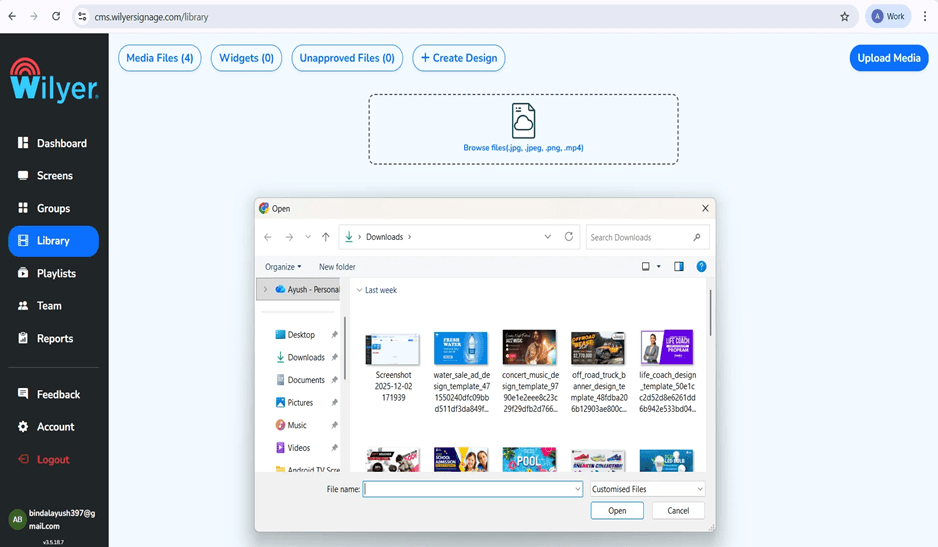
Step 15: Check Uploaded Material.
Once uploaded, your photos will be displayed in the Media Files section in thumbnails and file information such as dimensions and file size.
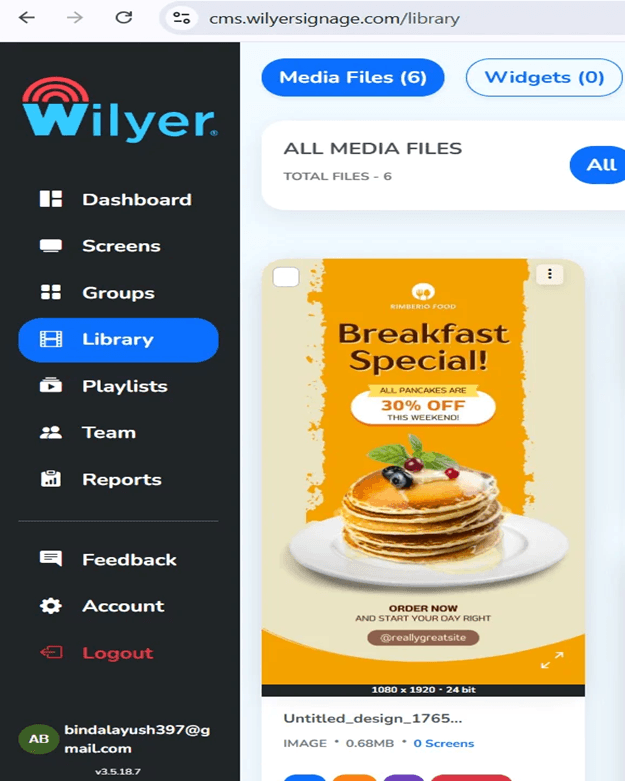
Step 16: Go to Playlists
Click on the left sidebar on the Playlists to display the content. To make a playlist to your vertical menu board, click on the + New Playlist.
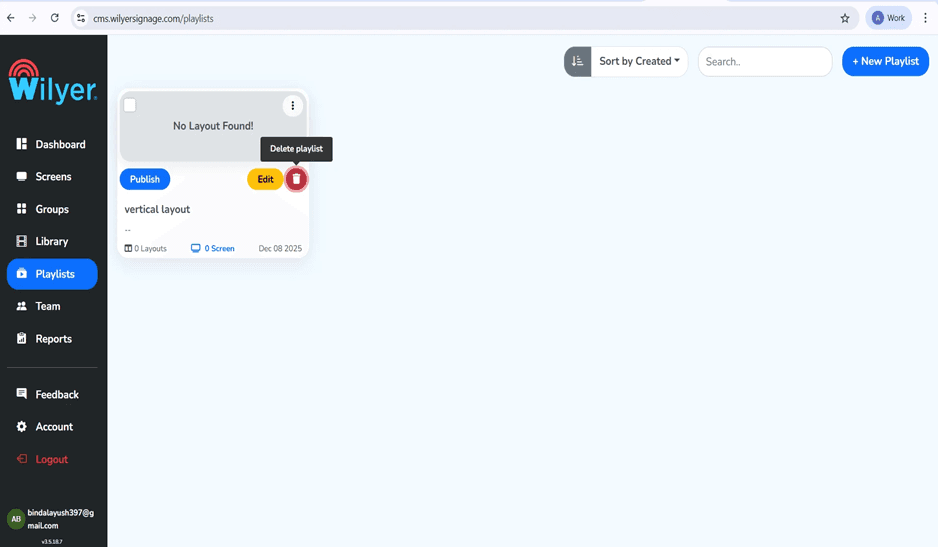
Step 17: Create New Playlist
A dialog will appear. Type in a title of your playlist (such as "Vertical Menu Board" and enter an option description, then click on creating a playlist.
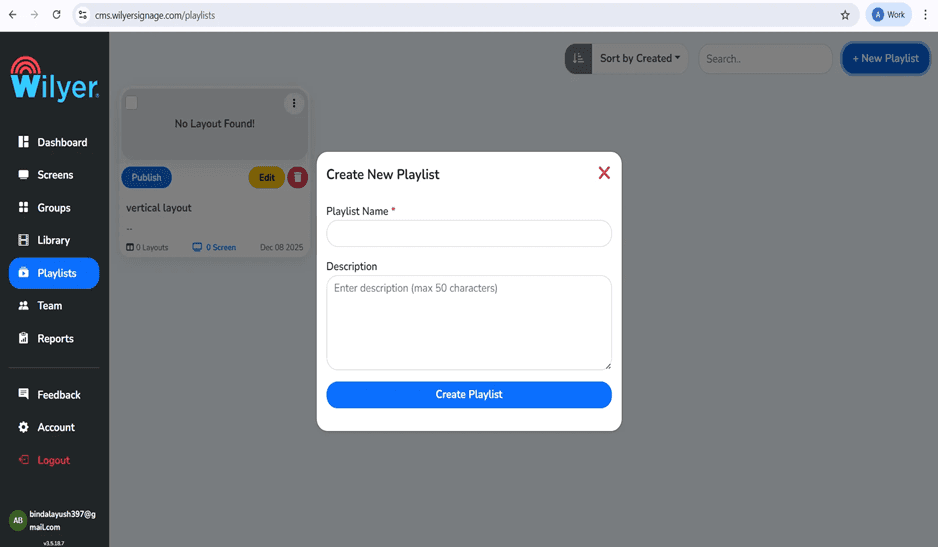
Step 18: Select Vertical Layout
This is important for vertical displays. On the playlist editor, make sure to choose the Vertical layout on the top. This makes your content portrait-oriented.
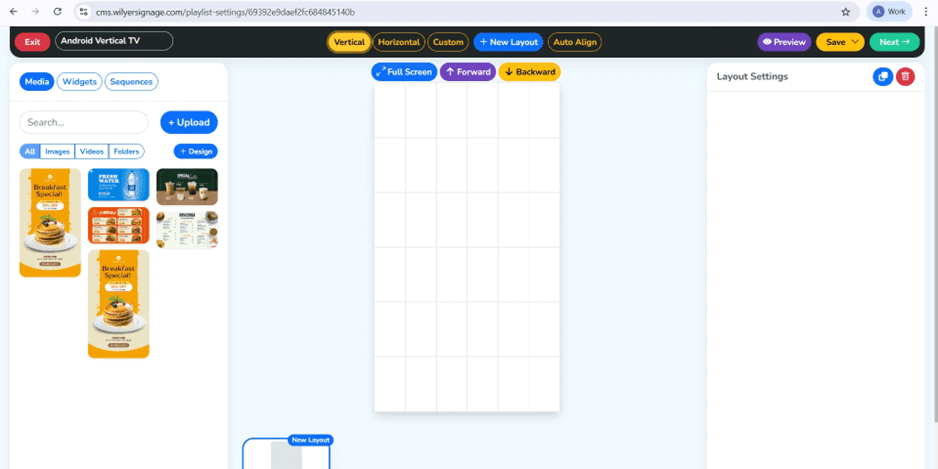
Step 19: Add Media to Full Screen.
The uploaded images on the media panel can be dragged and dropped onto the vertical canvas. As you please, drag them in the order you want them, specify the display time, and then use the Full Screen option so that there is large content to cover up the display.
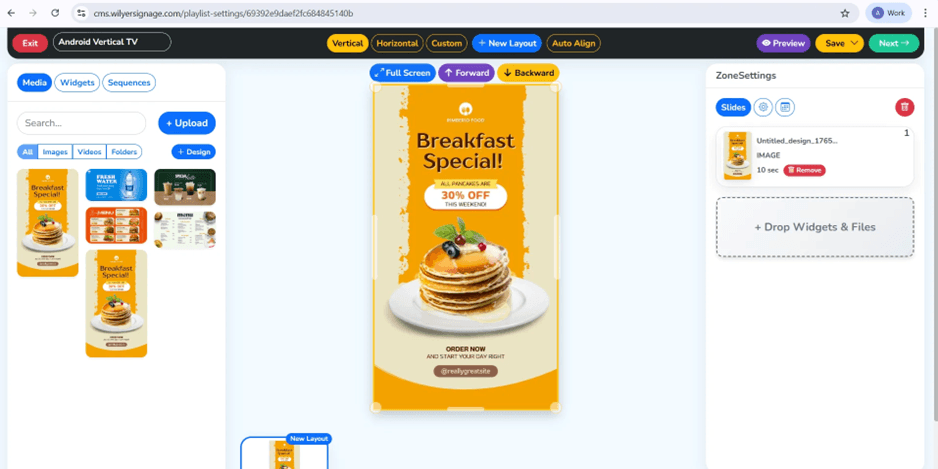
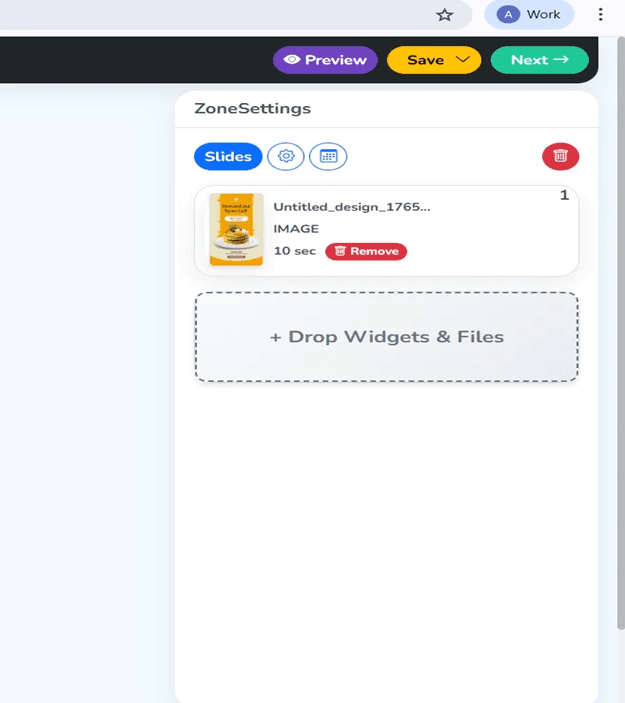
Step 20: Click Next
Check your layout in the right hand panel of Zone Settings. When you are happy with the way your content is organized and scheduled, select the Next button in the upper right-hand corner.
Step 21: Select Your Screen
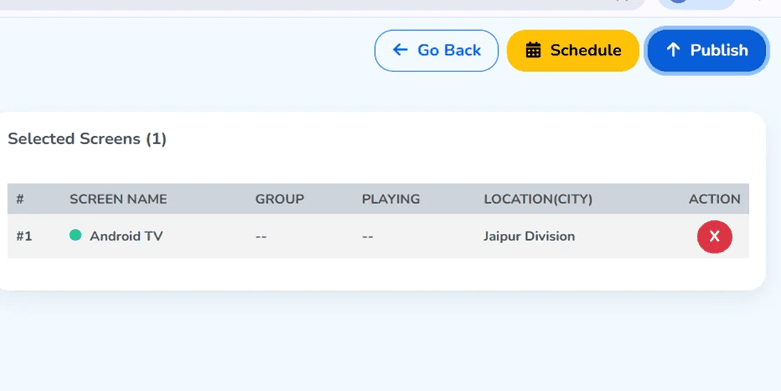
Select a Firestick device on which you will view your content. The system displays the registered screens with their status, orientation and location. Check the box of your Android TV (Firestick).
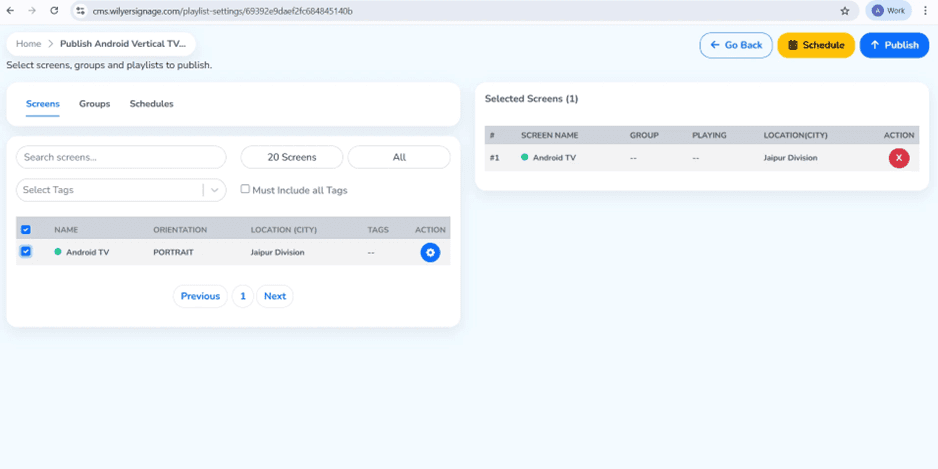
Step 22: Click Publish
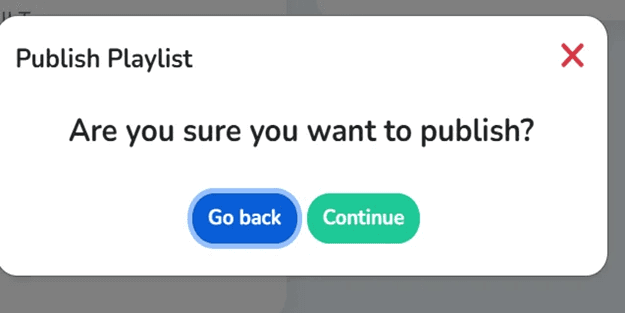
Select the screen and then press the blue Publish button in the upper right hand side. A confirmation dialog will be raised asking you to confirm that you want to publish.
Step 23: Confirm Publishing
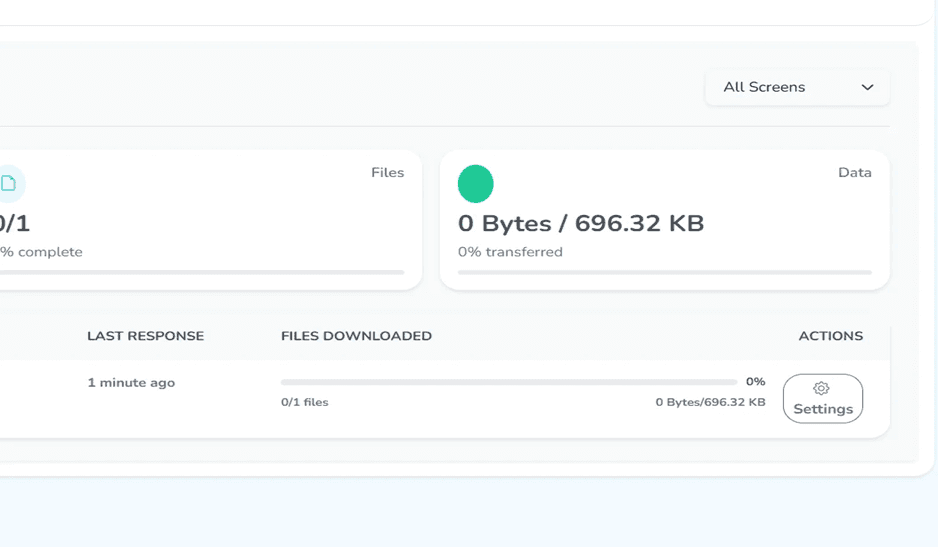
Click on the confirmation dialog Continue. The playlist will be transferred to your Firestick and you will see content in a few seconds.
Step 24: Access Screen Settings
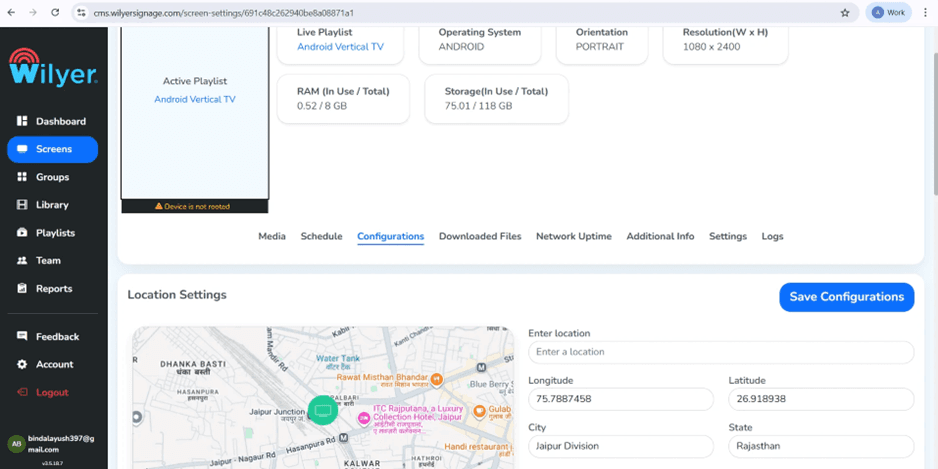
To turn your screen so that it can be used in the vertical position, press the Screens section and tap your Android television to open its settings.
Step 25: Click on configurations Tab.
On the screen setting interface, there is the "Configurations" tab that is to be clicked. The section has settings of display and players of your Firestick digital signage.
Step 26: Rotation of Built-in App.
Vertical displays are most important in this step. Go to the bottom and select "Player Settings" and under it is Built-in App Rotation. Choose 90deg (Left) in order to have the Firestick output vertically oriented. In case your physical screen is installed in a different way, then choose 270deg (Right).
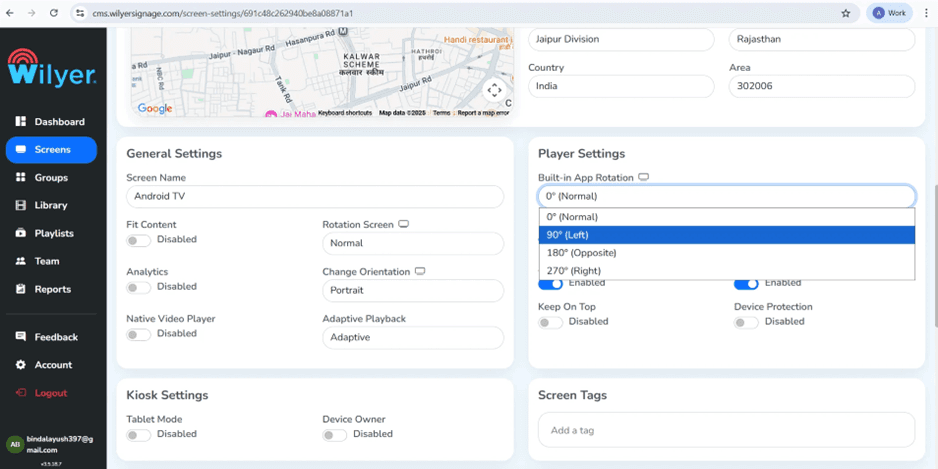
Step 27: Save Configuration
Having chosen the rotation angle, scroll to the bottom and press a blue button, which is called Save Configurations. These settings will be automatically applied on your Firestick and your vertical menu board should now look good in portrait form.
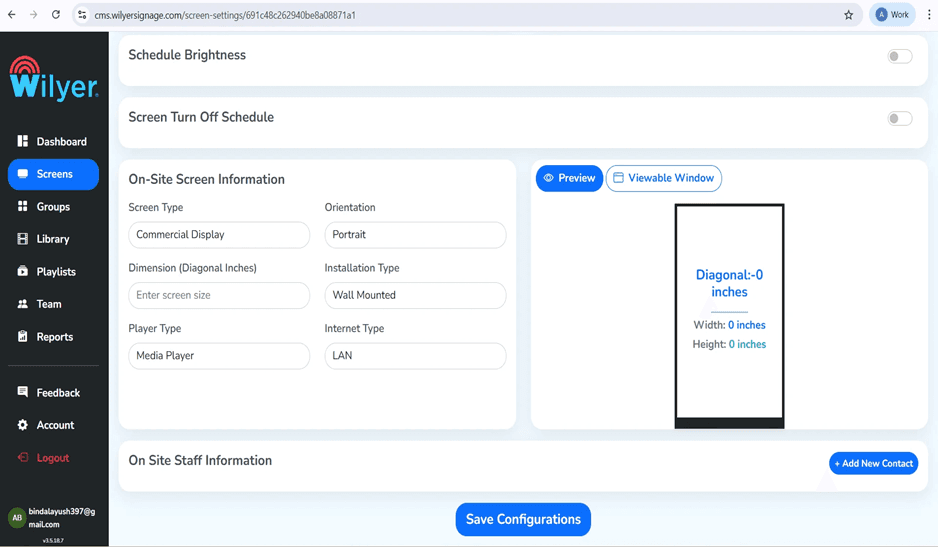
Step 28: Final Output
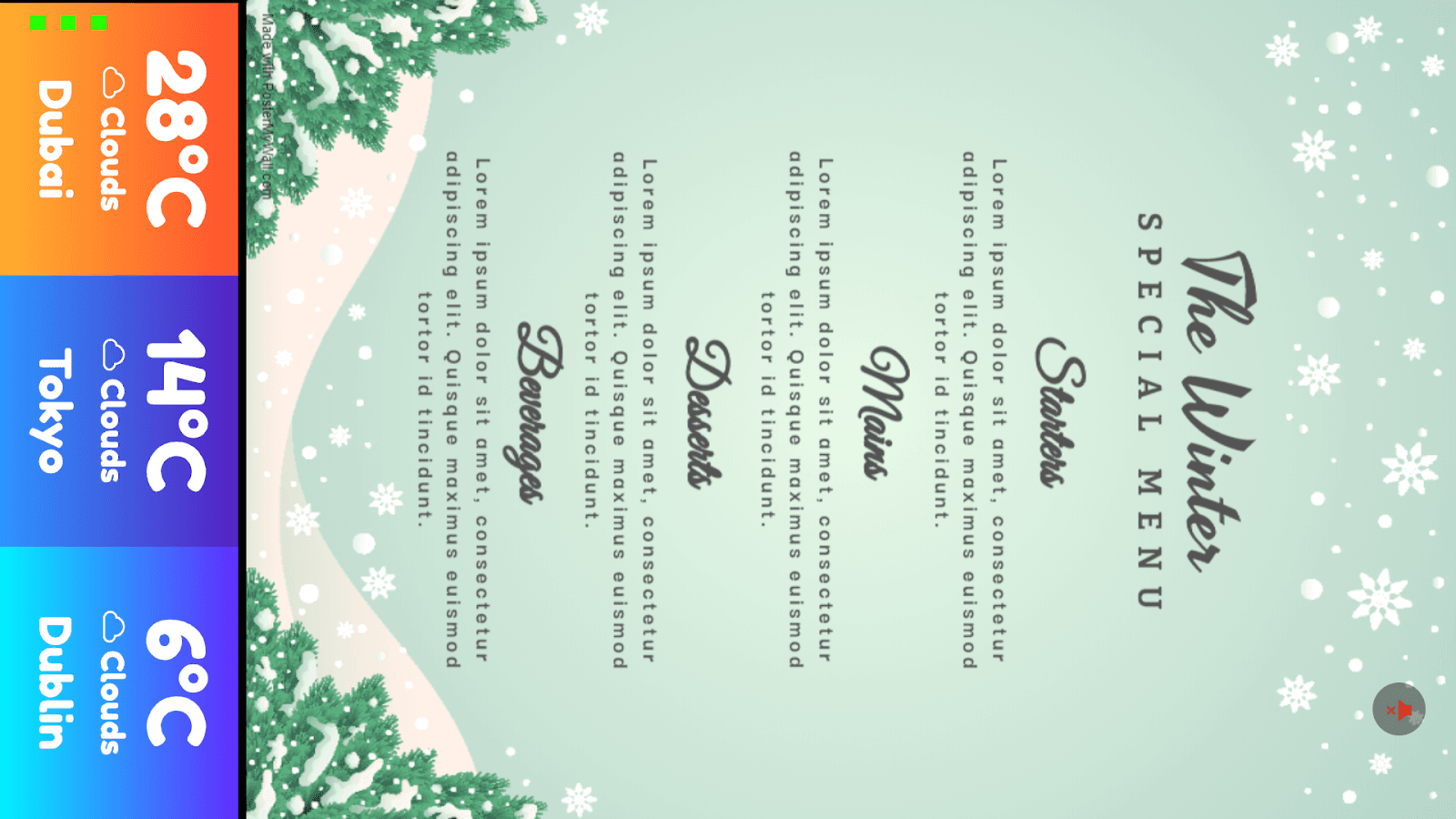
Confirm that the display is correctly set to Portrait orientation.
Allow the device to complete any required updates or automatic reboot processes.
Verify that the content is properly scaled and fills the screen from top to bottom without distortion.
Upload and publish your vertical menu design to complete the setup.
Portrait Mode Digital Signage Firestick.
Having successfully installed the signage app on Firestick, the next important thing would be to set it up to allow signage to appear on the Firestick screen by setting the rotation to portrait mode. This Firestick TV portrait mode tutorial proceeds to the next stage of connecting your device to your Wilyer dashboard where you will install the rotating screen Firestick signage settings.
Pairing Your FireStick TV with Wilyer Dashboard.
Log In to your Wilyer account cmswilyersignage.com under Screens, and press on adding a new screen or pair device. Use the pairing code on the Firestick TV commercial display. After pairing, your Firestick digital signage would be displayed in your dashboard and can be configured. This Firestick digital signage on Cloud allows you to control your vertical digital signage Firestick remotely.
Setting Up Firestick Screen Rotation for Signage
Once paired go to the settings of your screen in the Wilyer dashboard. Click on the Configurations tab, and go to Player Settings and find the Built-in App Rotation setting. If you have a physical screen with the left hand rule, then choose 90deg (Left), or 270deg (Right). This is a rotating screen Firestick signage that is crucial to the use of the portrait digital signage software. Click Save Settings to invoke the rotation settings to your vertical advertising display Firestick TV.
The Pros of This Affordable Firestick Signage Solution.
Affordable FireStick Television Business Model.
Older digital signage systems require establishing the equipment at $500-2000 per screen. It is a low-cost Firestick signage product that retails at less than 100 dollars per display consisting of Firestick TV and Wilyer Subscription. The Firestick digital display system removes the costly proprietary hardware and provides high-quality digital signage software to Firestick features. It is the most affordable digital signage player on Firestick TV that is currently available.
Cloud Digital Signage on Firestick Management.
The Firestick architecture cloud digital signage implies that you can update content wherever you are regardless of the kind of device you are using. There is no need to physically access your Firestick TV commercial display and make settings changes. Change your vertical digital signage Firestick content in your office, home, or your smartphone as well. This remote control feature is necessary where business has more than one Firestick digital signage in various locations.
Security Social Signage Firestick Kiosk Mode.
The Firestick kiosk mode logo feature puts your Firestick TV into Wilyer app lockout, and the option to use other applications and settings. This will make sure that your Firestick TV signage system will show only what you want and not the unwanted. Kiosk mode is essential when you want to have a publicly facing vertical advertising display Firestick TV installation, and to keep a professional appearance and avoid interfering with your Firestick digital display system.
Horizontal Display Firestick TV Interchangeability.
This solution is ideal to portrait digital signage software applications because of the rotating screen Firestick signage capability. The Firestick signage rotation works with any orientation, whether you want Firestick TV vertical menu screens in the restaurants, retail stores, or corporate directories. This vertical digital signage Firestick flexibility makes it different to the inflexible and inflexible single-orientation digital signage solutions.
Best Uses of Firestick TV Signage Setup.
Digital Signage of Firestick Restaurant.
This Firestick digital signage is used in the restaurant as menu boards, daily specials, and promotion boards. Firestick TV vertical menu screens format is ideal to use in menus facing portrait display behind counters or in the dining room. Cloud digital signage Updates menu prices immediately on Firestick, which removes printing expenses. Firestick restaurant digital signage strategy offers professional presentation at a relatively low fraction of the cost of traditional digital menu boards.
Retail Vertical Advertising Display FireStick TV
This is a cheap Firestick sign solution used by retail stores to carry out product promotions and pricing, and brand messages. The portrait digital signage software setup is the one suited to the small retail areas with the vertical displays that gain the maximum visibility. The Firestick digital display system supports dynamism in the pricing, campaigns on a seasonal basis, as well as coordinated offers in different stores using the cloud digital signage solution.
Business FireStick TV Advertisement.
The companies use this Firestick TV signage system as a lobby display, wayfinding, internal messages, and meeting room reservations. The Firestick version of vertical digital signage is ideal in directory boards and information kiosks. The Firestick kiosk mode signage makes displays professional and immutable in public places. Firestick Cloud-based digital signage allows the IT department to operate hundreds of screens at a central dashboard.
Technical Requirements to give the best performance.
Network Requirements of Firestick Digital Signage Software.
Stable internet connection is required on your Firestick digital signage in order to have cloud digital signage on Firestick platform. It should have a minimum download speed of 5 Mbps and preferably 10+ Mbps when using video contents. Ethernet adapters should be used in case of commercial display installations of mission critical Firestick TV to ensure better connectivity as compared to WiFi. Firestick TV digital signage player is localized to cache its content, and therefore short-term outages will not disrupt its playback.
Display Compatibility for Vertical Digital Signage Firestick.
This is the cheapest Firestick signage solution that is compatible with any HDMI display. In the case of digital signage software application of portrait, make sure that your monitor or TV set can be mounted in an upright position. Signage Firestick rotation of the screen does the rotation of the digitally programmed screen so the physical rotation of the display is all one needs. Commercial displays are most commonly portrait-mountable, which makes it the best choice of Firestick TV mounting vertically.
FireStick TV Portrait Mode Best Practices Guide.
Rotating screen Firestick Signage Content Design.
In designing your content to use in your portrait digital signage software, design at 1080 x 1920 pixels (portrait mode). Visibilities should be done with high contrast colors. Your vertical advertising display Firestick TV should have fonts of at least 72pt minimum and 96pt + for headings. Test material can be read under normal viewing conditions. Firestick requires the best signage app that presents content in the exact format that it was created, and therefore, good source material is a necessity.
Content Scheduling on Cloud Digital Signage Platform
Auto-change content using the Firestick scheduling capabilities of the cloud digital signage. Playlists can be scheduled at different times of the day on your Firestick TV commercial display. Automatic on and off seasonal campaigns. The Firestick digital signage software does all timing automatically so that your vertical digital signage Firestick shows the correct content at the correct time and not necessarily by a human intervention.
FireStick TV Signage on Multi-Location Management.
Firestick platform cloud digital signage is very effective in the management of various locations. Organization by place, area or subject matter. Install updates on multiple displays or only one group. View the health of all Firestick TV commercials on your dashboard. This is a centralized management and this is why the affordable Firestick signage solution is suitable for chain, franchise, and multi-location business.
Troubleshooting Your Firestick Digital Display Setup
Display Not Showing Content
In case your Firestick digital signage is not showing anything when installed, make sure that you have network connectivity. Ensure that there is a stable internet connection in your Firestick TV . Make sure that you have done the process of pairing with your Wilyer dashboard by the right pairing code. Make sure that you have published a playlist on the screen in your cloud digital signage on Firestick management platform. Reboot the Firestick TV device when there is still no content being displayed.
Incorrect Signage Firestick Screen Rotation.
In case your portrait digital signage software content is not displayed straight or not upright, you will need to review the rotation settings. Then, open the Wilyer dashboard, go to screen Configurations and change the Built-in App Rotation. Switch between 90deg and 270deg to identify the right angle to have your physical display mounted. The Firestick settings of rotating screen signage should be changed by clicking on Save Configurations.
Connection Problems with Digital Signage Player FireStick TV.
When your Firestick TV commercial display often goes dead, there are a few solutions to be considered: Wired connection rather than WiFi with an Ethernet adapter. Make sure that you do not overload your router. Update your Firestick TV. The most reliable signage application to use in Firestick is the best app, although the performance of the cloud digital signage on the Firestick requires good network stability.
Why Wilyer is the Best Signage App to use on Firestick.
It is clear that Wilyer is the best Firestick signage app due to a number of reasons. First, it is specifically built on the Firestick TV platform so that it works well and integrates. In contrast to generic solutions, the digital signage software offered by Wilyer to Firestick has such extensions as Firestick screen rotation signage, Firestick kiosk mode signage and cloud digital signage on Firestick integration without any hassles.
Second, the digital signage interface of the platform is user-friendly in the cloud, which allows managing your Firestick TV signage system without difficulties. Full screen updates in hundreds of displays with just a few clicks. Weekly changes of schedule are made several weeks ahead of time. Control all your digital signage Firesticks vertically through one dashboard. Such simplicity differentiates Wilyer among complicated and enterprise centered competitors.
Third, Wilyer has the lowest priced Firestick signage solution without the loss of features. Other digital signage player models on Firestick TV currently have a premium price, whereas Wilyer offers enterprise features at the price of a small business. This renders professional Firestick digital display installation to be available to organizations regardless of their size.
Conclusion
The application of Firestick digital signage solution transforms business communications with customers and employees. This Firestick TV portrait mode tutorial has demonstrated how to install a signage app on Firestick and apply all the features of your vertical digital signage Firestick system. Since the first Firestick TV advertisement display installation up to high-performance Firestick screen rotation signage setup, now you can install professional digital displays at a fraction of conventional expenditure.
The Firestick cloud digital signage strategy removes the geographical boundaries in content management. Running one Firestick restaurant digital signage displays up to hundreds of Firestick TV vertical menu screens in many locations, the platform at Wilyer scales with ease. Firestick kiosk mode signage will make sure that your displays are safe and professional wherever they are.
This low-priced Firestick signage solution shows that professional Firestick digital signage software does not need costly proprietary equipment. All that is required to have a complete vertical advertising display Firestick TV system is the addition of only a Firestick TV, a screen and a digital signage player on Firestick TV by Wilyer. The rotating screen Firestick signage flexibility, together with great cloud digital signage management, is a value proposition that is unmatched.
Begin your Firestick digital display set up today and find out the reason why thousands of businesses have settled on this Firestick TV signage set up as their digital communication solution. Install the signage app in Firestick, adjust your portrait digital signage software settings, and start changing your visual communications. The future of professional and low-cost digital signage is now - and it operates on Firestick TV.

