Menu Board
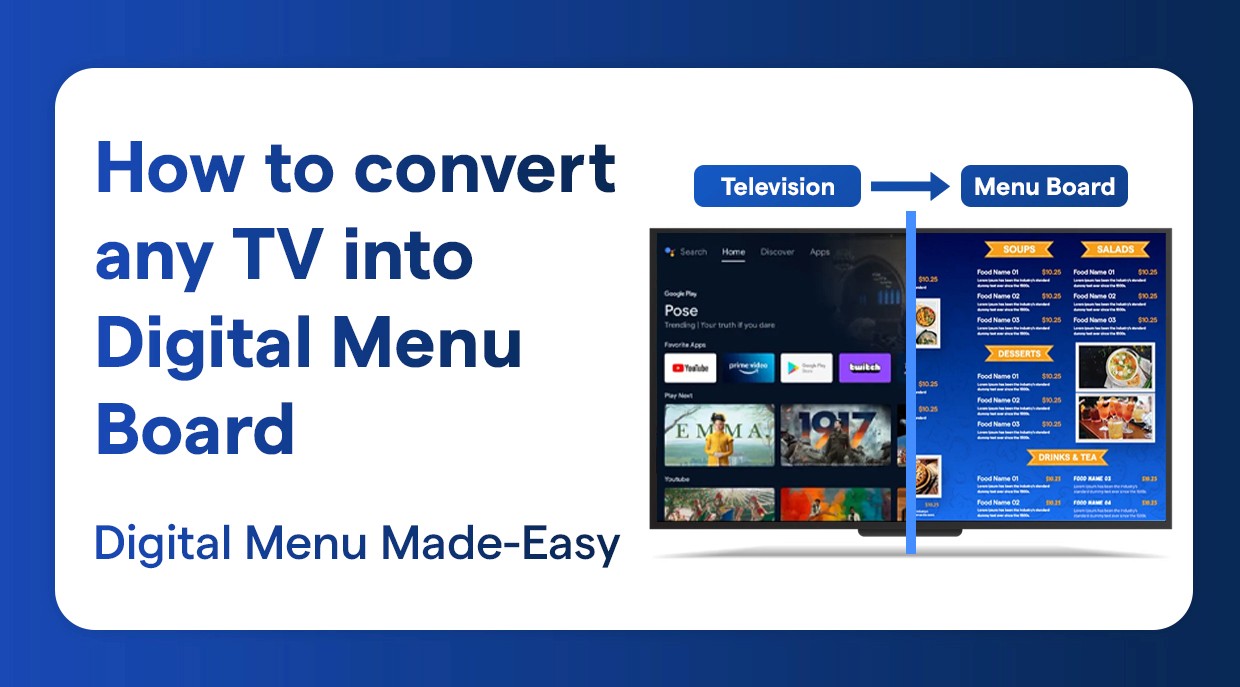
How to convert any TV into a digital menu board
A simple guide to turning any standard TV into a dynamic digital menu board
Digital Menu Board Software That Helps Your Restaurant Grow
It is not as difficult as it seems to convert your traditional TV into a dynamic digital menu board. Using Wilyer’s cloud-based digital signage software. Businesses in the restaurant, cafe and QSR sectors are able to update their menu boards within a few minutes without costly equipment or computer skills. This is the ultimate guide that will demonstrate how to install your digital menu board system stepwise.
What is a Digital Menu Board?
A digital menu board is an electronic menu display system that replaces the old style printed menus with a dynamic and visually compelling electronic content. These digital restaurant signage programs involve the use of digital signage software to display menu items, prices, promotions and special offers on computer televisions or monitors.
What is the best TV for a digital menu board?
(Smart TVs)
Toshiba 43 inch 4k Ultra HD Smart TV - Affordable smart TV, suitable for small cafe or temporary menu boards, works well if you pair it with a signage player.
Xiaomi X Pro Series 43” 4K QLED Smart TV - Good picture quality, budget-friendly, and workable as an entry-level signage screen.
(Commercial Grade Displays)
Samsung QB Series 55" UHD Digital Signage Display — Professional digital signage display, great brightness and reliability for continuous usage.
Sony BRAVIA EZ20L 55" Digital Signage Display — Premium display with signage-ready build quality and 24/7 operation support, good for larger menus or chains.
How to choose tv for a digital menu board?
Any TV is good as long as it is a smart display and allows you to run a digital menu board software and show content on the screen in each different restaurant.
We recommend Android-based SoC (System on Chip) TVs which can allow you to install Digital Signage App like https://wilyer.com/app
How to check if my tv is smart tv?
Identify any access to Play Store
If the television has an option to access a Play Store, then it should qualify as a smart television.
Identify any Pre-installed Apps
If the television packages pre-installed apps such as YouTube, Netflix, Amazon Prime Video, and a Web Browser, then it will qualify as a Smart television.
Identify either Wi-Fi or Ethernet Connectivity in settings
To see connectivity options on the television, navigate to the Settings menu and select Network.
If you see options displayed such as Wi-Fi, or Ethernet, also referred to as “Network Setup” then your television qualifies as a Smart television.
Identify any Remote Control Features
In most cases, the remote control of a smart television will have at least two buttons designated for pre-installed applications such as YouTube and Netflix.
Most of the time, you will find a Home button on a remote control that will take you to the Smart Television’s home menu.
Identify either the Model Number or the User Manual
Search for your television’s model number on Google and find information regarding this model.
If the model you are researching supports applications and internet features, Google will clearly indicate that it is a Smart television.
Identify your TV Type (Is it Regular TV or Smart TV?
There are Two Types of TVs
You should make sure that you have the right hardware arrangement before putting up your digital menu board. Depending on the equipment that the restaurants have, these can be a Smart TV or a regular tv.
Smart TV vs Regular TVs for Digital Menu Boards
Smart TV:
If your TV is an Android TV, you can install the Wilyer Digital Signage Player directly from the Google Play Store. No additional hardware is required.
Regular TVs
A typical television set does not allow for the installation of software applications. When utilizing this type of television as a digital menu display, an external media player unit needs to be connected via an HDMI cable (e.g., Amazon Fire Stick or Android box ). After establishing the connection between the digital menu board and the media player, the user is able to install the Wilyer Application on the media player and change their normal television into a digital menu screen.
How to Turn a Regular TV into a Smart TV for Your Digital Menu Board and Why It Matters
Android Box/Fire Stick (Player Device):
In case you do not have a smart TV you can use a player device by HDMI. Wilyer Player app is a digital menu board that can be installed on this device to make any ordinary TV a digital menu board.
You will now have access to the Google play store, where you can use the app to download your signage app onto your TV. The Google Play store is not the only way to install signage apps on your television; however, those are the most common ways to do that. Here are some alternate options to install digital signage on your TV.
Install via USB: Download the necessary APK file onto a USB stick and insert it into your TV, then you will have the ability to install it directly to your television using the USB drive.
Install via Chrome Browser: Open your Chrome web browser application and download the installation files from an authorized source.
When the Google Play Store is not available, you can still use alternative installations to install your signage applications onto your television.
Digital Signage Software by Wilyer
Wilyer is an innovative cloud-based signage solution that allows any business to turn a standard television into a digital display that is both professional and appealing. With Wilyer, all businesses have the ability to create, schedule and publish digital content using one simple online dashboard without the need for costly software or extensive technical knowledge.
Wilyer’s products and services provide solutions to a wide variety of industries including food-service, retail, office, schooling, and more by giving businesses the ability to create and sell their own custom designed right from the cloud
Wilyer’s software can be used on Smart TVs and non-Smart TV devices, including Android TV boxes, the Amazon Fire Stick, Chrome OS, Windows PCs, and many more; thus, offering the greatest amount of flexibility when using existing television hardware.
Why Choose Wilyer Digital Signage Software
Cloud-Based Remote Management: Whether you manage one screen or multiple restaurant locations, Wilyer lets you control everything from a single cloud dashboard.
Real Time Content Updates: Change menu prices, add new items, upload photos, or modify promotions instantly.
Ready-Made Menu Template: Wilyer offers professional template made specifically for:
Restaurants
Cafes
QSR Chains
Coffee shops
Automatic Scheduling: Time based scheduling allows your screen to switch menus automatically:
Breakfast
Lunch
Dinner
Happy Hour
Works on Any TV: Wilyer can be installed on many types of TVs using:
Google Play Store
Android Box
Fire TV Stick
Chrome Browser
USB installation
Secure and Stable Performance: Perfect for chains and franchise - manage all screens across all branches in one place
Cost Effective & Scalable: Wilyer supports auto-launch and continuous playback so that your restaurant menus always run smoothly even after power cuts or restarts.
Drag-and- Drop Design: Select menu board template software with restaurant specific layouts- no skill in design required.
Multi-Location Control: Run all your locations off of a single digital signage CMS to do menus.
Dynamic Content: Add digital menu scheduling software to inventory systems, which updates automatically.
Internet Requirements
Good internet connection is required in
Real-time menu updates
Coordinating screens in different locations.
Stable 24/7 operation
Ethernet is the most reliable to use particularly when dealing with restaurants that have digital displays in their operation all day long.
Step 1: Plug in Your TV Hardware
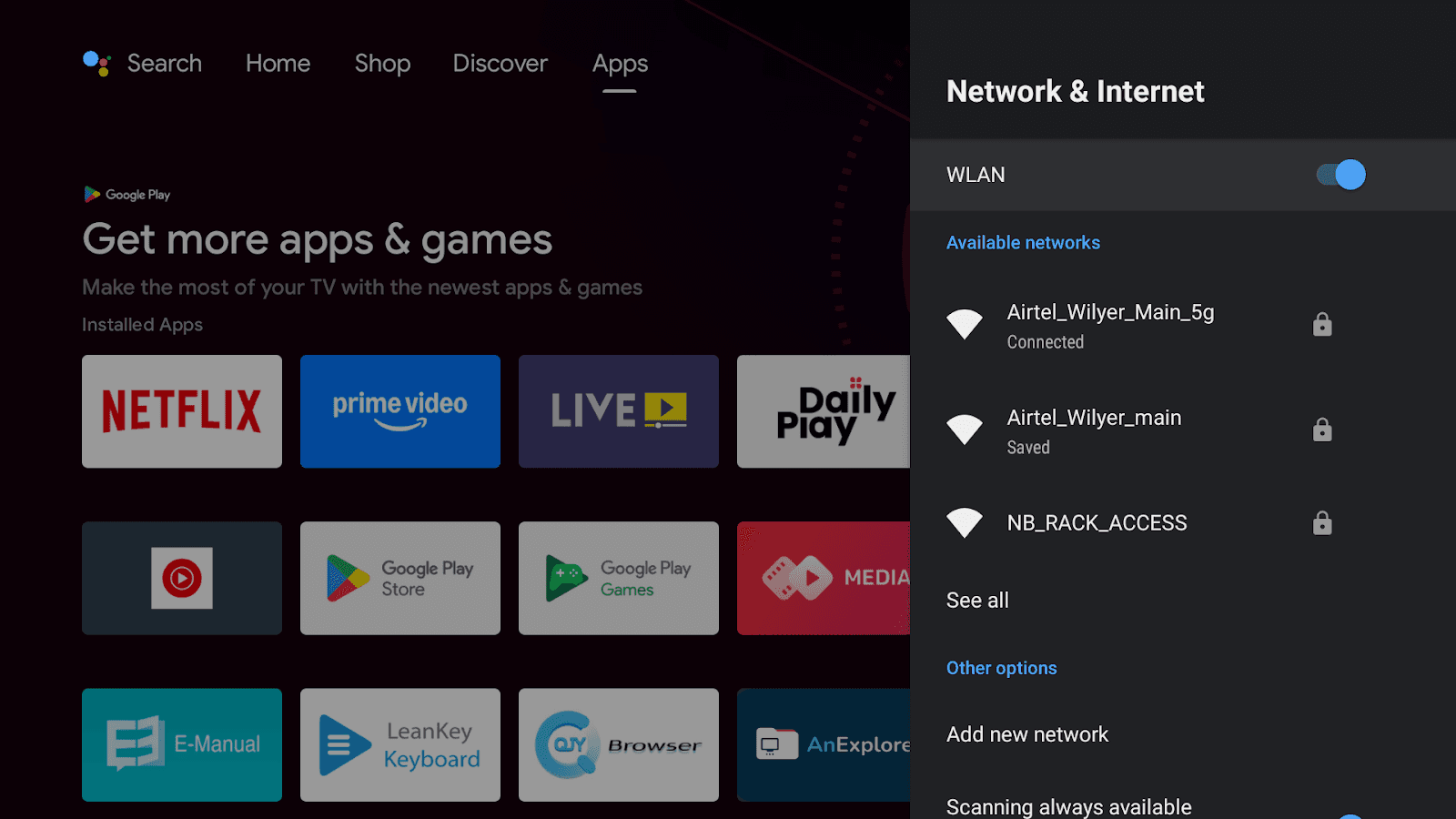
Turn on any television and have access to the internet (ethernet is necessary in case of 24/7 connection).
Connect the WiFi on your Smart TV
Step 2: TV Interface / Setup Options (Play Store & Apps)
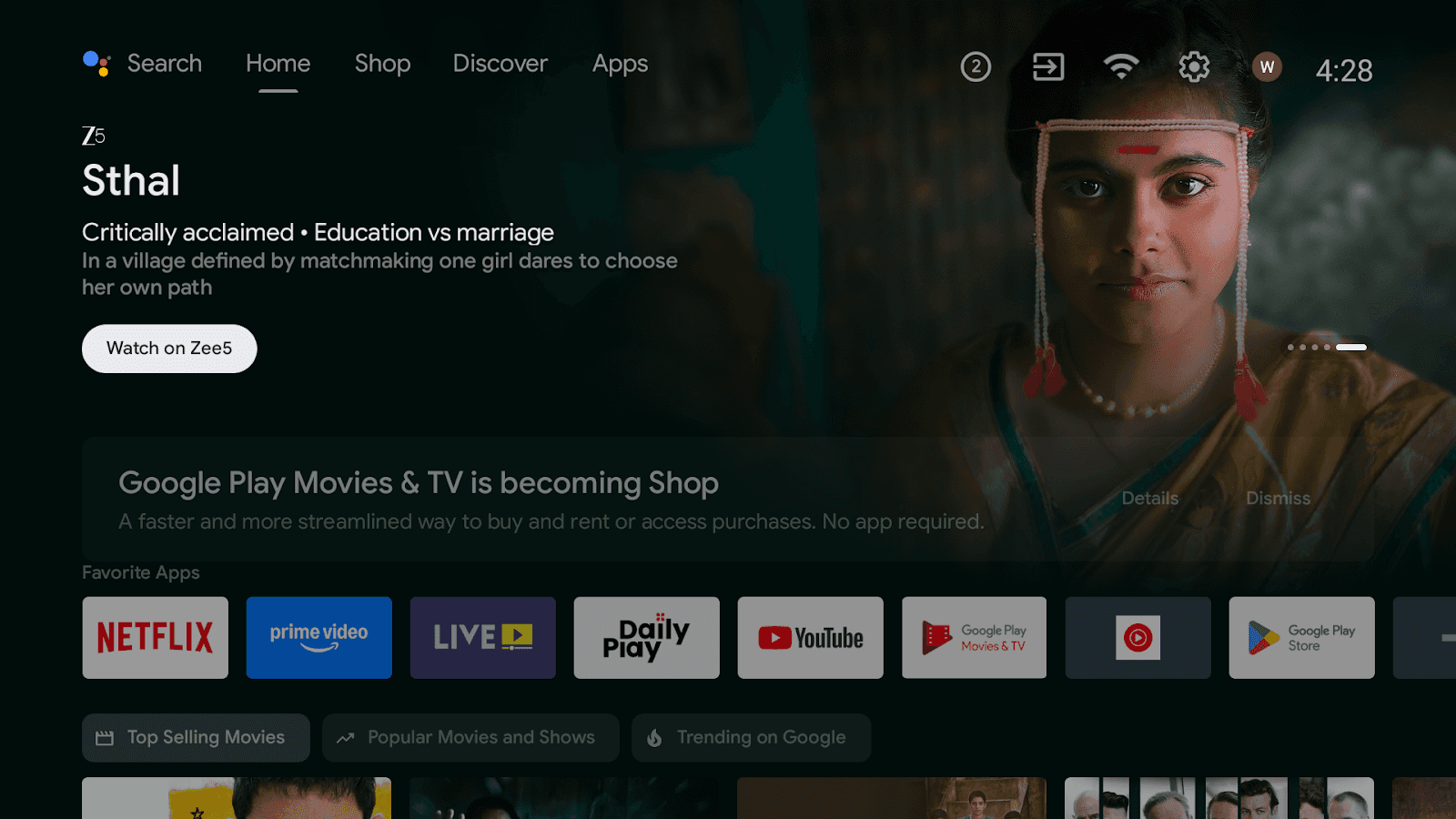
Please go to the App section Top on your TV
And Find the Playstore in your App section and open the playstore
And next is go to the search Button for Top of Your Smart TV
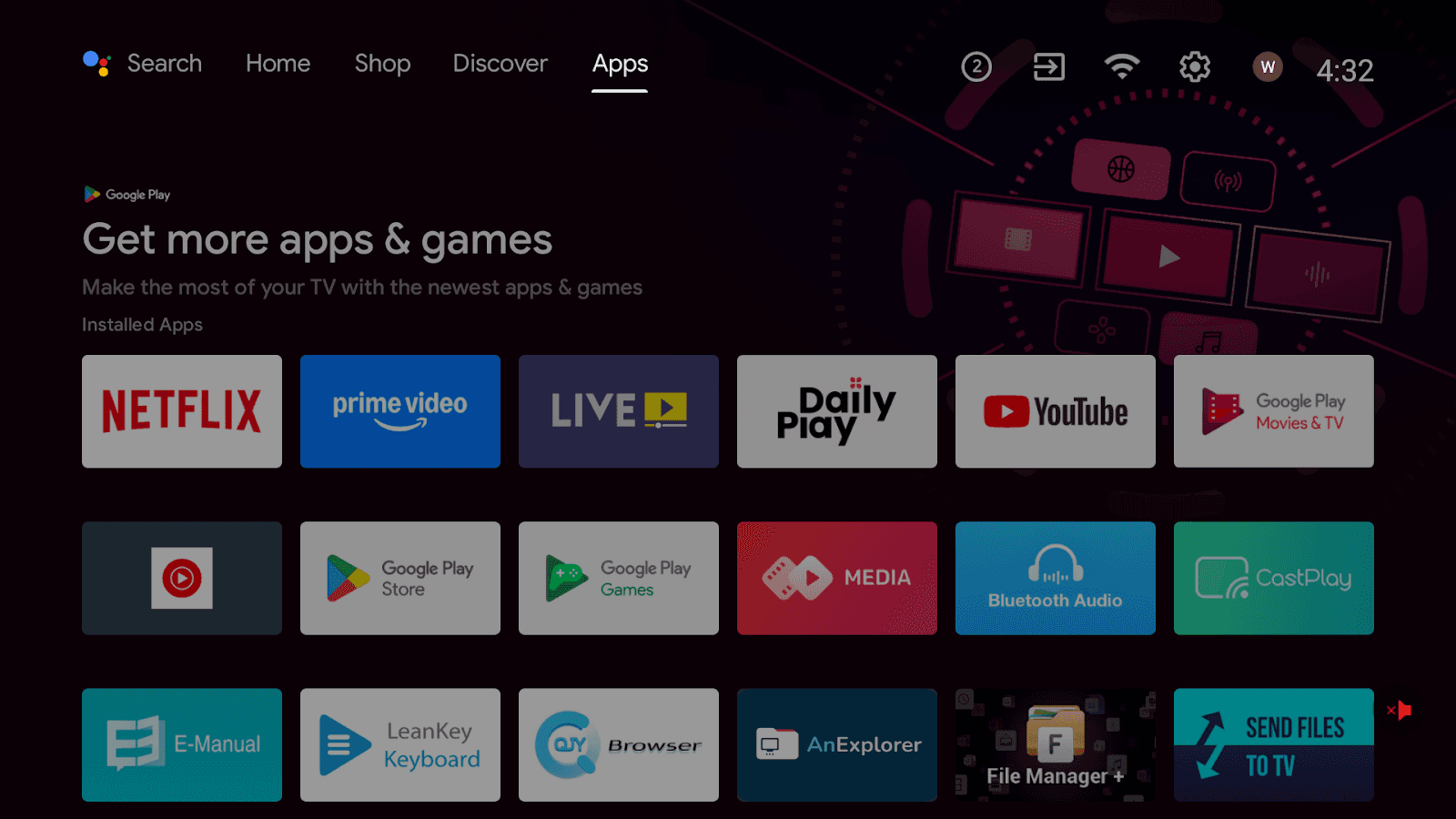
Go to the app section on your device, locate the play store, open it, and prepare to download the Wilyer Digital Signage app for for your screen setup
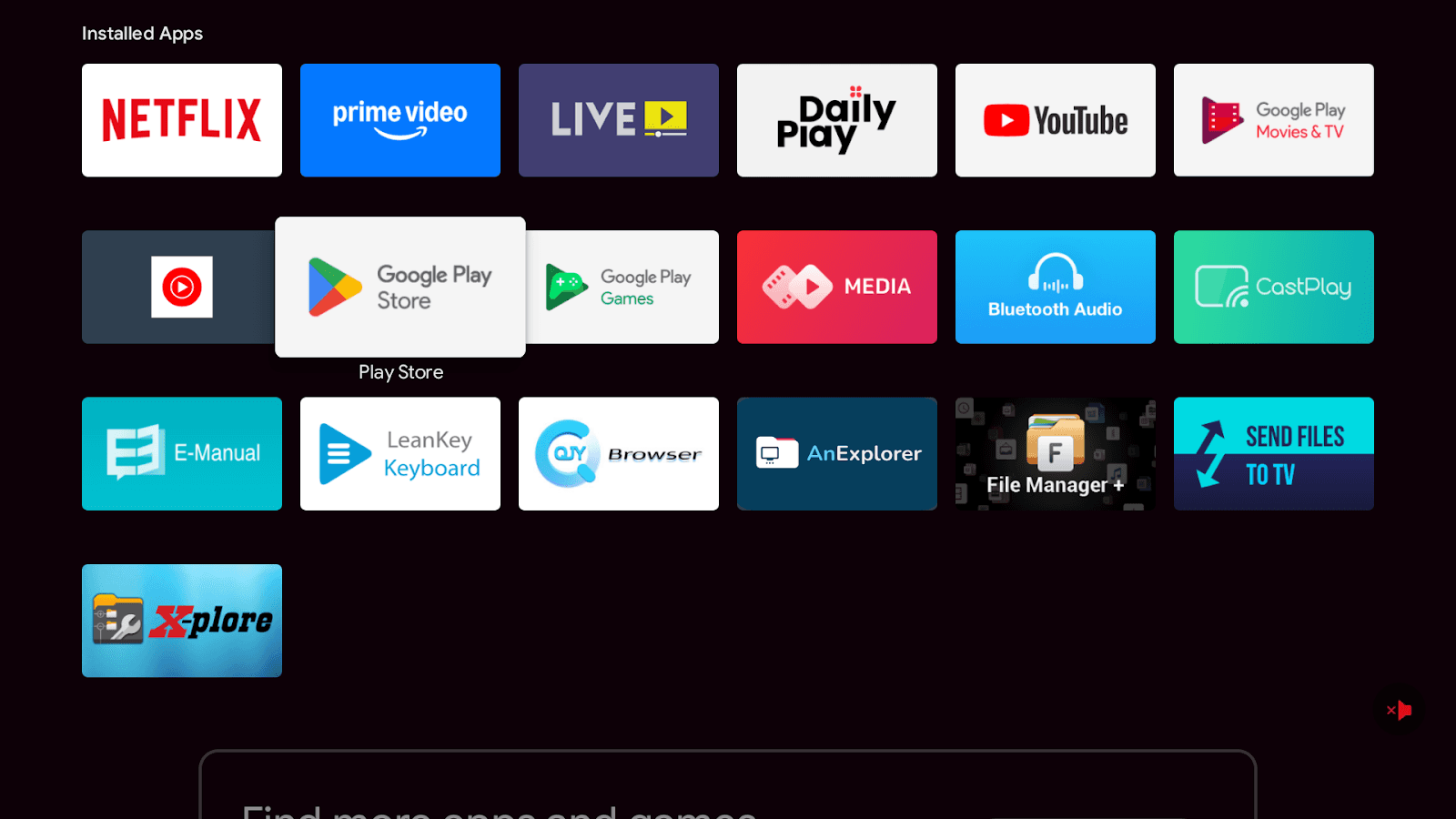
After Going to the Apps section when you search on the play store, you will see a search bar option.
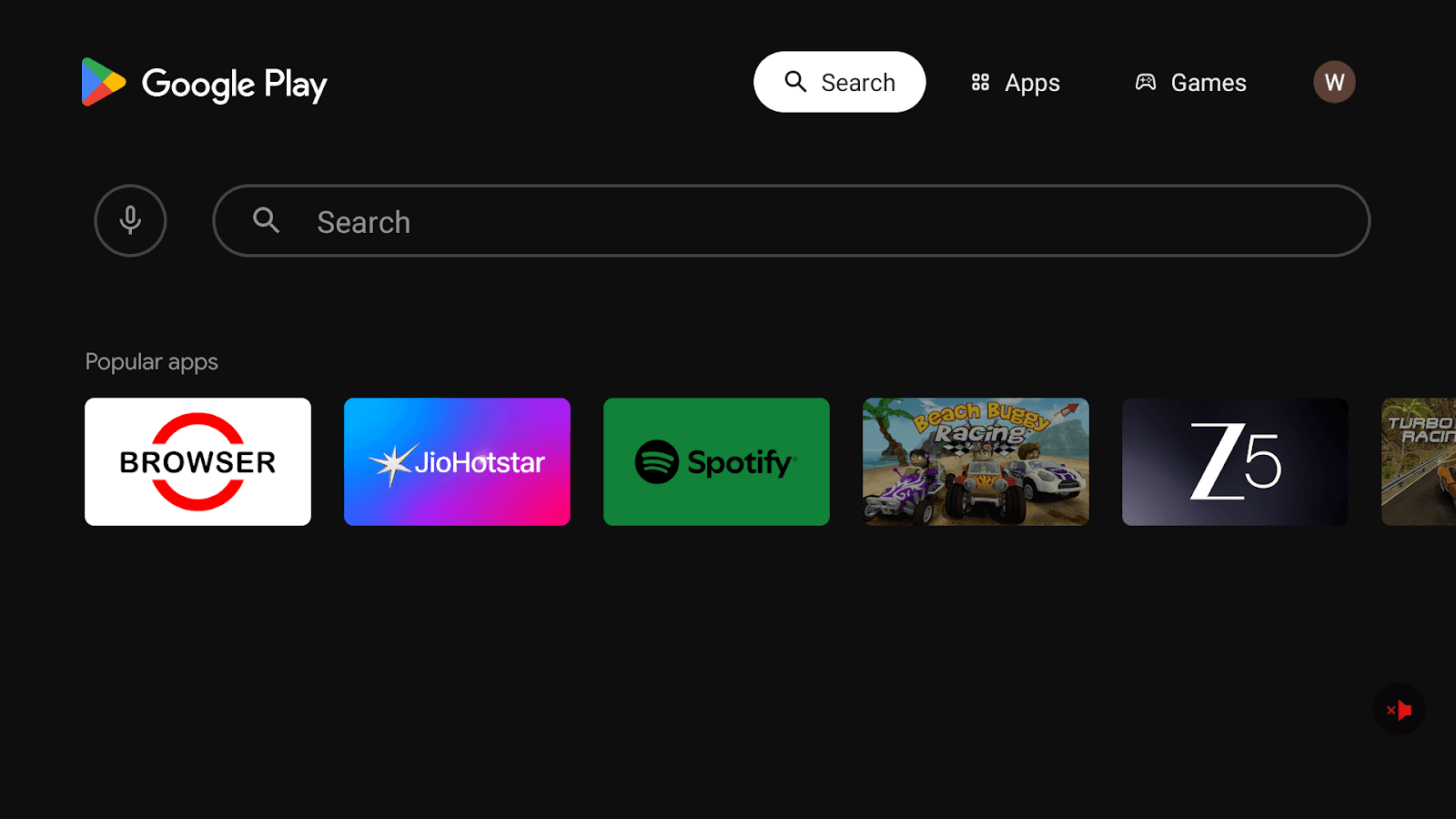
Use a Smart TV with Google Play Store to install the Wilyer Digital Signage Player.
If using a regular TV, connect an Android Box or Fire Stick via HDMI.
Mount the TV securely and ensure proper power access.
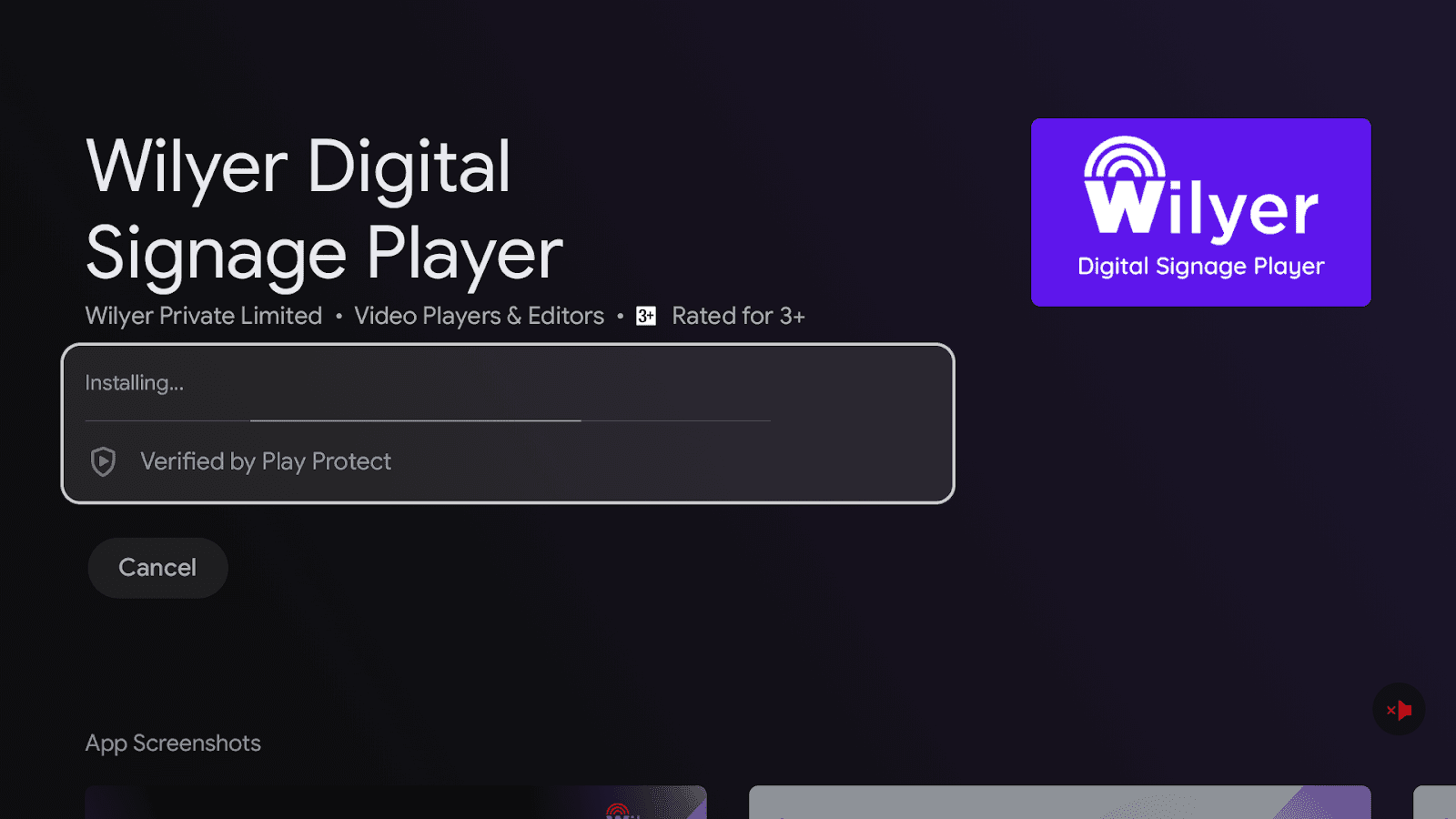
Search for Wilyer Digital Signage in the Play Store, install the app, and open it to display photos and menu content on your screen
Type “Wilyer Digital Signage Player” in the Play Store search bar to open the application.
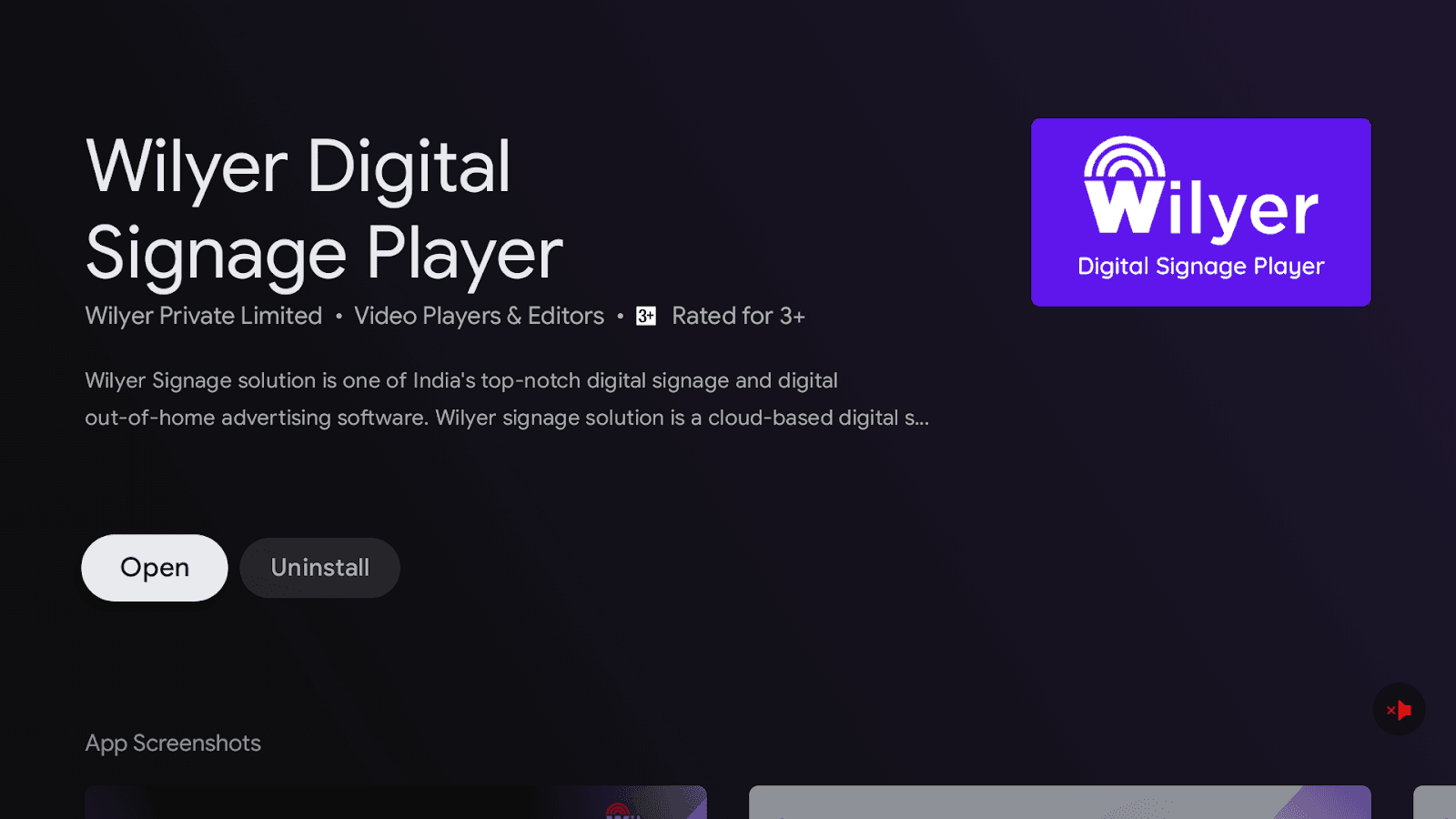
Install the app to display your photos and digital menus on the TV screen
Open the app to start setting up your account
Step 3: To make a Digital Signage Menu Management Account
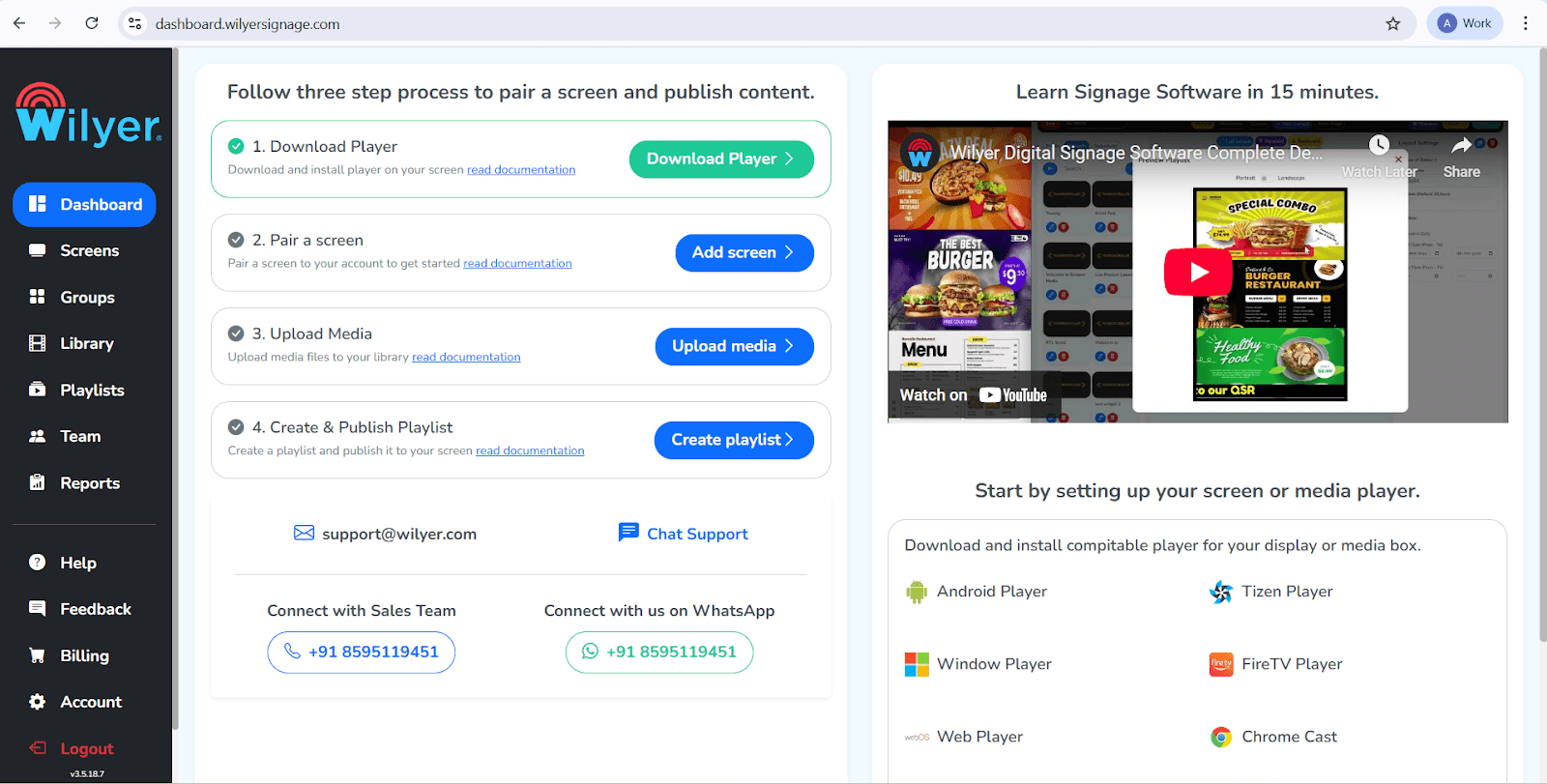
Go to visit wilyer.com and create your free menu content management system account.
Menu software dashboard is the hub of all the menu design and schedule access.
Step 4: Pair Your Menu Screen
Open Wilyer Player application on TV- it shows a 6-digit activation code.
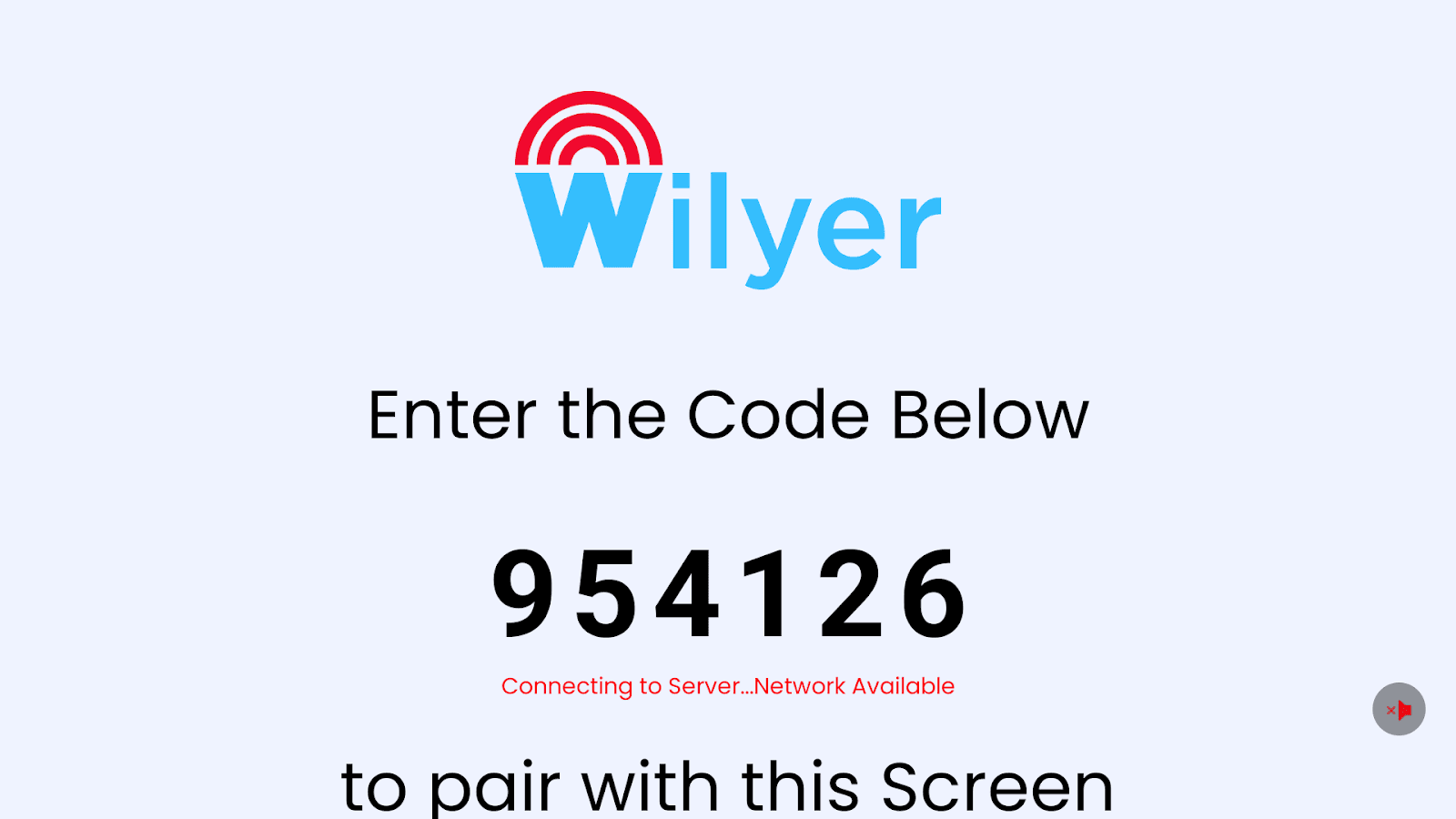
Click on the add screen in your Wilyer dashboard - Enter the code
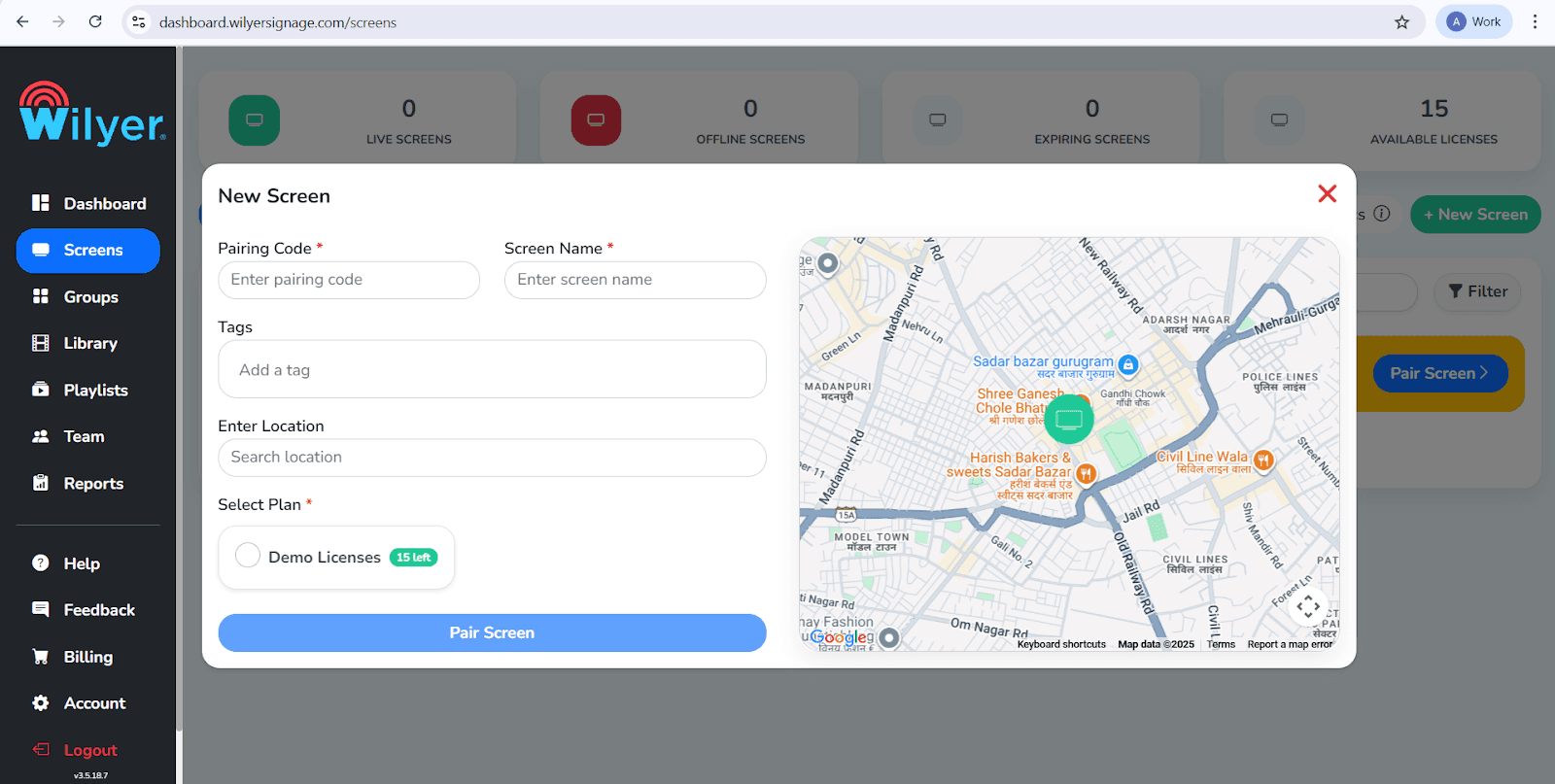
In your Wilyer dashboards, click ‘Add Screen’ enter the pairing code from the app, and instantly connect your display to start managing your photos and menus.
Name your screen (e.g. Drive through the menu or cafe counter display).
“Congratulations, your TV has not got the latest digital menu board app called “Wilyer”.
Step 5: How to Design a Digital Menu Board Using Wilyer
The menu designer offers the menu option, under restaurant templates in your Wilyer dashboard.
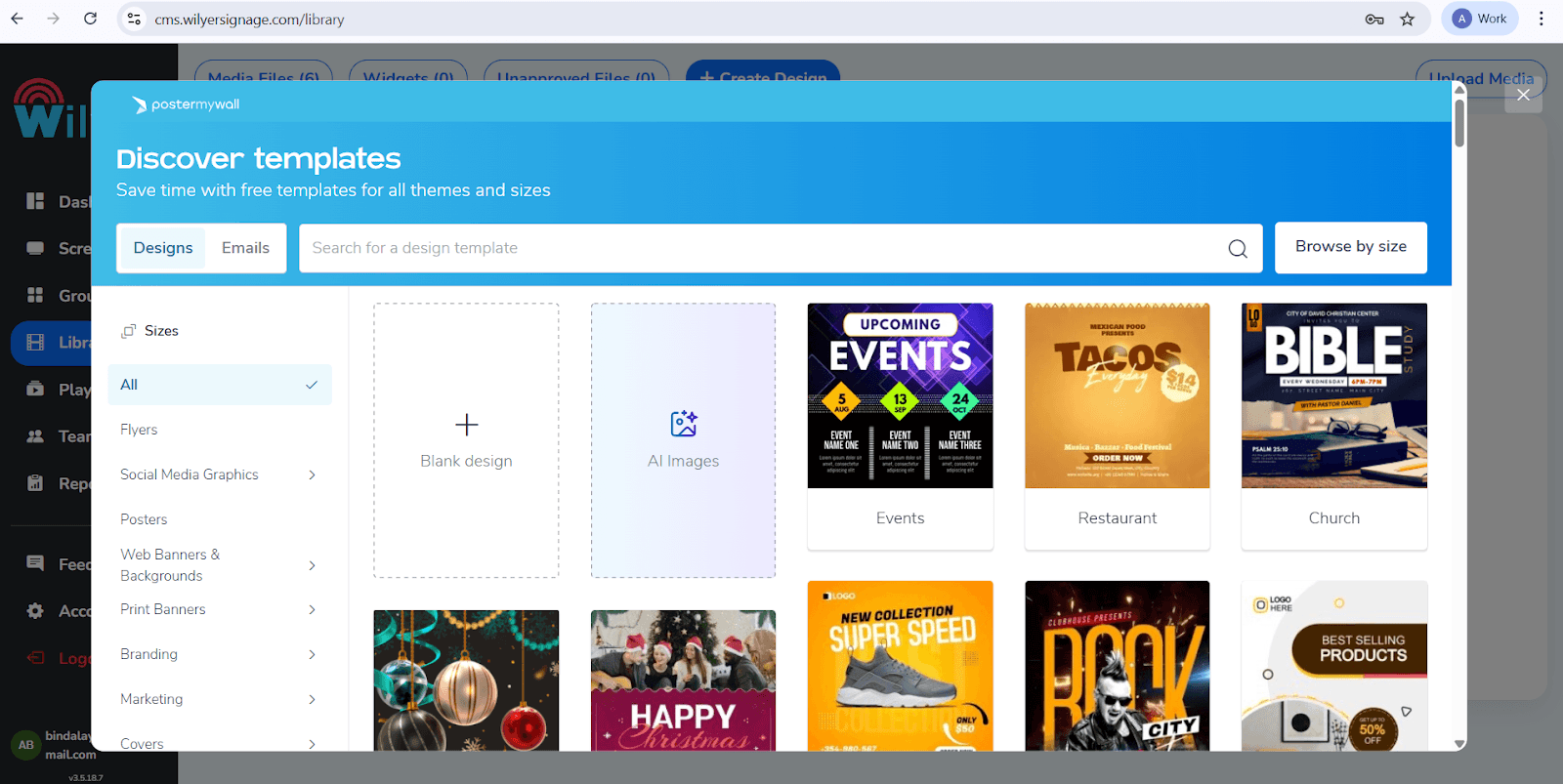
Select digital menu design software templates based on the QSR and cafe or full-service designs.
Drag-and-drop menu layout software will allow you to add your items, prices, pictures, and promotions.
Dynamic menu board software is customizable in colors, font, and animations.
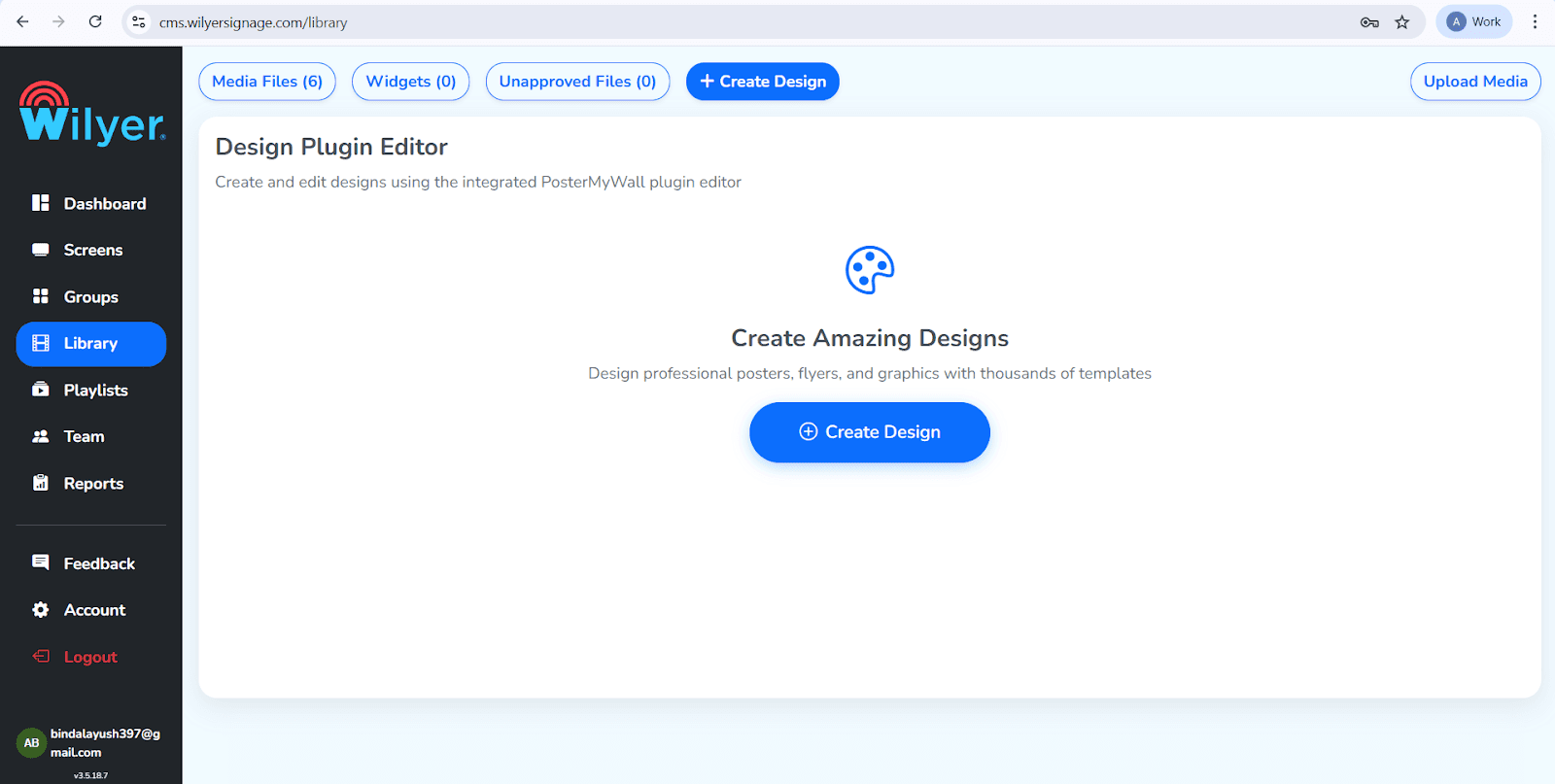
Click on the Create Design
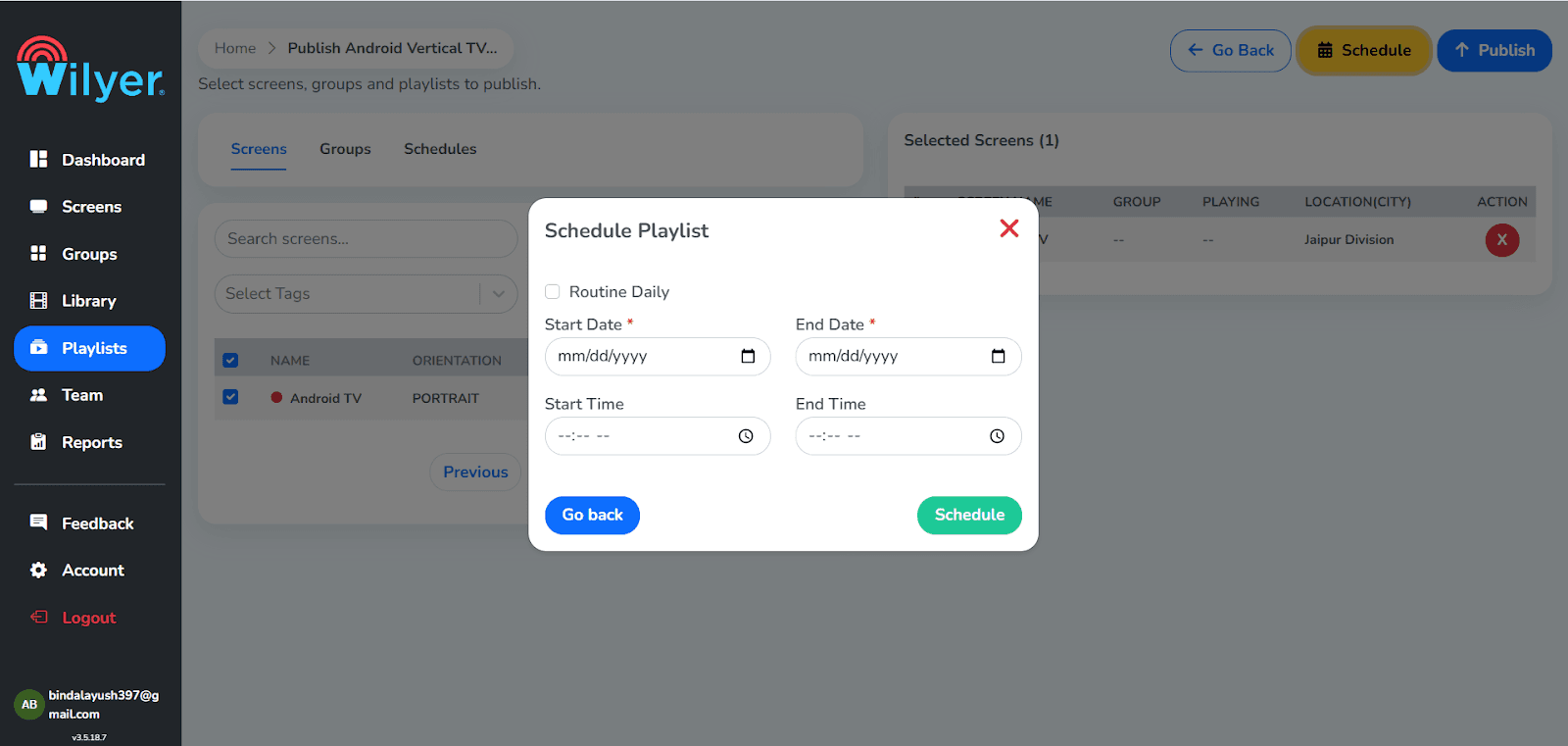
Step 6: Publish and Schedule Your Menu
Select your menu playlist to the paired screen.
Arrange digital menu scheduling software according to time-based alterations (breakfast/lunch/dinner).
Click Publish--the content is your real time menu update software and it is displayed immediately.
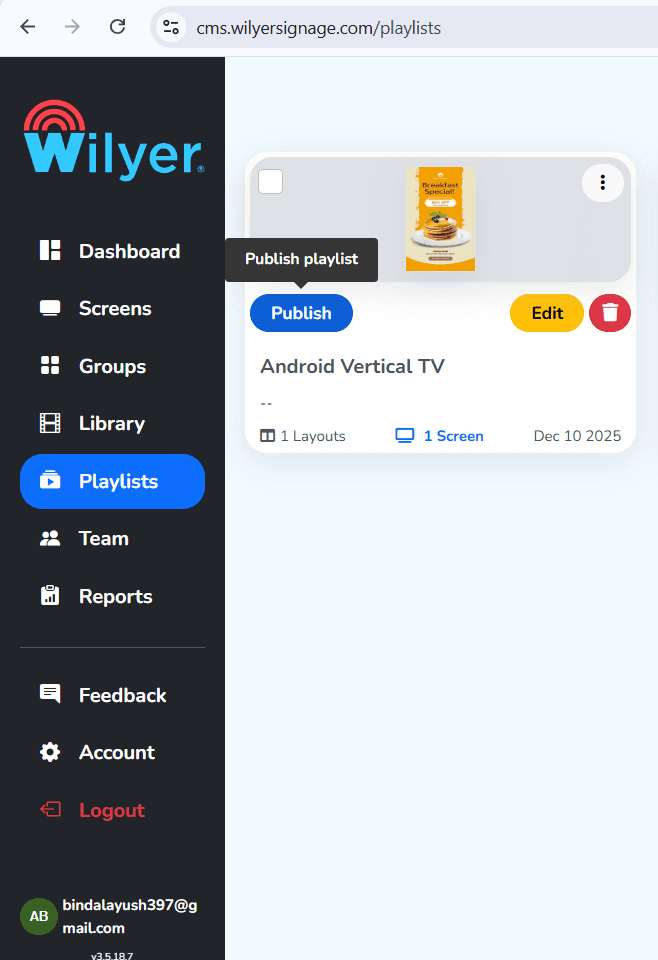
Click on the Schedule Button on top of right side
Step 7: Prepare 24/7 Restaurant Operation
TV Settings - Sleep Timer + Screensaver on.
Wilyer reboots and reconnects- guaranteed up time.
How to set up the tv to automatically start at device restart?
In order for your digital menu board to display automatically when turned back on after restarting, you will need to configure the auto-launch permission on your television before pairing another device. This lets the Wilyer app automatically open every time the television is turned on, providing that your digital menu runs seamlessly without intervention.
Perform the following steps to set up auto-launch for the Wilyer Digital Signage App:
Open the Wilyer Signage Application
If you did not previously have the application open on your television, please open it now.
Use the Back Button to Open Side
Press the Back button on the remote control for your television to view the left side menu.
Go to Permissions
The side menu will display the list of permissions that are essential to allow the application to work correctly.
Find the choice labelled “Display Over Other Apps”
Give Permission to Display Over Other Applications
Press the Give permissions button to allow the Wilyer applications to present its information above other applications. This allows the application to remain open and visible on the screen after the device has rebooted.
Verify Auto-Launch Options
After the permissions have been granted, your television will automatically launch the Wilyer applications whenever it reboots or gets powered on without any management by your staff.
Step 8: You can repeat this step and process for every tv and install a signage app.
Setting Up Unlimited Screens Made Easy! Simply follow the same steps as you installed Wilyer Player on every TV, so that you can manage all your digital menus with a single cloud dashboard.
Conclusion
With Wilyer, any television can easily become a digital menu board. With its affordable prices and user-friendly interface, anyone can create a digital menu without needing previous experience or training. Using cloud-based technology and real-time updating capabilities, Wilyer allows restaurants, cafes and quick-service restaurants (QSRs) to enhance their visual communications quickly with multiple screens at once and with a simple drag-and-drop format that is incredibly simple to use.
Bonus Tips:
Portrait Mode Setup
Vertical/portrait menu boards are more preferable in most restaurants.
Go to your TV configuration and turn on the Screen Rotation / Portrait Mode such that the menu structure is displayed properly. The templates provided by Wilyer have been optimized to portrait and landscape screens.
Wilyer Features Summary.
Wilyer offers everything to operate the contemporary digital menu boards without technical complexity.
Real-Time Updates
Prices, images, or promotions can be immediately updated on all screens. Modifications are manifested in a few seconds.
Cloud-Based CMS
All your menus are managed via the cloud dashboard of Wilyer. No installation of any software and no local server is a requirement.
Multi-Screen Control
Manage the multiple locations using one account:
Add unlimited screens
Each screen should have different menus.
Control branding centrally
Best suited to restaurants, cafes, QSR chains and franchises.
Menu Automation
Wilyer supports:
Time scheduling (breakfast- lunch- dinner).
Playlist rotation Automated playlists.
Seasonal menu updates
Menu changes that are associated with inventory.
This makes your digital menu board maintain its accuracy without having to work on it manually.

Multi-Platform Compatibility for Every Digital Signage Display
Run Wilyer’s digital signage software on your preferred operating system with zero hassle.