Fire TV Stick
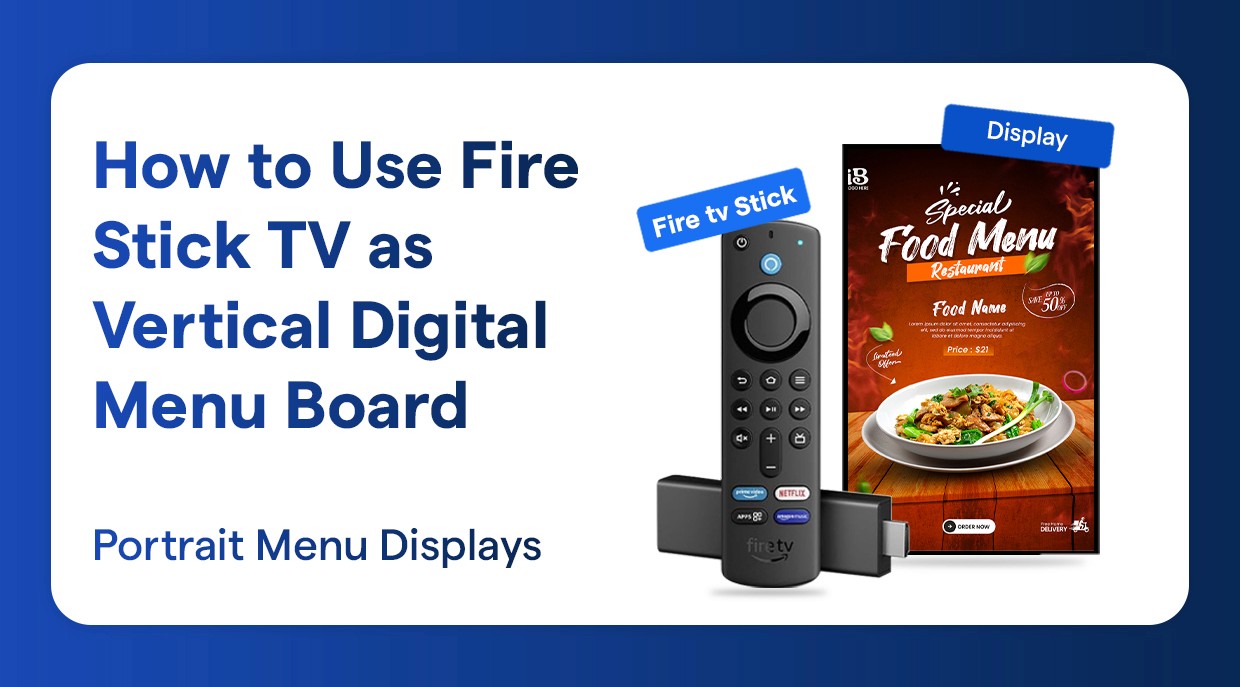
How to use Firestick TV for Vertical Digital Menu Board
Run vertical digital menus on Firestick TV
Make your Amazon Fire TV Stick a powerful vertical menu board with this easy to understand guide. Regardless of whether you are installing Firestick restaurant menu display, cafe menu screen or fast food menu screens, this tutorial includes all that you need to make a professional digital menu board system with cloud-based menu board software.
Why Choose Firestick TV for Your Digital Menu Board?
Amazon Fire TV Stick provides the most affordable option to design a low-budget digital menu board that does not sacrifice the quality. This Fire TV stick menu board solution is affordable and yet performs on a professional level, thus suitable to all restaurants, cafes, and food service businesses. Firestick digital menu system is a cloud-based menu system which also means that you can update your menu contents at any location at any time.
The Firestick menu board solution is flexible, easy to use and saves considerable amounts of money as opposed to the costly proprietary LED menu board systems. Using the correct menu board software on Firestick, you are able to achieve amazing vertical displays of content that is as attractive as some of the professional digital signage installations at considerably lower rates.
Best Digital Menu Board Software for FireStick TV
Wilyer is the best digital menu board software available on Fire TV, and it has a scalable cloud-based menu board software, which allows you to manage your Firestick food menu signage with ease. The platform allows digital portrait mode menu boards, vertical menu board configuration, and has an effective Firestick menu content scheduler to update the menu boards automatically all day long.
What You'll Need for Your FireStick TV Menu Board Setup
You will need:
Amazon Fire Stick TV (any generation is suitable in this setup)
Vertical display monitor/TV (LED menu board screen is suggested)
Wilyer digital signage account (the most popular Fire TV menu board application)
Uninterrupted internet access to management in the clouds.
Firestick menu board designs or your own menu designs (1080 x 1920 pixels in portrait mode)
Step-by-Step: Install Menu Board App on Firestick TV
Use this step-by-step manual to set up and install the digital menu board app on Fire TV and configure your Firestick vertical restaurant screens.
Step 1: Setting Up the First Fire Stick TV
First plug your Fire TV Stick into an available HDMI on your TV, then attach the included power adapter, and then power on your TV. Choose the appropriate HDMI input on your TV, set up your preferred language and Wi-Fi connection, log into your Amazon account, confirm your display resolution, and finally, skip over the recommendations for entertainment.
Step 2: Set Up WiFi Connectivity for Fire Stick TV digital signage
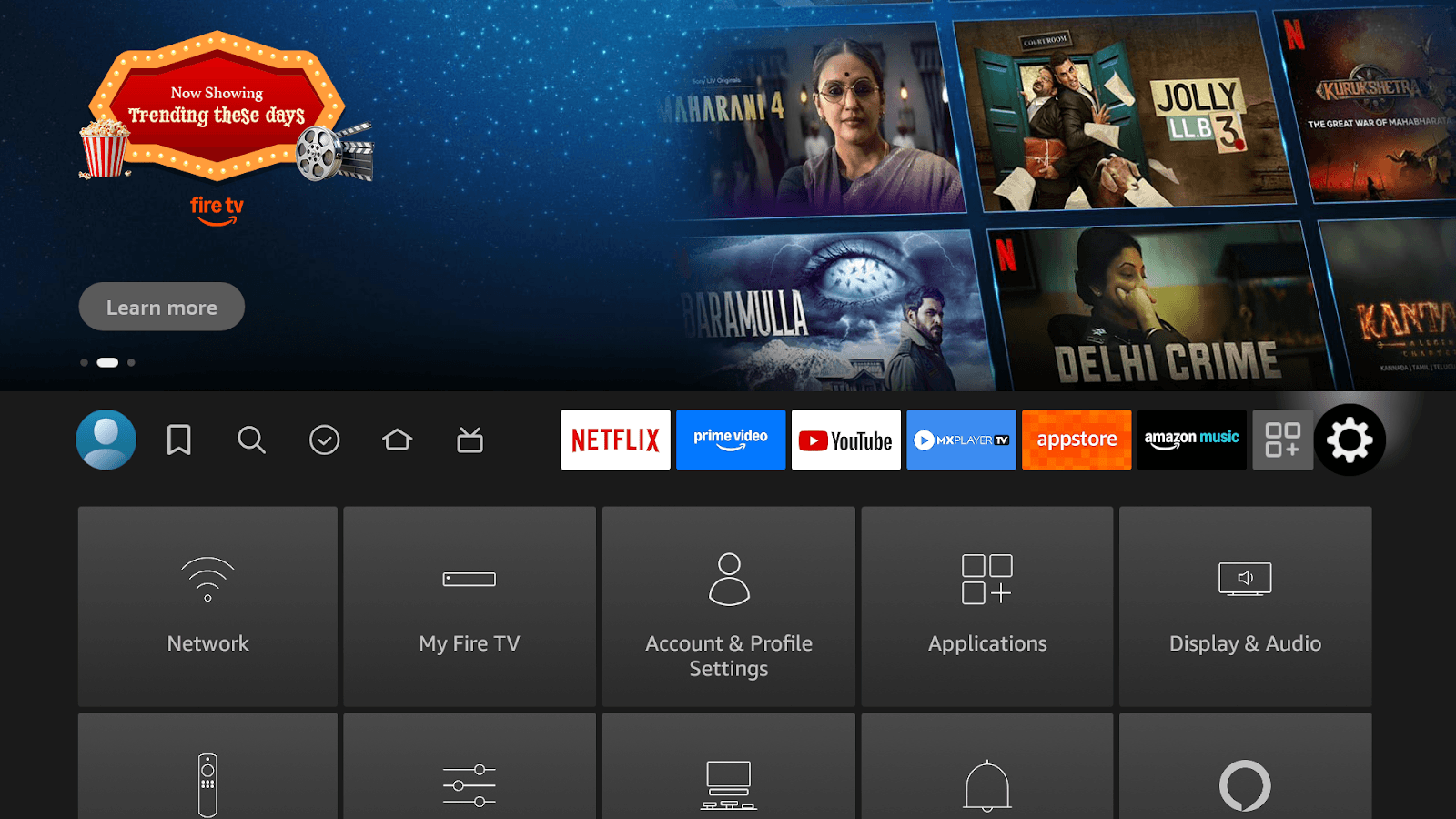
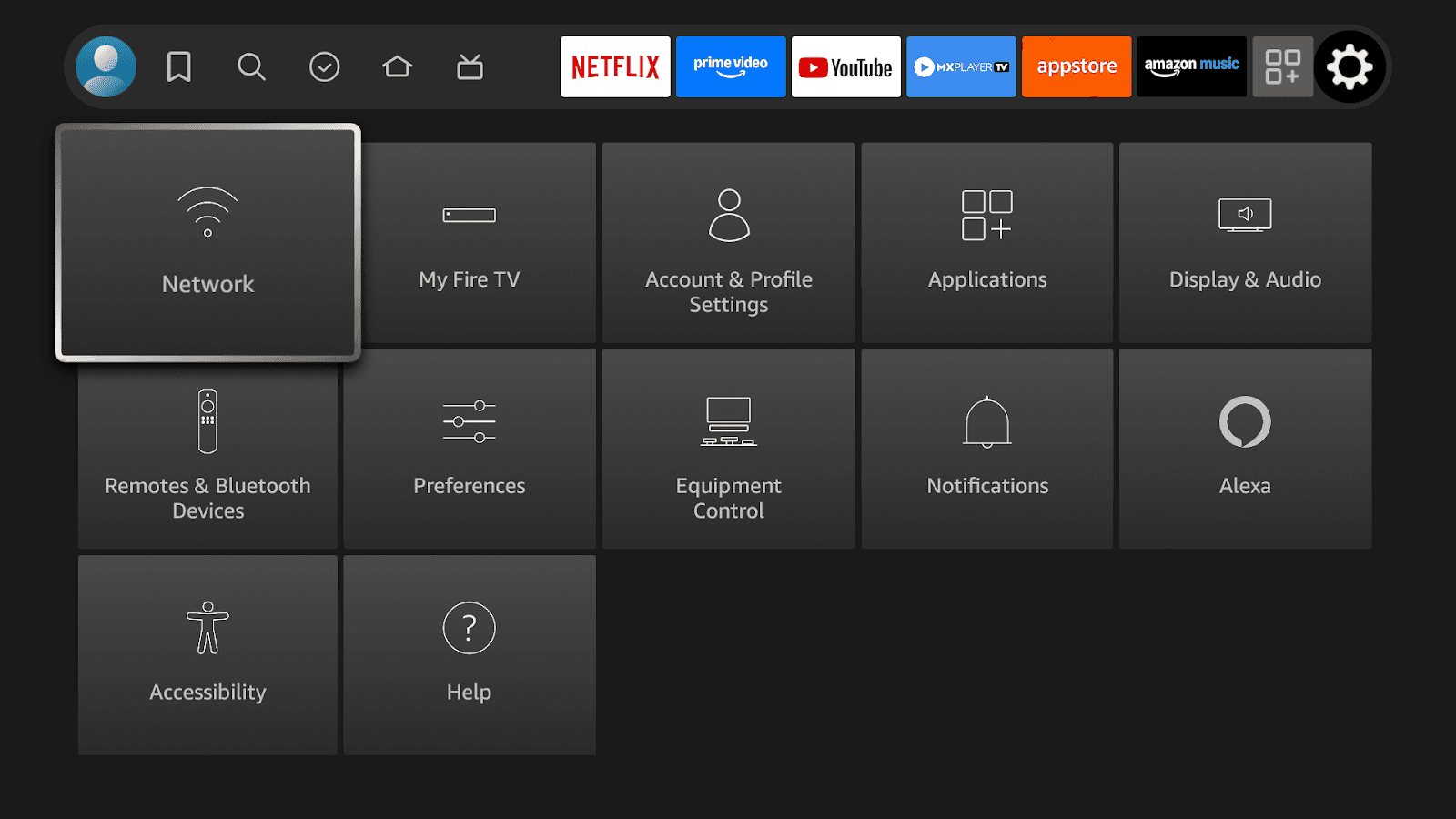
Refer to the Fire TV Remote to Access Settings (gear icon). Go to Network and connect via reliable Wi-Fi. Connect via Wi-Fi to ensure good internet connection to allow uninterrupted playback of digital signage.
Use Fire TV's System Settings to manage Applications, adjust Display and Audio Preferences, and optimise Network Performance to ensure that content is delivered without interruption.
Network Configuration
Connect the Fire Stick TV to a dedicated restaurant WiFi network to maximum reliability. A stable internet connection. A stable internet connection is essential to ensure your digital menu updates appear instantly and operate without interruptions.
Step 3: Install the Wilyer Digital Signage app
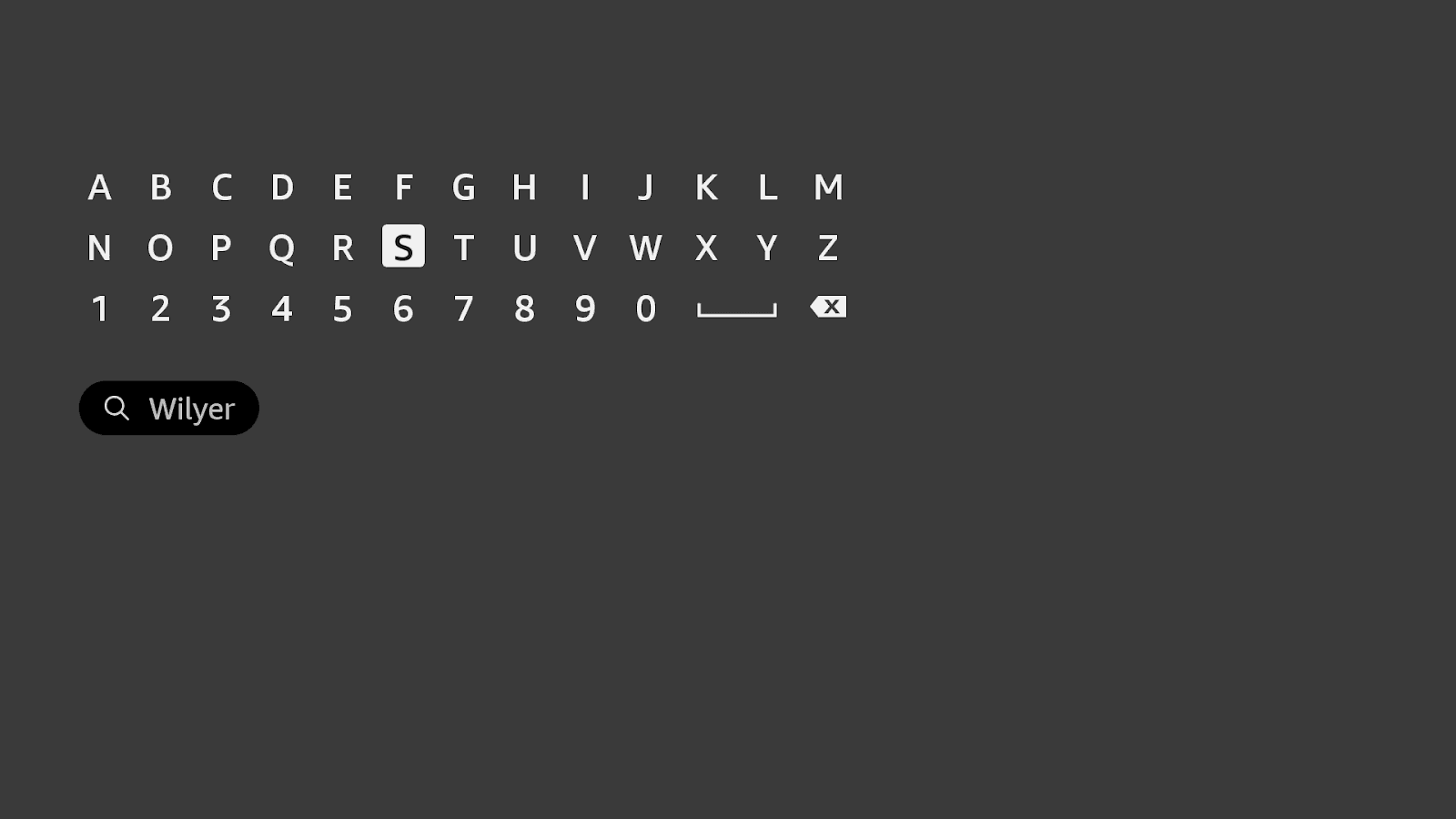
To find the Wilyer Digital Signage Player on your Fire TV, press the Home button of your Fire TV remote. Then select the Amazon Appstore and navigate to the Find option. From there, select Search. Type "Wilyer" in the search box to find the Wilyer Digital Signage Player.
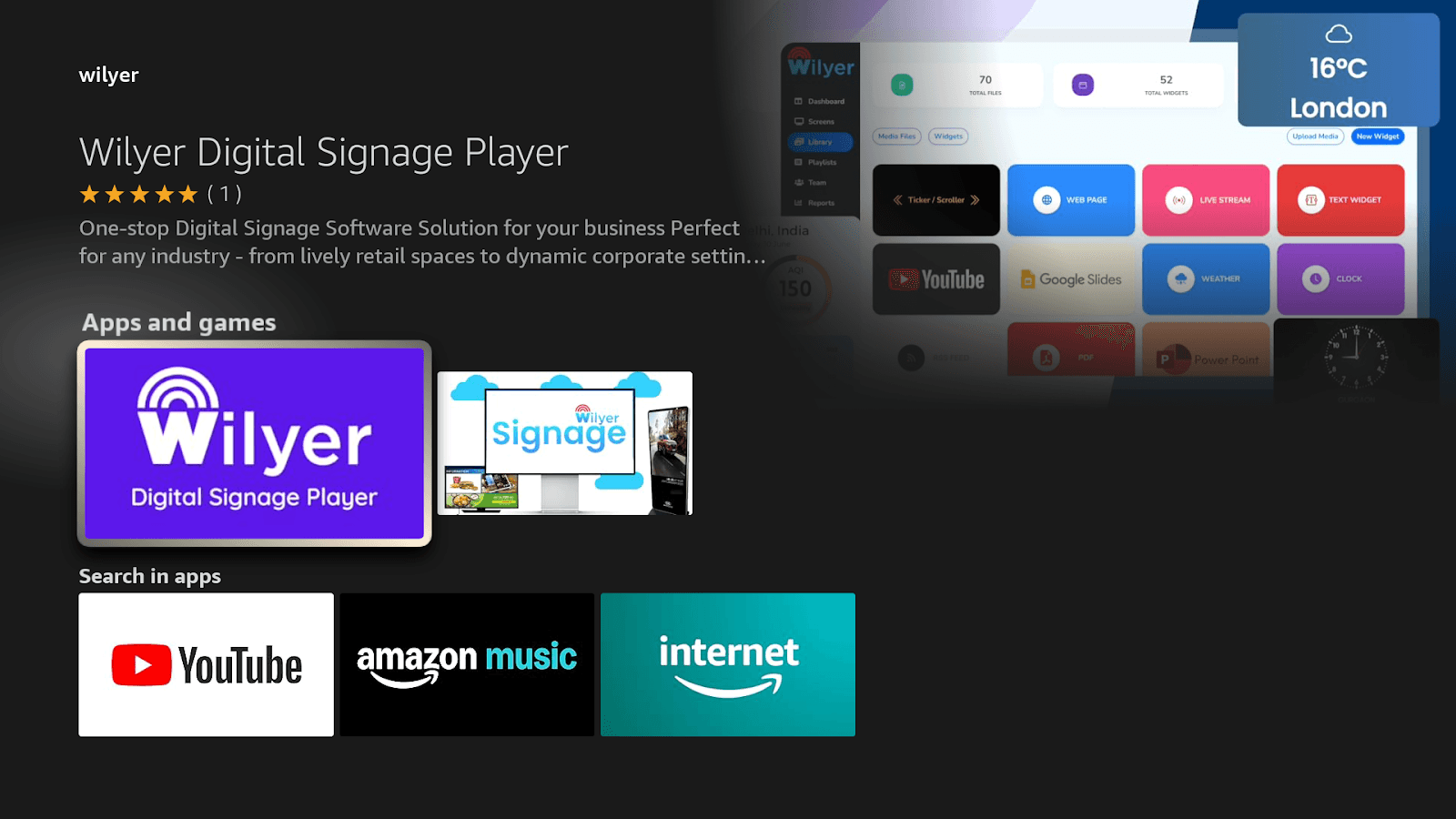
After you see the Wilyer Digital Signage Player app shown in the search results, select the app and follow the prompts to install it.
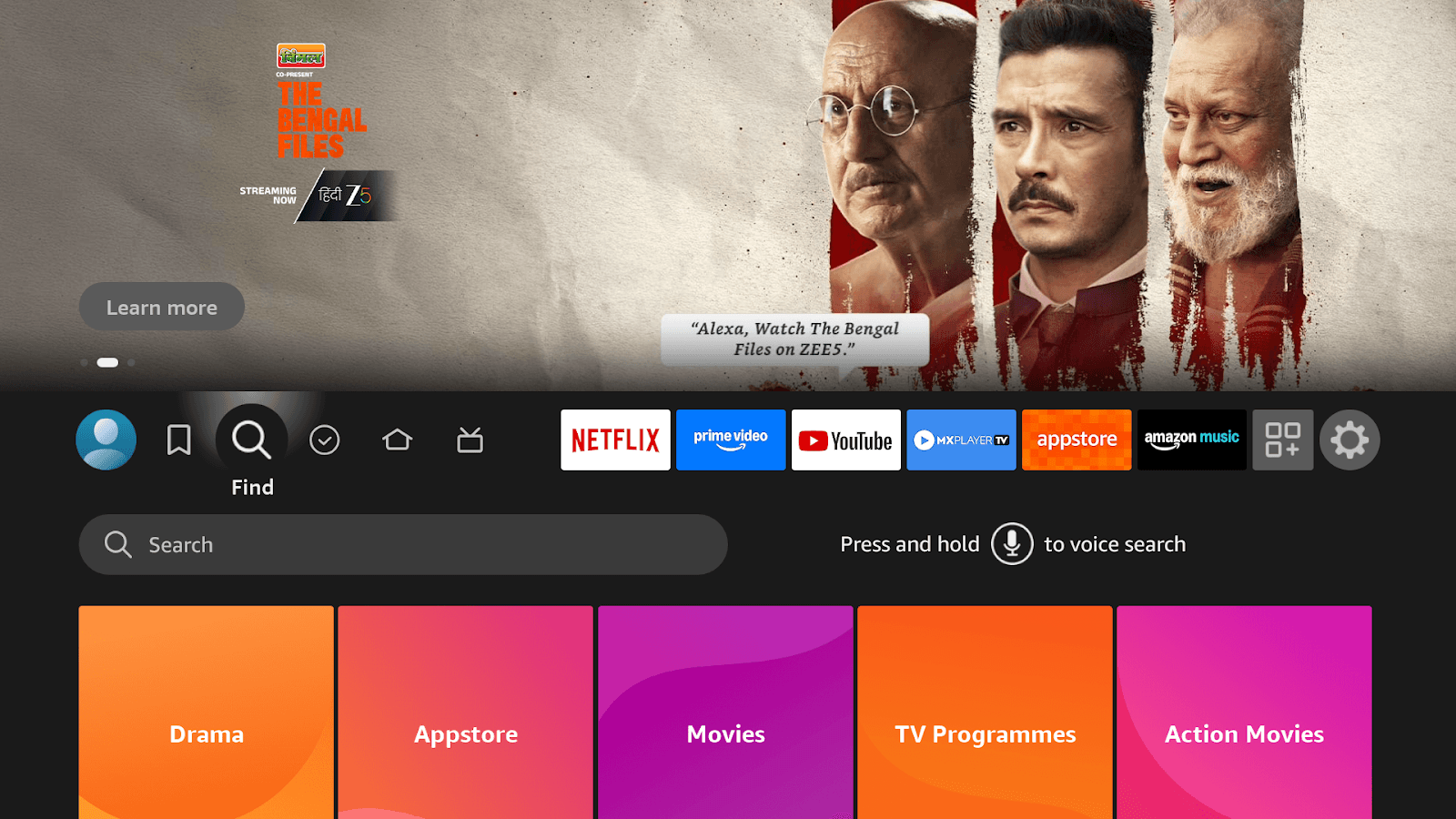
Use the on screen keyboard to enter “Wilyer”, or use voice search by saying “Alexa, Find Wilyer Digital Signage Player”
Locate the App
App Name: Wilyer Digital Signage Player
Rating: 5 Star Customer Rating
Description: A Complete, all in one digital signage software solution for businesses.
Use Case: Ideal for restaurants digital signage using Fire Stick TV
Developer: Wilyer
Compatibility: Fully Compatible with FireStick TV Remote
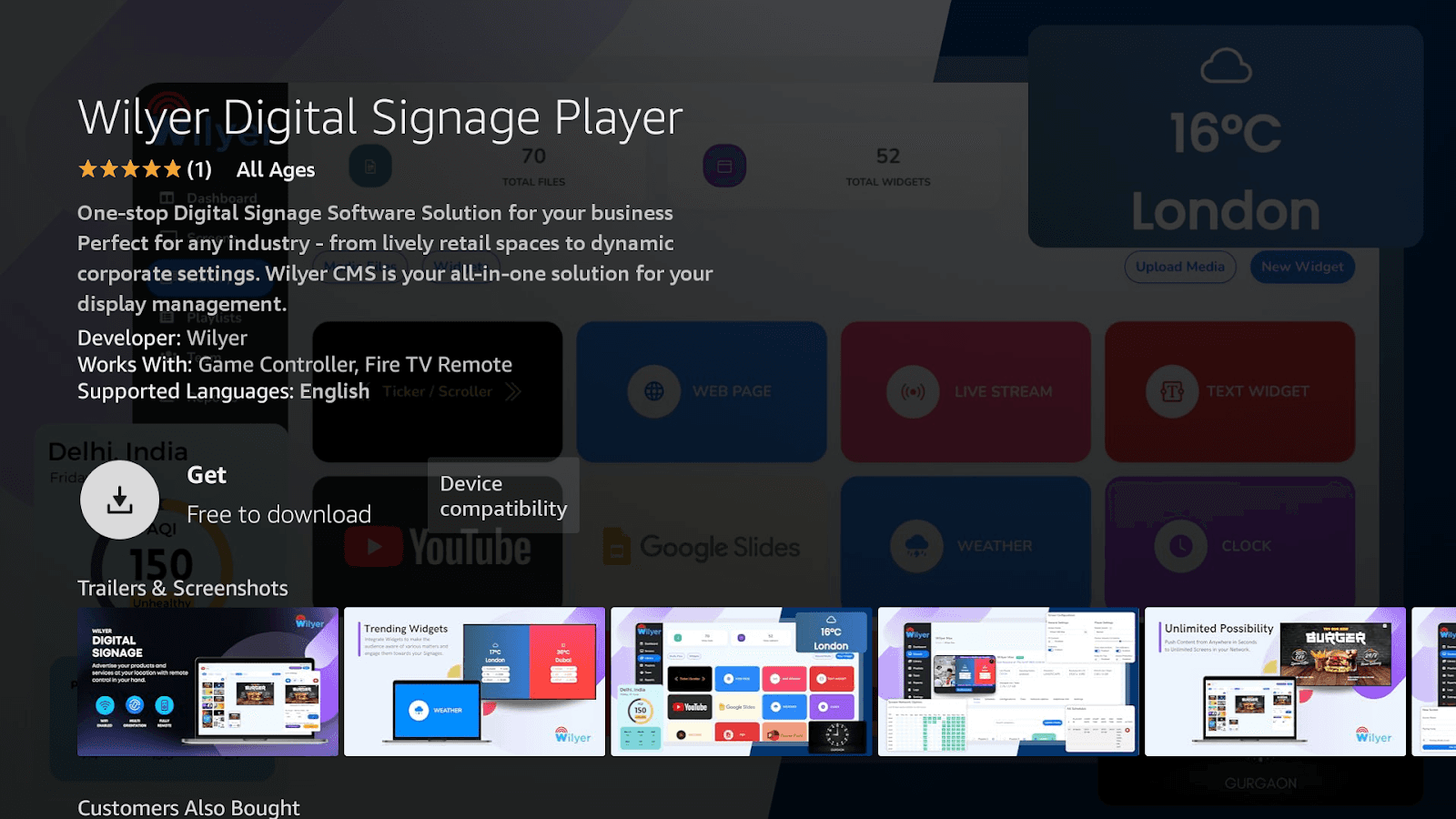
Download and Install the App
Select the Wilyer Digital Signage Player and click the Get button to download the app at no cost.
App details:
Developer: Wilyer
Remote Support: Compatible with Firestick TV remote
Supported: English
Device Compatibility: Supported on Compatibility Firestick TV devices
The installation process typically takes 1-2 minutes
After completing the installation process, click the Open App button to open the Wilyer Digital Signage Player application, confirming that you have successfully finished installing and can begin using it right away.
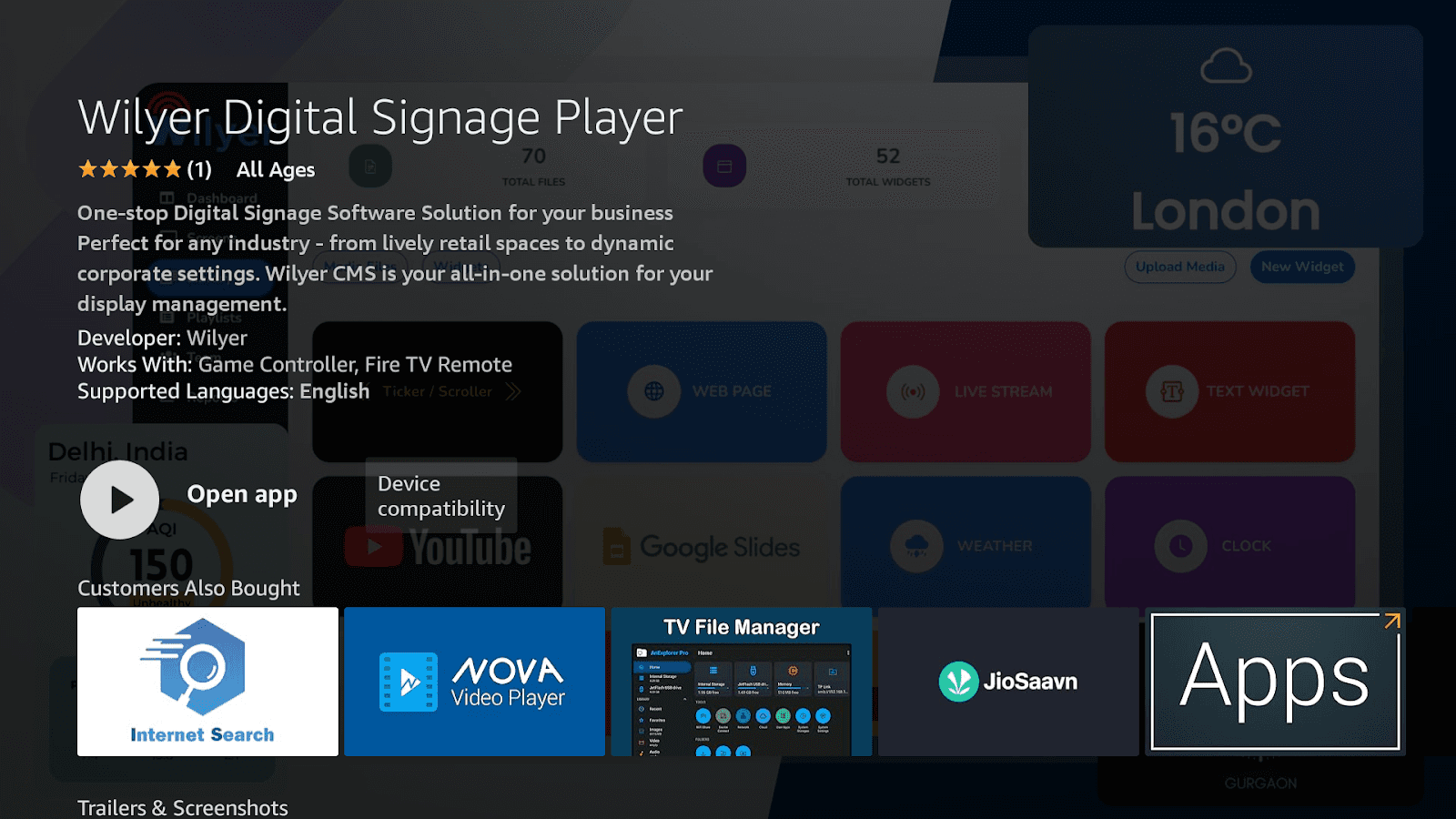
The Wilyer Digital Menu Board Player software is now successfully installed on your Fire Stick TV.
After installation, Return to the Fire Stick TV Home Screen, navigate to my Apps or the App sections, locate the Wilyer Digital Signage Player, and select it to launch the application at any time.
Step 4: Pair Your Menu Board Display
Launch the Wilyer App:
Wilyer Logo
Unique 6-digit pairing code (e.g., 395344)
Instructional text: “Enter the code below to pair with this screen”
Status indicators such as “Listening,” “Forming a new connection,” and “Internet Active”
Keep this pairing screen open on your Fire Stick TV. Do not exit or navigate away until the pairing process is complete.
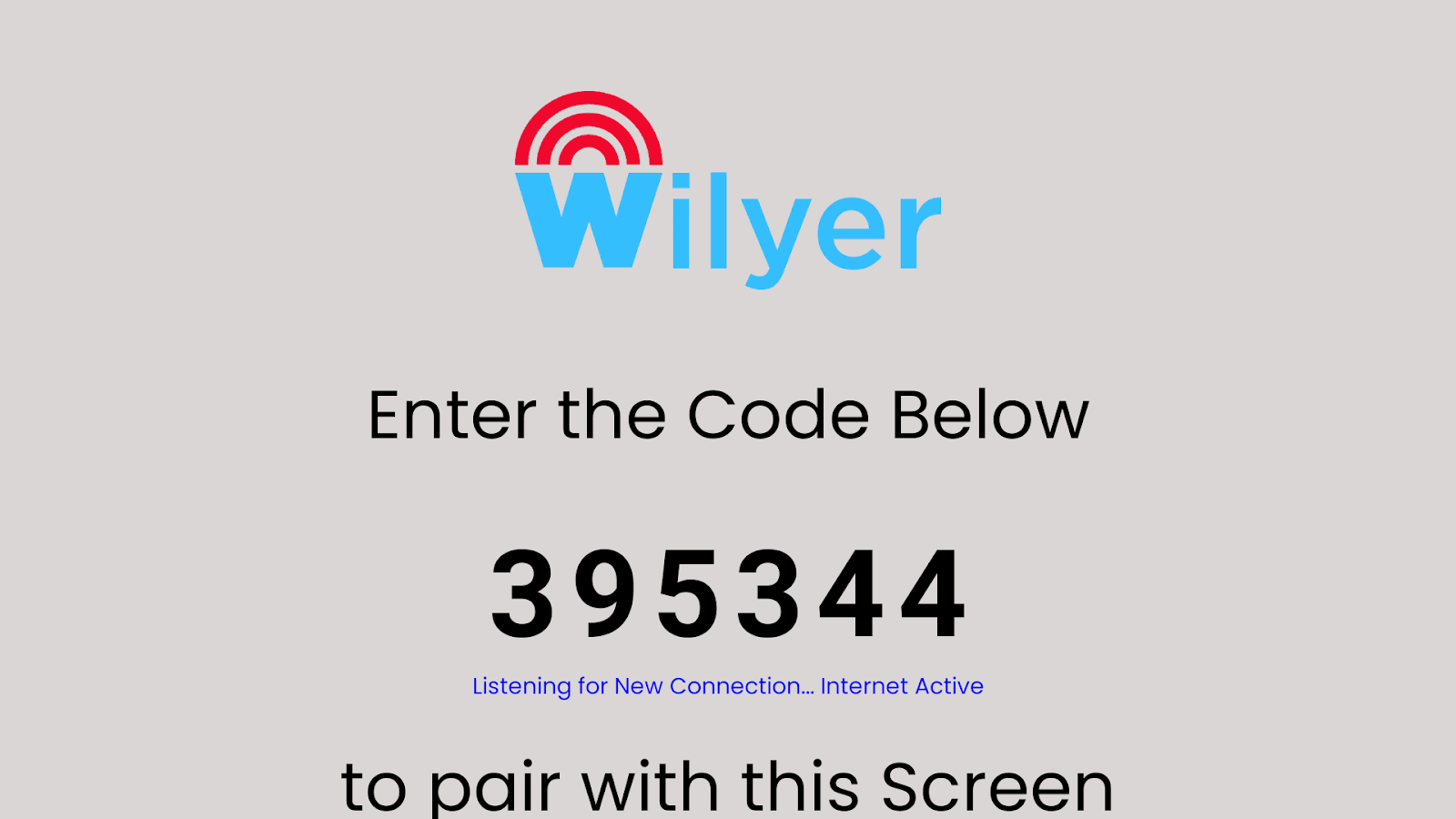
Pair the Screen Using the Wilyer Cloud dashboard
Your Fire TV Screen can be paired with the Wilyer Digital menu Board CMS from your laptop or mobile device.
Open a new browser tab on your device
Go to Wilyer’s sign-up page and create an account, or log in if you already have one.
Sign in and navigate to the Wilyer dashboard using the on-screen pairing code to connect your Fire TV screen to your Wilyer dashboard.
Create your Wilyer Account
Full Name: Full name must be entered as the primary user of the signage dashboard.
Email Address: Email addresses must be valid and active (this will be used to log into the dashboard and will also be used for account verification and notifications to the system)
Phone Number: Phone no. with international country code (for support communications and account management)
Company Name: Your Company/Organizations Name provides you with a professional identity that can be used for your signage network.
Password: A strong and secure password is required to protect your Wilyer account
Terms & Privacy: You must read and agree to the Wilyer Terms and Conditions and Policies before you can complete the account creation.
Complete Registration: After completing the above steps, you will be able to access your Wilyer dashboard by clicking on the Sign-In button.
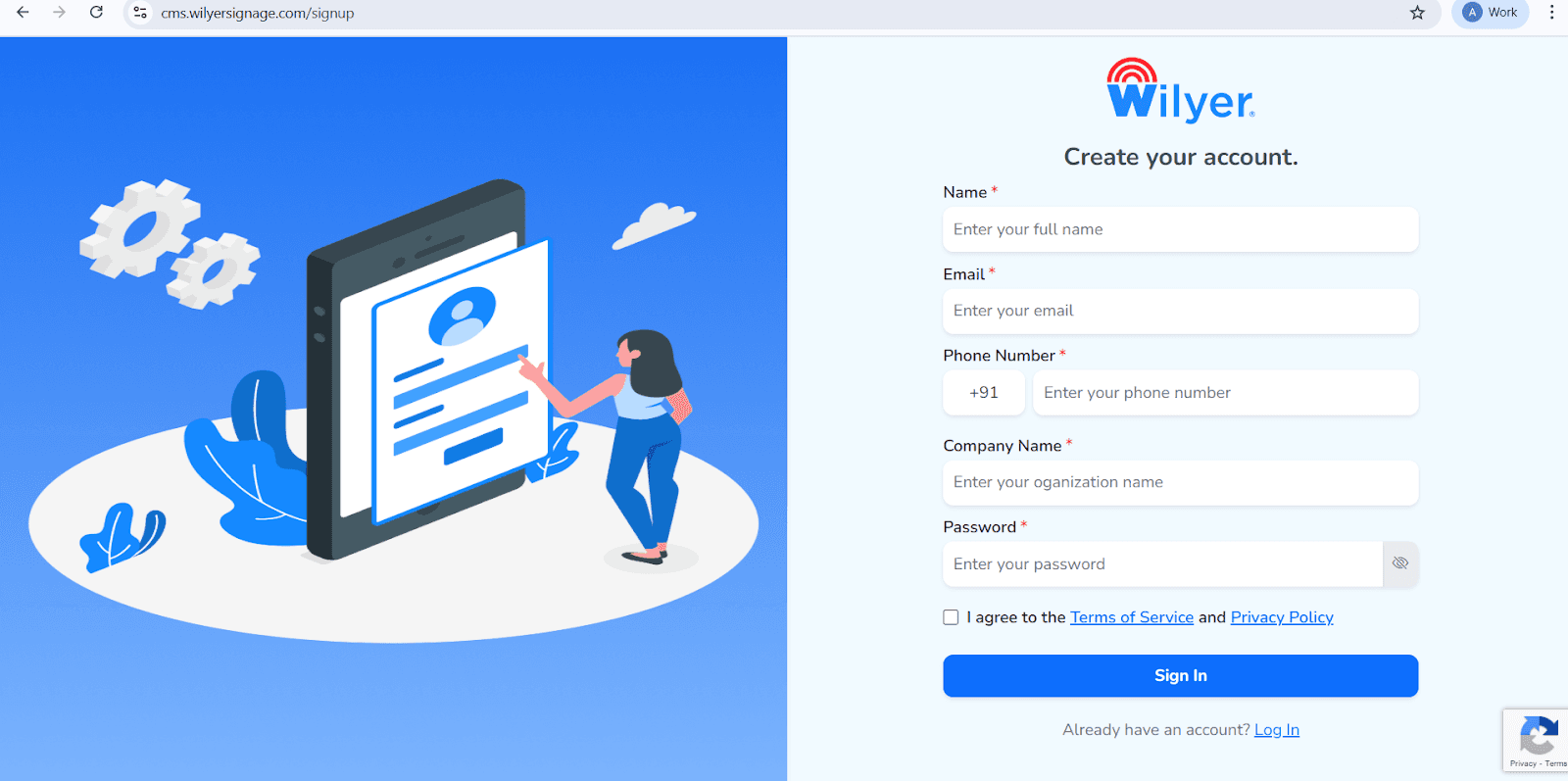
Step 5: Access Your Wilyer Digital Signage Dashboard
First, log in your Wilyer account at cms.wilyersignage.com and then start configuring your Firestick digital menu board. The dashboard gives a full view of your digital signage in menu boards, screens on-line, total media files, storage space, and licenses available. This online menu board interface software is easy and effective to manage your Firestick cafe menu screen.
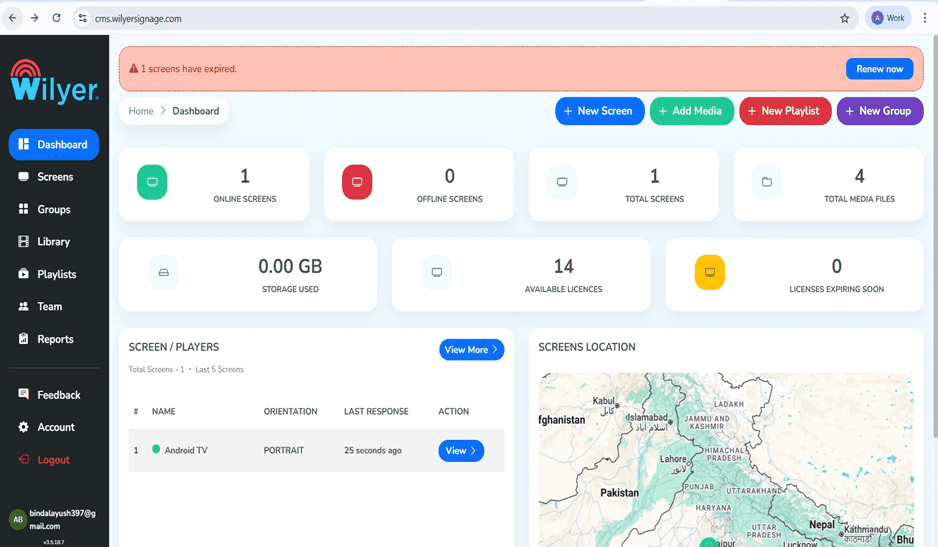
Step 6: Navigate to the Media Library for Menu Content
On the left sidebar, choose the option of Library to get to your media management area. This is the place where you will post and manage any contents in regards to your Firestick restaurant menu display such as menu boards, promotional images and any Firestick menu slideshow contents you wish to display.
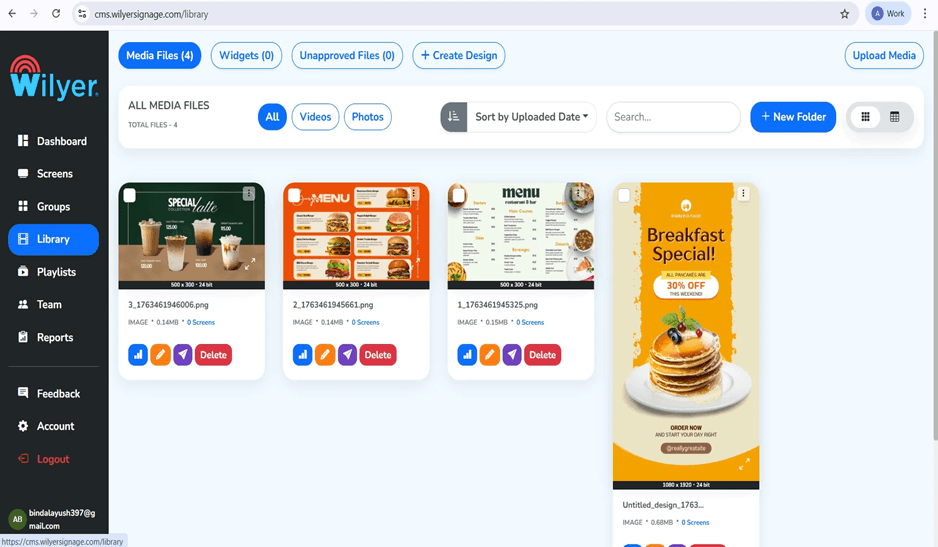
Step 7: Upload Your Menu Board Images
In the Library section, you should find the Browse files button that will allow you to upload your menu board content. The platform supports JPG, JPEG, PNG and MP4. To achieve best results with your vertical menu board Firestick setup has, you need to make sure the images are made in portrait format (1080 x 1920 pixels). You have the options of pre-designed Firestick menu board templates or design your own designs that suit your restaurant branding.
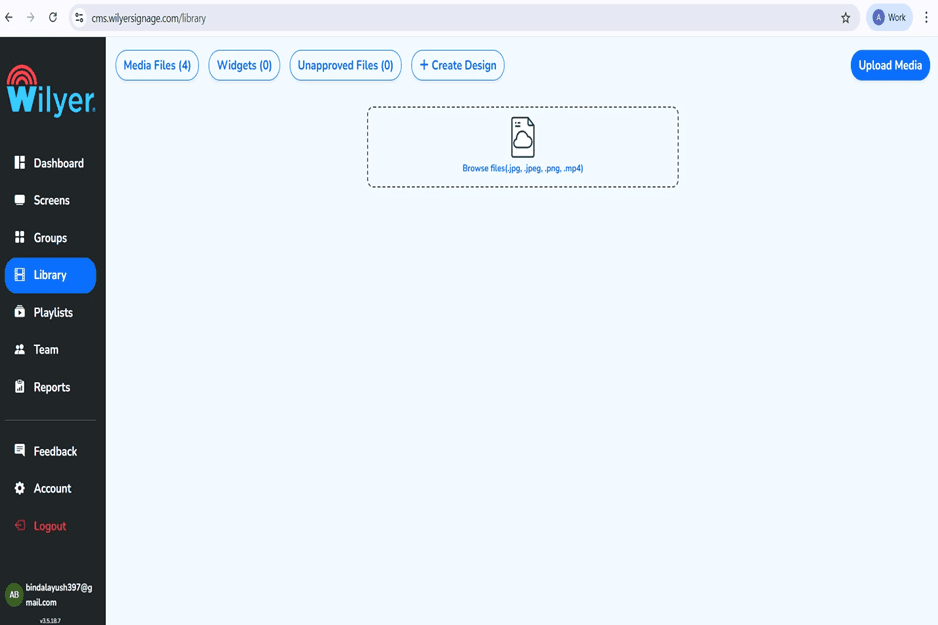
Step 8: Select Your Menu Board Files
Once the file browser is opened, go to your menu designs, which you have saved. Choose your Firestick food menu signage pictures and open. The cloud-based system supports multi uploads and is thus fast to add numerous menu boards, promotional materials and deals to your Firestick digital menu system.
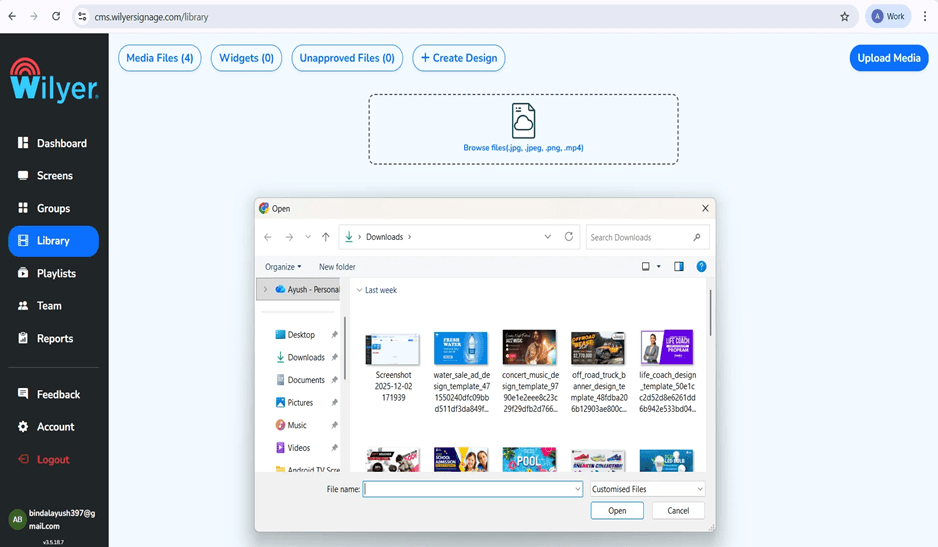
Step 9: Verify Your Uploaded Menu Content
Once uploaded, your menu board pictures are displayed in the Media Files section in thumbnails and file descriptions. This Firestick menu board software displays size of this menu board, size of files and the state of assignment so that your Firestick cafe menu board contents are ready to be deployed. Make sure that all the images are fine, and then you can move on to the creation of the playlist.
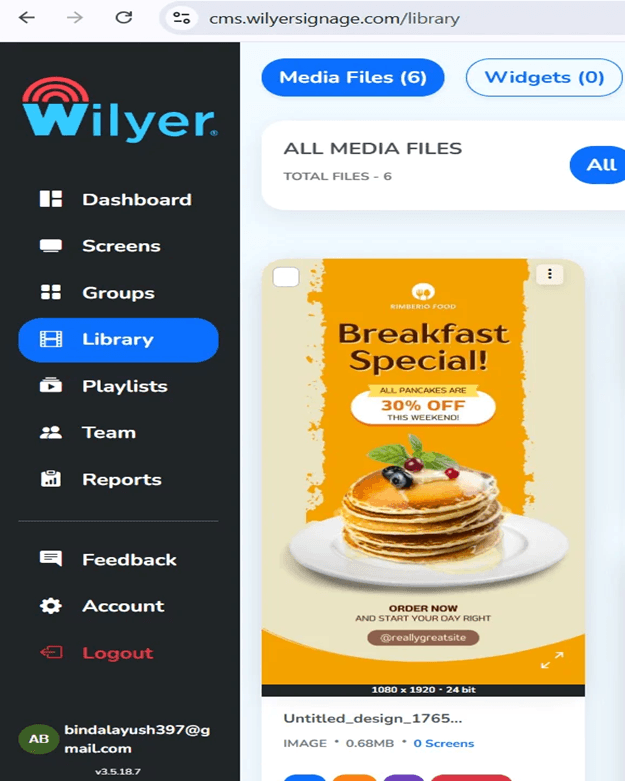
Step 10: Create Your Menu Board Playlist
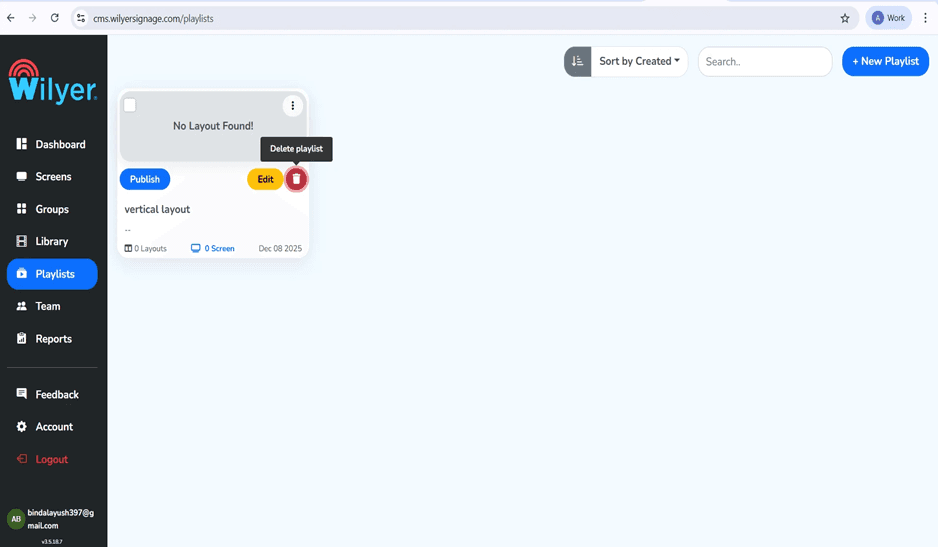
To arrange Fire TV vertical restaurant screens content, go to Playlists. + New Playlist Add your own playlist to use on your menu board. The Fire TV digital menu board application enables you to make various playlists of various meal times, seasonal menu, or promotional campaigns, all controlled via the Firestick menu content scheduler.
Step 11: Configure Your Playlist Settings
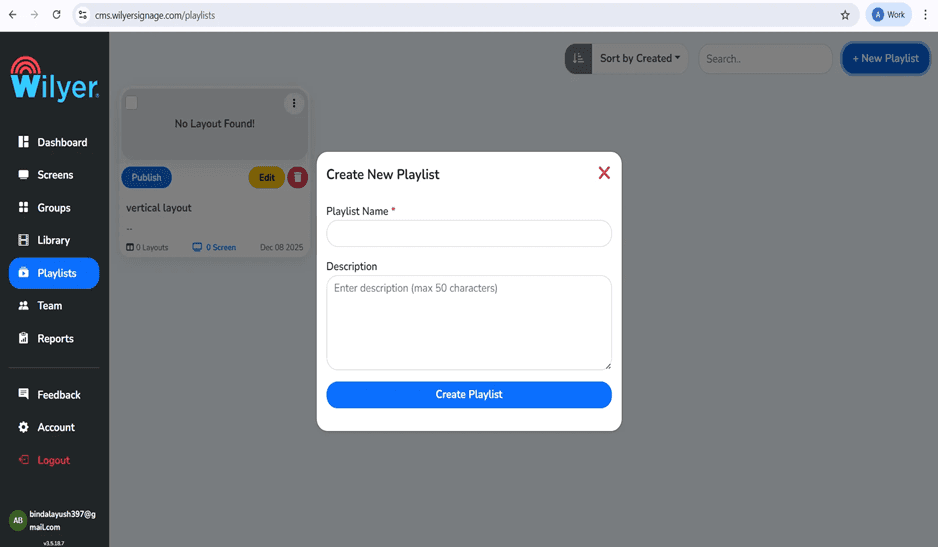
Enter the descriptive name of your playlist like Breakfast Menu, Lunch Specials or Firestick Restaurant Menu Display - Main. You have an optional description that can be used to organize a number of menus. It is necessary when related to the management of Firestick fast food menu screens in a variety of locations or the creation of various playlists at different times of the day.
Step 12: Select Portrait Layout for Vertical Menu Board
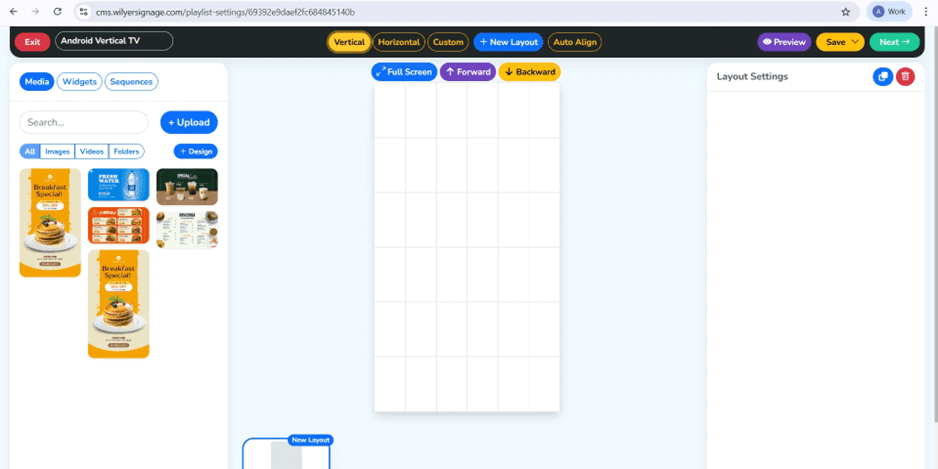
This is a very important step towards your portrait mode digital menu board setup. In the playlist editor, make the choice of the Vertical layout. This puts your Fire TV menu board into portrait mode, so that your vertical menu board Firestick will look normal. Firestick vertical content display is purposefully designed as the vertical layout and it is ideal in restaurant menu boards, cafe displays, and retail signage.
Step 13: Add Media to Your Menu Board Layout
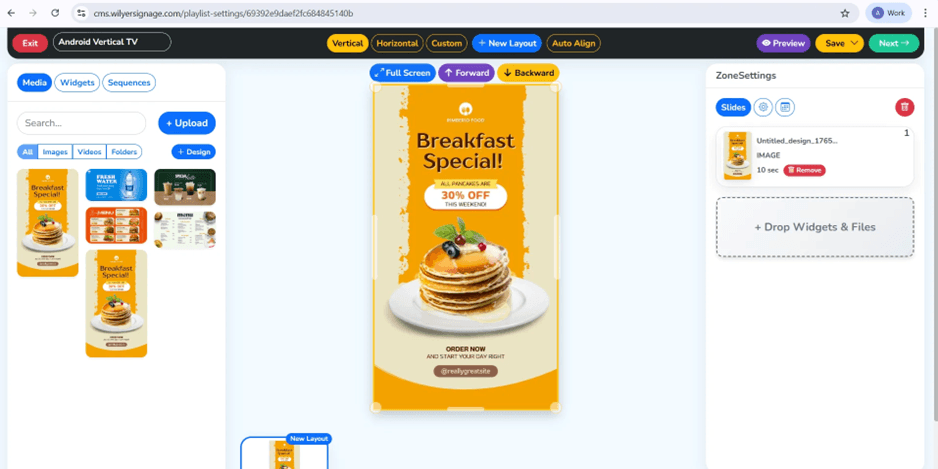
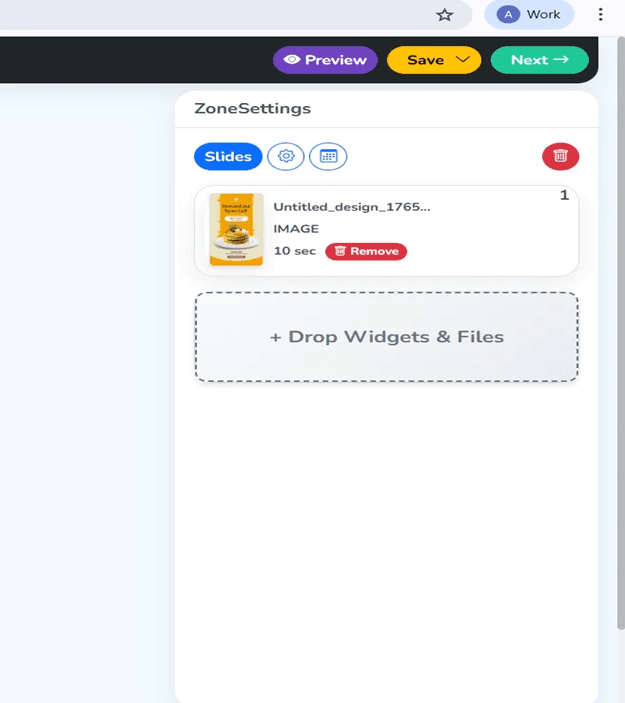
Drag and drop your menu board images on the media panel on the vertical canvas. Customize your Firestick food menu signage, display times of your Firestick menu slideshow, and transitions. To make your content take up the full screen with no borders and have a professional look of an LED menu board on your Firestick, press the Full Screen button and make sure that your content is filling the full screen.
Step 14: Review Your Menu Board Configuration
Check your layout in the preview. The Zone settings window displays what you are listening to and the length of playback. This menu boards interface digital signage allows customization of timing, transition, and content sequencing and transfer to your Firestick digital menu board. When you are content with the Firestick restaurant menu display settings, you are taken to the next step, which is the screen assignment.
Step 15: Select Your Fire TV Display Screen
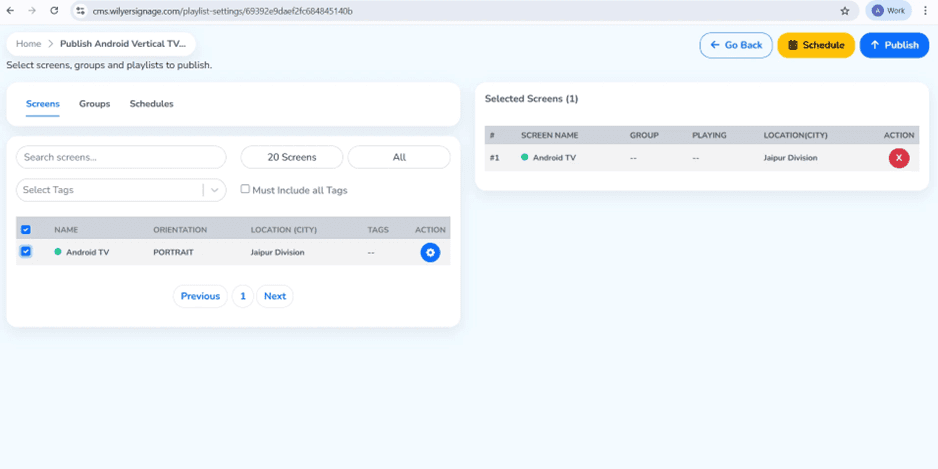
Select the Fire TV Stick that will show your menu board. The system displays registered devices in status, orientation, location and group assignments. Choose the Firestick cafe menu screen. This FireTV vertical restaurant menu board software will enable you to work with more than one Fire TV cloud-based menu board at once which is ideal in the case of a restaurant chain or business that has a number of Firestick fast food menu screens.
Step 16: Publish to Your Digital Menu Board
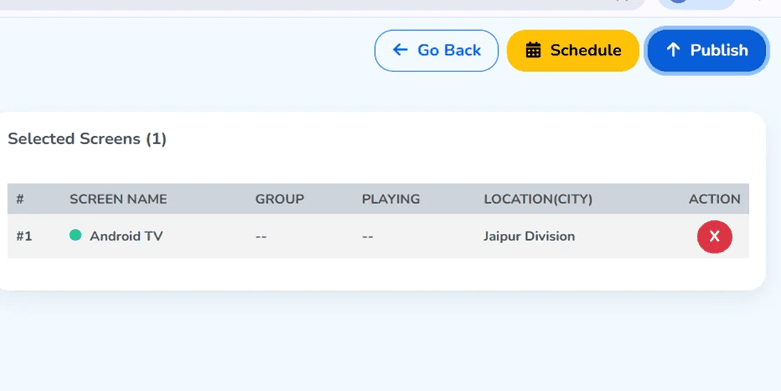
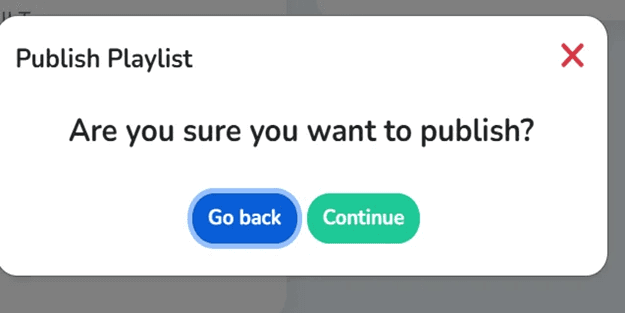
Press the blue Publish button to publish your menu content. It is a Fire TV stick menu board solution that allows cloud deployment and it will immediately push your Firestick digital menu system content to the screen of your choice. A confirmation dialog will provide intentional publishing where your live menu board will not accidently be updated when it is busy.
Step 17: Confirm Publishing Your Menu Content
Click on Continue in order to complete deployment. The menu board Firestick will be presented as your vertical menu board, and the playlist will be delivered to the menu board through the cloud-based menu board software. In seconds, your Firestick restaurant menu display will contain your professionally crafted menu content. The system does not need any physical connection with the device and hence the remote updates are easy with your low-cost digital menu board setup.
Step 18: Access Screen Settings to Rotate Menu Board
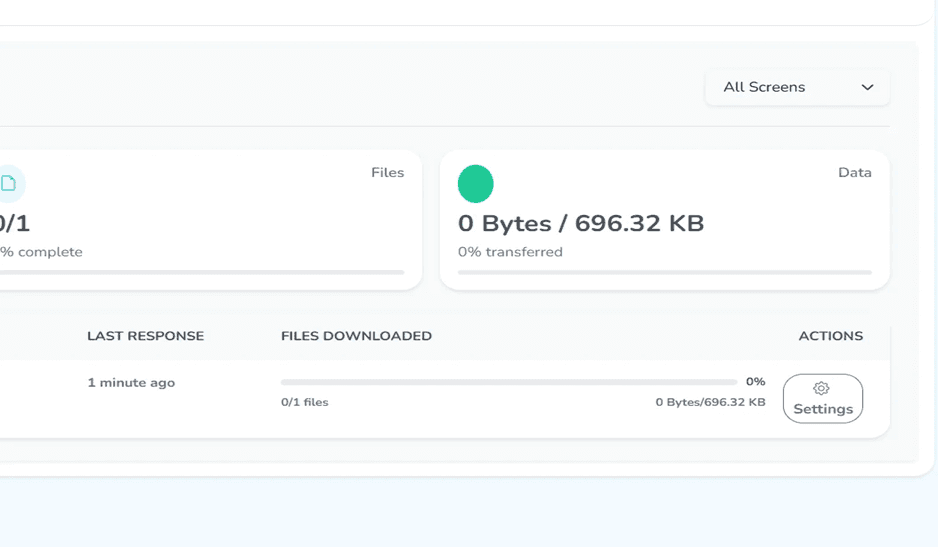
In order to spin the menu board on Firestick and customize it to display vertically, go to Screens and choose your Fire TV gadget. Click on the Settings tab, and then you get settings on your portrait mode digital menu board. These environments will guarantee that your Firestick vertical content is displayed with the right orientation on your LED menu board screen.
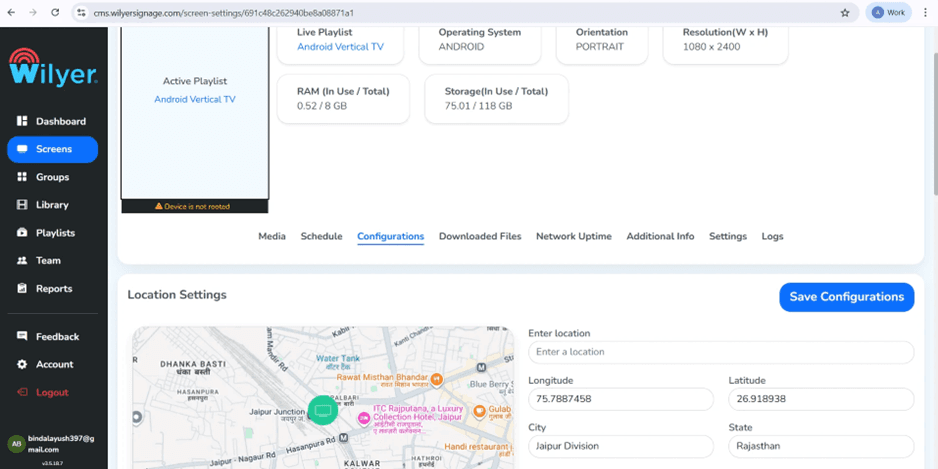
Step 19: Navigate to Configurations Tab
Click on the tab of settings in the screen that is called Configurations. This part has the most important display settings of your Fire TV menu board setup, such as rotation settings, brightness settings and schedule by default of your Firestick menu content scheduler. To make certain that your digital menu board Fire TV app works perfectly in portrait mode, it is essential to properly configure it.
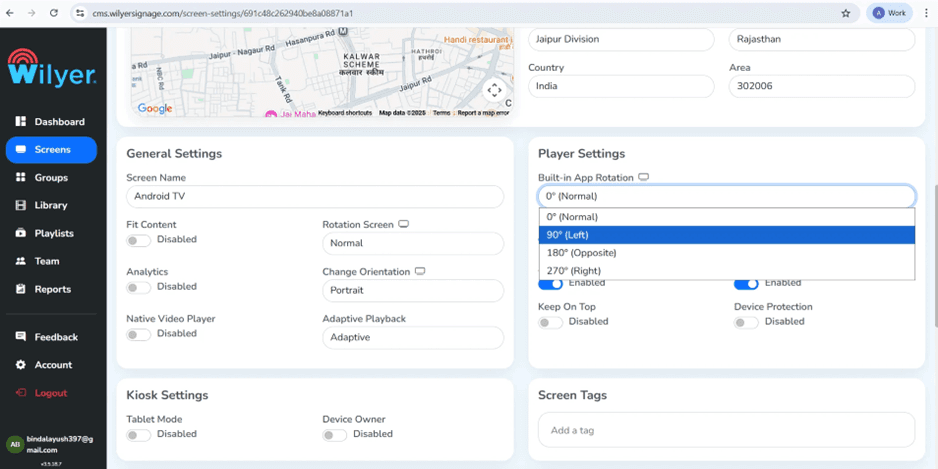
Step 20: Set Built-in App Rotation for Portrait Mode
This is the step that is most very important to turn the menu board on Firestick in the right direction. Find Built-in App Rotation in Player Settings and choose 90deg (Left) to have the normal vertical orientation. In case you do not have a physical screen mounting, then choose 270deg (Right) instead. All portrait orientation portrait layout is necessary to all menu board installation and it will make your Firestick food menu to be visible on the Fire TV vertical restaurant screens.
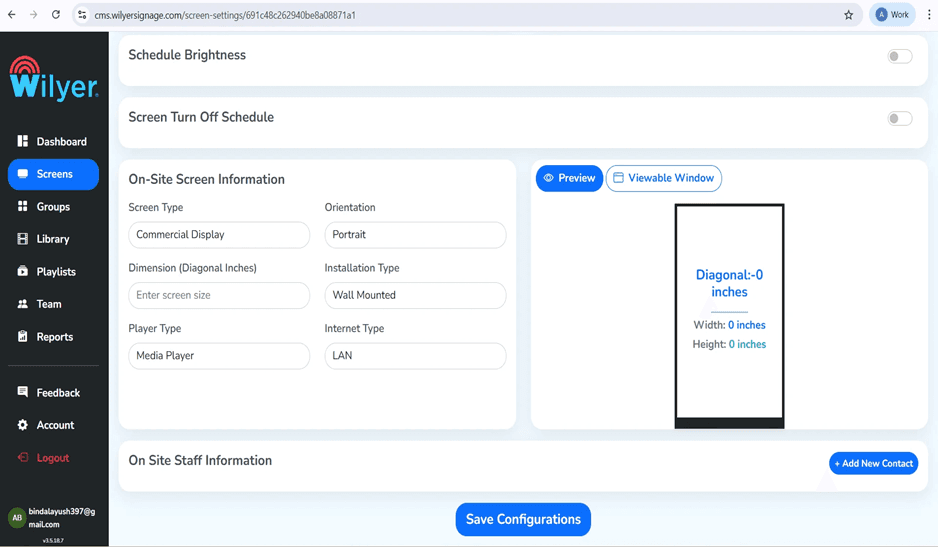
Step 21: Save Configuration for Your Digital Menu Board
Click on Save Configurations to use rotation and display options. These changes will be automatically done to your Fire TV stick menu board solution and turn your horizontal Firestick into a professional vertical menu board Firestick display. And now your Firestick cafe menu screen is ready and prepared to display your menu contents in an ideal portrait display.
Step 22: Final Result
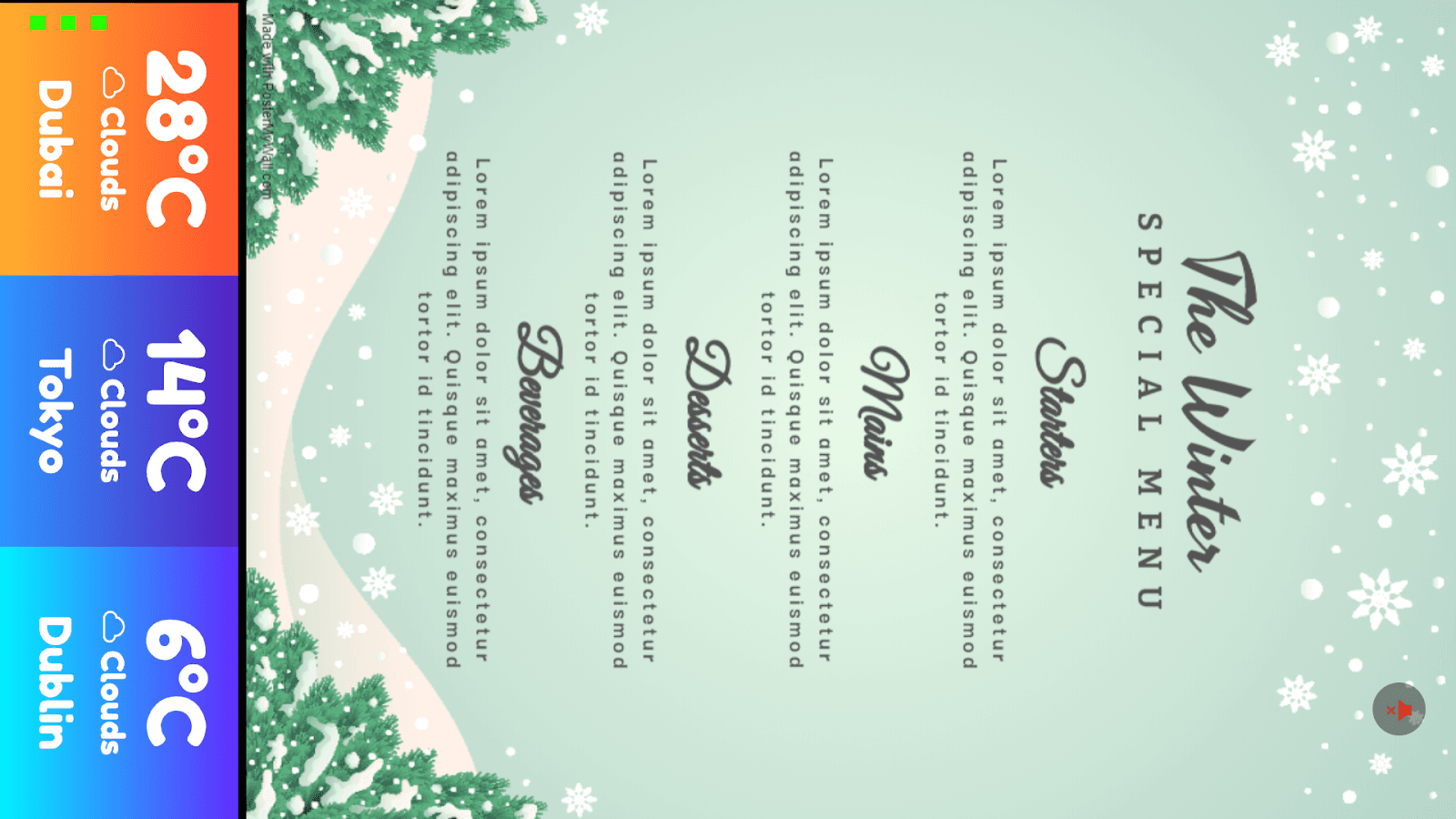
Verify the screen is displaying in Portrait mode
Wait for the update / reboot
Ensure content fills the screen from top to bottom
Upload your vertical menu design
Advanced Features of Your Firestick Digital Menu System
Using the Firestick Menu Content Scheduler
Among the greatest functions of this menu board digital signage solution is the Firestick menu content scheduler. Book various menus for breakfast, lunch, dinner and late. Check and establish automatic switching between ordinary menu, and happy hour specials. The menu board software is cloud-based, this means that all timing is automatically detected so that your Firestick restaurant menu display will display the appropriate content at the appropriate time with no human intervention.
Creating Effective Firestick Menu Slideshows
Create attractive design slideshow Firestick menu displays rotating through your services and remain readable. In your Firestick fast food restaurant menu screens, make each item stay on your screen at least 5-10 seconds. In the case of full service Firestick cafe menu screens, 10-15 seconds to a slide is more appropriate. Fire TV is the best digital menu board that enables you to have perfect control over the duration of your slides, transitions, and the sequence of the contents on your Firestick menu slideshow.
Optimizing Portrait Layout for Menu Board Display
In coming up with content to be used in your portrait layout to set up the menu board, take a look at the vertical viewing experience. Put the most profit making ones in the center of the third part of the screen where the eyes tend to be in a natural position. The top one is to be branded and the bottom to be used as calls-to-action. This digital menu board is a portrait style that gets maximum use out of the Fire TV vertical restaurant screens.
Working with Firestick Menu Board Templates
Professional Firestick menu board templates are time saving and guarantee uniform branding of your locations. Prepare templates on various menu categories, seasonal promotions and daily specials. Firestick menu board software used supports custom template libraries, and therefore updating your Firestick food menu signage is simple and, at the same time, does not affect the visual consistency of all your Fire TV vertical restaurant screens.
Why This is the Best Digital Menu Board Software Fire TV
Fire TV is the best digital menu board software by Wilyer and has a number of interesting reasons to support its position. The cloud-based structure implies that you are able to update your Firestick restaurant menu display wherever you are using any device. No costly hardware, no complicated setups, no computer skills. This is a low-priced digital menu board Firestick that offers enterprise-level features at a fraction of the actual digital signage prices.
Cost Comparison: Traditional vs Firestick Digital Menu Board
The old system of LED menu boards is priced between $2,000 and 5,000 screens plus installation. A Firestick digital menu board system costs less than half a million dollars per screen consisting of the Fire TV Stick, display, and Wilyer subscription. The low-priced digital menu board Firestick model enables the access to professional digital signage, which was out of reach of small restaurants, cafes, and food trucks before.
Common Use Cases for Fire TV Menu Board Setup
Firestick Restaurant Menu Display Applications
Firestick restaurant menu display systems are used by full-service restaurants in daily specials boards, wine lists, and dessert menus. The menu content in Firestick menus is programmed to automatically shift between lunch and dinner menu content. Menu board digital signage is the removal of printing expenses and immediate price changes.
Firestick Fast Food Menu Screens
Firestick fast food menu screens add tremendous value to the quick-service restaurants. Immediately update combo prices, advertise time-sensitive deals, and show nutritional messages. The Firestick menu slideshow has the ability to scroll through the entire menu highlighting high-margin items. Concurrent Fire TV vertical restaurant screens have the ability to show synchronized contents on all ordering stations.
Firestick Cafe Menu Screen Solutions
Firestick cafe menu screens serve coffee shops and cafes to display menu drinks and pastry items, as well as promotions of loyalty programs. Firestick format vertical menu board will be an ideal fit in the tall and narrow display that is typical of counter areas of cafes. Develop a morning, afternoon, and evening menu which automatically changes by Firestick menu content scheduler.
Tips for Successful Firestick Food Menu Signage
Best Practices Content update.
Test changes to your Firestick digital menu board during out-of-peak hours to avoid making changes during peak times. Pre-plan updates by using Firestick menu content scheduler. The menu board software is cloud-based and you get the opportunity to preview the changes before it is published. Have a library of templates of menu boards in Firesticks to change easily when ingredients shift or when certain seasons change.
How to Rotate Menu Board on Firestick Correctly
In order to rotate the menu board on the Firestick, it is always important to check the physical screen orientation. In case of an upside down content, alternate a 90deg and 270deg rotation options. Saving the settings and giving the Fire TV stick menu board solution 30 seconds to implement the changes. Test using real menu content and not only the dashboard view to make sure your portrait layout of the menu board shows on screen well.
Installing Menu Board App on Firestick: Technical Details
Wilyer digital signage platform will be used to install menu board app on Firestick, as it is compatible with the in-built browser of Fire TV. No sideloading required. The Fire TV digital menu board app is installed in the kiosk mode meaning that it cannot be accessed by other apps during the service hours. This Firestick menu board software will make sure that your screen is not messed up with distractions.
Network Requirements for Cloud-Based Menu Board Software
A cloud-based menu board system needs a stable internet connection to operate your Firestick digital menu system. To 5 Mbps minimum download speed. Wired Ethernet connection is the most reliable Bandwidth to use through the Fire TV USB port. The finest digital menu board software Fire TV stores content on-demand, and thus momentary internet disconnections will not disrupt your Firestick restaurant menu.
Troubleshooting Your Fire TV Vertical Restaurant Screens
Vertical Menu Board Firestick Display Issues
When your vertical menu board Firestick has its content displayed sideways, repeat Step 16 and switch the menu board on Firestick settings. Make sure that you have chosen the right rotation angle (90deg or 270deg) and saved the configurations. The portrait mode digital menu board setting should be saved as it will become effective on your Fire TV vertical restaurant screens.
Firestick Menu Slideshow Not Updating
In case your Firestick menu slideshow does not update with new material, make sure that your Fire TV Stick is connected to the internet. Ensure that you press Publish once you have made any changes at the cloud based menu board software. Firestick menu content scheduler has the potential to supersede manual updates, therefore, verify scheduled playlists. Reboot your Fire TV device in case the digital menu board application on Fire TV does not update upon release.
LED Menu Board Firestick Setup Display Quality
To achieve maximum quality of LED menu board Firestick setup, make sure your display resolution is the same as your content. Standard Firestick digital menu board systems can use 1080p displays. Design Firestick menu boards at the precise screen resolution to produce clear text and graphics. Alter the brightness of the display to fit the brightness of the surrounding light so that the Firestick food menu signage can be seen most effectively.
Multi-Location Management with Digital Signage for Menu Boards
The menu board software is a cloud based program and is very effective in managing more than one location. Change all your Firesticks fast food menus displaying at the same time on one dashboard. Design on-site content and be consistent with your brand across your Fire TV vertical restaurant screens. Regional promotional locations in groups. Depending on the location, Firestick menu content scheduler may be different, with various promotions timings available on each Firestick cafe menu screen but sharing similar Firestick menu board templates.
Conclusion
This Fire TV stick menu board solution will be scaled to your requirements, be it installing your first cafe menu screen on your Firestick or numerous vertical restaurant screens on your Fire TV screens spread over a multitude of locations. The menu management is easy with the Firestick menu content scheduler, flexible portrait layout menu board options and the strong Firestick menu board templates. Begin with a cheap digital menu board Firestick installation and build up as you get the outcomes.
Download the menu board app to Firestick today and become one of the thousands of restaurants that are enjoying the best digital menu board software Fire TV. Make your menus look the way you want, save money, sell more, and be able to control your Firestick food menu signage anywhere. The future of restaurant menu boards is where it works on Fire TV.

Multi-Platform Compatibility for Every Digital Signage Display
Run Wilyer’s digital signage software on your preferred operating system with zero hassle.