Guide To Playlists
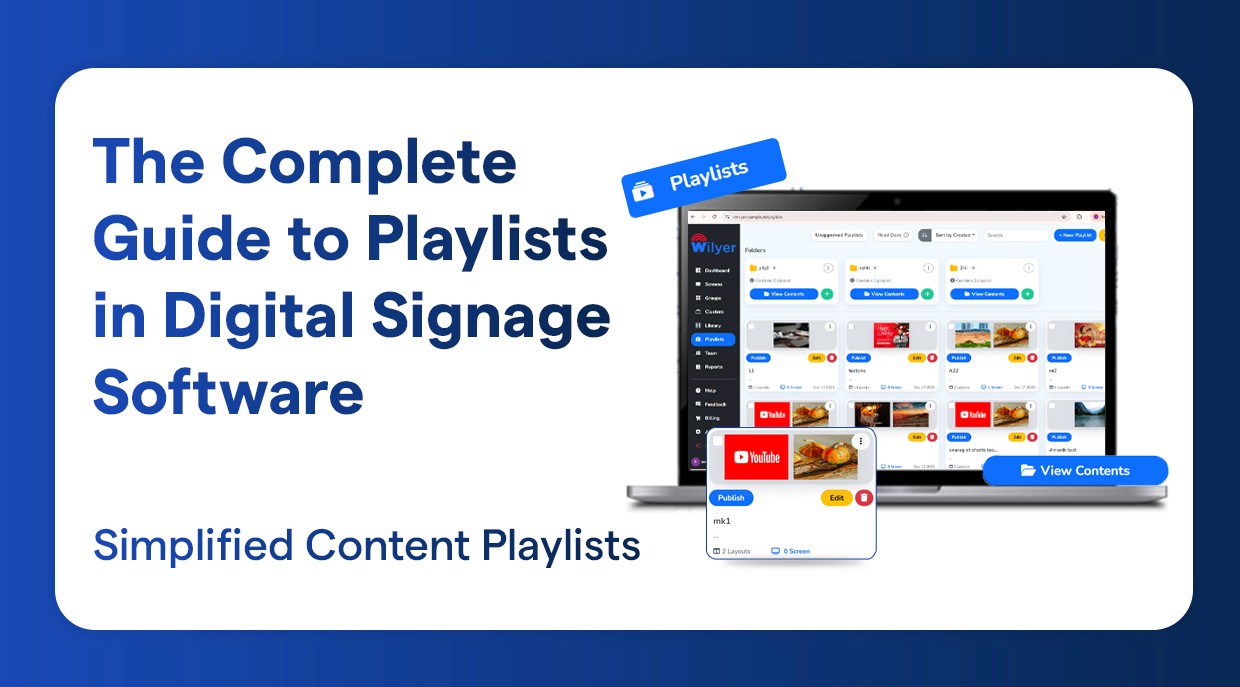
The Complete Guide to Playlists in Digital Signage Software
Better content control using digital signage playlists
Create, Schedule & Manage Smarter Playlists with Cloud Digital Signage CMS
The Cloud Digital Signage CMS allows for the creation of dynamic and visually appealing playlists to maintain relevancy and impact of your media/content (images/video/menu boards/promotional messages) by allowing for easy combination of all of the above items in one playlist with a simple to use web-based dashboard.
By utilizing the sophisticated scheduling capabilities, you can create playlists that can automatically be assigned to a specific screen, site, date, time, etc. The ability to automate the scheduling of your media content based on time of day, date, seasonality, or promotional events without needing to be manually changed at that time enables a simple and more organized way, creating efficiency in business operations through digital signage.
You can centrally manage all playlists via a single platform, allowing you to easily update, monitor and control all contents remotely while creating the ability to make real-time changes, maintain consistent branding throughout all displays, and deliver the appropriate message to the right audience at the right time through intelligent use of cloud-based playlist management.
Key Playlists Features in Digital Signage Software
The versatility of your Content - Upload and Organize any combination of videos, images, PDFs, and live web URLs into your playlists.
Ordering and Scheduling - You have complete control over the order that your content is displayed and you can also schedule your playlists for specific times throughout the day/week.
Screens and zones - Create zones or sections on a screen where you can display multiple pieces of content simultaneously. For example, a video could be displayed in one zone with a scrolling ticker at the bottom of the screen displaying live updates.
Remote Management - You can change or add playlists to any screen around the world from one central location using the web based Content Management (CMS)
Dynamic Content - You can create dynamic content by including widgets that allow for real time data displays/sources. Examples of this could be Twitter feeds, Traffic reports, Weather Reports, User Dashboards.
Offline Playback - Content can be stored on the player’s cache; therefore it will continue to play when internet access is not available.
What Is a Playlist in Digital Signage Software?
Digital signage playlist in Wilyer is a series of slides, videos, templates, feeds, menus, announcements, or promotions that appear on your screens one after another.
In Wilyer, you can use a playlist to:
Devise systematic content cycles.
Playback order of control screens.
Day-parted menus (Breakfast - Lunch - Dinner) are to be automated.
Carry out promotions on specific hours.
Synchronize items on various displays.
Live updates directly out of the cloud.
The interface of Wilyer is well-packaged and its features are fast, so it is quite easy to build any playlist with digital signage software, even with dozens of screens.
How to Create a Playlist in Digital Signage CMS
Wilyer provides a simple, slick and user-friendly digital signage CMS play list developer suitable to both amateurs and experts.
How to create a playlist in wilyer CMS:
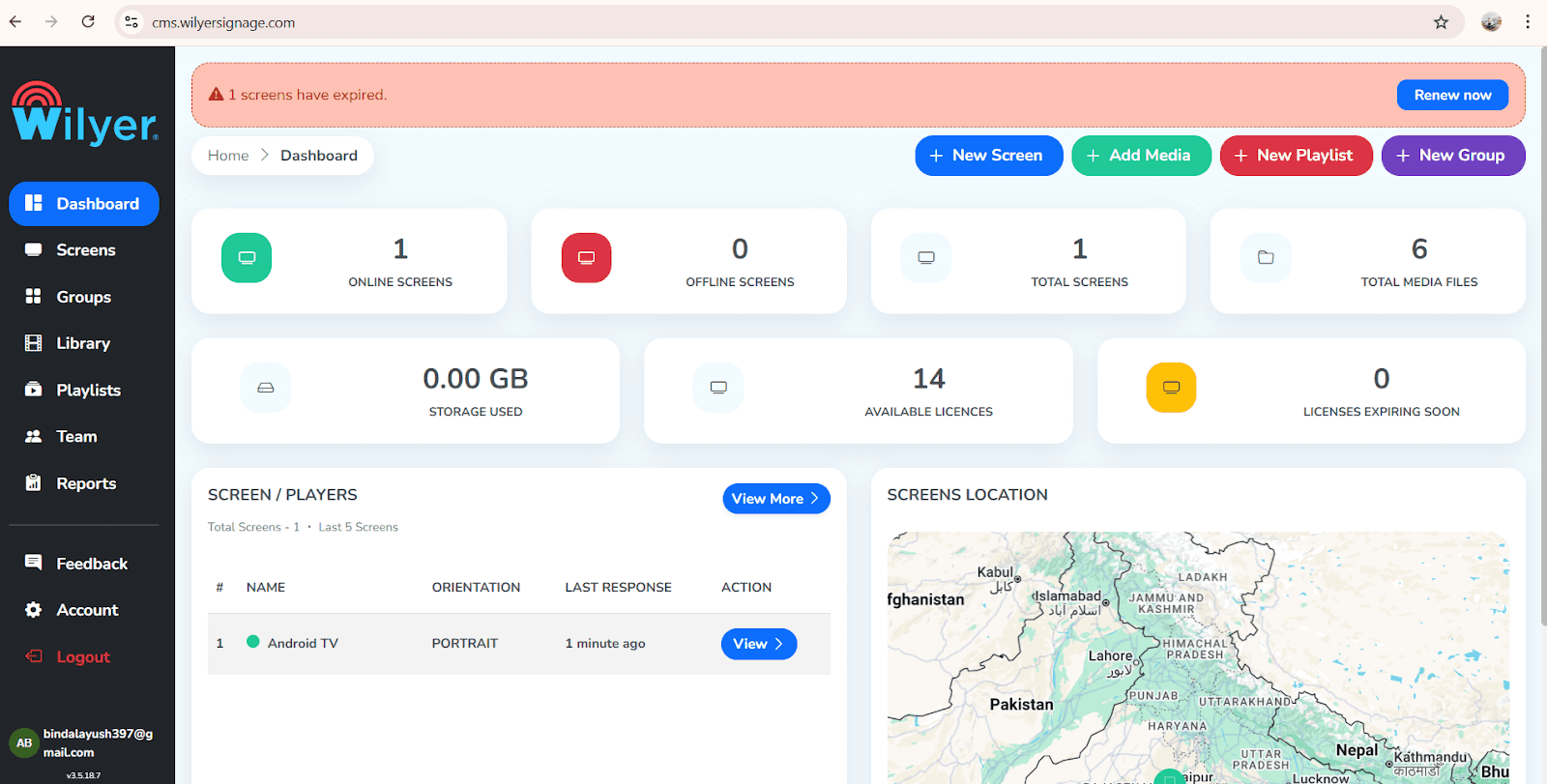
Open your CMS
Enter into the Wilyer Dashboard.
Log in to your cloud account using any browser.
Go to "Playlists" Section
The loops you create are generated and securely stored here, allowing efficient access, seamless management, and organized control of your content for streamlined workflow operations.
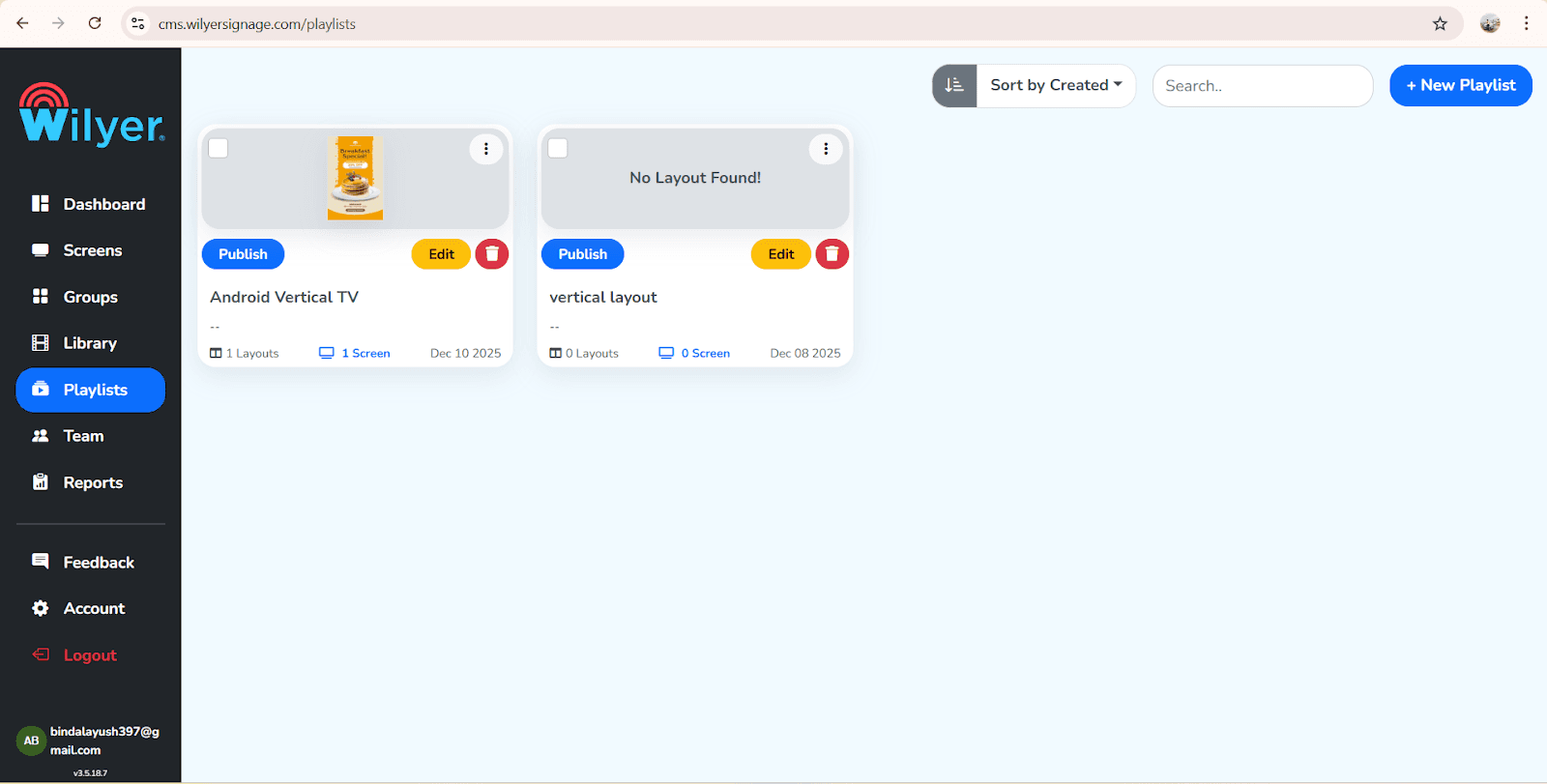
Click "Create Playlist"
Click new Playlist on the top of the right side
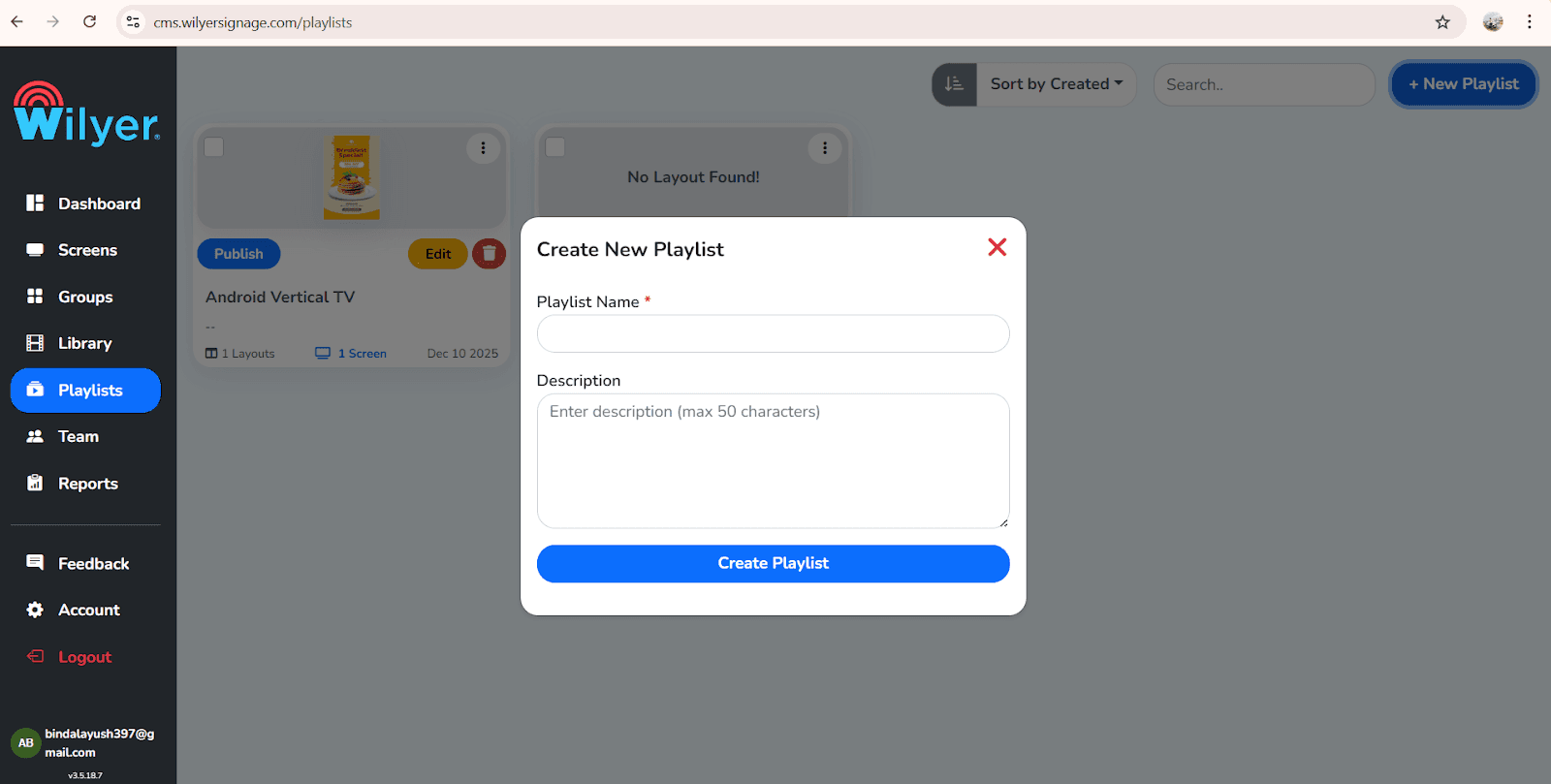
Name your playlist something of significance like Restaurant Menu Board, Promotions or Corporate Notices and click on Create Playlist.
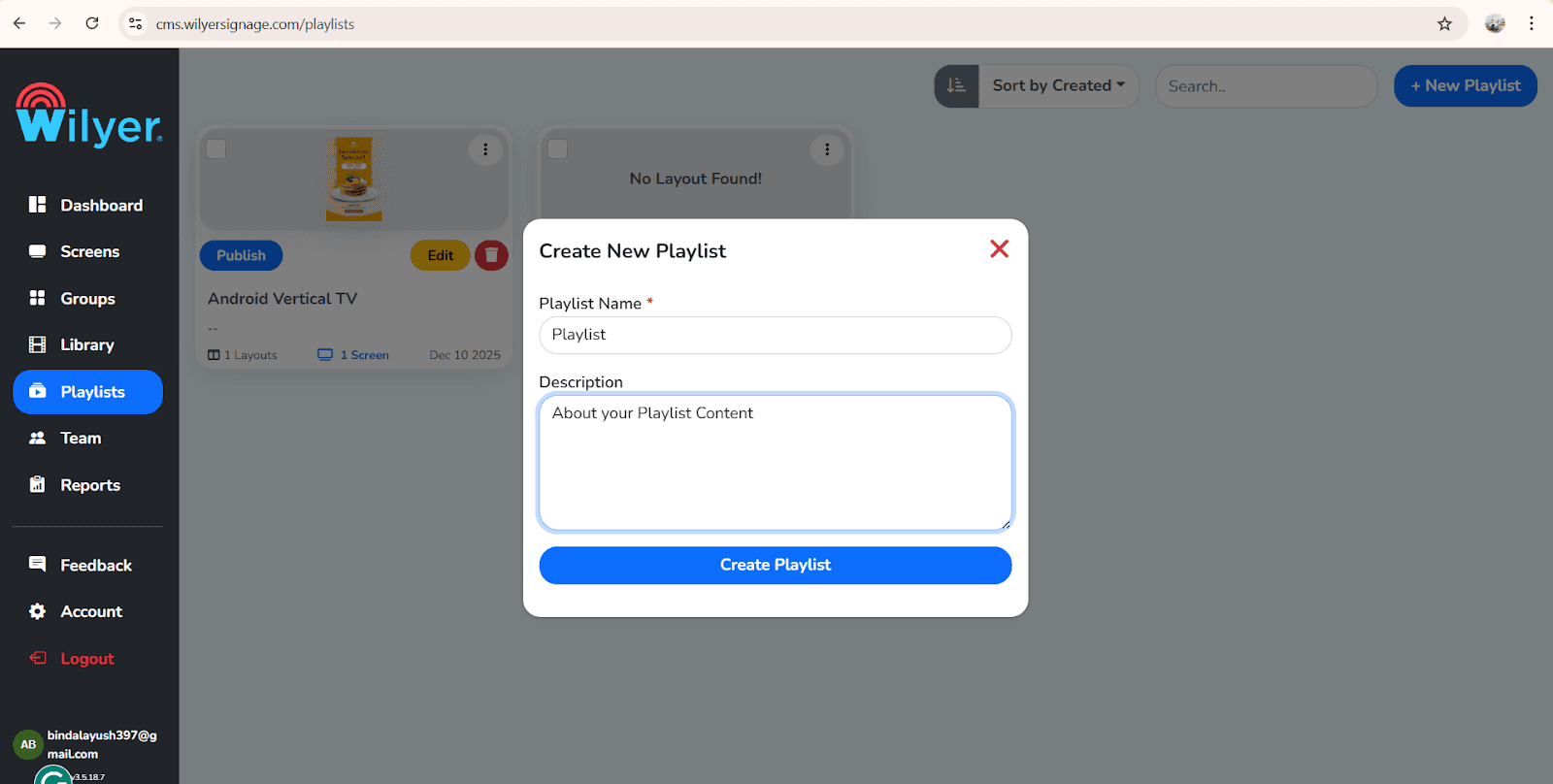
Choose Orientation / Layout
Wilyer automatically detects and optimizes your playlists for both landscape and portrait displays, ensuring accurate orientation, smooth playback, and a consistent viewing experience across all screens.
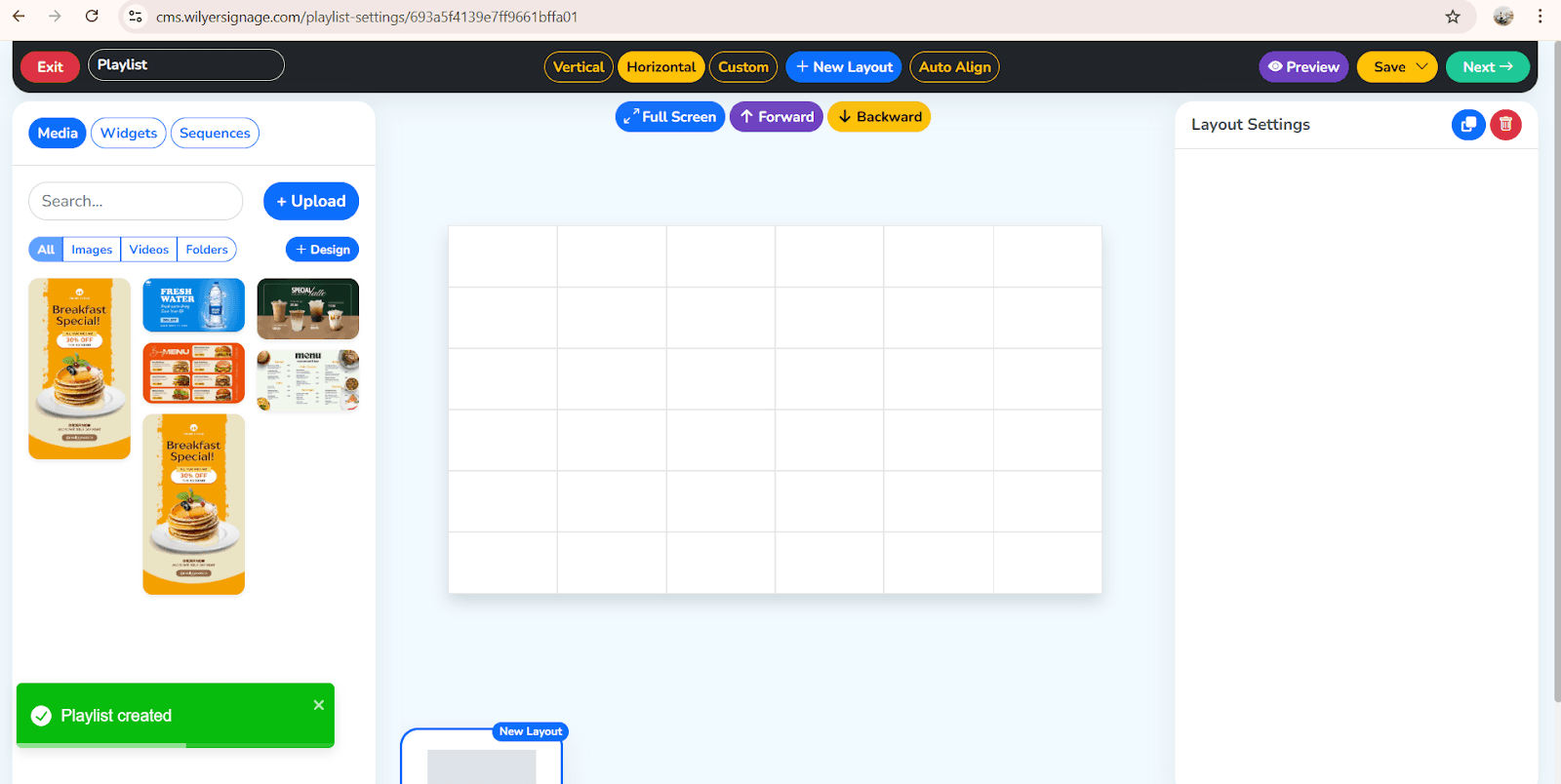
Drag and drop Playlist Builder by Wilyer.
Drag and drop is used to add content easily in the wilyer playlists, allowing you to place images, videos and templates directly onto the layout for smooth arrangements, quick editing, and fast digital signage creation.
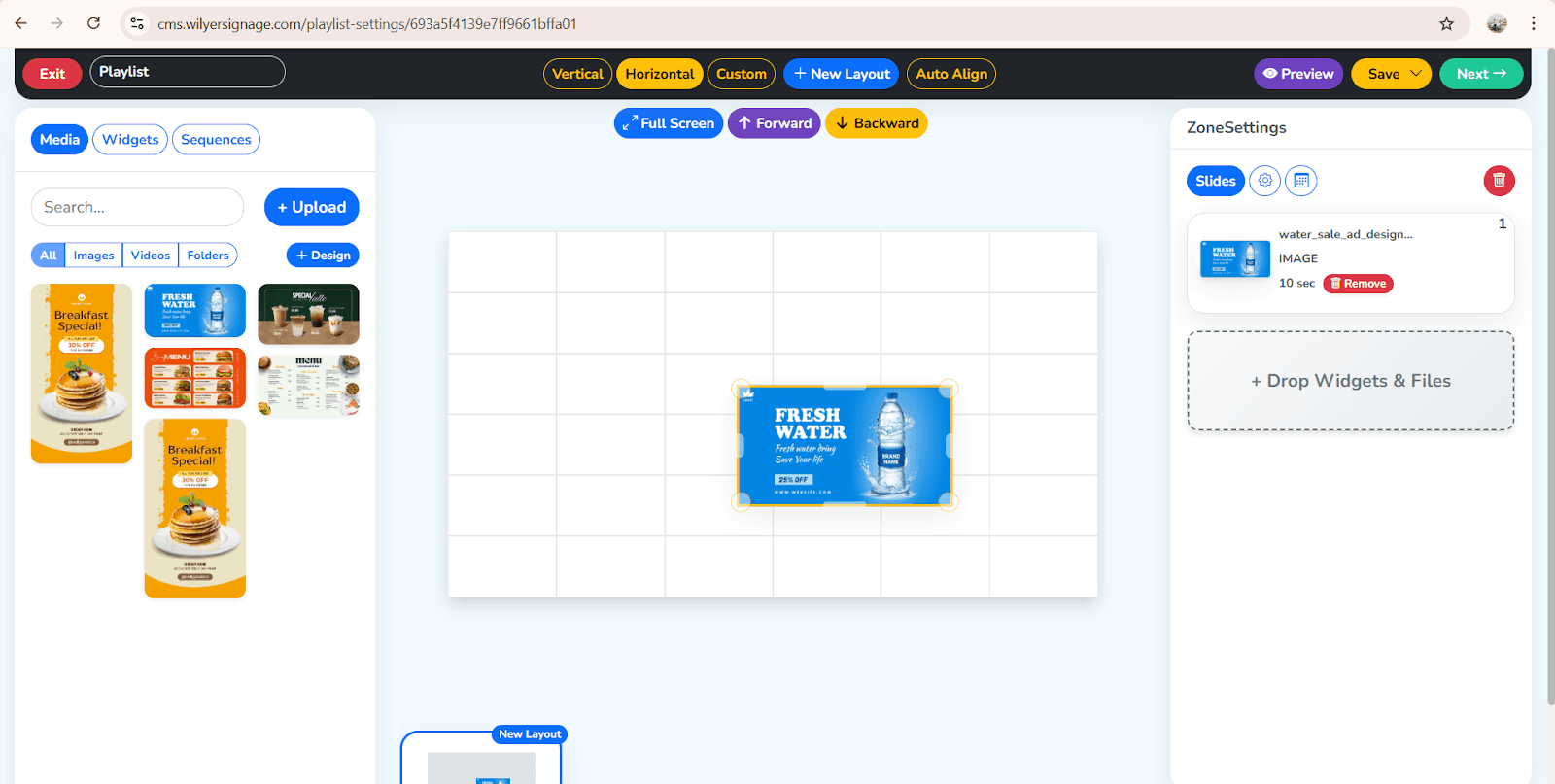
Rearrange and modify timings of content.
And Click on Full Screen Button
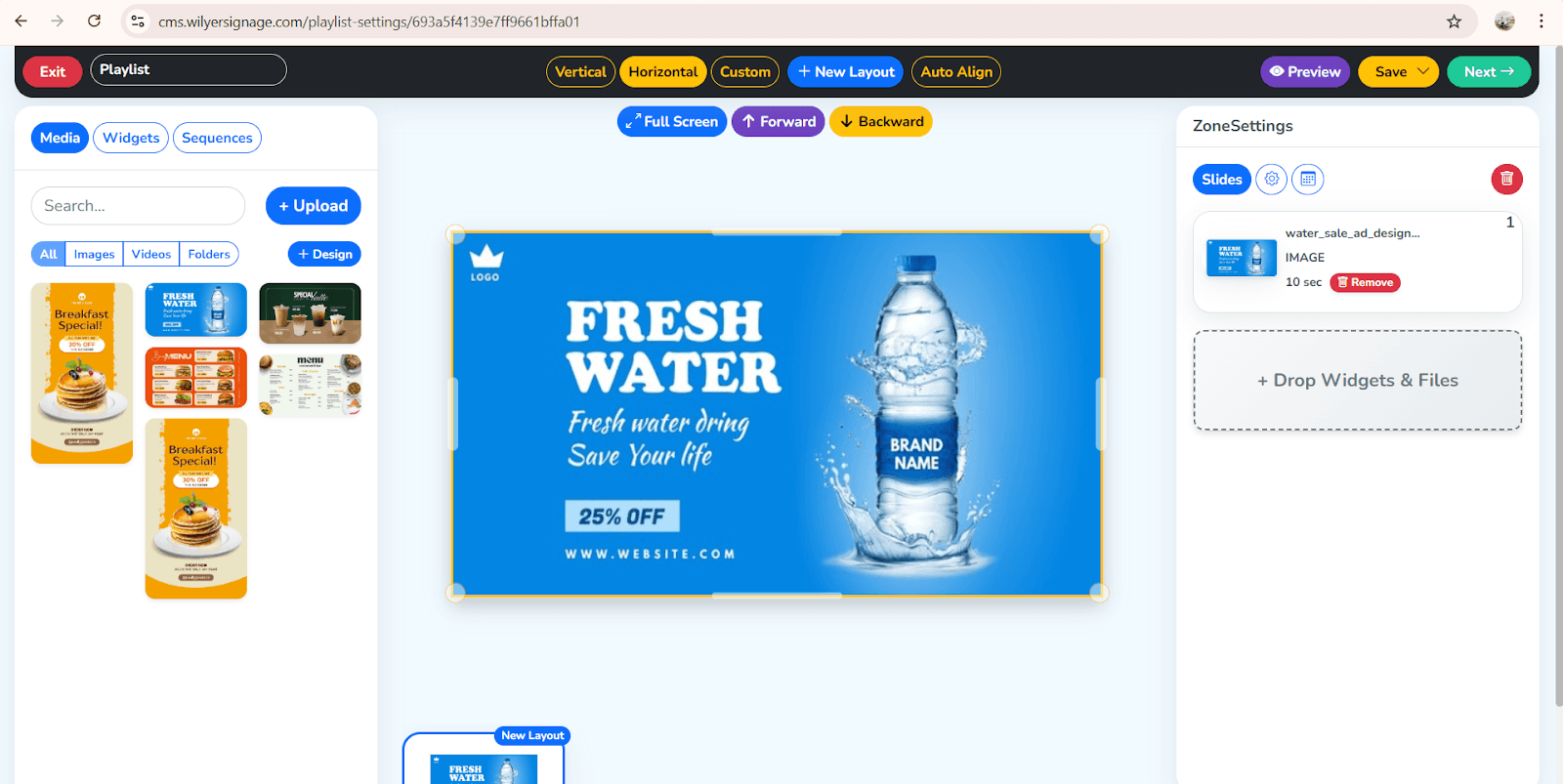
Wilyer simplifies the whole procedure of creating a digital signage playlist in a graphic, easy and fast manner.
How to Add Content to the Playlists in Wilyer.
It is easy and quick to add media within Wilyer. The CMS allows a vast number of content types.
Supported Content of Playlists:
Images (JPG, PNG)
Videos (MP4)
Menu templates
Social media widgets
Live dashboards
Webpages
Announcements
PNG transparent menus
Animation files
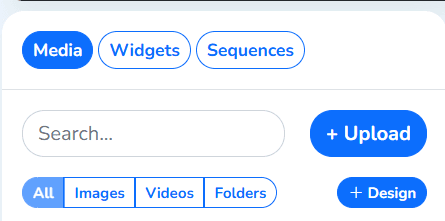
How to Add Content in Wilyer:
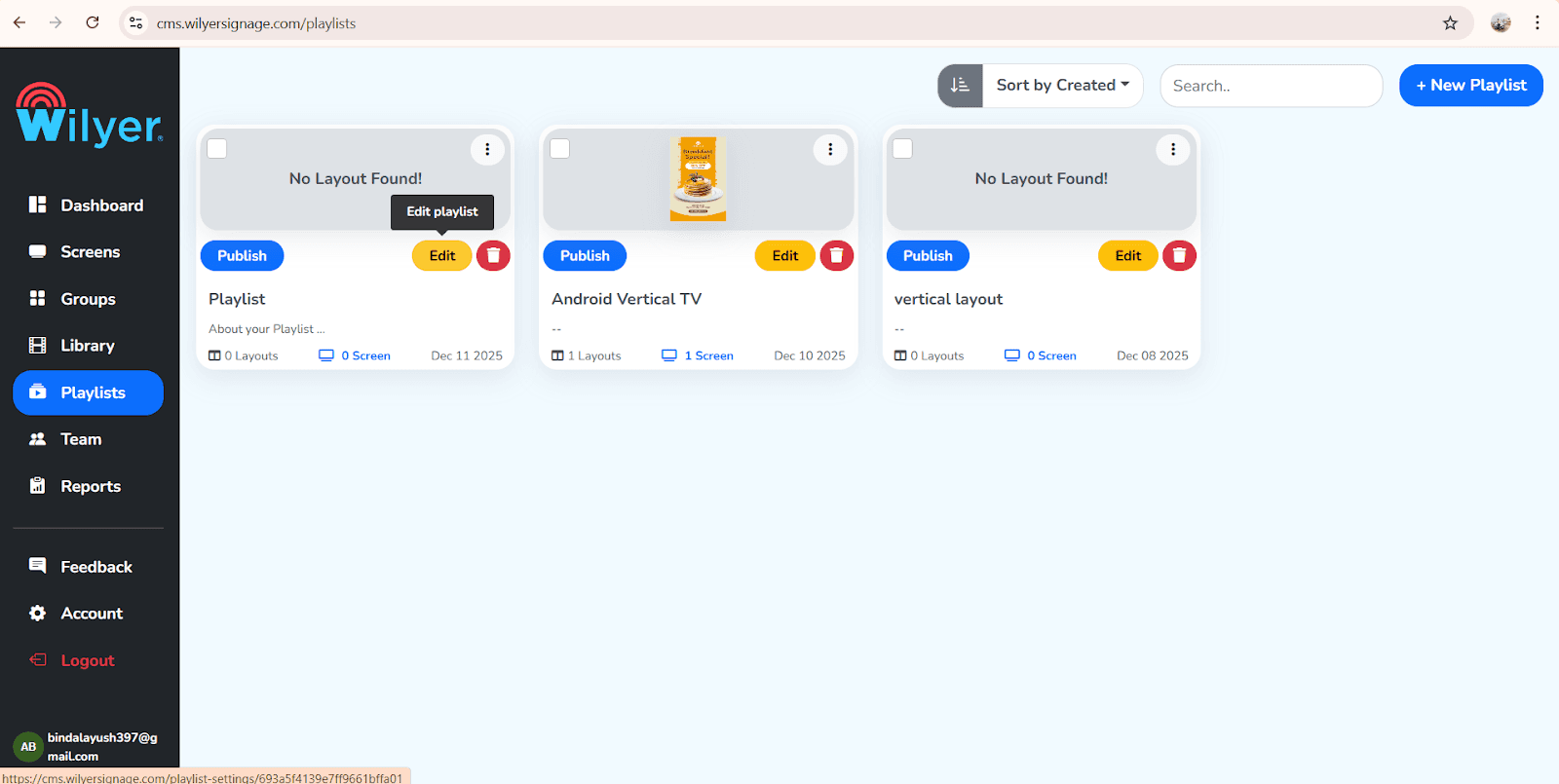
Open your playlist and click on Edit Button to modify content, update slides, adjust timings, and make any necessary changes before publishing to your digital signage screens.
Click Add Content in your Wilyer Playlists to upload images, templates and easily organize them for your digital signage display.
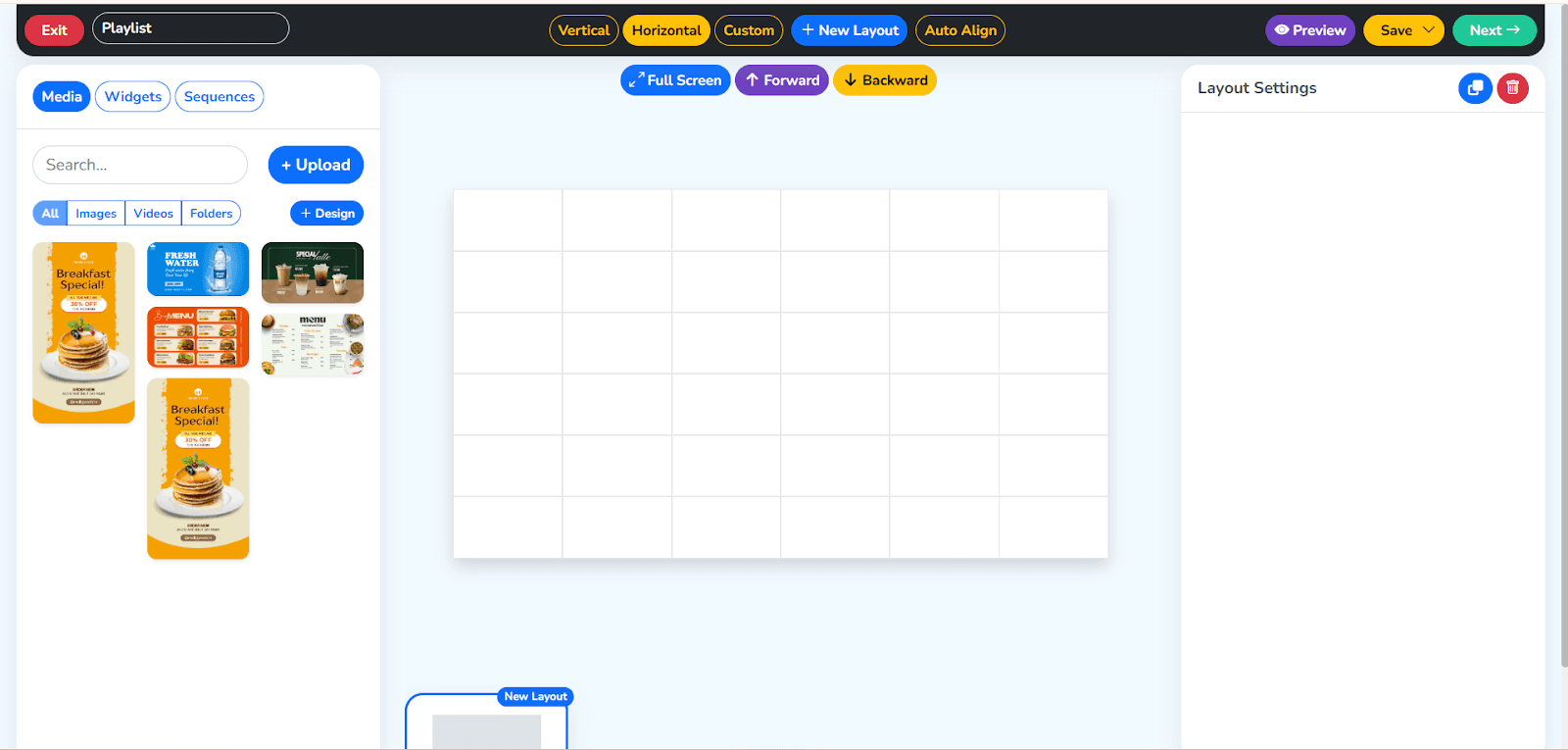
You will have to do some work in the middle section, and then on the right side, there is an option to “Drop and Widget Files” Click on that and or one more option is Drag item to rearrange.
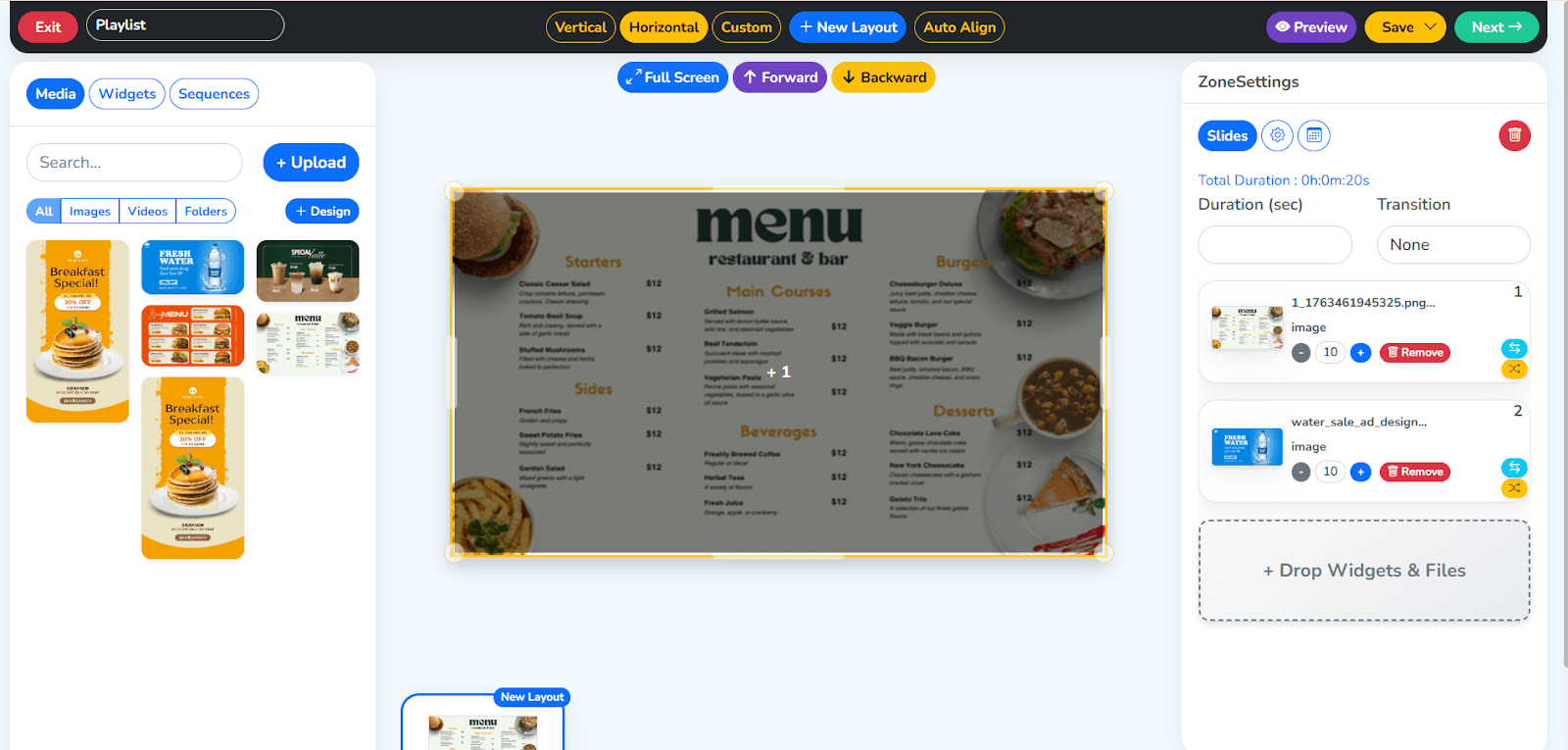
Set the timing duration for each slide in your Wilyer playlists to control how long every image, video, or template stays on screen, ensuring smooth playback and perfectly timed digital signage content.
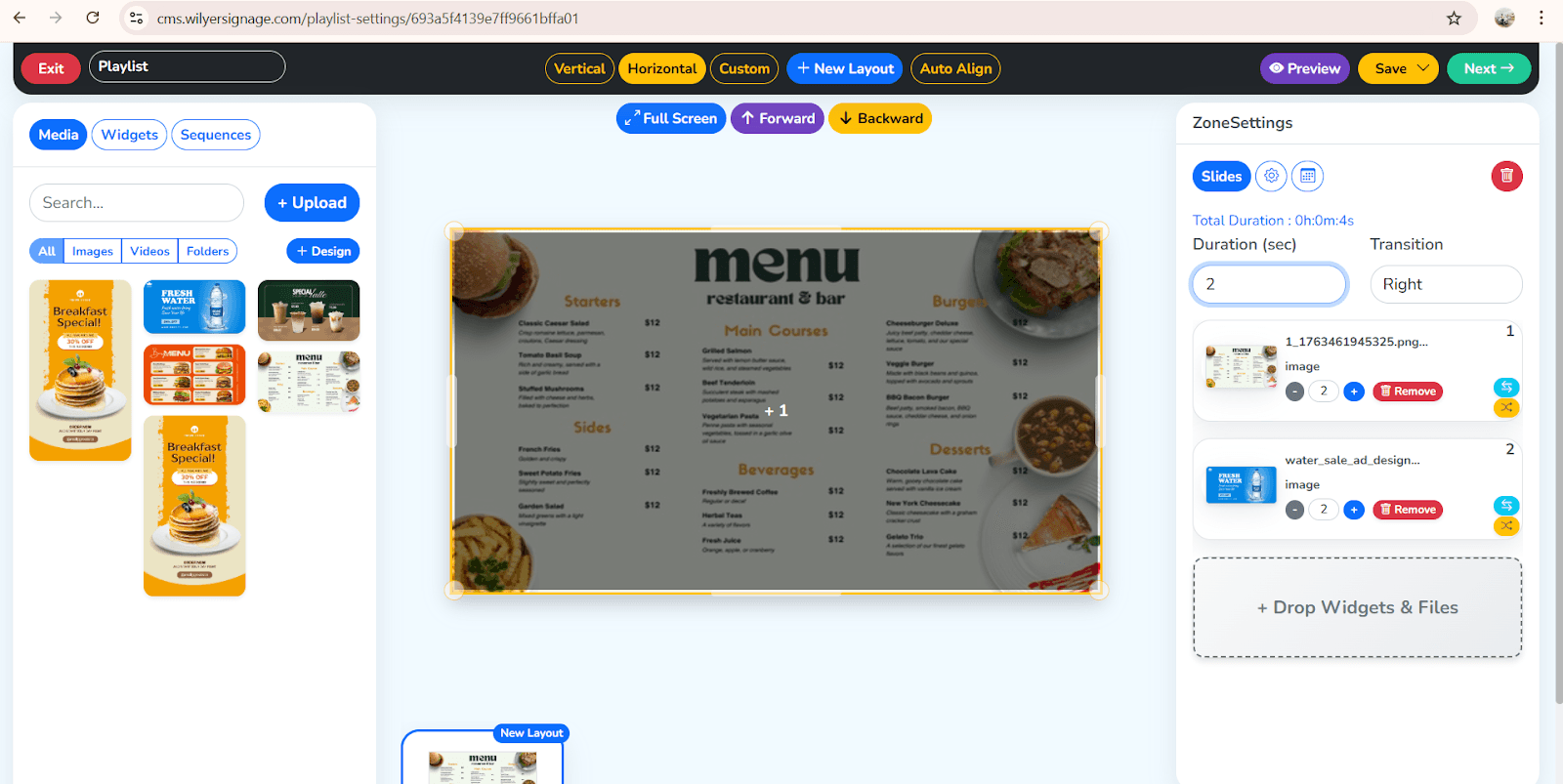
Click the save button located at the top right to store your playlists changes and ensure all updates are applied successfully.
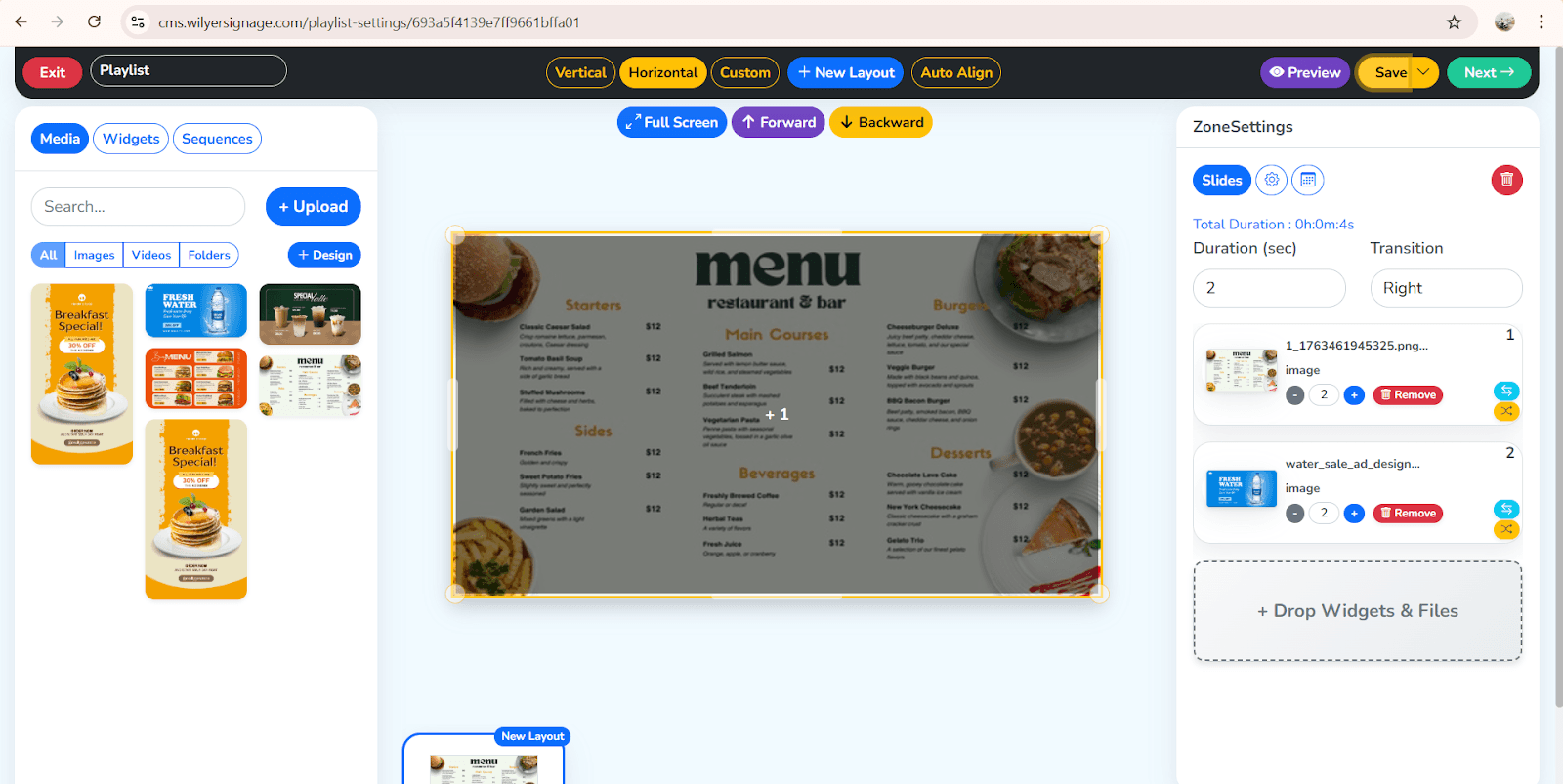
This streamlined process of management makes the work of digital signage easy.
How to Schedule Playlists in Digital Signage Software
The cloud scheduling engine by Wilyer enables you to schedule the screens in various locations without having to physically access any of the devices.
The Reason Wilyer Scheduling Is Strong:
Schedule by date
Schedule by time
Schedule by week or month
Set up playlists on different days.
day-parting of restaurants in an automated way.
Automatic offers during high times.
All screens can be updated remotely.
The way to schedule a playlist in Wilyer:
Open your playlist
Click on next button
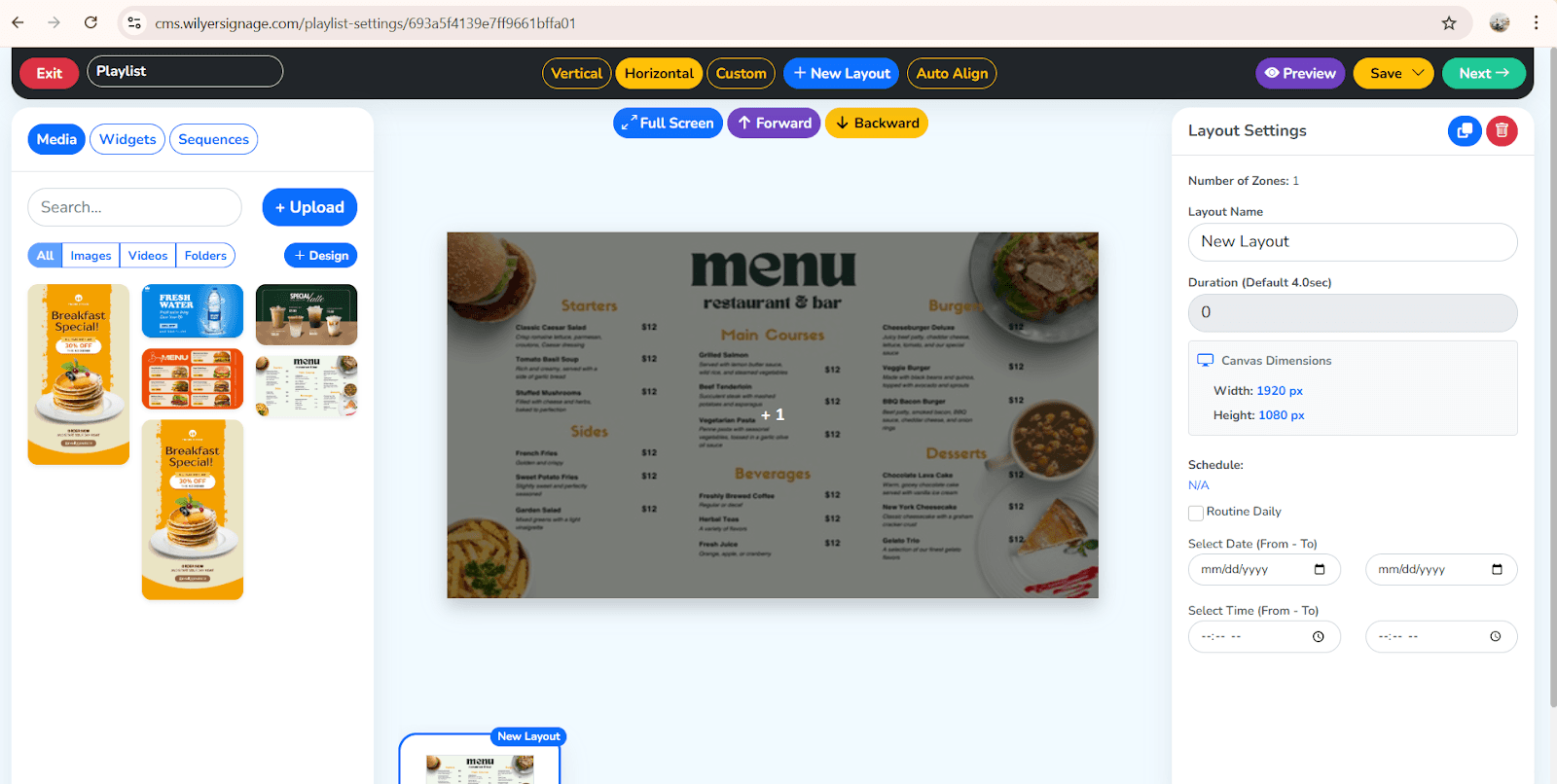
Select screen
Click Schedule
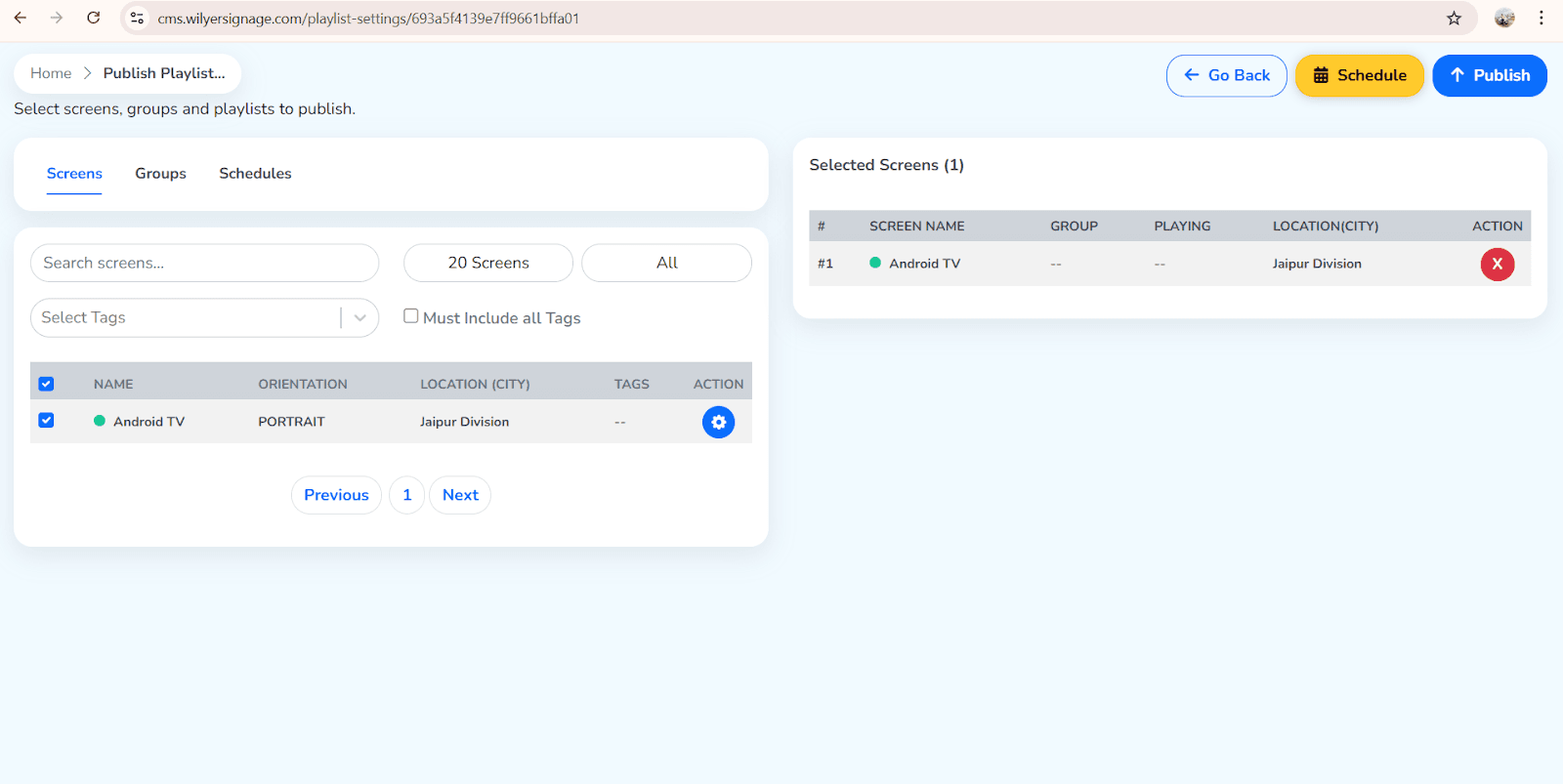
Select the screens or screen groups.
Select dates and time slots
Choose days
Click on Schedule Button
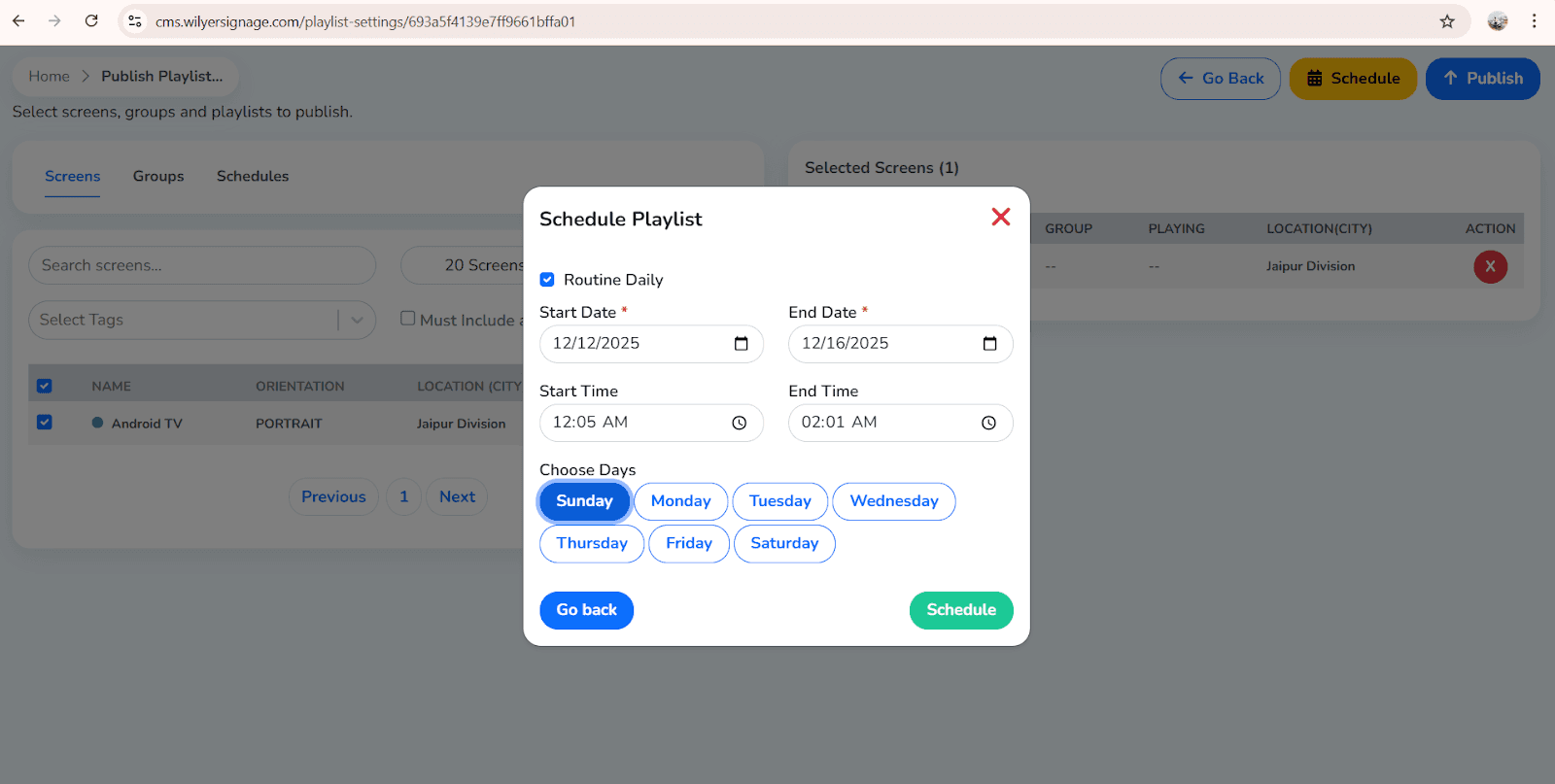
New screens are automatically updated through the cloud of Wilyer.
Multi-Screen Playlist control using Wilyer
When dealing with several branches or several screens, Wilyer has Enterprise-level display grouping, synchronizing and control tools.
Wilyer Supports:
Publication of one playlist to 1 to 10,000+ screens.
Production of location-based content.
Giving playlists to whole screen groups.
Multi-screen video wall synchronization.
Controlling exhibitions between cities or nations.
Wilyer device manager makes sure that your multi screen playlist digital signage application remains on-line, synchronized and in error-free mode.
Wilyer has advanced playlist features.
The latest playlist tools are also provided by Wilyer in order to create professional content loops within minutes.
Dynamic Playlists
Automatically update content through:
RSS feeds
Social feeds
Live URLs
Folder auto-sync
This fits well with real time information displays.
Smart Playlists
Rules based automation of content:
Time
Day
Tags
Weather
Special events
Playlist Templates
Wilyer offers ready-made templates of:
Restaurant menus
Retail ads
Deals & offers
Corporate notices
Event schedules
Wilyer Playlist Editor
The editor will provide you with control over:
Transitions
Durations
Layout structure
Content order
Preview & publish
Publishing Tools
Digital signage publishing and playlists can be controlled anywhere with the cloud engine by Wilyer CMS.
Conclusion
The playlists can be created, scheduled and managed with single or multiple screens managed at a time which is made so easy by Wilyer. With the help of Wilyer cloud-based CMS, companies are able to drive everything, menu boards and promotional screens, corporate displays, and event signs.
With powerful features such as:
Smart playlist automation
Drag-and-drop builder
Cloud scheduling
Multi-screen control
Dynamic data feeds
Wilyer is among the most efficient professional digital signage content management platforms.

Multi-Platform Compatibility for Every Digital Signage Display
Run Wilyer’s digital signage software on your preferred operating system with zero hassle.