
Introducción
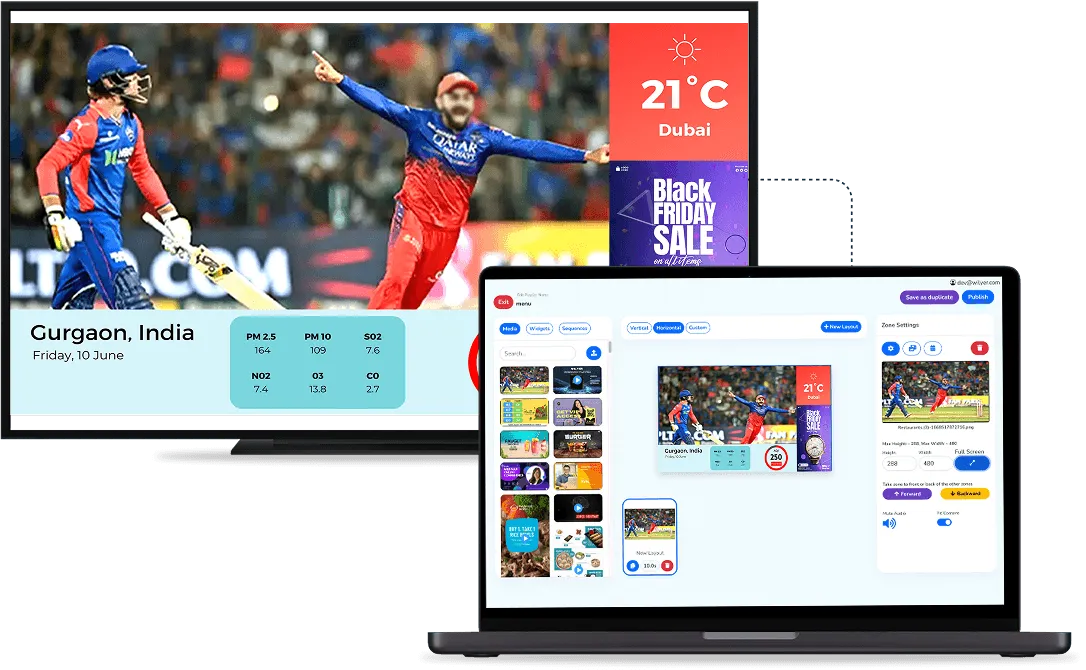
Un widget de ticker es una de las formas más efectivas de mostrar información dinámica y que capta la atención en tu pantalla de señalización digital. Ya sea que quieras mostrar titulares de noticias en vivo, mensajes promocionales, cotizaciones bursátiles o avisos personalizados, el widget de ticker desliza el texto de forma continua por tus pantallas, y así te aseguras de que tu público nunca se pierda una novedad.
En esta guía paso a paso te llevaremos por todo el proceso de agregar un widget de ticker o scroller a tu pantalla de señalización digital desde el panel de control de Wilyer, desde crear una lista de reproducción hasta publicarla en vivo en tu pantalla.
¿Qué es un widget de ticker o scroller?
Un widget de ticker es una banda horizontal de texto que se desplaza de forma continua por tu pantalla de señalización digital. Se usa ampliamente en distintos rubros para:
- Titulares en vivo y feeds de noticias.
- Resultados deportivos y crónicas de partidos
- Ofertas publicitarias y promociones
- Alertas de emergencia y avisos de seguridad
- Mensajes con la marca del negocio
Con el CMS de señalización digital de Wilyer, crear un widget de ticker es rápido y sencillo y no requiere conocimientos técnicos:
Qué necesitas antes de empezar
- Una cuenta de señalización digital de Wilyer en funcionamiento
- Una pantalla de señalización digital conectada
- El texto de tu mensaje de ticker o scroller listo para usar
- La elección del tipo de fuente y el color del ticker.
Configuración del widget de ticker paso a paso
Estos son los pasos básicos necesarios para instalar y publicar tu widget de ticker en tu pantalla de señalización digital.
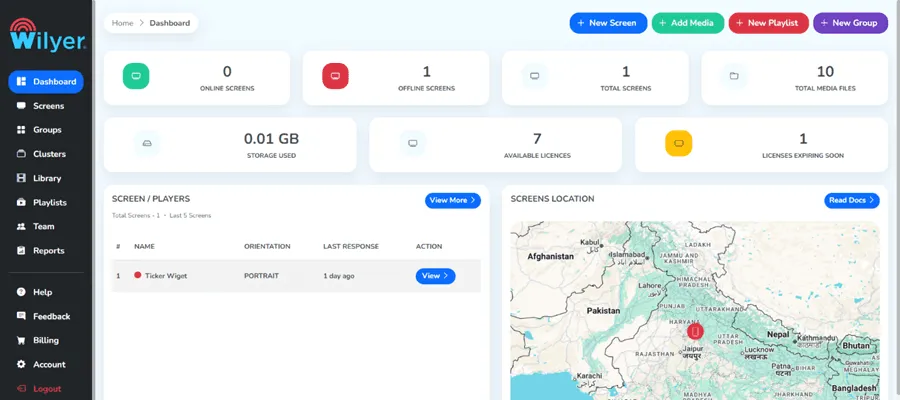
Paso 1: abre tu panel de control de Wilyer
Entra a tu cuenta de Wilyer y llegarás al panel de control principal. Es tu centro de control central para todo tu contenido de señalización digital, tus listas de reproducción y tus pantallas.
Paso 2: ve a la sección de listas de reproducción
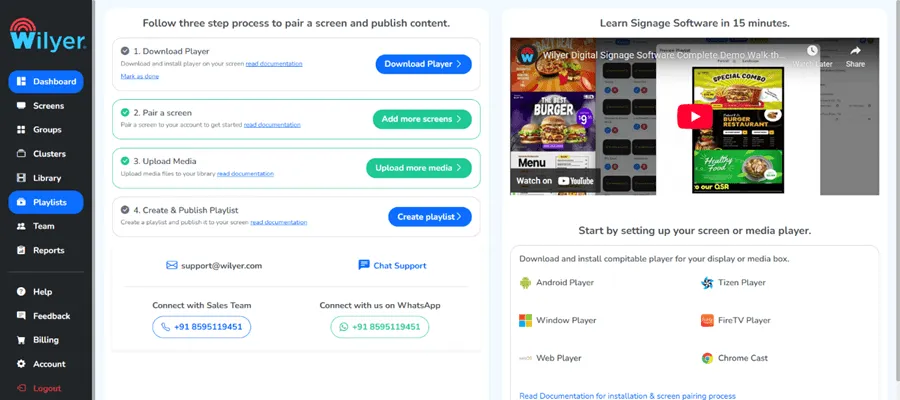
En el panel de navegación de la izquierda, ubica y haz clic en la sección «Playlist» (Lista de reproducción). Desde ahí controlas todas las secuencias de contenido que se ven en tus pantallas.
Paso 3: crea una lista de reproducción nueva
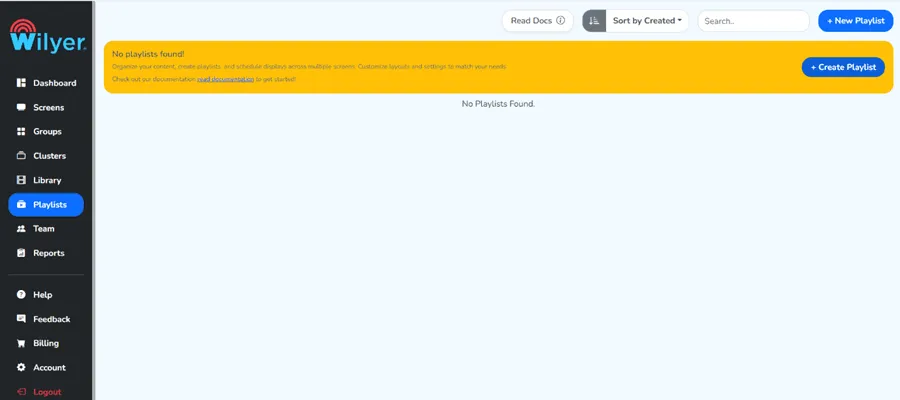
Para crear una lista de reproducción, pulsa el botón «Create Playlist» (Crear lista de reproducción). Una lista de reproducción es un conjunto de materiales de contenido - imágenes, videos y widgets - que se reproducen uno tras otro en tu pantalla.
Paso 4: completa los datos de tu lista de reproducción
Aparecerá un formulario donde se te pedirá ingresar los datos de tu lista de reproducción, incluidos el nombre y la descripción. Tu nueva lista se guarda ingresando la información necesaria y haciendo clic en el botón de crear la lista.
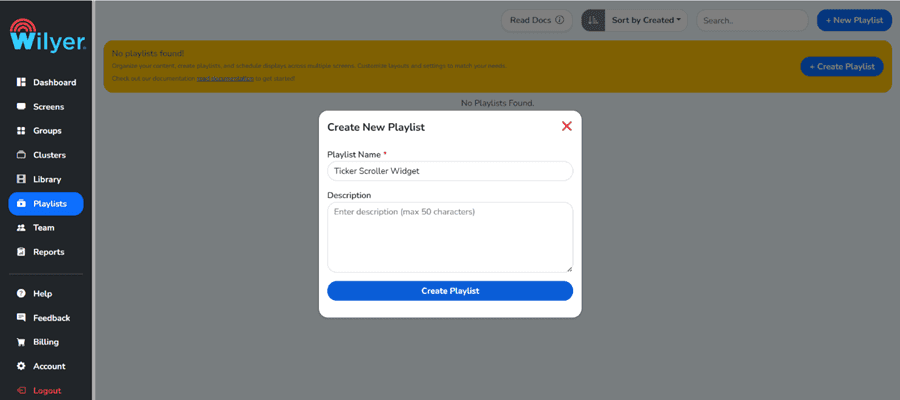
Paso 5: confirma que tu lista de reproducción se creó
Después de crear la nueva, se mostrará en la sección de listas de reproducción. Quedará listada y preparada para que le agregues contenido. Antes de pasar al siguiente paso, asegúrate de que tu lista se haya creado correctamente.
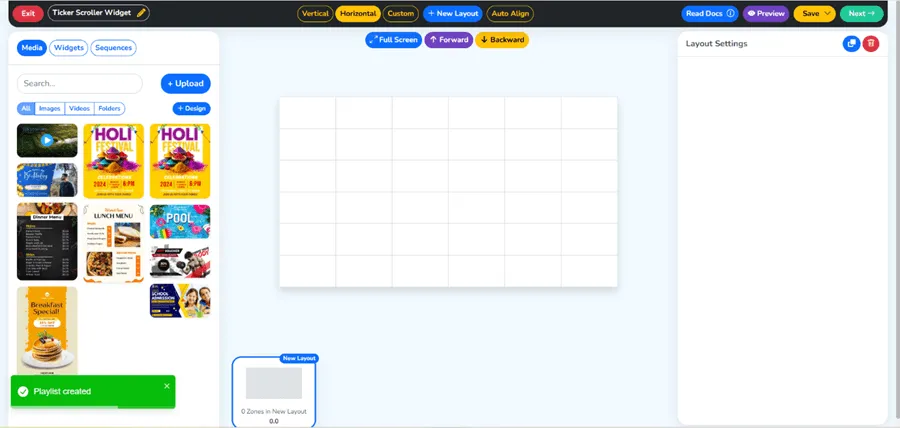
Paso 6: ve a la sección de widgets
Dentro de la lista de reproducción que acabas de crear encontrarás un botón o una pestaña de widgets para hacer clic. Eso te llevará a la biblioteca de widgets, donde puedes crear e instalar una variedad de widgets de contenido interactivo y dinámico.
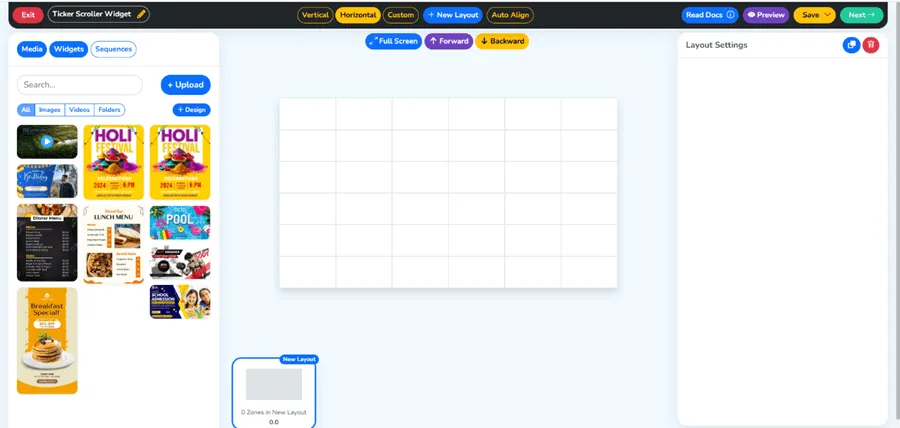
Paso 7: elige el widget de ticker o scroller
Recorre los widgets disponibles y selecciona la opción del widget de ticker o scroller. Es el widget que mostrará tus mensajes de texto deslizantes en la pantalla de señalización digital.
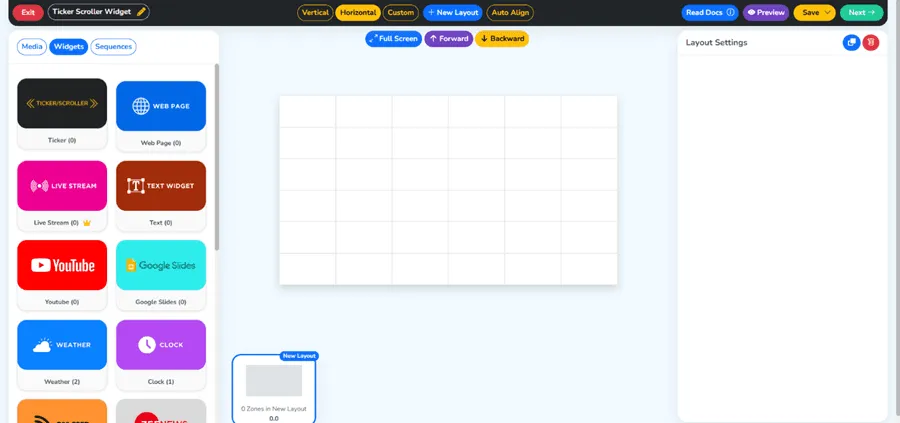
Paso 8: haz clic en el botón «Create» para agregar el widget
Después de seleccionar el widget de ticker, haz clic en el botón «Create» (Crear) para empezar a configurar tu nuevo widget. Se abrirá el panel de configuración, donde se pueden personalizar todas sus propiedades.
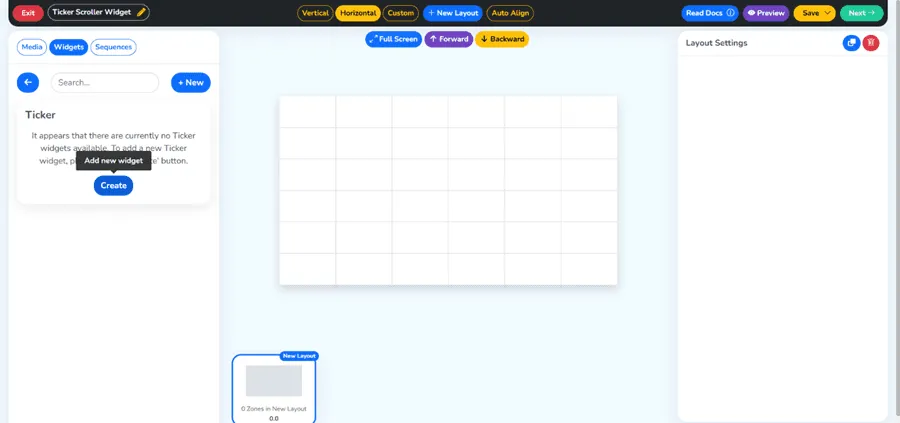
Paso 9: completa los datos de tu widget
Ahora es momento de ingresar el contenido de tu ticker. Completa todos los campos necesarios, como:
- Nombre del widget: ponle a tu ticker un nombre adecuado
- Texto de los mensajes del ticker: es el texto que se deslizará ante tu público.
- Velocidad de desplazamiento: qué tan rápido o lento se mueve el texto
- Cualquier otro campo de configuración requerido.
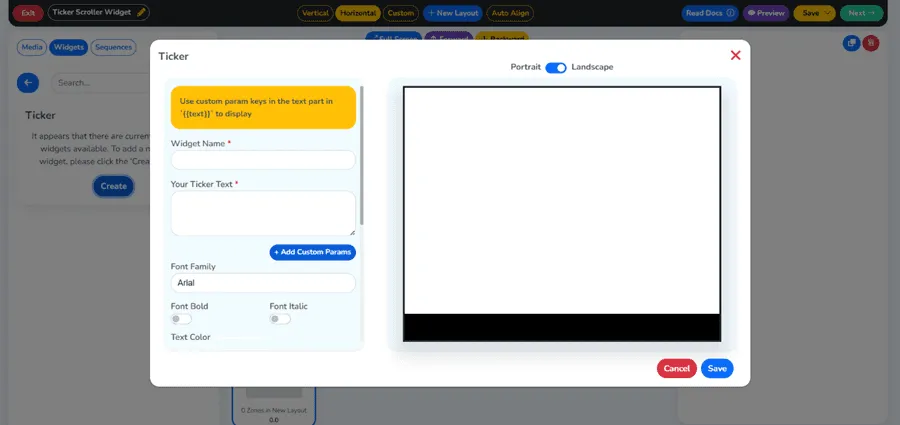
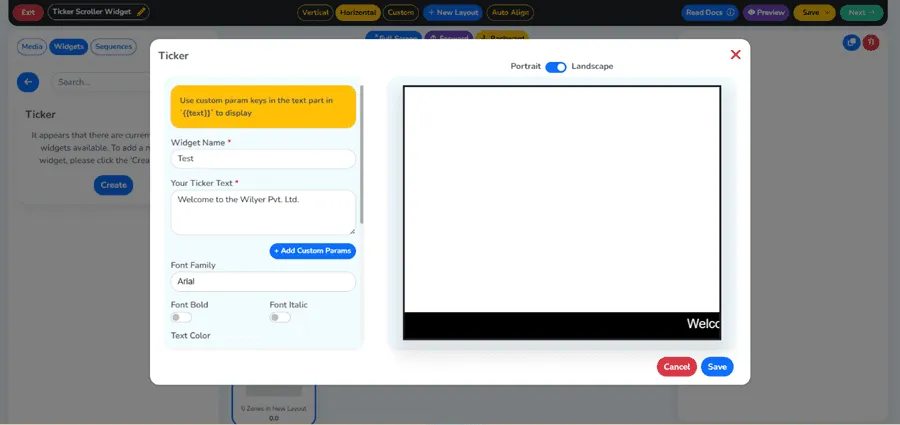
Paso 10: elige la fuente, el color y guarda
Haz que tu ticker se vea exactamente como quieres eligiendo el estilo de fuente y el color del texto. Así te aseguras de que el ticker vaya en línea con tu marca o con el tema de la pantalla. Después de hacer todos los ajustes necesarios, usa el botón «Save» (Guardar).
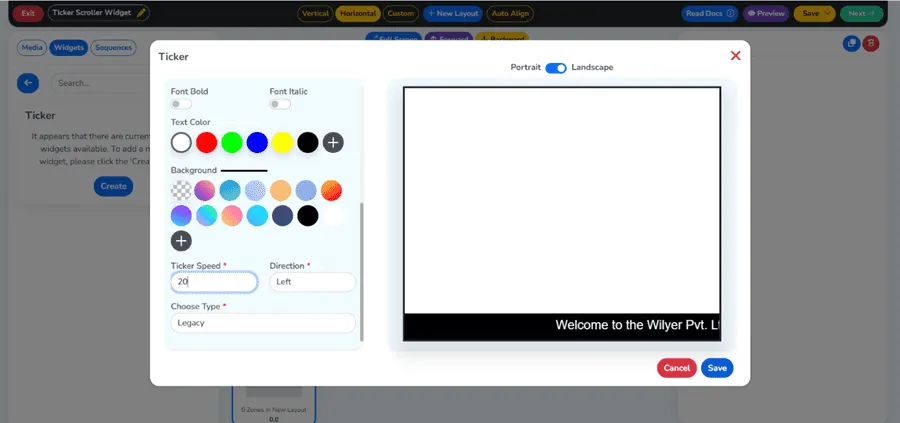
Paso 11: el widget se creó correctamente
Felicitaciones: el widget de ticker se creó correctamente. Recibirás un mensaje de confirmación y el widget se agregará a tu biblioteca, desde donde podrás sumarlo a tu lista de reproducción.
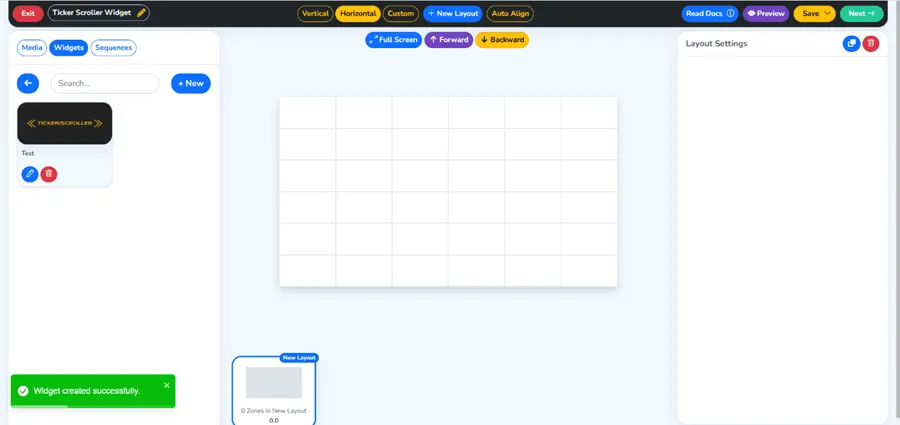
Paso 12: suelta tu widget en la lista de reproducción
Para agregar el widget de ticker a tu lista de reproducción, solo tienes que arrastrarlo desde la biblioteca de widgets y ubicarlo en la línea de tiempo de tu lista. Eso convierte al ticker en un elemento de contenido activo dentro de la lista.
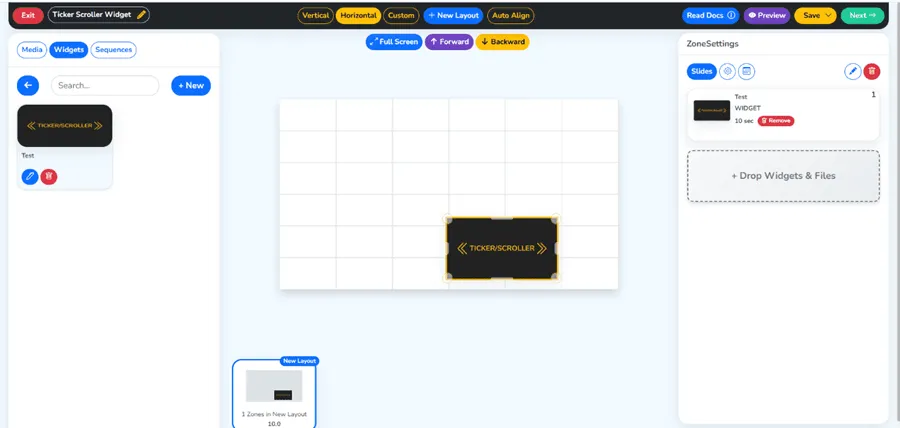
Paso 13: ajusta y ubica tu widget de ticker
Una vez agregado, puedes personalizar tu widget de ticker y cambiar su tamaño dentro del diseño haciendo clic y arrastrando. Colócalo donde quieras que aparezca - por ejemplo, en la parte inferior o superior de la pantalla - y dale el tamaño que prefieras.
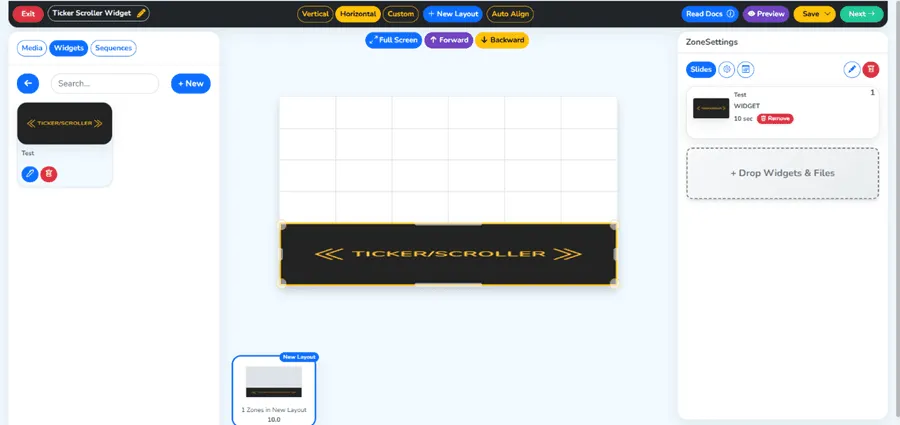
Paso 14: haz clic en el botón «Back»
Cuando te guste la disposición del widget, puedes volver a la vista principal de edición de la lista de reproducción haciendo clic en el botón «Back» (Atrás). La posición de tu widget se guardará automáticamente.
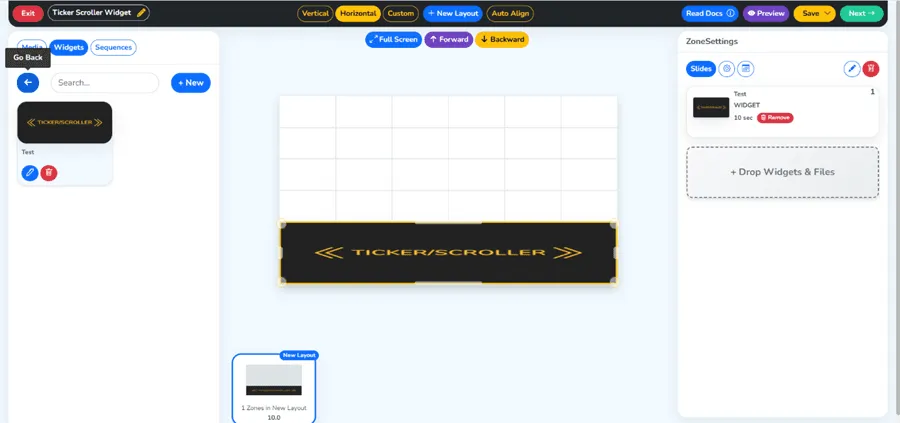
Paso 15: haz clic en el botón «Media»
Ve al botón «Media» (Medios) de tus listas de reproducción. Ahora puedes incluir otras piezas de contenido - videos, fotos u otros widgets - junto con tu ticker para armar una lista completa e interesante.
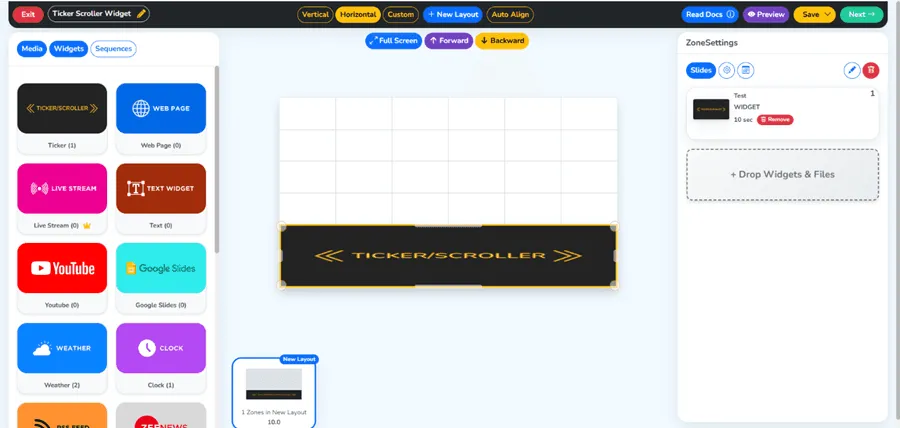
Paso 16: agrega tu contenido junto al widget de ticker
Agrega a la lista de reproducción el contenido que quieras tener en tus medios. También puedes sumar fotos, videos y otro contenido para que la barra del ticker en la pantalla de señalización le ofrezca a tu público una experiencia de visualización variada y particular. Organiza lo que tengas para reproducir en el orden que prefieras.
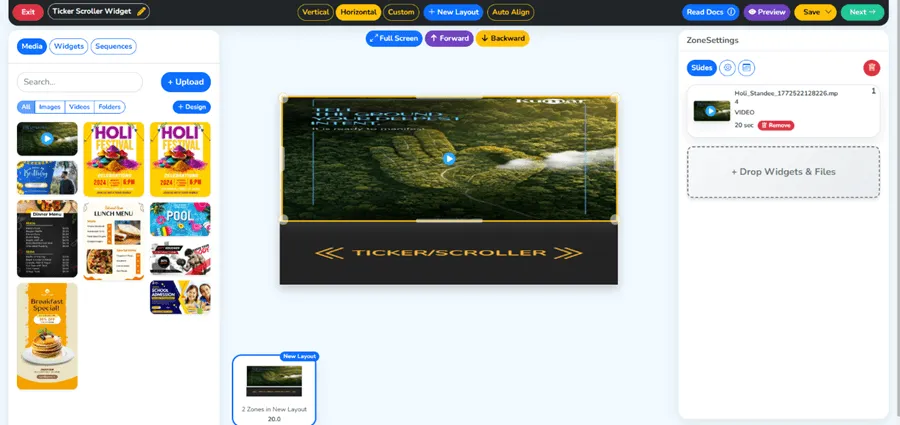
Paso 17: haz clic en el botón «Next»
Una vez que tu contenido esté listo y ordenado a tu gusto, haz clic en el botón «Next» (Siguiente) ubicado arriba a la derecha de la pantalla para pasar al paso de programación y selección de pantallas.
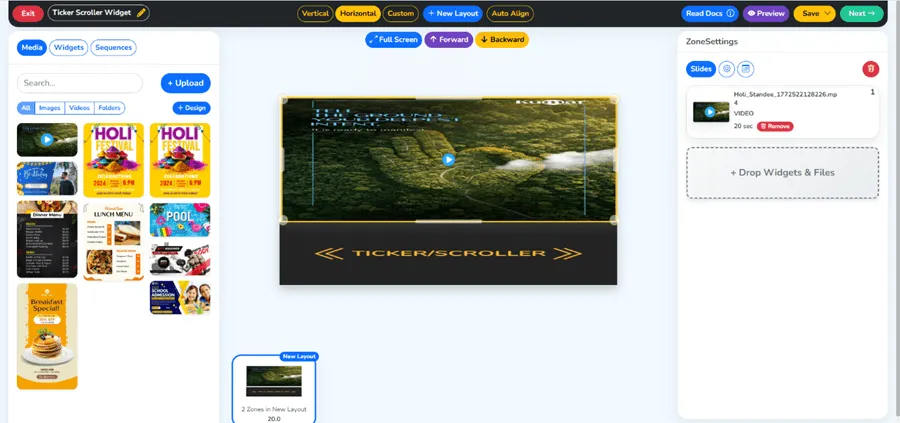
Paso 18: elige tu pantalla
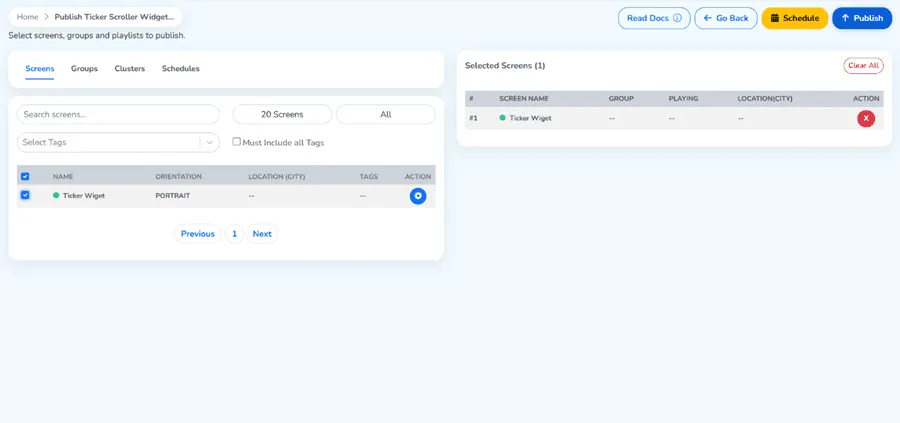
Elige la pantalla o las pantallas en las que quieres publicar esta lista de reproducción. Puede enfocarse en una sola pantalla o en pantallas de varias ubicaciones. Asegúrate de usar las pantallas correctas para que tu contenido llegue al público adecuado.
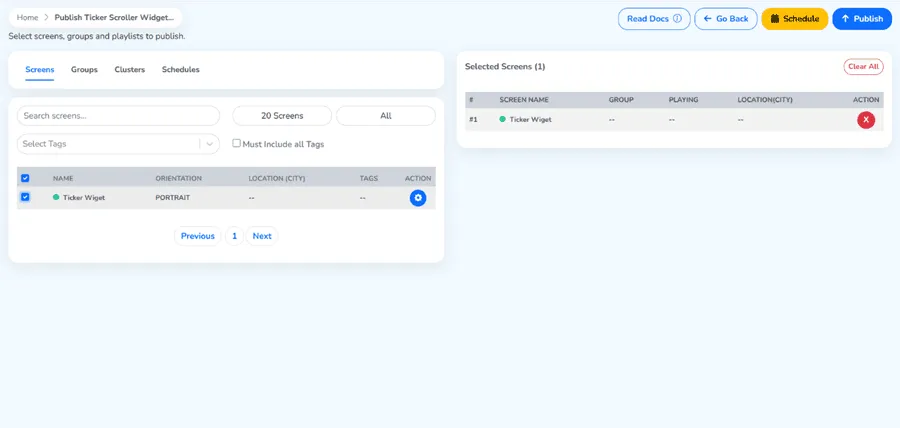
Paso 19: selecciona el botón «Publish» en la parte superior derecha
Después de seleccionar tus pantallas de destino, solo pulsa el botón «Publish» (Publicar) ubicado en la parte superior derecha de la pantalla. Eso iniciará el proceso de publicación que llevará tu lista de reproducción, con el widget de ticker incluido, a las pantallas que elegiste.
Paso 20: selecciona el botón verde «Continue»
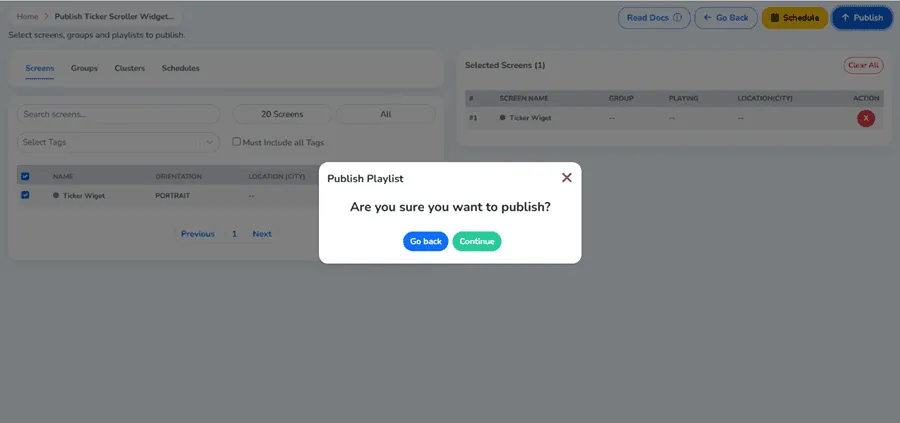
Se mostrará un cuadro de confirmación. Haz clic en el botón verde «Continue» (Continuar) para validar y finalizar la acción de publicar. Es la última etapa antes de que tu lista de reproducción aparezca en tus pantallas.
Paso 21: la lista de reproducción se publicó correctamente
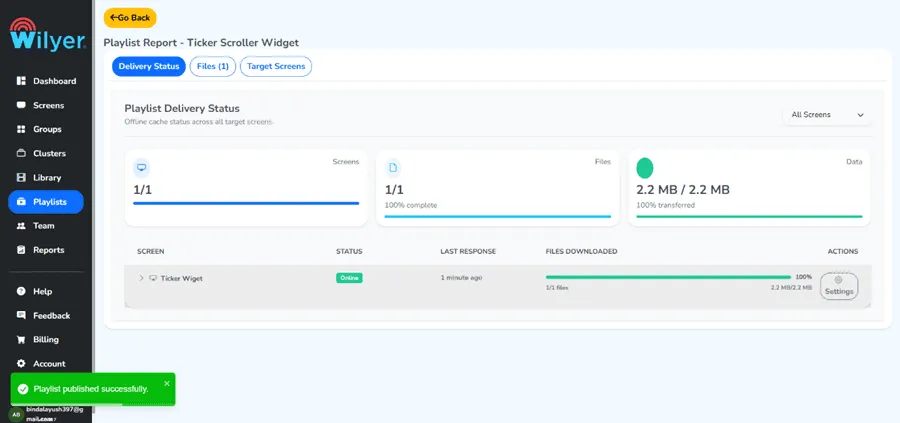
Recibirás un mensaje de éxito indicando que tu lista de reproducción se publicó correctamente. Tu aplicación de ticker o scroller quedó instalada y está funcionando en tu pantalla de señalización digital.
Paso final: tus listas de reproducción están en vivo en pantalla
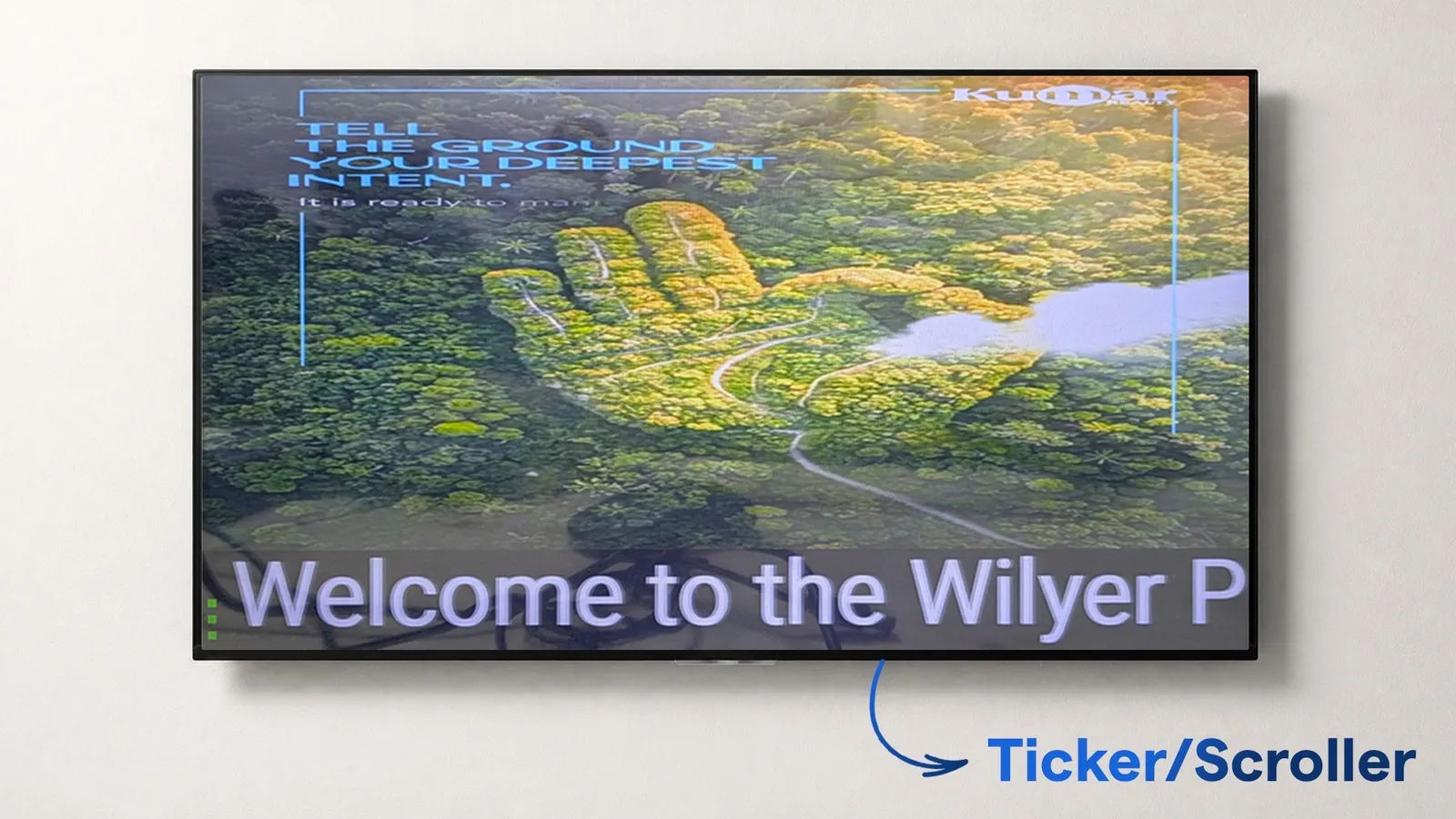
Tu lista de reproducción ya está publicada y se muestra correctamente en tu pantalla conectada, con el widget de ticker deslizándose de forma continua. Tu mensaje ya puede verse de manera dinámica y en tiempo real por parte de tu público.
Conclusión
Para mantener a tu público al día e interesado, agregar un widget de ticker o scroller a tu pantalla de señalización digital con el CMS de Wilyer es un método sencillo y muy eficiente. Solo toma unos minutos tener contenido deslizante dinámico en tus pantallas, y eso es posible gracias al procedimiento paso a paso que se sigue para crear una lista de reproducción, configurar el texto deslizante de señalización digital, darle el aspecto que quieras y publicarlo en tus pantallas.
El widget de ticker será una herramienta flexible que puede usarse en cualquier pantalla digital, ya sea una tienda minorista, una oficina corporativa, un establecimiento de hospitalidad o una escuela.
Empieza a usar el widget de ticker hoy y lleva la comunicación de tu señalización digital al siguiente nivel.