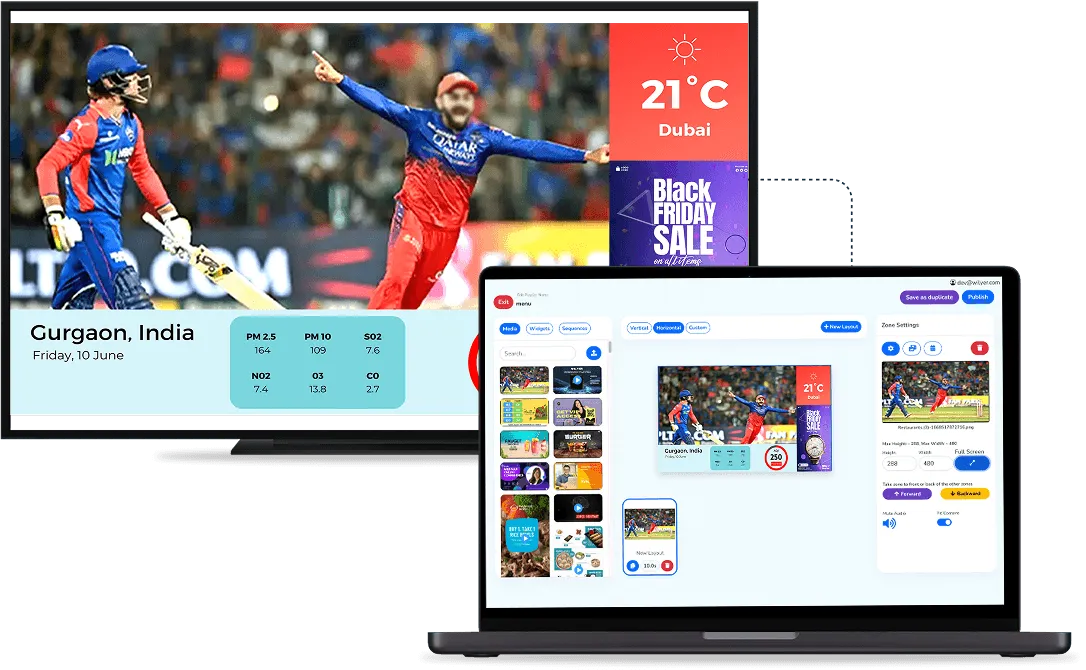
Switching a menu by hand relies on someone remembering during a change of service, which is the busiest moment of the day and the least likely moment for anyone to remember anything. When the switch is missed, the screen sits there advertising breakfast at two in the afternoon. With digital menu board software, you set the times once and the screens follow them, at one outlet or across a chain.
How Does an Automatic Menu Change Work?
Each meal gets its own playlist with its own menu design: one for breakfast, one for lunch, one for the evening. The hours come in when you publish a playlist to a screen. For each one you set:
- A daily routine: the playlist plays every day inside its time window.
- Start and end dates: when the schedule begins, and when it stops.
- The hours: for example 8:00 to 11:00 for breakfast, 11:00 to 15:00 for lunch and 15:00 to closing for the evening menu.
- The days: which days of the week the window applies to.
Repeat this for each meal on the same screen, and the board moves from one menu to the next by itself. Our step-by-step guide on how to make a digital menu board shows every click, from the first template to the schedule.

What Else Can Run on a Schedule?
Breakfast, lunch and dinner are the usual start, but the same settings cover more than meals:
- Weekend menus: pick only Saturday and Sunday for a brunch menu, and the weekday menus keep their own days.
- Festival menus: give a Diwali or Christmas menu an end date, so it stops on its own. Without one, the festival combo is still on the screen in January.
- Offers at set hours: run a promotion only in the hours it applies to, such as an afternoon tea offer, instead of all day.
- Screen brightness: screens can dim at a set time, which uses less electricity.
How Does It Work Across Several Outlets?
Each schedule goes to the screens or screen groups you pick. A chain can give one playlist to a whole group of outlets, so the same change reaches one store or fifty at once, instead of each site running its own routine and drifting apart from the others.
If some outlets keep different hours, for example a mall outlet that opens later than a high street one, put them in their own group and give that group its own schedule. Publish to one outlet first, check it and then publish to the group.
One thing to know before you edit a live menu: saving a playlist updates every screen it is already published to, straight away. Make big changes outside service hours, or build them in a new playlist first and schedule that.
What Should You Check Before You Rely on It?
- Your real service times: build the windows from when service actually changes, not from round hours that look neat.
- No gaps between windows: start each window when the one before it ends, as in 8:00 to 11:00 and then 11:00 to 15:00, so every hour you are open has a menu planned for it.
- End dates on every offer: give each festival or seasonal menu its end date when you create it, not when someone notices.
- The first changeover: on the first day, stand where customers queue at the switch time and watch the board change.
- The internet: the screen keeps playing from its own storage if the internet drops, and starts again by itself after a power cut. New changes need the connection to reach the screen.
Scheduling also ends an argument that tends to repeat in busy kitchens: whose job it was to change the board. When the switch happens on its own, nobody has to own it and nobody gets blamed for missing it.
For a single outlet with one menu, this is a convenience. For a chain running different menus through the day across many sites, it is what keeps every board right without anyone remembering in the middle of a rush. Our free trial covers 15 screens for 14 days with no card, enough to schedule two meals on one screen and watch the switch happen.