Introduction
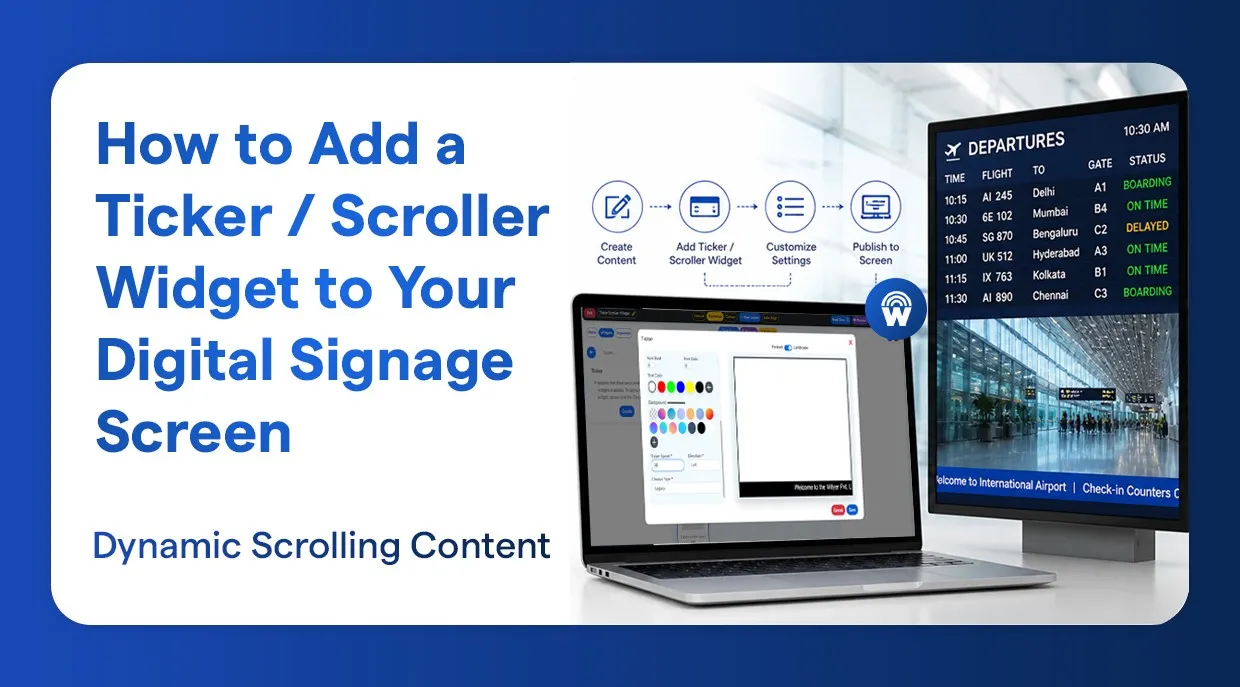
A ticker widget is one of the most effective ways to display dynamic, attention-grabbing information on your digital signage screen. Whether you want to show live news headlines, promotional messages, stock prices, or custom announcements, the ticker widget scrolls text continuously across your screens - ensuring your audience never misses an update.
In this step-by-step guide, we will walk you through the entire process of adding a ticker/scroller widget to your digital signage screen using the Wilyer dashboard - from creating a playlist to publishing it live on your screen.
What is a Ticker/Scroller Widget?
A ticker widget is a horizontal band of continuously scrolling text that moves across your digital signage display. It is widely used across industries for:
- Live headlines and news feed.
- Sport results and game report
- Advertisement deals and promotions
- Emergency alerts and safety warnings
- Custom-branded messages
Using the Wilyer digital signage CMS, the creation of a ticker widget is fast and easy and does not need technical skills:
What You Need Before You Start
- An operating Wilyer Digital signage account
- A connected digital signage screen or display
- Your Ticker/Scroller message text is ready to go
- Choice of font type and colour ticker.
Ticker widget setup step by step
There are the basic things needed to install and post your ticker widget to your digital signage display.
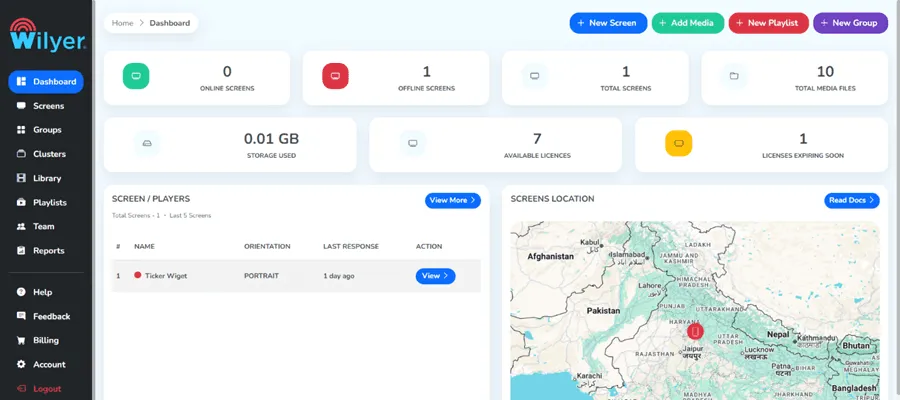
Step 1: Open Your Wilyer Dashboard
Enter your Wilyer account, and you will land on your main dashboard. This is your central control hub for all your digital signage content, playlists, and screens.
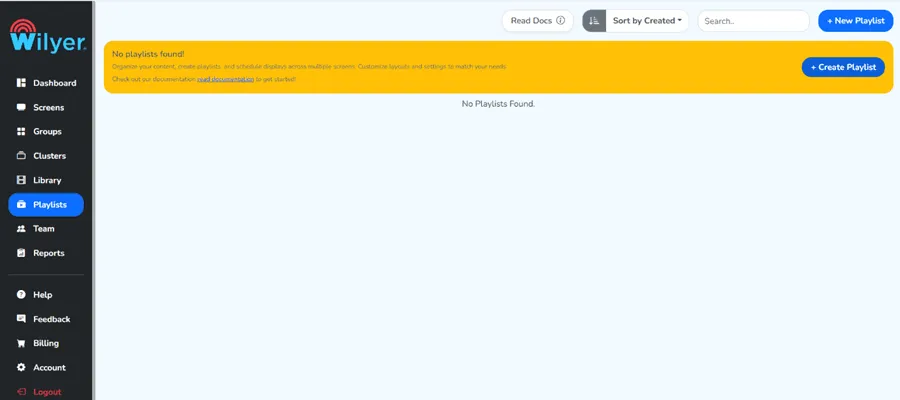
Step 2: Navigate to the Playlist Section
On the left-hand navigation panel, find and click on the Playlist section. It is here that you control all the content sequences you see on your screens.
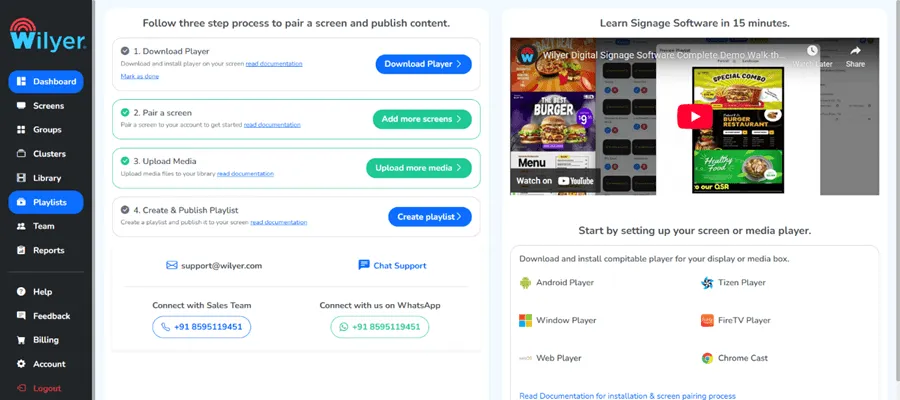
Step 3: Create a New Playlist
To create a playlist, press the " Create Playlist " button. A playlist is a list of content materials, such as images, videos, and widgets that run one after another on your screen.
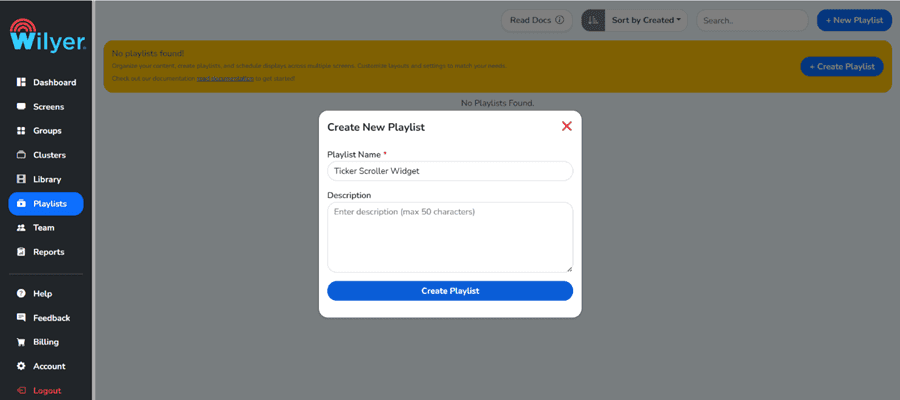
Step 4: Fill in Your Playlist Details
There will be a form where you will be requested to enter your playlist details, including the playlist name and description. Your new playlist is saved by entering the necessary information and clicking on the button to create the playlist.
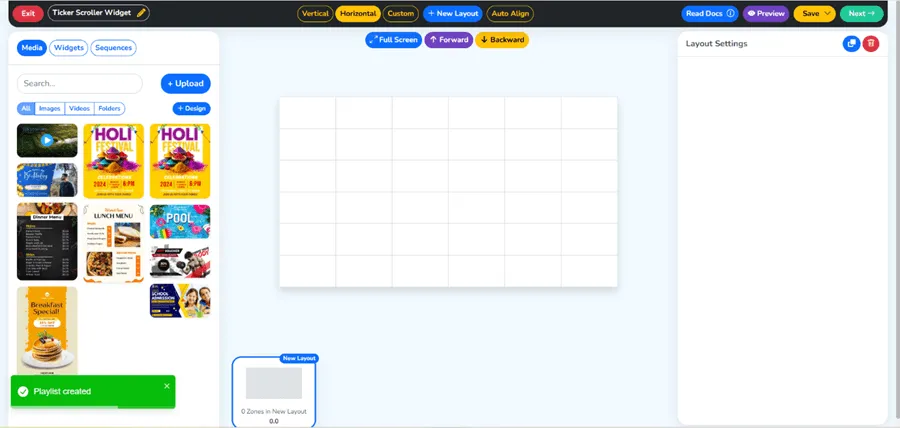
Step 5: Confirm Your Playlist has been created
After creating your new one, it will be displayed in the playlist section. It will be listed and will be prepared to have content added to it. Before proceeding to the next step, make sure that your playlist has been created successfully.
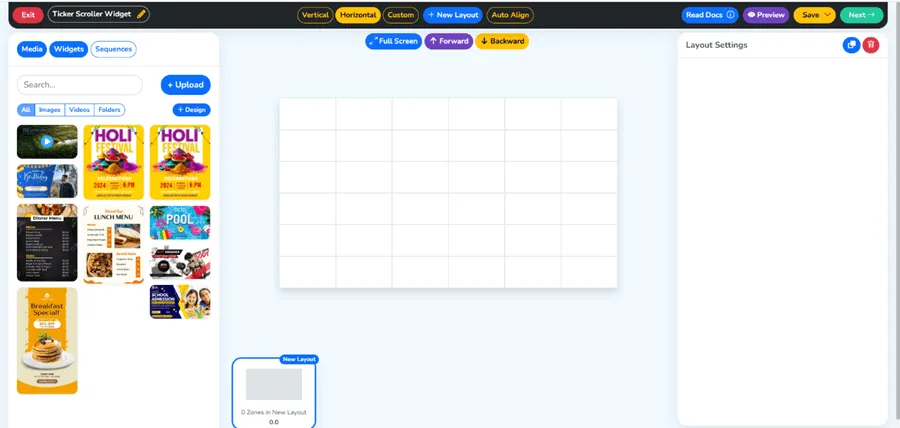
Step 6: Go to the Widget section
Within the playlist that you have just created, you will find a Widget button or tab to click on. It will put you in the library of the widgets, where you can establish and install a variety of interactive and dynamic content widgets.
Step 7: Choose the Ticker/Scroller Widget
Look through the existing widgets and select the option of the Ticker/Scroller widget. This is the widget that will show your scrolling text messages in the digital signage screen.
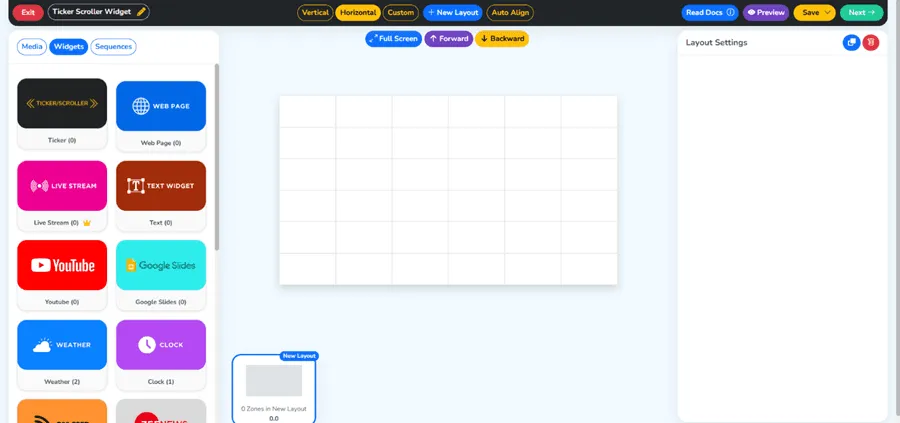
Step 8: Click on the Create button to add the Widget
After selecting the ticker widget, click on the “Create” Button to begin configuring your new widgets. This will open the widget setup panel, where all its properties can be customized.
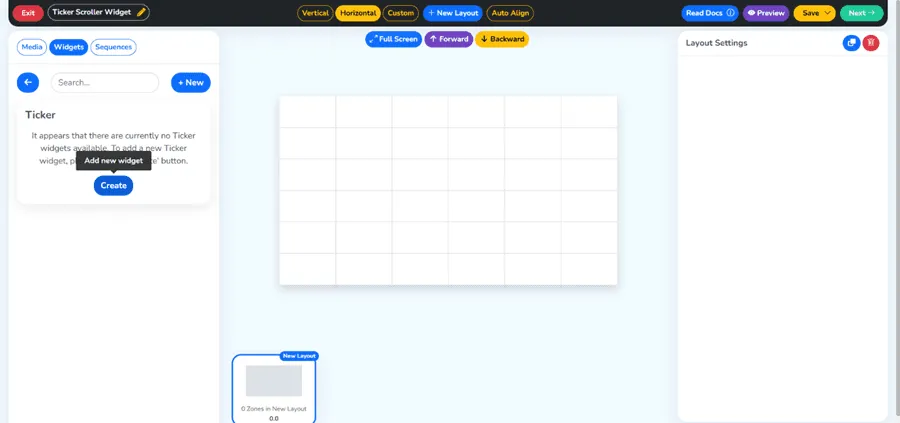
Step 9: Fill in Your Widgets Credentials
Now it is time to enter the content for your Ticker. Complete all the necessary fields, such as:
- Name of the Widget - Provide a suitable name for your ticker
- Text of ticker messages - The text will scroll across the audience.
- Scroll speed - how fast or slow the text moves
- Any other required configuration fields.
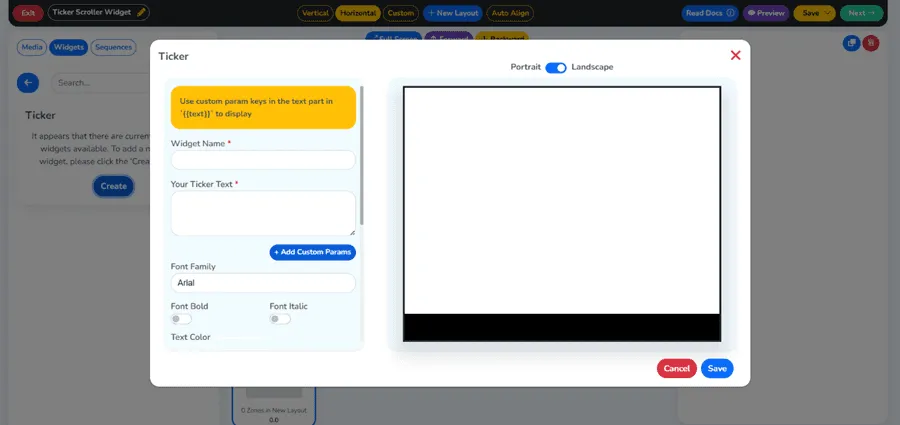
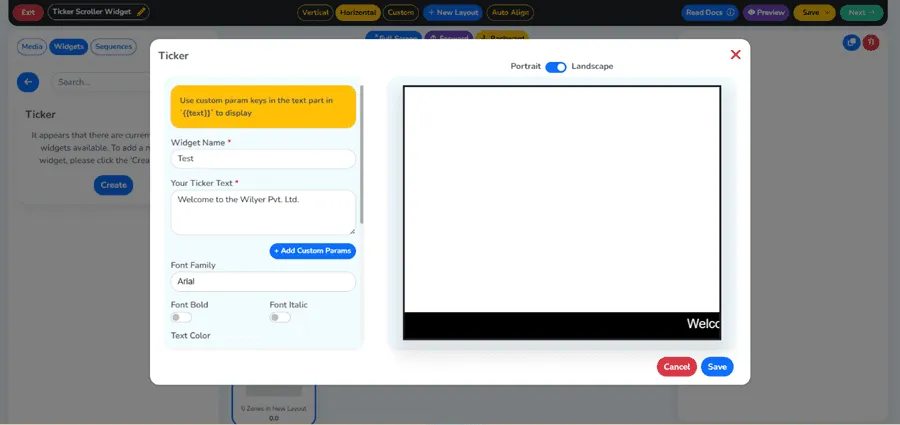
Step 10: Choose Font, Colour, and Save
Make your ticker look exactly how you want it to look by choosing your choice for font style and text colour. This will make sure that your ticker is the same as your brand name or display theme. After making all the necessary settings, you can use the Save Button.
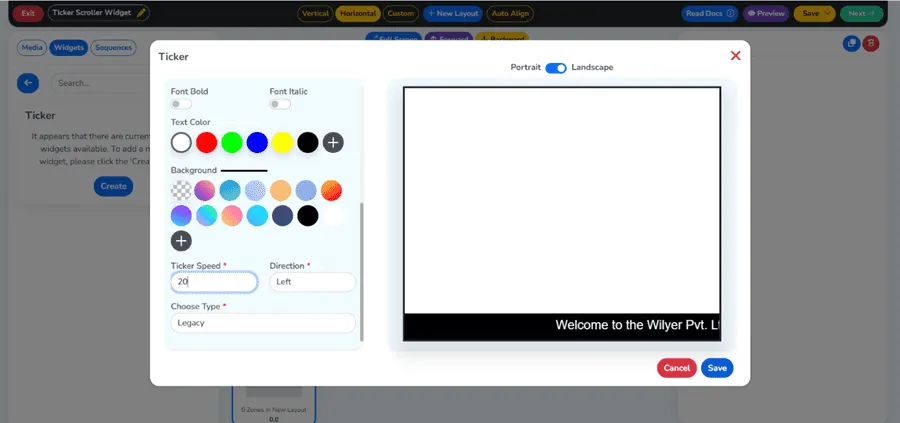
Step 11: Widget Created Successfully
Congratulations, the ticker widget has been created successfully. You will receive a confirmation message, and the widget will be added to your widget library, where you can add it to your playlist.
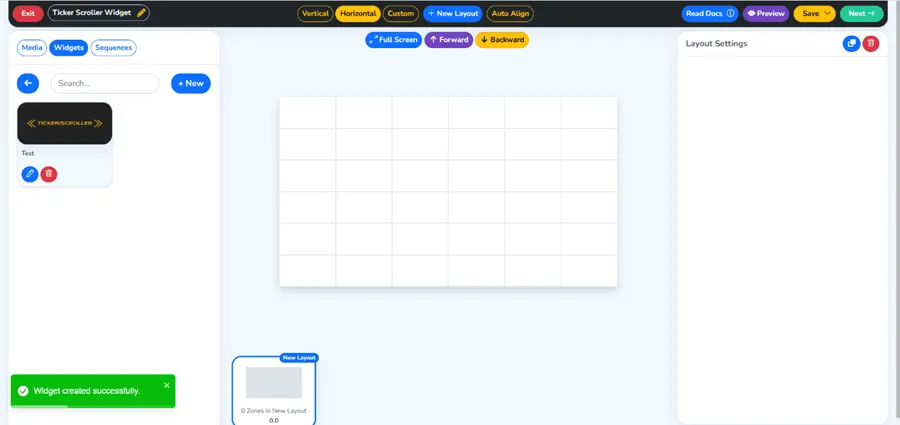
Step 12: Drop Your Widget in the Playlist
To add the ticker widget to your playlist, all you have to do is drag the ticker widget from the widget library and place it in the timeline of your playlist. This places the ticker as an active content item within your playlist.
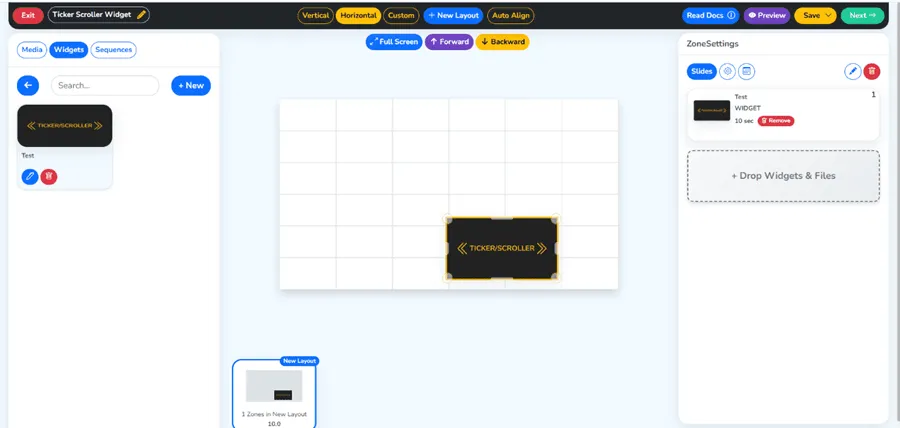
Step 13: Adjust and Position Your Ticker Widget
After it has been added, you can customize your ticker widget and change its size on the layout by clicking and dragging. Place it at the location that you desire to see it placed, i.e., at the bottom or top part of the screen, and make the size just like you want it to be.
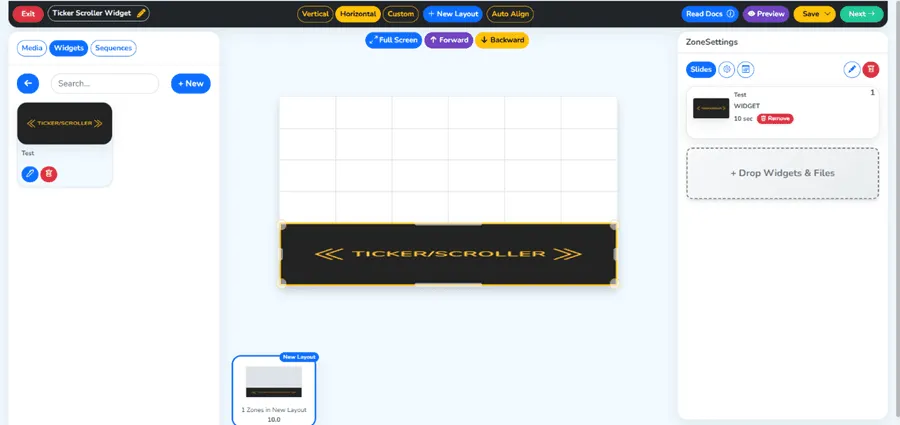
Step 14: Click the Back Button
Once you like the arrangement of the widget, you can come back to the main playlist editing view by clicking the Back button. The positioning of your widget will be automatic.
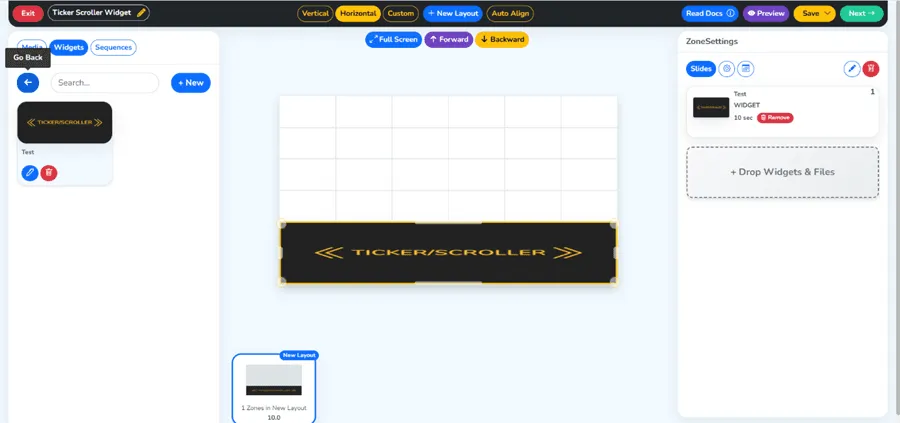
Step 15: Click on the Media Button
Go to the Media Button of your playlists. You can now include other pieces of content, like videos, photos, or other widgets, with your ticker to make up an all-inclusive and interesting playlist.
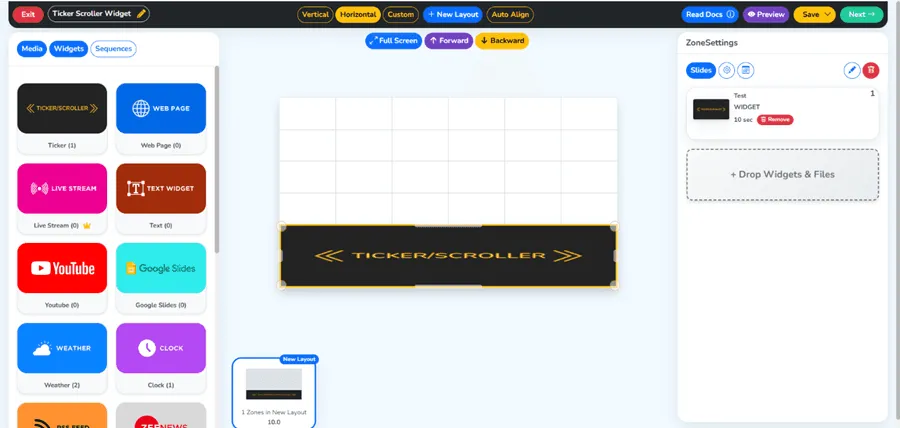
Step 16: Add Your Content Alongside the Ticker Widget
To the playlist, add the content you would like on your media. You are also allowed to add pictures, videos, and other content to enable the ticker bar on the signage screen to give your audience a unique and diverse display experience. Organize what you have to play in the way that you desire.
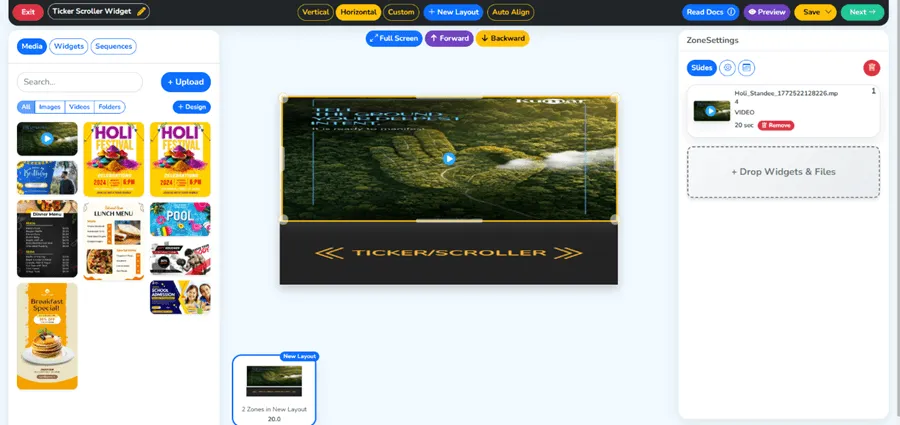
Step 17: Click the Next Button
Once your content is ready and arranged to your satisfaction, click the Next Button located at the top right of the screen to proceed to the scheduling and targeting step.
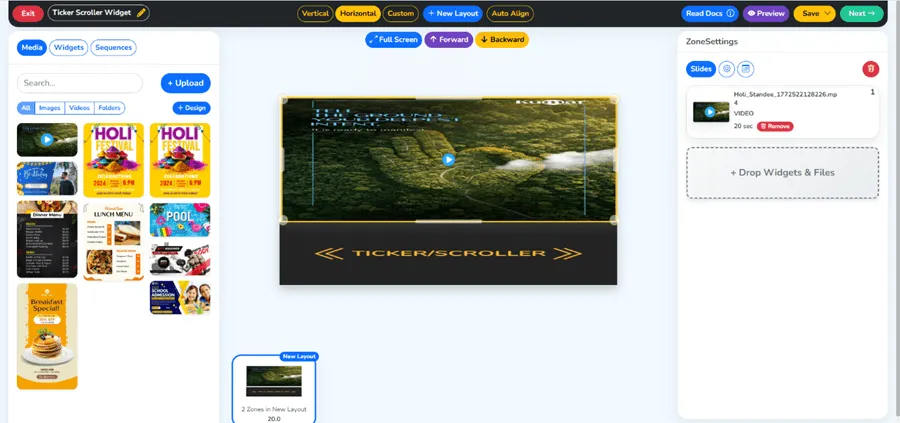
Step 18: Target Your Screen
Choose the screen and screens to which you would like to publish this playlist. This can be focused on one display or a screen in a range of locations. Ensure that you use the right screens in order to make sure that your content reaches the right audience.
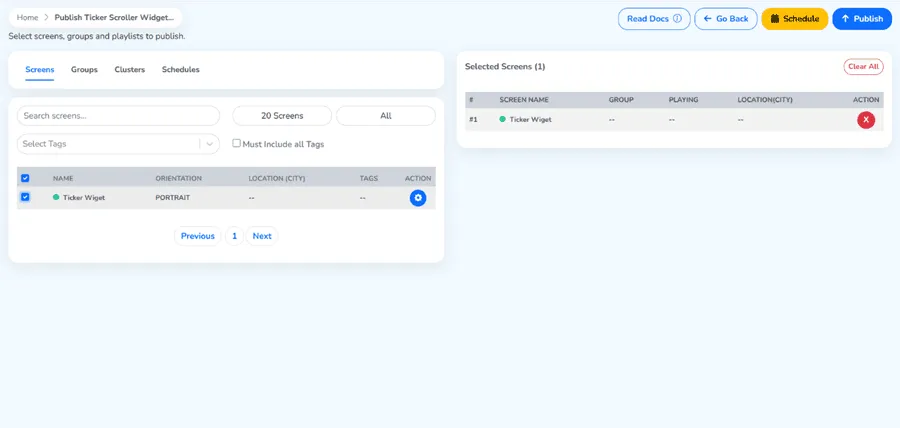
Step 19: Select the Publish Button on the top of the right side
After selecting your target screens, just press the Publish Button that is placed on the upper right of the screen. It will start the publishing process that will promote your playlist to your desired displays, including the ticker widget.
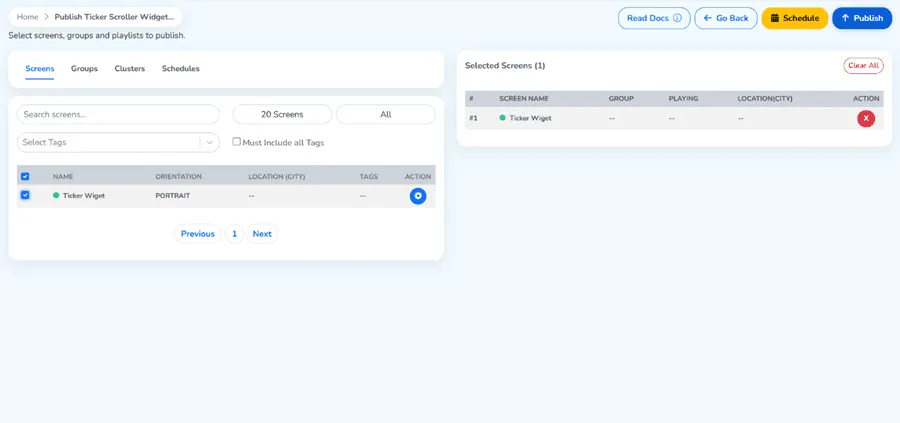
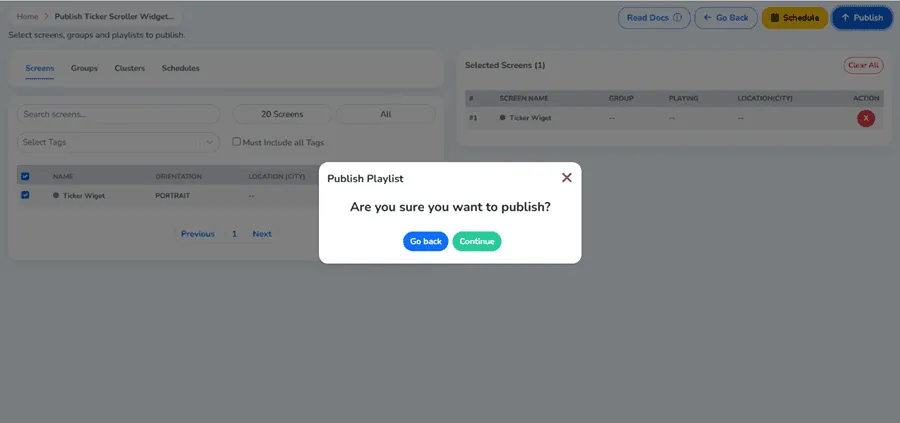
Step 20: Select the Green Continue Button
A dialog of confirmation will be displayed. Click the green Continue button to validate and finalize the publishing action. This is the last stage before your playlist will appear on your screens.
Step 21: Playlist Published Successfully
You will receive a success message that your playlist will be successfully published. Your ticker/scroller application is successfully installed and is operating on your digital signage ticker tutorial.
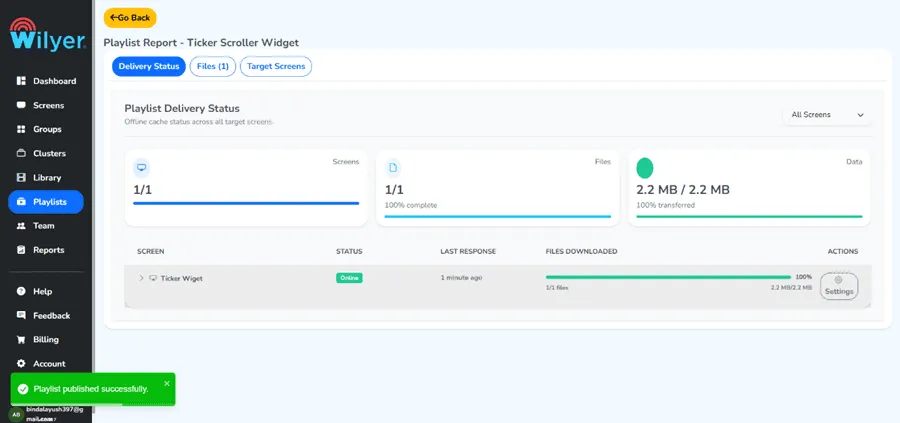
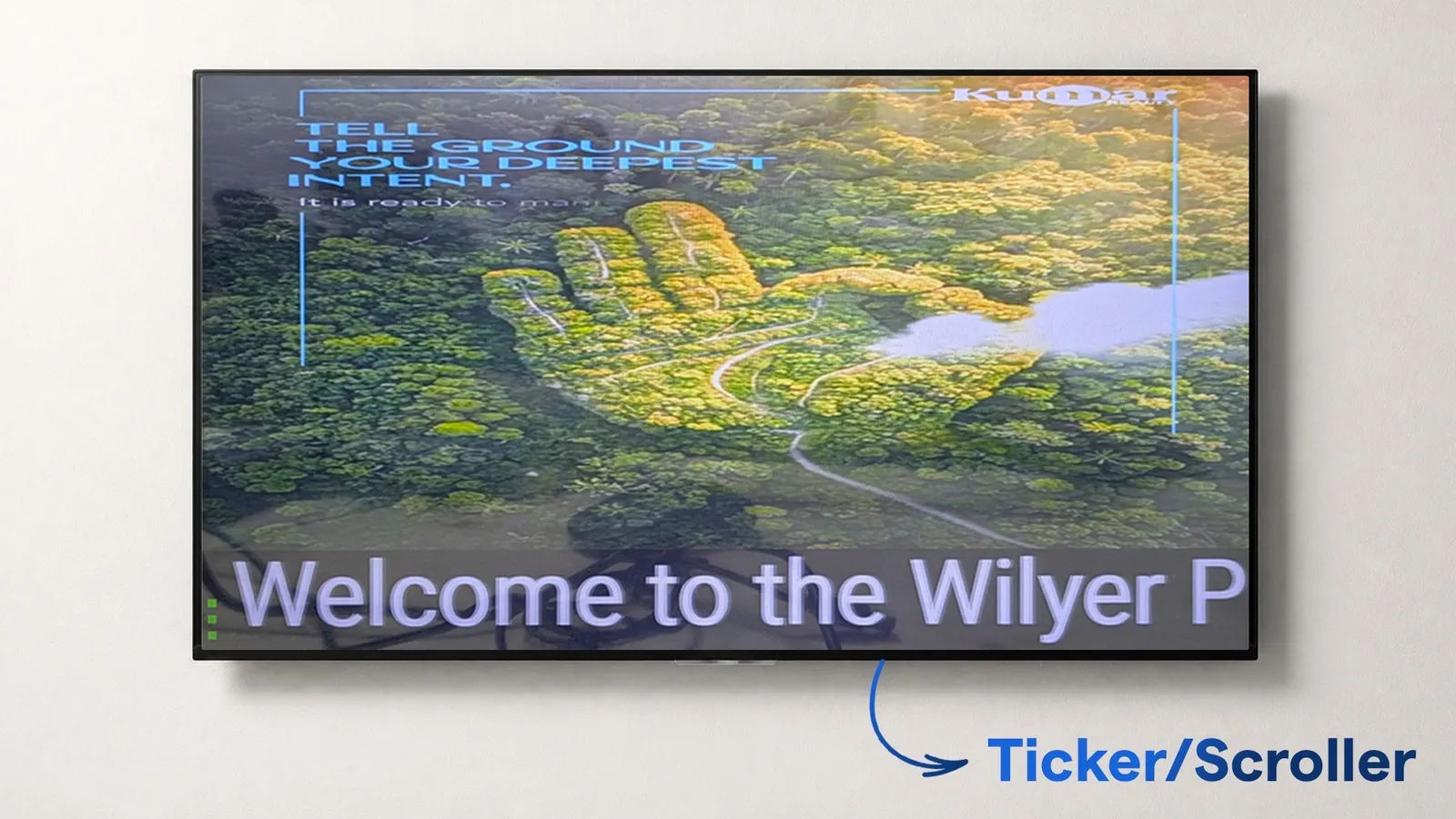
Final Step - Your Playlists are Live on Screen
Your playlist is now published, and it is showing on your connected screen successfully, with the scrolling ticker widget running continuously. Your scrolling message is now able to be viewed dynamically in real time by your audience.
Conclusion
To keep your audience updated and interested, adding a ticker or scroller widget to your digital signage screen using the Wilyer CMS is an easy and very efficient method of doing so. It only takes a few minutes to be using dynamic scrolling content on your screens, and this is made possible through the step-by-step procedure that is followed to create a playlist, configure scrolling text digital signage, configure it to look as you want it to appear, and then you are ready to publish it to your screens.
The ticker widget will be a flexible tool that can be used by any digital display, regardless of whether it is a retail store, corporate office, hospitality venue, or school.
Start using the ticker widget today and take your digital signage communication to the next level.