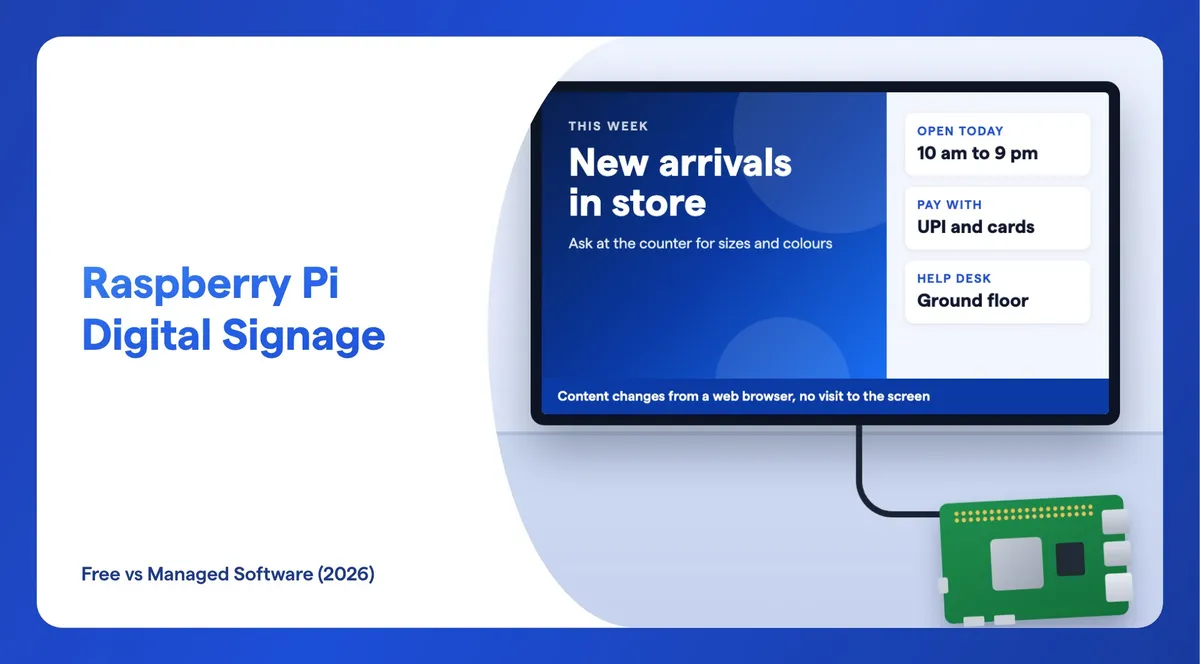
A Raspberry Pi can run a digital signage screen in two ways. You can install free, open-source software such as Anthias, the project that used to be called Screenly OSE, which costs nothing but manages each screen on its own. Or you can use a managed player that links every Pi to one cloud dashboard, for a monthly fee per screen. This guide covers what you need, how each option works, what each one can and cannot do, and how to choose.
What Do You Need for Raspberry Pi Digital Signage?
You need a Raspberry Pi, its power supply, a microSD card, an HDMI cable, a screen and a network connection, plus the signage software. The hardware is the same whichever software you choose, so you can switch later without buying anything new.
- A Raspberry Pi 4 or Raspberry Pi 5. Anthias lists both as recommended models, and Wilyer recommends a Pi 4 or newer for smoother playback.
- The right power supply. The Pi 4 takes 5V over USB-C at a minimum of 3A. The Pi 5 takes 5V/5A over USB-C. Use a supply rated for your board.
- A microSD card. The Pi loads its operating system and the signage software from the card in its microSD slot.
- An HDMI cable. Both boards have two HDMI outputs and support 4K at 60 frames per second. The Pi 4's ports are micro HDMI, so you need a micro HDMI to HDMI cable.
- A screen with an HDMI input. A TV or a commercial display both work.
- A network connection. A network cable is the steadiest option. Wireless works too.
Raspberry Pi's product brief says it will keep making the Pi 5 until at least January 2036, and the Pi 4 until at least January 2034, so either is a safe board to standardise on if you plan more screens later.
Option 1: What Free Open-Source Software Runs on a Raspberry Pi?
The best-known free option is Anthias, which is what Screenly OSE is called today. Xibo is often mentioned in the same breath, but its own documentation says it has no Raspberry Pi player. A few other projects are free with conditions.
Anthias (formerly Screenly OSE)
Anthias is free, open-source digital signage software built by Screenly, Inc., with community contributors. It was renamed from Screenly OSE in December 2022, to clear up confusion between Screenly, the company's paid platform, and the free project. The licence file in its code repository says it is dual-licensed under GPLv2 and a commercial licence, and its FAQ says you can use it commercially under GPLv2, including in shops and lobbies, as long as you follow the GPL's terms when you share modified versions.
What Anthias does, according to its own site:
- Plays photos, videos, web pages, YouTube links and live streams.
- Schedules each item by a start and end date, days of the week and time of day, with a set duration for each photo or web page.
- Runs on your local network. You need the internet only to install it and to show content from outside web addresses.
- Recommends the Raspberry Pi 5 and Pi 4. Older Pi 2 and Pi 3 boards are in maintenance mode, and the project advises a Pi 4 or later for new installs.
- Has a REST API, so updates can be automated.
- Is actively maintained: version v2026.10.0 came out on 16 October 2026.
How Do You Install Anthias on a Raspberry Pi?
The recommended route is Raspberry Pi Imager, the official tool for writing a microSD card. In Imager, choose Other specific-purpose OS, then Digital signage and kiosks, then Anthias, and pick the entry for your Pi model. Other routes are a ready disk image from the project's GitHub releases, balenaHub images that update themselves over the air, or a one-line install script on Raspberry Pi OS Lite. On a Pi 5, the script needs the 64-bit version of Raspberry Pi OS.
What Can't Anthias Do?
Anthias is open about its limits, and they matter once you have more than one screen. Its FAQ says each Anthias install manages one screen with its own dashboard. Its own Raspberry Pi page puts it plainly: several screens means several Pis, and there is no single dashboard where you change tomorrow's playlist for all of them at once. Balena can install and update a fleet of Anthias devices, but content is still set screen by screen.
It also has no transitions between items: one asset ends and the next starts straight away. Support comes from the community forum and GitHub, not a help desk. Screenly, the company behind Anthias, sells a separate paid, cloud-managed platform for networks of many screens.
Can Xibo Run on a Raspberry Pi?
Not officially. Xibo's content management system (CMS) is open source under AGPLv3, and you can host it yourself free of charge, though you supply the server, the installation, the security and the upkeep. Its official players run on Android, Tizen, webOS, ChromeOS, Windows and Linux. Xibo's own knowledge base answers the Raspberry Pi question directly: it does not think any model of the Raspberry Pi is suitable, and its Linux player needs a 64-bit Intel or AMD processor. If you want Xibo, plan on a different player device. Xibo Cloud, the paid hosted version, starts from £3.50 per display a month on its Professional plan. Our Xibo alternative page compares Xibo and Wilyer side by side.
Are There Other Free Options for a Raspberry Pi?
Yes, but read the terms closely, because "free" means different things:
- piSignage is free for 2 screens, then charged per player each year, according to its pricing page. It runs on the Pi 5, Pi 4, Pi 3 and Pi Zero 2 W, and its own pages do not describe the player as open source. Only its older 3.x server is open source, under the MIT licence.
- info-beamer pi is free for private, non-public use only. Commercial use needs a paid licence, quoted on request.
Option 2: How Does a Managed Raspberry Pi Player Work?
A managed player turns each Pi into a screen you control from one cloud dashboard. You install the player once, link the Pi to your account, and from then on you change what every screen shows from a web browser, wherever you are.
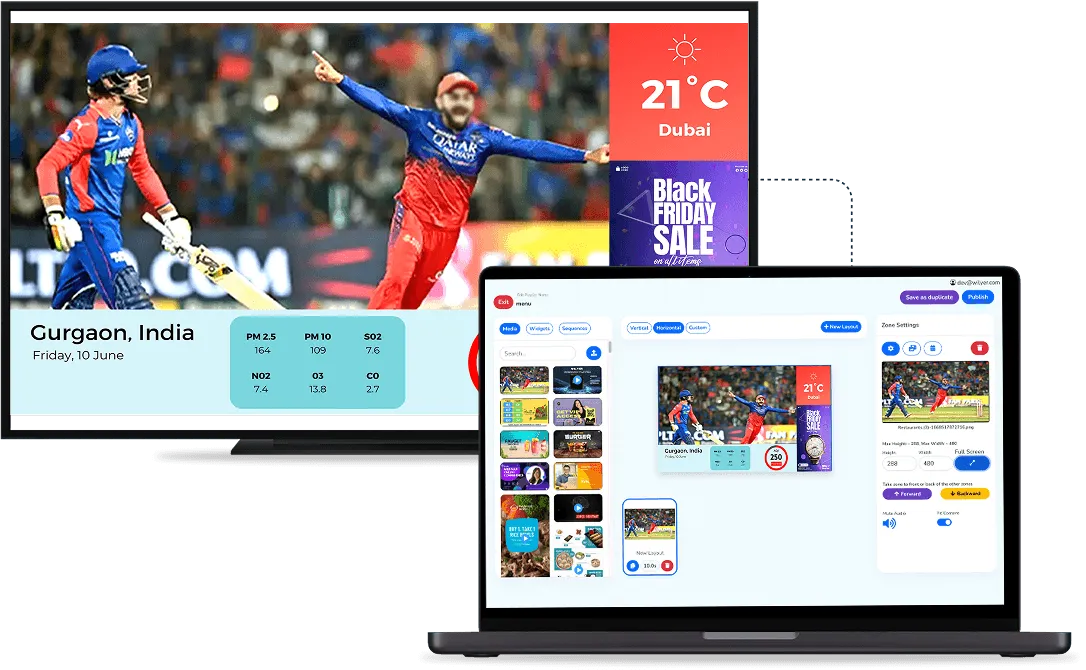
Wilyer's player for Raspberry Pi works this way. From one cloud dashboard you upload images, videos and HTML content, build playlists, and schedule them by time of day, which is often called dayparting. You can see each screen's status remotely and group devices to update many screens at once. The internet is needed to upload and update content, but each screen keeps playing what it has downloaded when the connection drops. Wilyer recommends a Raspberry Pi 4 or newer. The Wilyer Digital Signage Player for Raspberry Pi was accepted into the Powered by Raspberry Pi programme on 23 October 2026.

Getting started takes three steps: create an account, install the Wilyer app on the Pi, then link your screens and add content. The free trial covers up to 15 screens for 14 days, with no credit card. After that, Wilyer Pro costs ₹1,200 per screen a month, or ₹12,000 per screen a year, plus GST ($15 a month outside India). There is no free plan. More about the player is on the Raspberry Pi digital signage app page.
What Does the Managed Route Add?
- One dashboard for every screen, across branches and cities, instead of one dashboard per Pi.
- Changes from anywhere, not only from inside the shop's network.
- Screen status and grouping, so you can see which screens are online and push one playlist to a whole group.
- Mixed hardware in one account. The same dashboard also runs screens on Android, Windows, Samsung Tizen, LG webOS, Amazon Fire TV and ChromeOS, so a Pi can sit beside smart TVs you already own.
Free vs Managed: How Do They Compare?
The short version: both run on a Pi 4 or Pi 5 and both keep playing without internet. The difference is how you manage more than one screen, and what you pay for that.
| Anthias (free, open source) | Managed player (Wilyer) | |
|---|---|---|
| Software cost | Free, no per-screen fee | ₹1,200 per screen a month or ₹12,000 a year, plus GST |
| Licence or plan | GPLv2, dual-licensed with a commercial licence | Subscription, 14-day free trial on 15 screens |
| Raspberry Pi models | Pi 5 and Pi 4 recommended; Pi 2 and Pi 3 in maintenance mode | Pi 4 or newer recommended |
| Managing many screens | One dashboard per Pi | One cloud dashboard for all screens |
| Where you manage it | On your local network | From any web browser |
| Plays without internet | Yes, once content is on the Pi | Yes, once content is downloaded |
| Content | Photos, videos, web pages, YouTube, live streams | Images, videos, HTML content, playlists |
| Scheduling | Date range, days, time of day, duration | Playlists, time-based scheduling, dayparting |
| Help | Community forum and GitHub | Wilyer's team; a demo can be booked |

Which Should You Choose?
Choose free software if you run one or two screens in one place, someone on your team is comfortable with a Raspberry Pi, and your content changes now and then. Choose a managed player when you have several screens or several branches, when staff without technical skills need to change content, or when someone needs to update screens from outside the building.
Choose Anthias if:
- You want no software cost at all, and you are happy to own the setup and updates.
- Your screens are on one site, and editing each Pi's dashboard is not a burden.
- Community help on a forum is enough for you.
Choose a managed player if:
- You have screens in more than one place, or plan to add them.
- One person should change every screen from one login.
- You want to mix Raspberry Pis with smart TVs and other players under one account.
Because the hardware is the same, you can also start with Anthias on one screen and move to a managed player when the network grows. For the wider question beyond the Pi, see our comparison of free vs paid digital signage software.
Frequently Asked Questions
Is Screenly OSE Still Available?
Yes, under a new name. Screenly OSE was renamed Anthias in December 2022. It is the same project, still built by Screenly, Inc., and still free and open source under GPLv2.
Is Anthias Free for Commercial Use?
Yes. Anthias's FAQ says you can deploy it commercially under GPLv2, including in customer-facing shops and lobbies, as long as you follow the GPL's terms when you share modified versions. There is no per-screen fee.
Can Xibo Run on a Raspberry Pi?
Not officially. Xibo's knowledge base says it does not think any Raspberry Pi model is suitable, and its Linux player needs a 64-bit Intel or AMD processor. Its official players run on Android, Tizen, webOS, ChromeOS, Windows and Linux.
Which Raspberry Pi Is Best for Digital Signage?
A Raspberry Pi 4 or Raspberry Pi 5. Anthias recommends both, and Wilyer recommends a Pi 4 or newer. Raspberry Pi plans to keep making the Pi 5 until at least January 2036.
Does Raspberry Pi Signage Work Without Internet?
Yes, with both options. Anthias needs the internet only to install and to show content from outside web addresses. Wilyer needs it to upload and update content, and each screen keeps playing what it has downloaded when the connection drops.
Can Free Software Manage Many Raspberry Pi Screens From One Place?
Not with Anthias: each install manages one screen with its own dashboard. Balena can install and update a fleet, but content is still set per screen. A managed player such as Wilyer runs every screen from one cloud dashboard.
How Much Does Managed Raspberry Pi Signage Cost?
Wilyer Pro costs ₹1,200 per screen a month, or ₹12,000 per screen a year, plus GST. There is a 14-day free trial on 15 screens with no credit card, and no free plan. The Raspberry Pi, power supply, card and screen are bought separately.
Getting Started
Start with one screen. If you want to try free software, write Anthias to a spare microSD card with Raspberry Pi Imager and see whether one dashboard per Pi works for you. If you need several screens under one login, start the 14-day free trial of Wilyer's digital signage software on the same Pi, or see the pricing for more screens.