A queue screen hangs in the most visible part of a reception area, and it is often the first thing a visitor looks at on the way in. In a lobby, a dining room or a hospital that has spent money on how its public areas feel, a plain board of numbers stands out for the wrong reason. If token systems are new to you, start with what a queue management system is. This page covers only how the screens look.
Which Screens Can You Style?
A visitor meets two screens in a token queue, and both can carry the same look:
- The check-in screen: the registration display where visitors fill in a few details, such as name, mobile number and reason for visit, and take a token.
- The token board: the waiting-area screen that shows tokens waiting and tokens being served, and flashes the number being called.
Because the visitor sees the check-in screen first and the token board second, styling them alike makes the queue feel like one system instead of two pieces of borrowed equipment. For what the board itself shows, see what a token display shows.
How Does Theme-Based Branding Work?
In the queue dashboard, each waiting area is set up as a space, such as a floor or a department, with its own counters. When you create the token display for that space, you choose a theme from the ready-made set. You do the same for the registration display, where you also choose the fields visitors fill in. The same choice can be repeated for every space, so the styling covers all your screens rather than being set up one at a time.
Themes are the practical part. Full design freedom sounds better than it is, because someone has to design the screen, test it from the back of the room and keep it current. A theme gives you a screen that looks finished on day one, which is usually the real requirement.
Can the Token Screen Show Your Own Content Too?
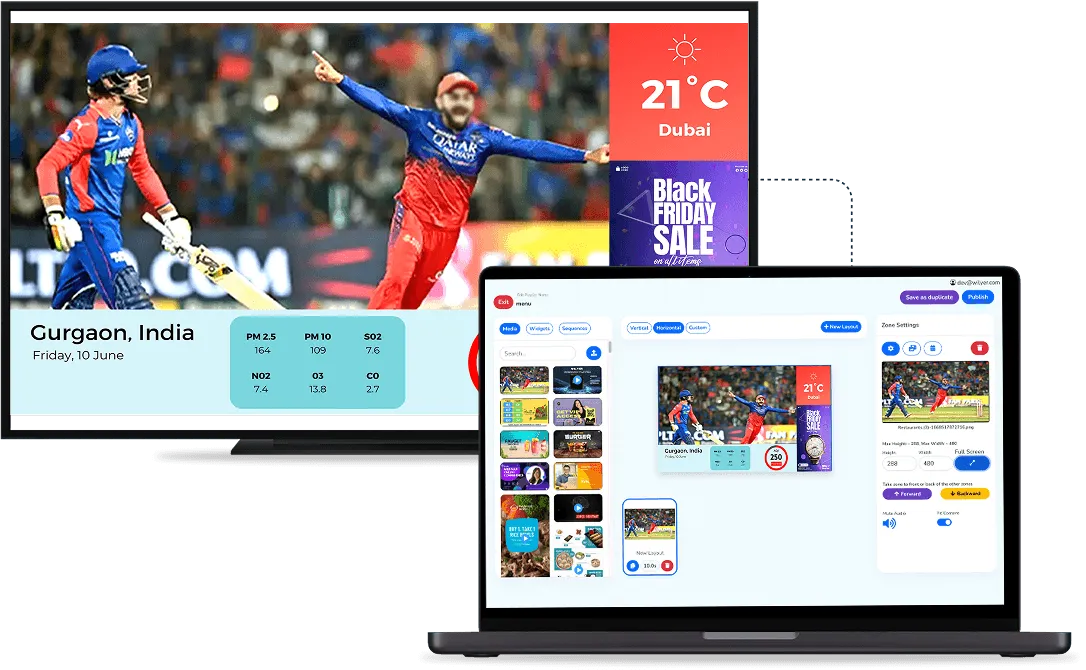
Yes, and this is often the bigger branding win. The queue display and the digital signage run as one connected system, managed from the same dashboard, so part of the token screen can carry your own content beside the numbers: the menu and current offers in a restaurant, health notices in a clinic, or a scrolling notice with timings anywhere. The space around the numbers stops being empty and starts carrying your own message.

What Should You Check Before You Choose a Theme?
- Theme range: ask to see every theme, not one showcase example, and judge whether one of them suits your space.
- Readability: the numbers are the reason the screen exists, and a heavily styled board can be harder to read. Stand at the back of the room and check before you go live.
- Both screens: confirm the check-in screen and the token board carry the same theme, so the visitor sees one look from arrival to call.
- Every branch: if you run more than one site, check that the same theme can be used at each one, so the experience matches wherever people wait.
You can use displays you already own or buy new ones, so test the theme on the actual screen size you will hang. If your queue screens sit in a back office, branding is a small extra. In a customer-facing room where everything else carries your identity, an unbranded screen is the one thing that looks borrowed.
To see the themes on a real token board, look at our queue management system, or book a live demo and check them against your own reception.